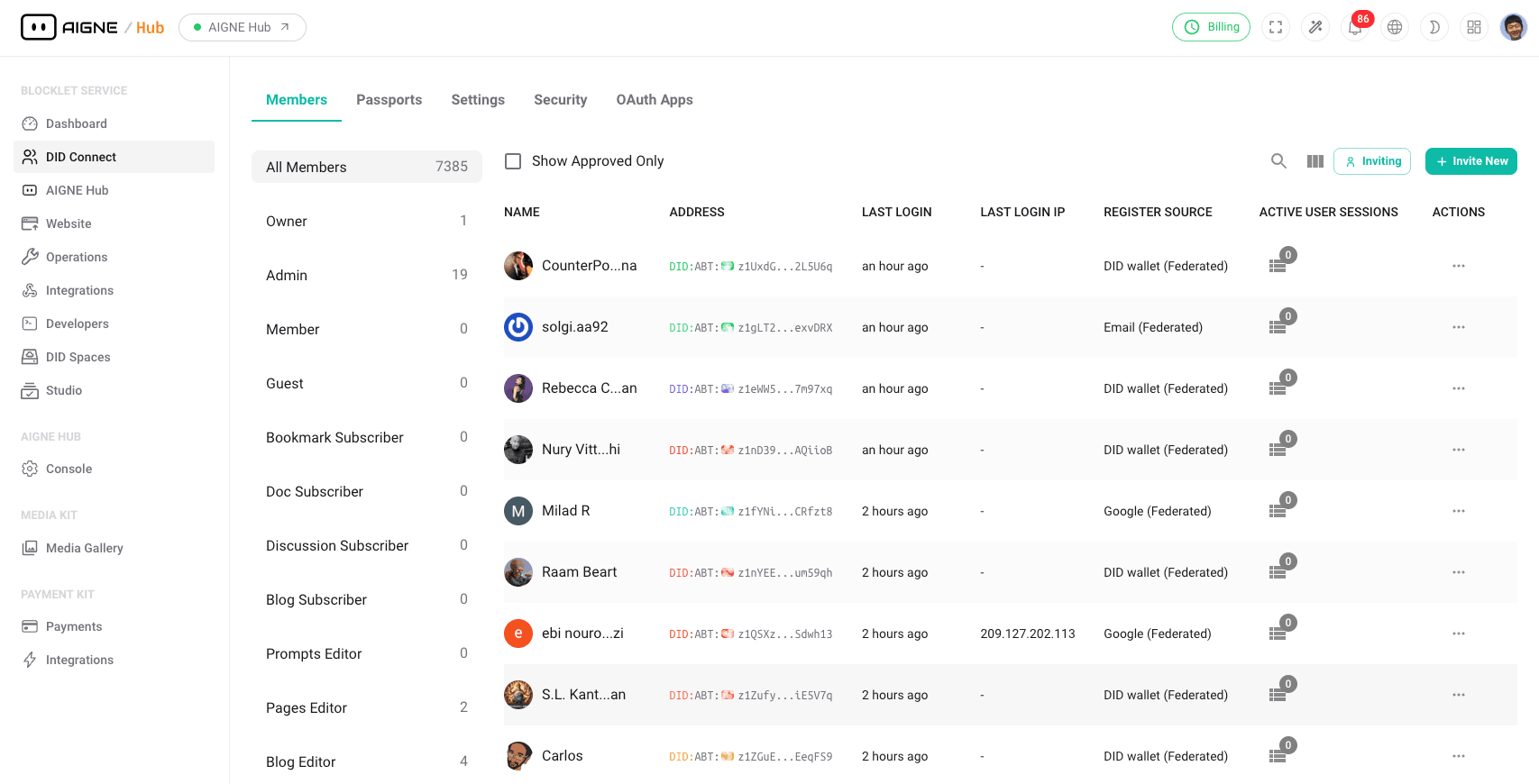
The Members section within DID Connect serves as the central administrative hub for user management. It provides a comprehensive interface for viewing, searching, and managing all user profiles and groups associated with your application. Additionally, it contains the tools necessary to invite new members, facilitating the expansion of your user base.
User and Group Management#
This area provides a detailed overview of all registered users, allowing for efficient administration and organization.
Member List#
The main view is a comprehensive table that lists all members, providing key information at a glance. The table is sortable and searchable, enabling administrators to quickly locate specific users. The columns typically include:
- Type: The role or status of the member within the application (e.g., Owner, Admin, Guest).
- Name: The full name of the user.
- DID: The user's Decentralized Identifier (DID) address.
- Last Login: The timestamp of the user's most recent login activity.
- Source: The method used for registration or the last login, such as a DID Wallet, Google, or another OAuth provider.
User Profiles#
By selecting a member from the list, administrators can access their detailed profile page. This page contains comprehensive information about the user, including their registration details, assigned passports, and activity history.
Managing Roles#
The "Type" column indicates the user's role. Administrators can manage these roles, assigning different levels of permissions and access rights to various users or groups, ensuring proper governance and security within the application.
Inviting New Members#
Administrators can invite new users to join the application directly from this interface. The invitation system is designed to be straightforward and secure.
Invitation Process#
- Initiate Invitation: The administrator starts the process by selecting the "Invite" option.
- Enter Details: The administrator provides the necessary details for the invitee, typically an email address.
- Send Invitation: The system sends a secure invitation link or code to the prospective user.
- User Registration: The user clicks the link, completes the registration process, and is added to the member list with a pre-assigned role if specified during the invitation.
This streamlined process simplifies onboarding new users while maintaining administrative control over who can join the application.
Summary#
The Members section is an essential tool for administrators, providing all the necessary functions for effective user lifecycle management. From here, you can monitor user activity, organize users into groups, and control the growth of your user community. For more on user identity and access, refer to the Passports and Settings sections.