Branding
The Branding section allows administrators to customize the application's visual identity to align with their brand. Proper branding ensures a consistent and professional user experience across the application. This includes setting the application's name, description, logos, and the metadata used when sharing links on social media.
This guide provides a step-by-step process for configuring your application's branding settings.
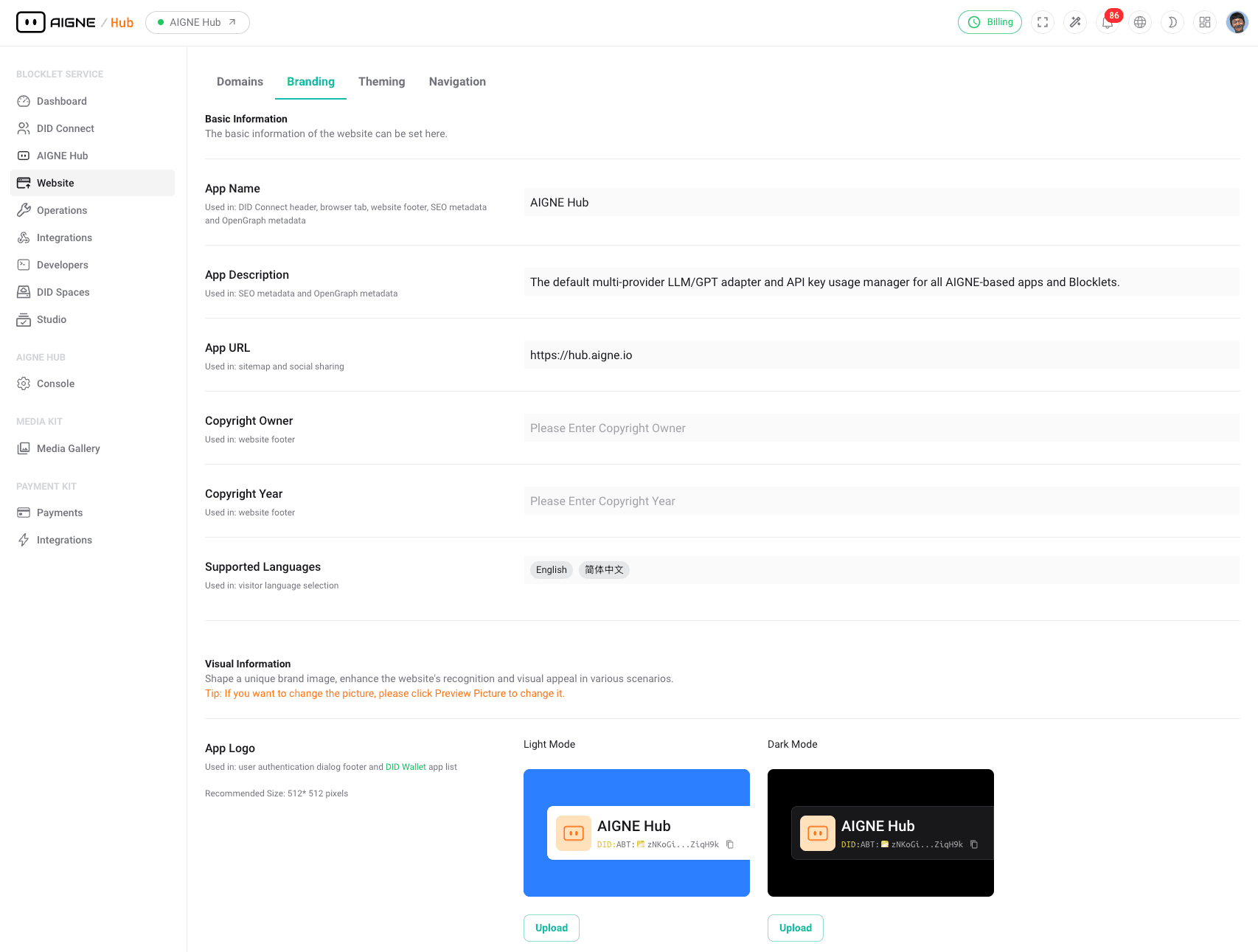
Basic Information#
This area is for defining the core identity of your application.
The official name of your application, displayed in the browser tab, title bars, and throughout the user interface.
A brief summary of your application's purpose. This description is often used by search engines and may be displayed in search results.
The primary web address for your application.
The copyright notice, which typically includes the year and the name of the organization. This is usually displayed in the site's footer.
Configure the languages available to users. You can set a default language and add others to provide a localized experience for a global audience.
Logo Configuration#
Logos are a critical component of your brand's visual identity. You can upload different versions of your logo to ensure it looks great in various contexts.
- App Logo (Light Mode): Upload the version of your logo that is designed to be displayed on light or white backgrounds.
- App Logo (Dark Mode): Upload a version of your logo that is optimized for dark or black backgrounds. This ensures visibility and aesthetic consistency when users enable a dark theme.
The interface provides a preview for both light and dark modes, allowing you to see how the logo will appear before saving the changes.
OpenGraph Metadata#
OpenGraph is a protocol that enables any web page to become a rich object in a social graph. When a user shares a link from your application on platforms like Facebook, X (formerly Twitter), or LinkedIn, the platform uses OpenGraph metadata to display a preview card with a title, description, and image.
The title that will be displayed in the social media preview card. If left blank, the application's name is typically used as a fallback.
The description that will appear in the preview card. It should be a concise and compelling summary to encourage clicks.
Upload an image that will be displayed in the preview card. This image should be visually appealing and relevant to your brand or the content being shared.
Summary#
By carefully configuring these branding settings, you can create a polished and professional appearance for your application. This not only reinforces your brand identity but also improves user trust and provides a better experience when your application's links are shared across the web.