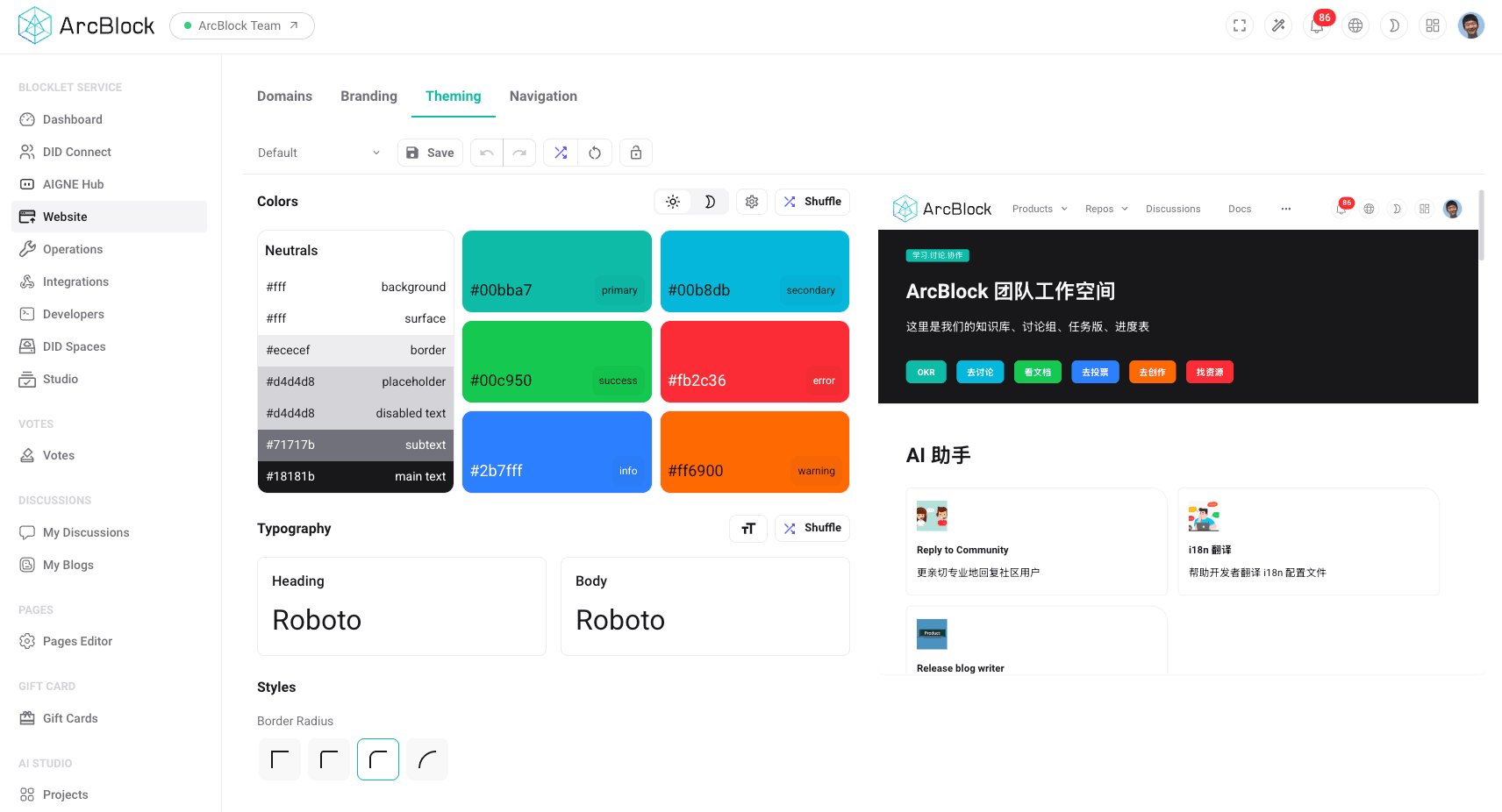
The Theming section provides administrators with granular control over the visual appearance of their website, ensuring a consistent and on-brand user experience. By adjusting typography, color schemes, and other stylistic elements, you can tailor the site's design to match your organization's identity precisely.
This guide will walk you through the various customization options available on the Theming page.
Color Palette#
A consistent color palette is fundamental to your website's design. The system allows you to define a comprehensive set of colors that will be applied globally across the user interface.
The color palette is organized into logical groups:
- Neutrals: A grayscale range from pure white to black, used for backgrounds, borders, and text.
- Semantic Colors: Colors that carry specific meanings to the user.
- Primary: The main brand color, used for primary buttons, links, and important interface elements.
- Secondary: An accent color used to complement the primary color.
- Success: Indicates a successful operation (e.g., a confirmation message).
- Warning: Alerts users to potential issues or actions that require caution.
- Error: Signals that an error has occurred.
- Info: Used for informational messages or alerts.
To customize a color, simply click on the color swatch and enter a valid hexadecimal (hex) color code (e.g., #007BFF).
Typography#
Typography settings control the appearance of all text on your website, ensuring readability and brand alignment. You can set distinct font families for different text elements.
- Headings Font: The font used for all heading levels (e.g., H1, H2, H3). This is typically a more stylized or bold font to create a visual hierarchy.
- Body Font: The font used for paragraphs, labels, and other general text content. This font should be optimized for readability.
Select your desired fonts from the dropdown menus provided.
Border Radius#
Border radius settings allow you to control the roundness of corners on various UI elements like buttons, cards, and input fields. This subtle detail can significantly impact the overall look and feel of your site, from sharp and modern (a small radius) to soft and friendly (a larger radius). You can select a predefined radius style that best fits your design aesthetic.
Live Preview#
To facilitate the design process, a real-time live preview pane is displayed on the right side of the settings panel. As you modify colors, fonts, or border radii, the preview pane instantly updates to reflect your changes. This allows you to experiment with different styles and see the immediate impact on your website's appearance before committing to and saving the changes.