OAuth Apps
OAuth Apps functionality allows your service to act as an OAuth 2.0 provider. This enables third-party applications to securely access user data through a standardized authorization process, without exposing the user's primary login credentials. As an administrator, you can register and manage these third-party applications, controlling which applications can connect to your service and what level of access they are granted.
This is commonly used for "Login with..." features, where users can use their accounts on your service to sign in to other applications.
How the OAuth Flow Works#
The OAuth 2.0 Authorization Code Grant is the primary flow used. It is a secure, multi-step process that ensures users explicitly consent to the access requested by a third-party application.
The process involves four main parties:
- Resource Owner: The end-user who owns the data.
- Client Application: The third-party application requesting access to the user's data.
- Authorization Server: Your Blocklet Service, which authenticates the user and obtains their consent.
- Resource Server: Your Blocklet Service, which hosts the user's data and provides it to the Client Application upon successful authorization.
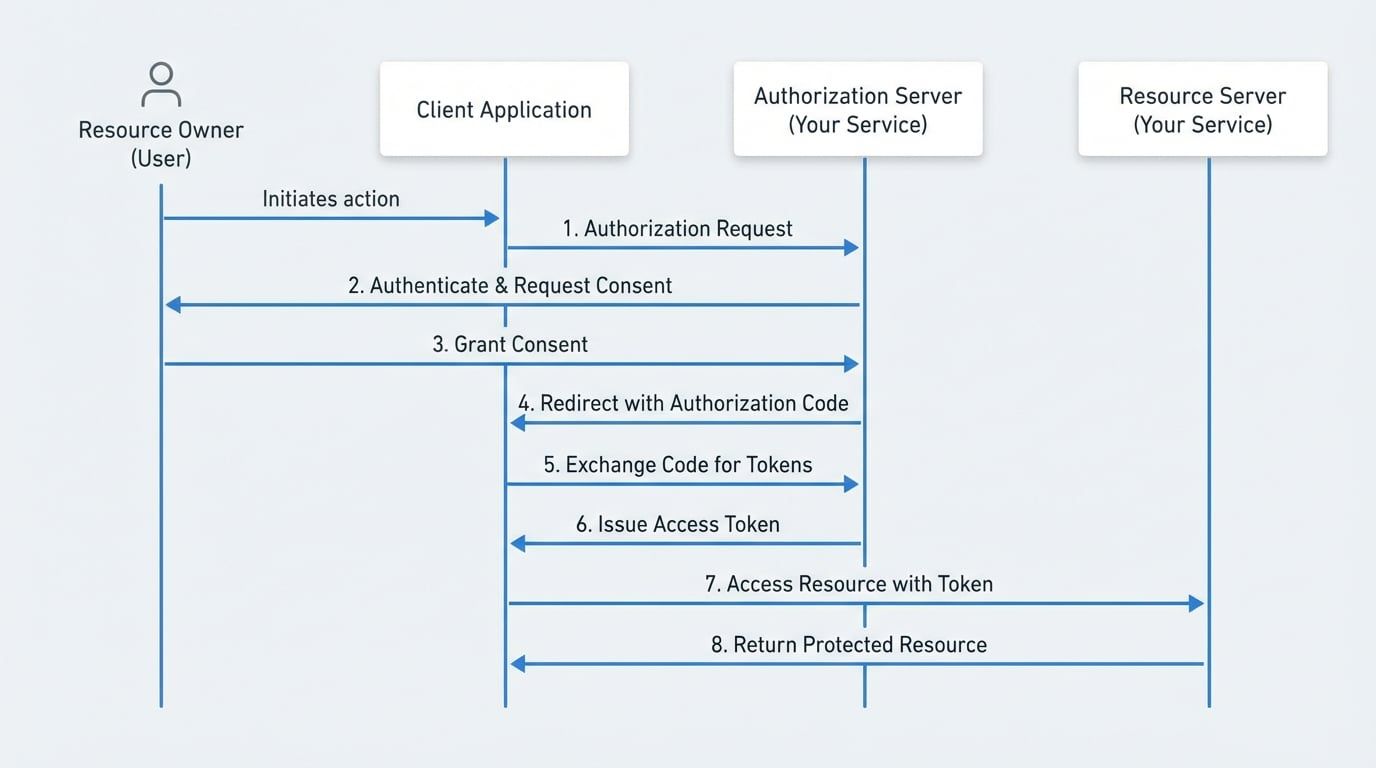
Here is a simplified step-by-step breakdown of the flow:
- Authorization Request: The user initiates an action in the Client Application (e.g., clicking "Login with My Service"). The Client Application redirects the user to your service's Authorization Server with a request for specific permissions (scopes).
- User Authentication & Consent: The Authorization Server authenticates the user (if not already logged in) and displays a consent screen detailing the permissions the Client Application is requesting.
- Granting Authorization Code: If the user approves the request, the Authorization Server redirects the user back to the Client Application, providing a single-use Authorization Code.
- Exchanging Code for Tokens: The Client Application sends the Authorization Code to the Authorization Server in a secure, back-channel request.
- Token Issuance: The Authorization Server validates the code and, if valid, issues an Access Token and an optional Refresh Token to the Client Application.
- Accessing Resources: The Client Application uses the Access Token to make API calls to the Resource Server to retrieve the user's data, limited to the scopes the user approved.
This flow ensures that the user's credentials are never shared directly with the third-party application.
Managing OAuth Applications#
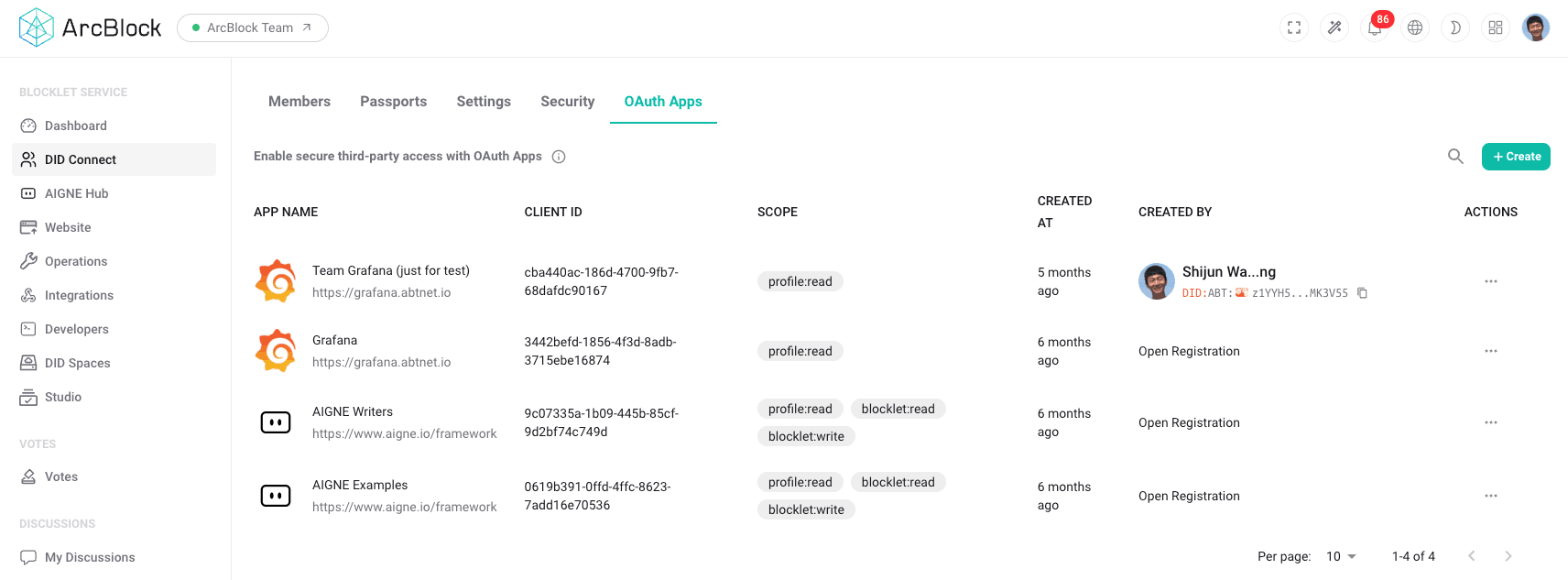
From the DID Connect dashboard, you can register new third-party applications and manage existing ones. This gives you full control over which external services can integrate with your user base.
Creating a New OAuth App#
To allow a new third-party application to use your service for authentication, you must first register it.
- Navigate to DID Connect > OAuth Apps.
- Click the Create button.
- Fill in the required application details:
- App Name: A user-friendly name for the application that will be displayed on the consent screen.
- Redirect URIs: A list of one or more URLs where the user will be redirected after they authorize the application. This is a critical security measure to prevent authorization codes from being intercepted.
- Scopes: The specific permissions the application can request (e.g.,
profile:read). This defines what user data the application is allowed to access.
After creation, the system will generate a Client ID and a Client Secret. These credentials are used by the third-party application to identify itself to your service. The Client Secret should be stored securely by the application developer and never exposed in client-side code.
Viewing and Managing Existing Apps#
The OAuth Apps page displays a list of all registered applications. For each application, you can see:
- Name: The application's display name.
- Client ID: The unique public identifier for the application.
- Scopes: The permissions granted to the application.
- Created At: The date the application was registered.
- Created By: The user or process that registered the application.
From this list, you can select an application to view its full details, edit its configuration (e.g., add or remove Redirect URIs), or revoke its access by deleting it.
Summary#
The OAuth Apps feature transforms your Blocklet Service into a secure and centralized identity provider. By managing client applications and their permissions, you can enable a seamless and secure integration ecosystem, allowing users to connect their accounts to trusted third-party services without compromising their credentials. This enhances user convenience and extends the reach of your platform.