Navigation
The Navigation section provides administrators with the tools to configure and manage the navigation menus for the website. This includes creating, editing, and organizing menu items that appear in locations such as the site header and footer. A key feature is the live preview, which allows for real-time testing of any changes before they are published to the live site.
Key Features#
- Menu Configuration: Add, edit, reorder, and delete navigation links.
- Live Preview: Instantly visualize changes to the navigation structure as you make them.
- Support for Multiple Menus: Manage different navigation areas, such as main navigation and footer social links, independently.
Configuring Navigation Menus#
The navigation management interface is designed for clarity and ease of use. Administrators can modify the structure and content of various menus directly from the dashboard.
The process for configuring a navigation menu is as follows:
- Navigate to the Section: Access the navigation settings by selecting Website > Navigation from the main dashboard menu.
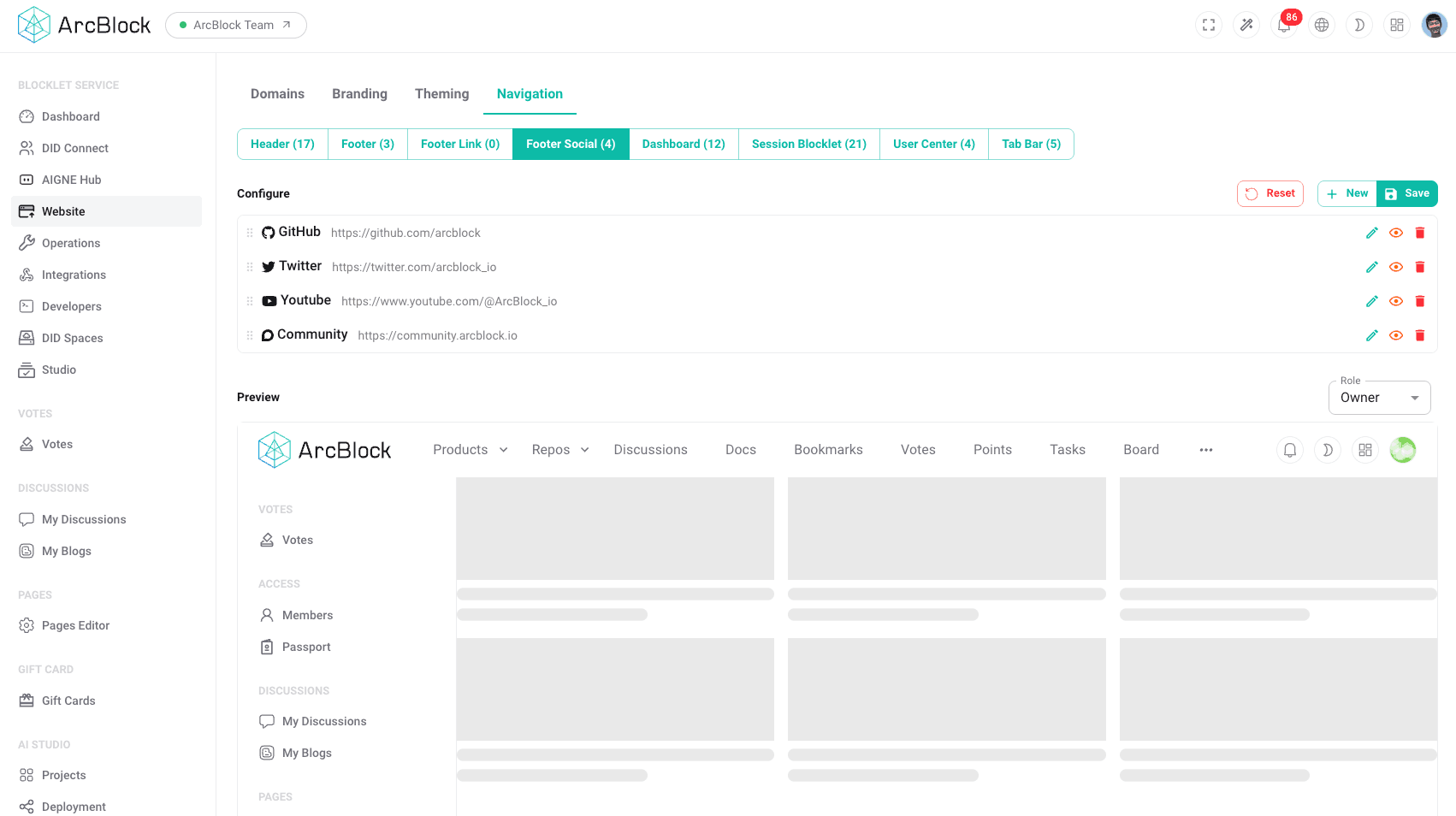
- Select a Menu: Choose the specific menu you wish to edit from the available options (e.g., "Footer Social").
- Modify Menu Items:
- To Add a New Link: Click the "Add" or "Create" button to open a form for a new menu item. You will typically need to provide a label (the text that is displayed) and a URL (the destination link).
- To Edit an Existing Link: Select the item you wish to change. The editing interface will allow you to modify its label, URL, or other properties.
- To Reorder Links: Use drag-and-drop functionality or reordering arrows to change the position of a menu item.
- Preview Changes: As you make modifications, the live preview pane, located alongside the configuration options, will update in real-time to reflect the new structure. This allows for immediate visual confirmation of your changes.
- Save Configuration: Once you are satisfied with the changes as shown in the preview, click the "Save Changes" button to apply them to your website.
The following image shows the configuration interface for the "Footer Social" menu, where an administrator can manage links to social media platforms.
Navigation Configuration Workflow#
The diagram below illustrates the standard workflow for updating a website navigation menu, from accessing the settings to publishing the final changes. This process ensures that modifications can be reviewed for accuracy before going live.
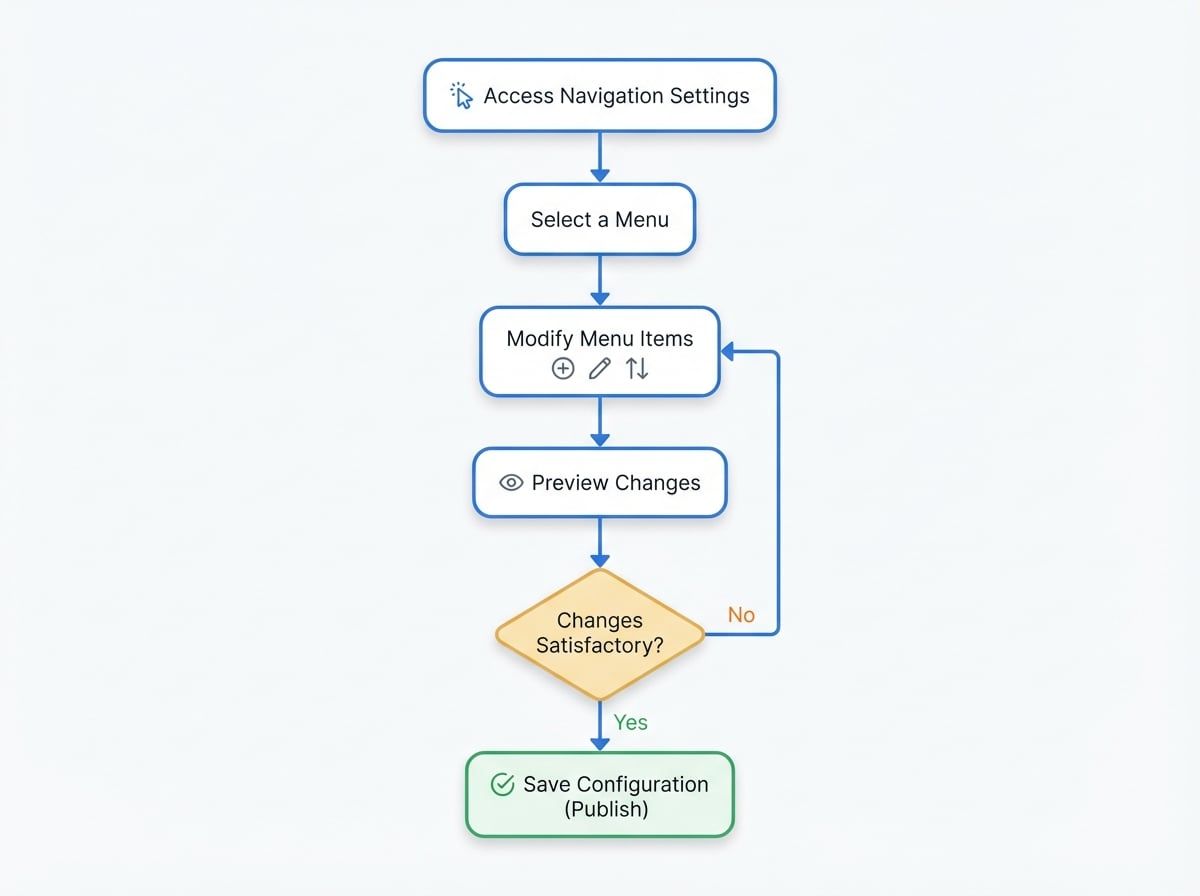
This diagram shows a standard workflow for updating a website navigation menu. It starts with accessing the navigation settings, followed by selecting and modifying a menu. The user then reviews these changes in a live preview. If the changes are satisfactory, they are saved and published; otherwise, the user can return to modify the menu items until they are correct. This iterative process ensures that all changes are verified before going live.