Backups
The Backups feature, integrated with DID Spaces, provides a robust solution for safeguarding your application's data. It allows administrators to establish and manage a comprehensive data protection strategy, ensuring that critical information can be recovered in case of data loss. This section details how to configure automated backup schedules, view the history of all backup activities, and restore your service to a previous state from a selected backup file.
Key Features#
The backup management interface is designed to be straightforward and efficient, offering several key functionalities:
- DID Spaces Integration: Before initiating any backup, you must connect to a DID Space. This decentralized storage solution serves as the secure, remote location for all your backup archives.
- Automated Backups: Configure a "fire and forget" backup strategy by enabling the auto-backup feature. The system will automatically perform backups according to a predefined schedule, ensuring consistent data protection without manual intervention.
- Backup History: A detailed log of all backup attempts is maintained and displayed in a clear, tabular format. This allows administrators to quickly verify the status of each backup, including start and end times, and confirm whether it succeeded.
- Backup Restoration: In the event of data corruption or accidental deletion, you can easily restore your application to a stable state. The interface allows you to select a specific backup from the history and initiate the restoration process.
Managing Backups#
The main dashboard for managing backups provides a centralized view of all related activities.
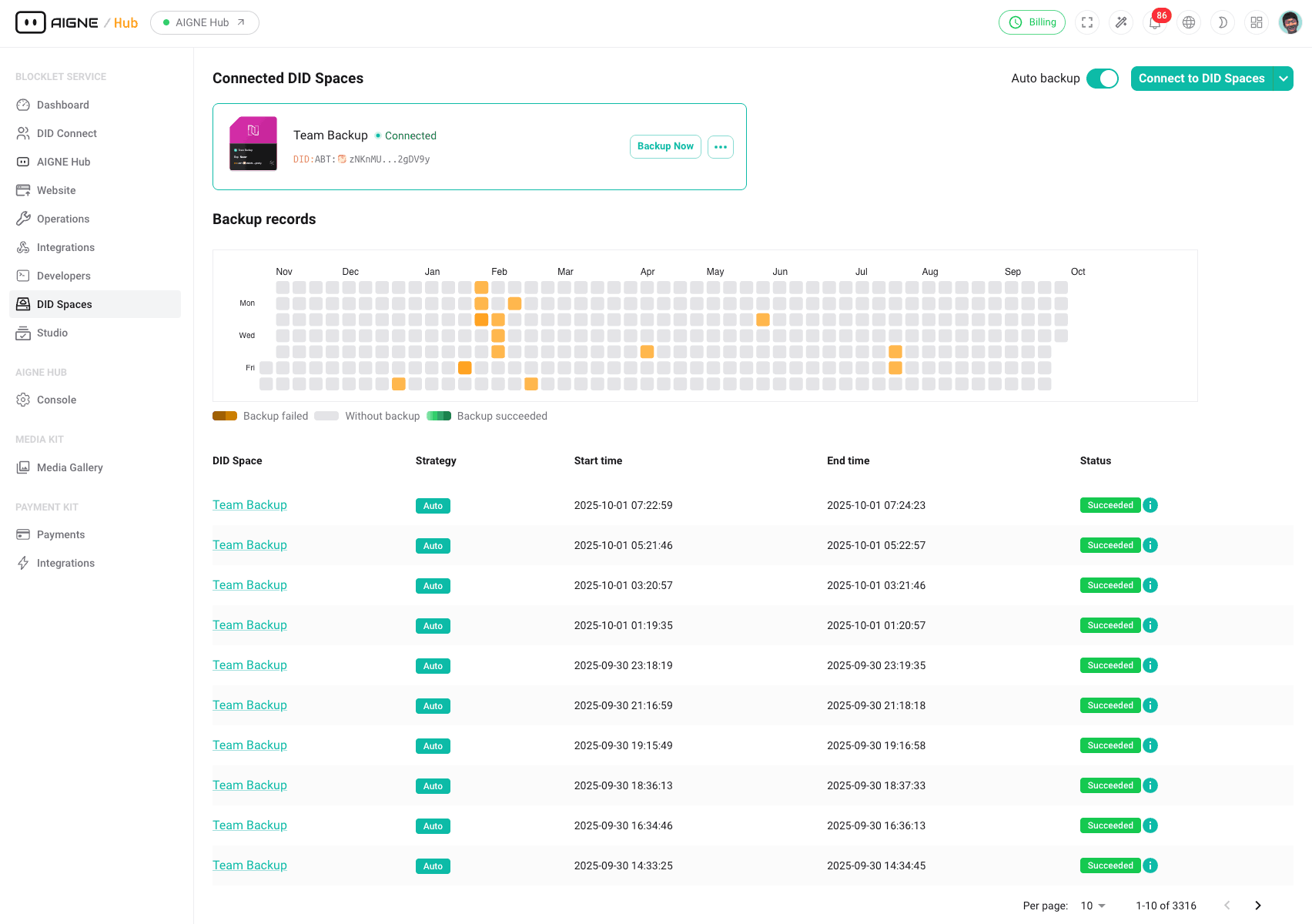
As shown in the interface:
- Connection Status: The top section displays the currently connected DID Spaces, confirming where your backups are being stored.
- Auto Backup Toggle: A simple toggle switch allows you to enable or disable the automated backup strategy for your service.
- Activity Heatmap: A calendar-style heatmap offers a visual representation of your backup frequency and consistency over the past several months. Days with successful backups are color-coded, making it easy to spot any gaps in your backup schedule.
- Backup Records: The table at the bottom lists each individual backup record. Key details such as the destination DID Space, backup strategy (e.g., automated, manual), start and end times, and final status (
Succeeded,Failed) are clearly presented for quick review and action.
Backup and Restore Process#
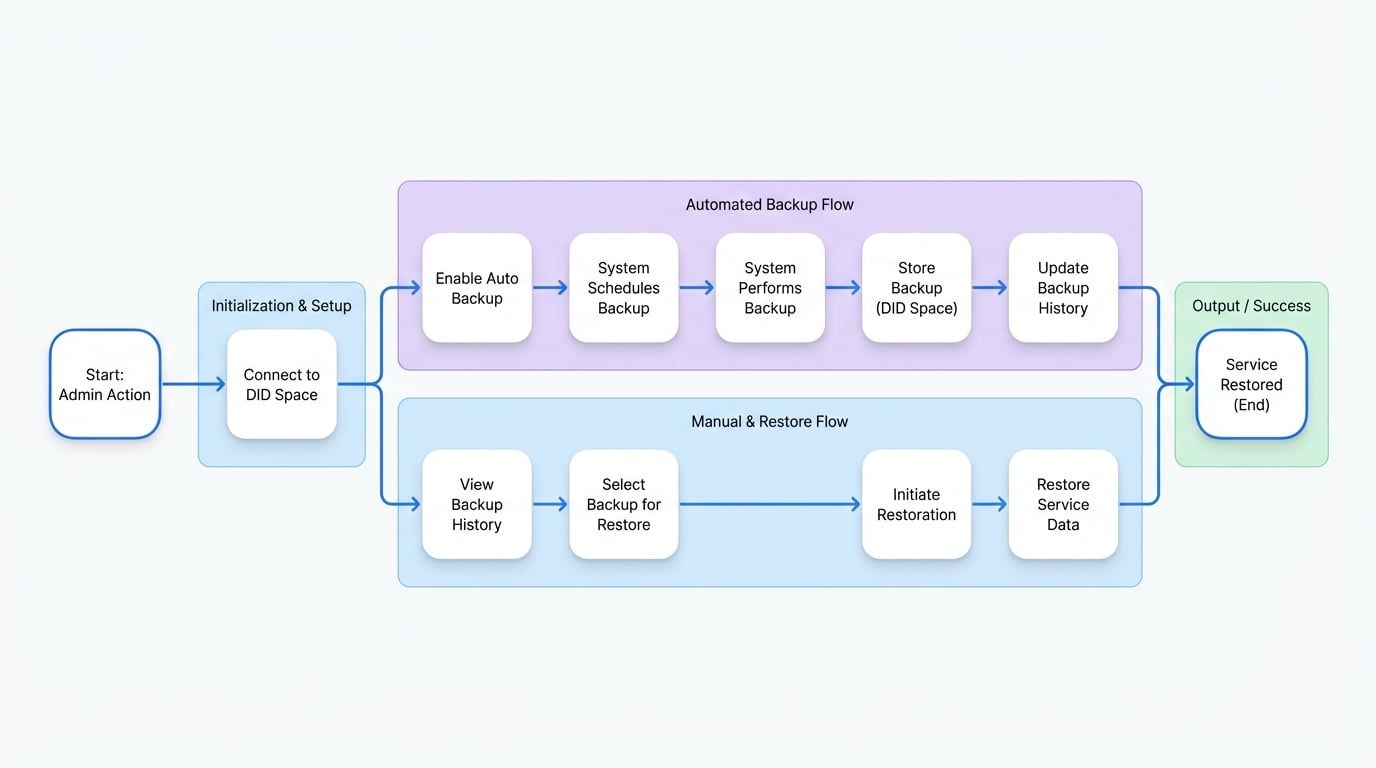
The process involves securely packaging your application data, transferring it to your DID Space for storage, and retrieving it when a restore operation is needed. This ensures that your data is always available for recovery. The following diagram illustrates this process:
Summary#
Regularly backing up your Blocklet Service is a critical administrative task for data protection and disaster recovery. The Backups feature simplifies this process by integrating with decentralized DID Spaces, offering both automated and manual control over creating and restoring data. By leveraging this tool, administrators can ensure the integrity and availability of their service.