Setting Up the Blocklet Server
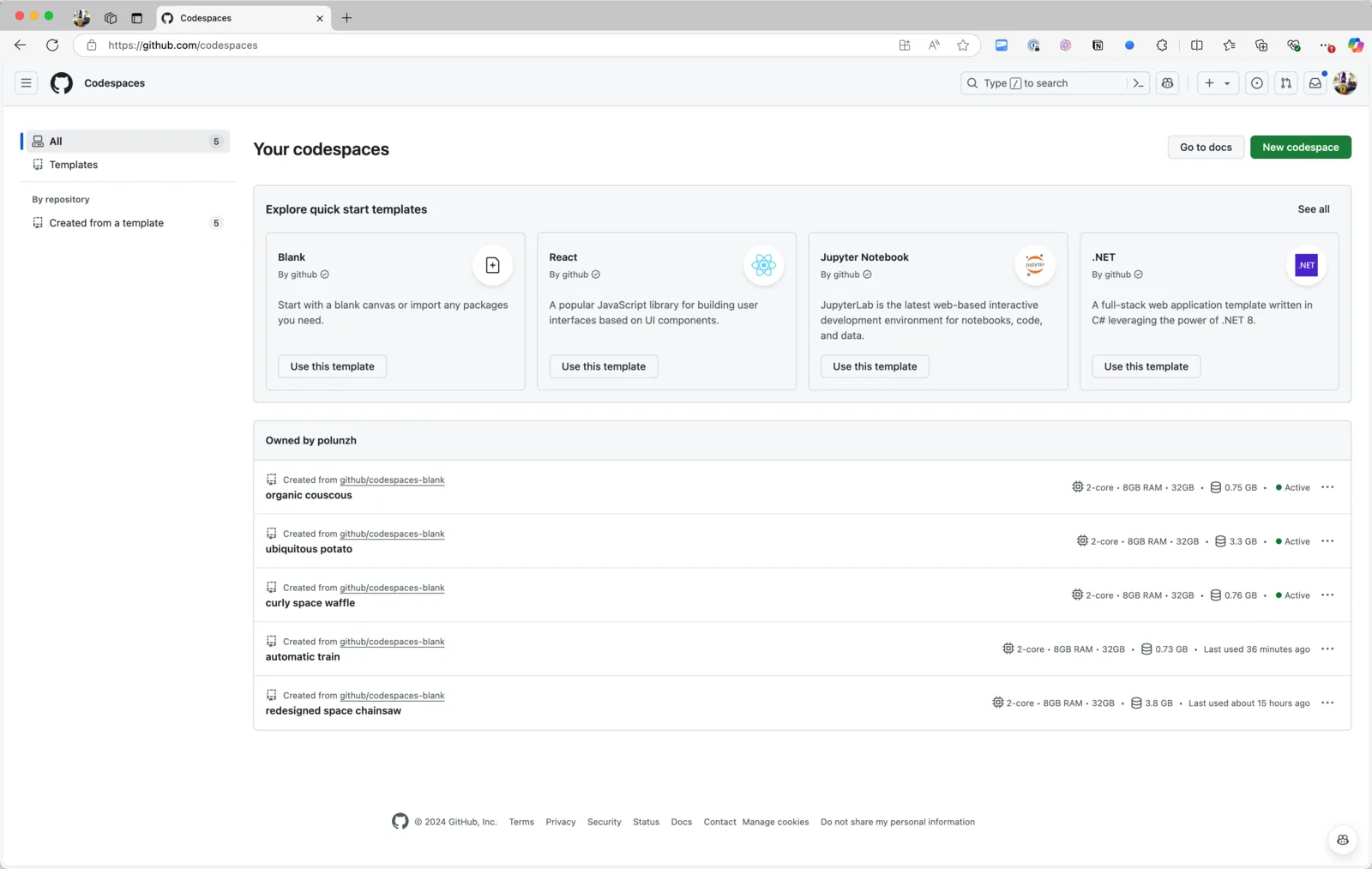
1. Create a codespace
It is recommended to choose a blank template:
Install @blocklet/cli
After creating codespace, execute the command in the terminal:
npm install -g @blocklet/cli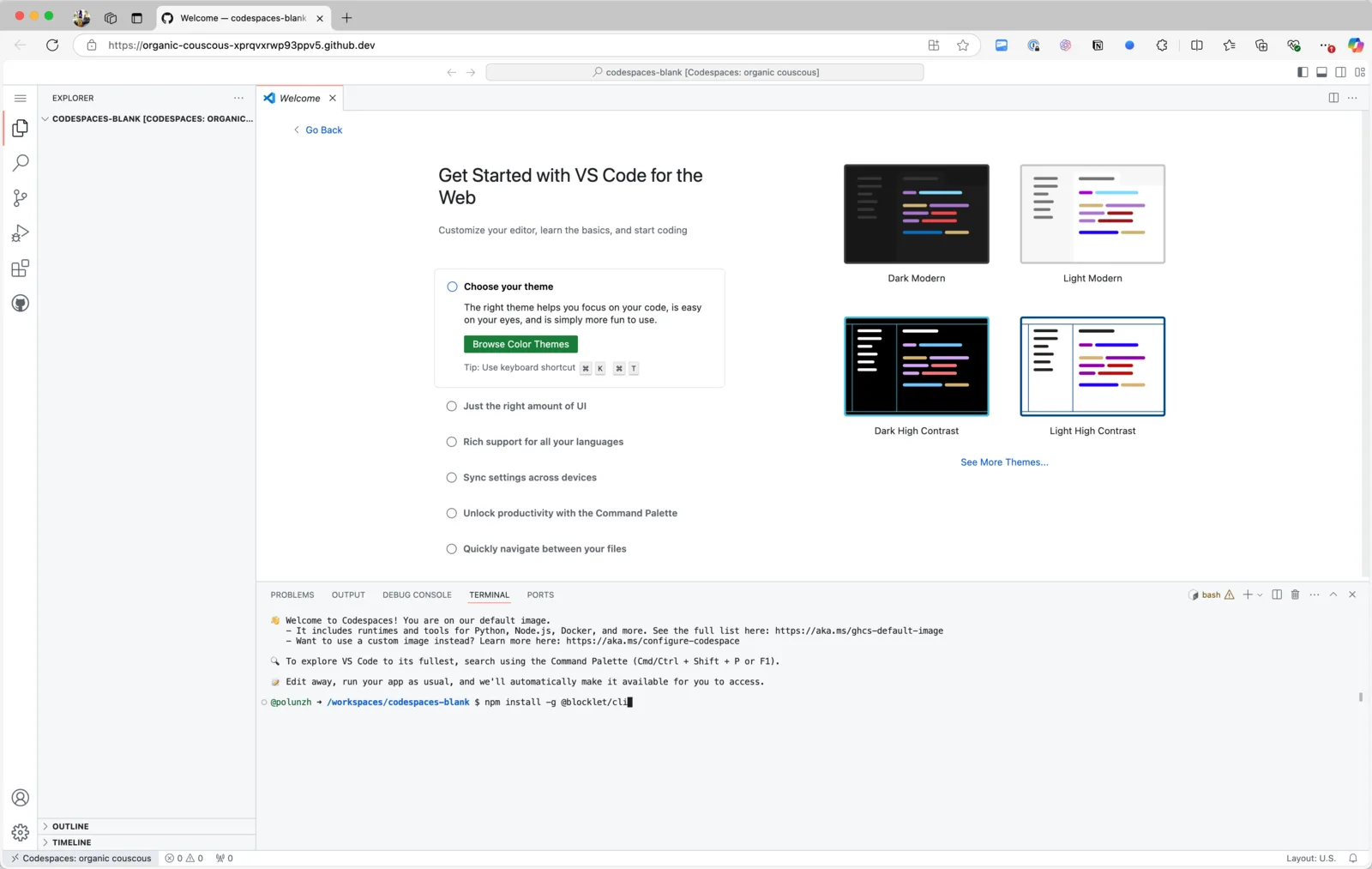
3. Create and Start Blocklet Server
Continue executing commands in the terminal:
$ mkdir ~/server # Create Blocklet Server Data Directory
$ cd server    # Enter the data directory
$ blocklet server start -a # Create and start a Blocklet Server instance
After Blocklet Server is launched, it will print the URL of the Dashboard in the terminal. The URL is related to the current Space name and port, with the default port being 8443, so the format of the address is as follows:
https://{Space Name}-8443.app.github.dev/.well-known/server/admin/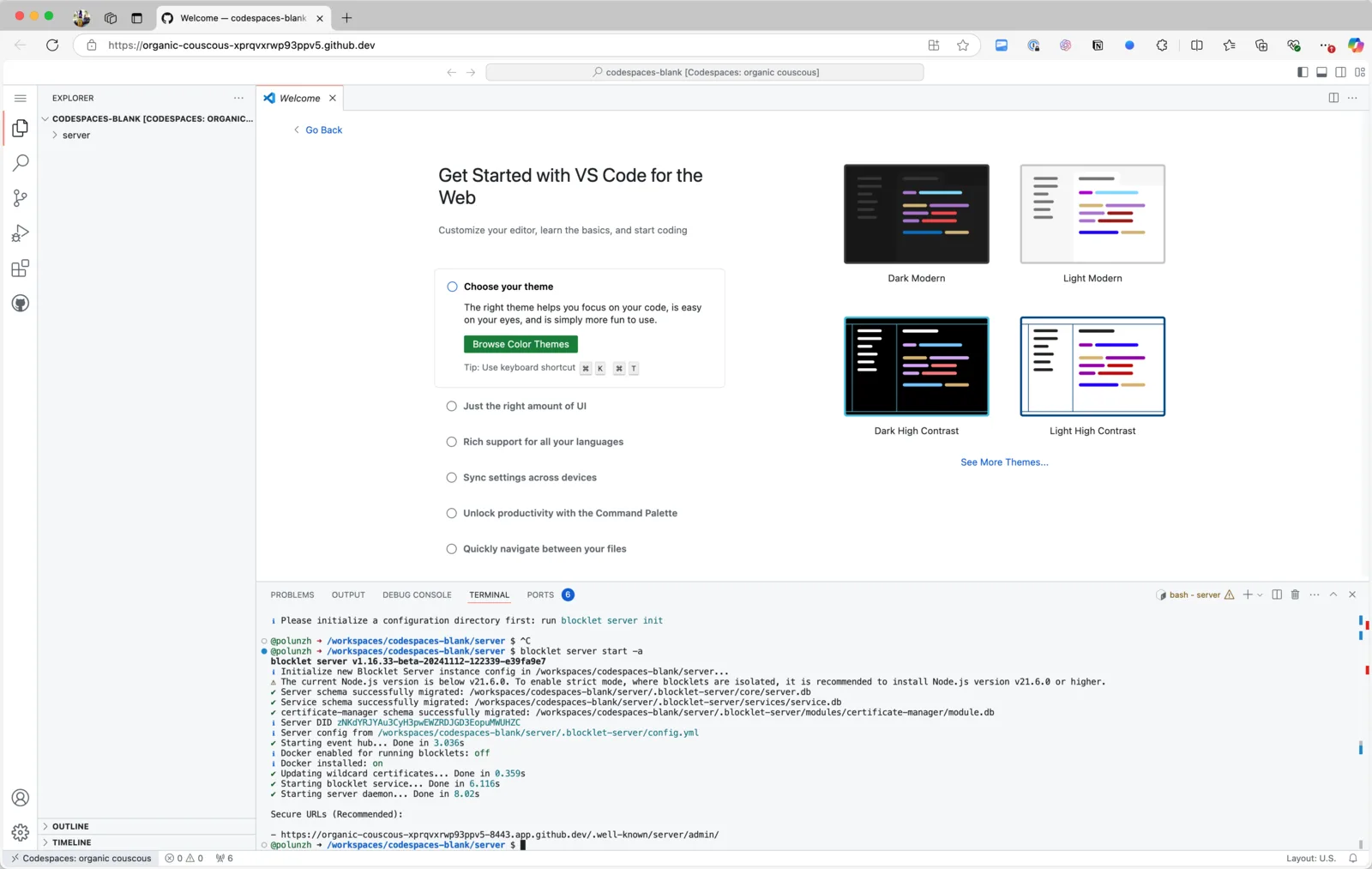
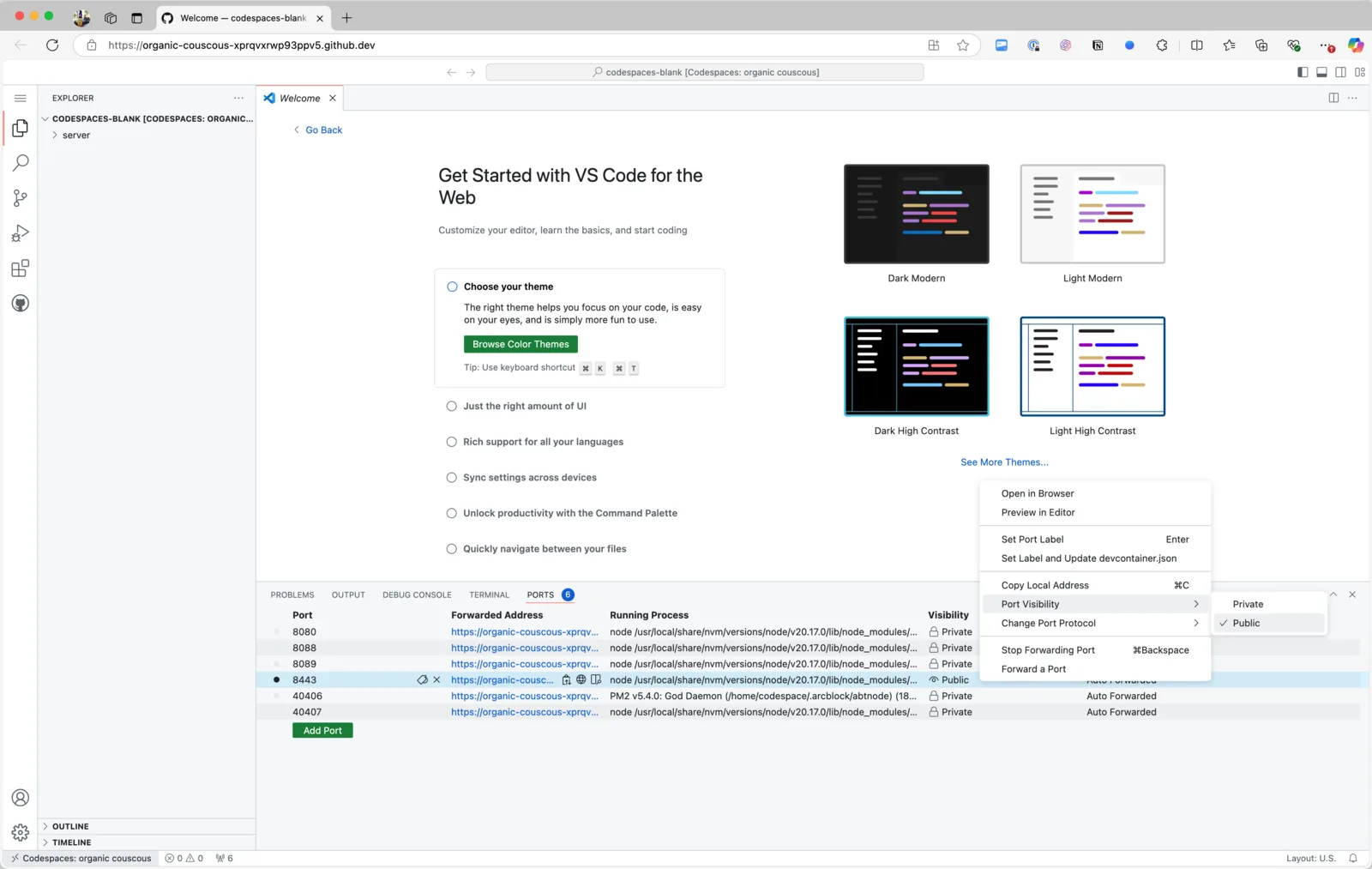
Set port 8443 to Public
After the Blocklet Server is launched, it will occupy certain ports; it is important to understand which ports are used by the Blocklet Server.
In GitHub Codespaces, the Blocklet Server runs on the following port by default:
- HTTPS: 8443 (recommended)
- HTTP: 8080 (not recommended)
It is recommended to configure port 8443 for public access; otherwise, access will require GitHub authorization checks, which are likely to encounter permission issues.
Accessing the Blocklet Server Dashboard
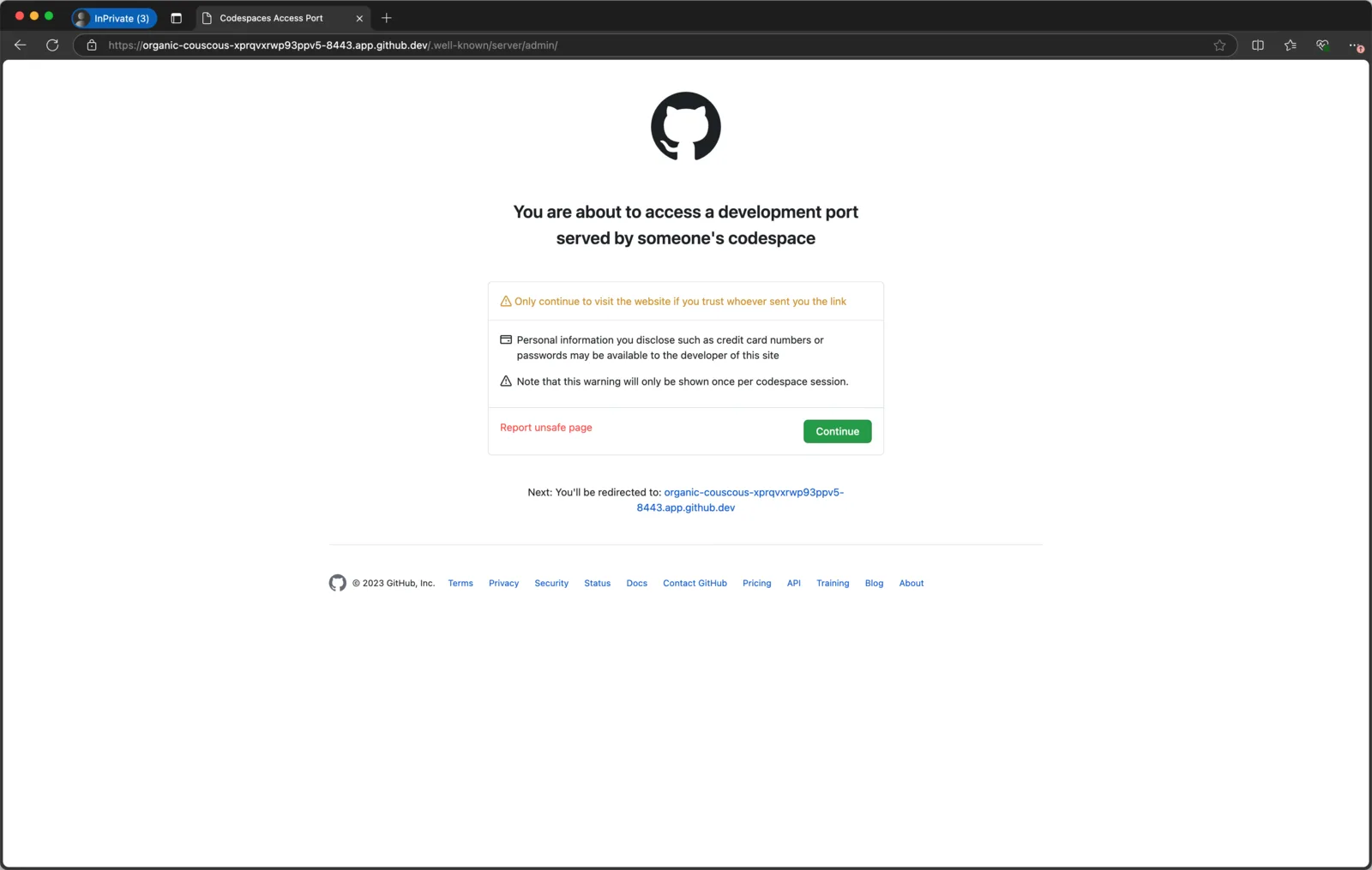
When accessing in an unlogged GitHub state, a security prompt will appear. After confirming there are no issues, select "Continue" to open the Blocklet Server Dashboard.
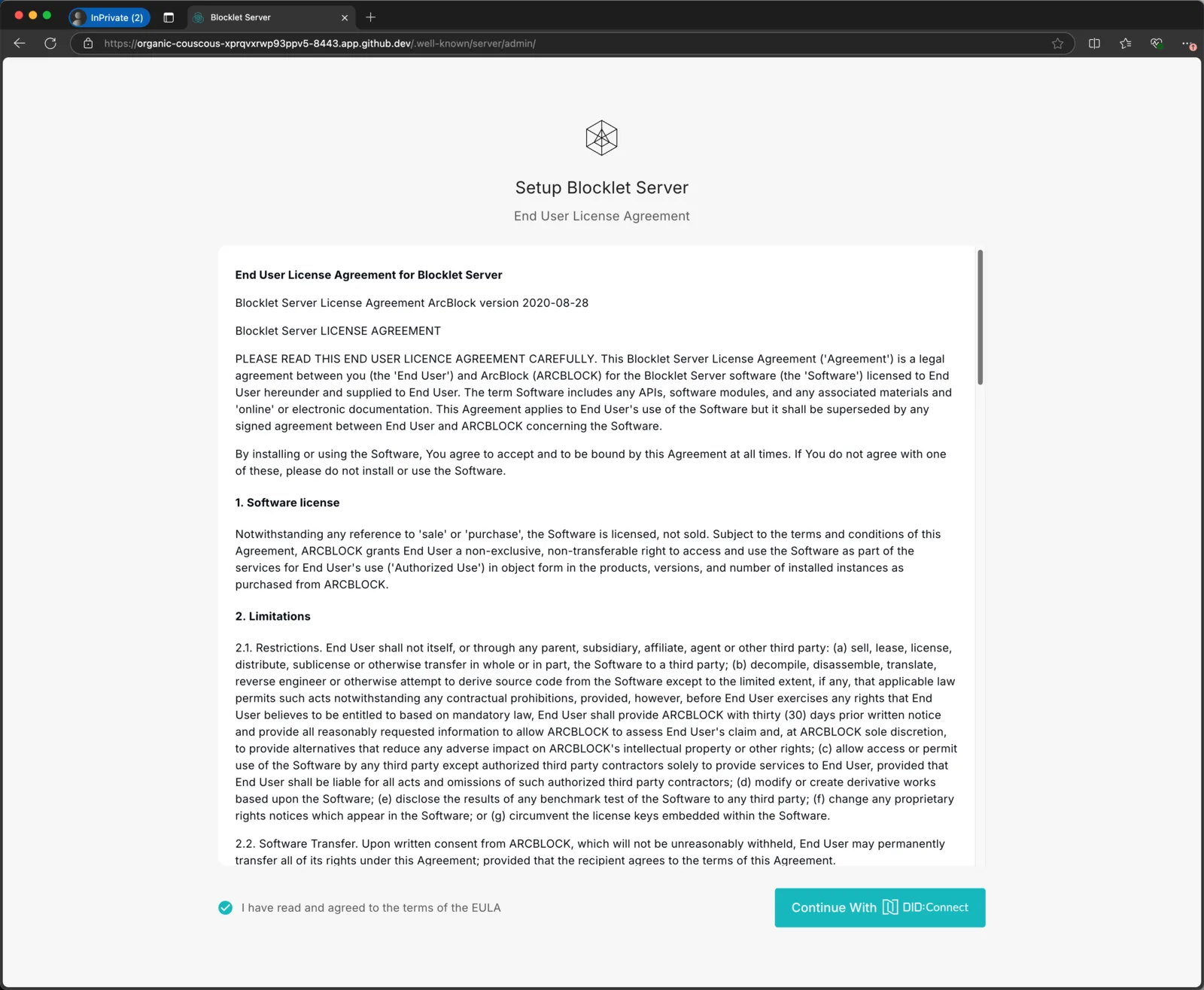
Finally, use DID Wallet to become the Owner of the node.
Developing Blocklet
Blocklet development is not significantly different from other environments, and you can refer to Create Blocklet for Blocklet development.
Troubleshooting
404 Not Found
If not used for an extended period, the Space may be stopped. You can check whether it has been stopped; if so, reopen the Space and start the Blocklet Server and the Blocklet.
Executing blocklet dev does not lead to the expected Blocklet application link
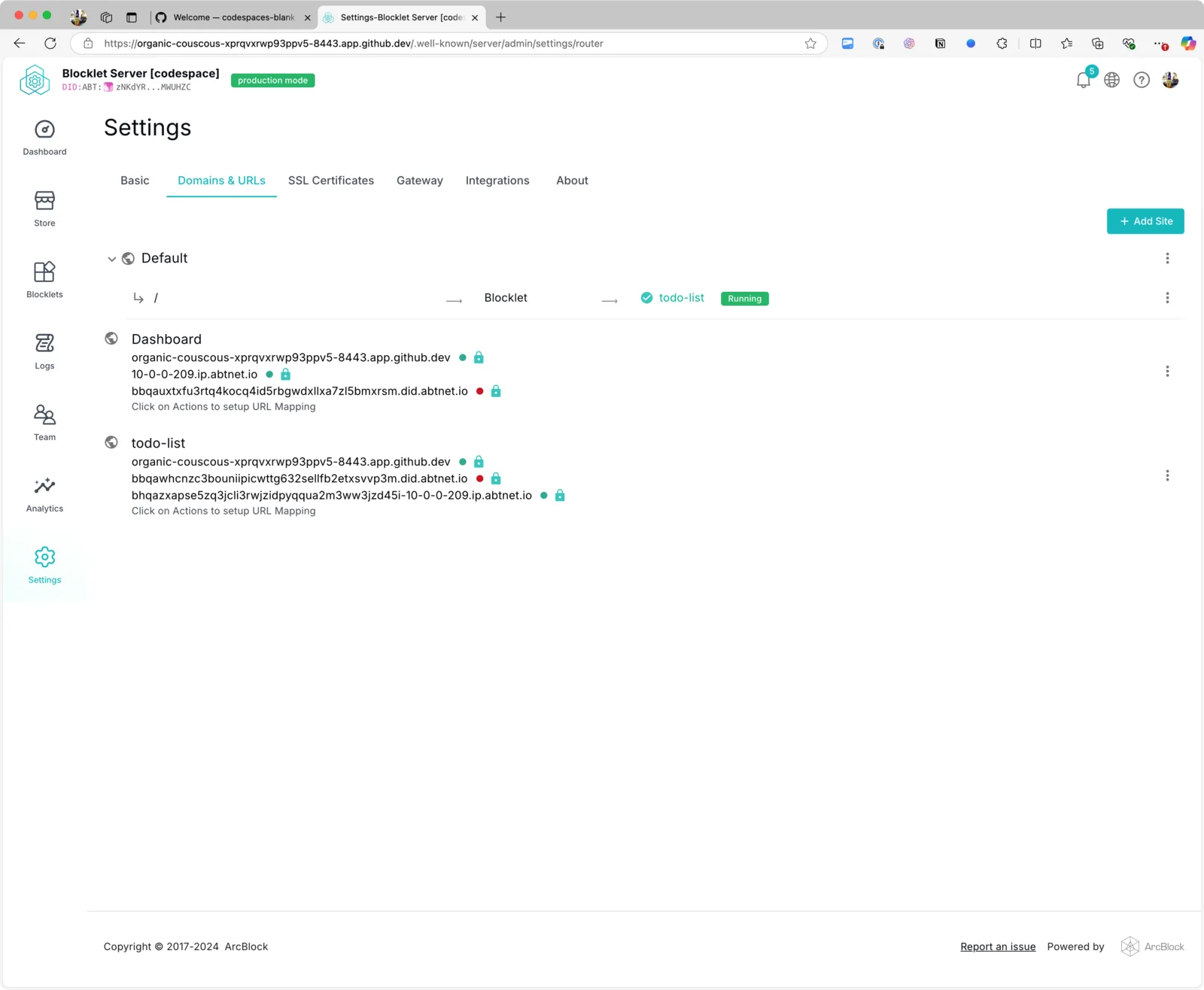
The cause of this situation may be that the Blocklet routing has not been mounted correctly. You can verify whether the Blocklet has been mounted under the default site in the routing section of the Blocklet Server Dashboard.
Each time GitHub Codespaces or the Blocklet Server port is started, the default setting will change to Private.
If you encounter issues accessing port 8443, you can check on GitHub to see if the port has been set to Public.
Feedback
If you encounter any issues that cannot be resolved during the process, feel free to visit our official community to report them.