Prerequisites
Before publishing a Blocklet, you need to become a developer of the Blocklet Store. Please refer to:
Publishing a Blocklet
When we create a Blocklet, it is by default published to the connected Blocklet Store. If we want to publish to multiple different Blocklet Stores, we can associate multiple Blocklet Stores for publishing.
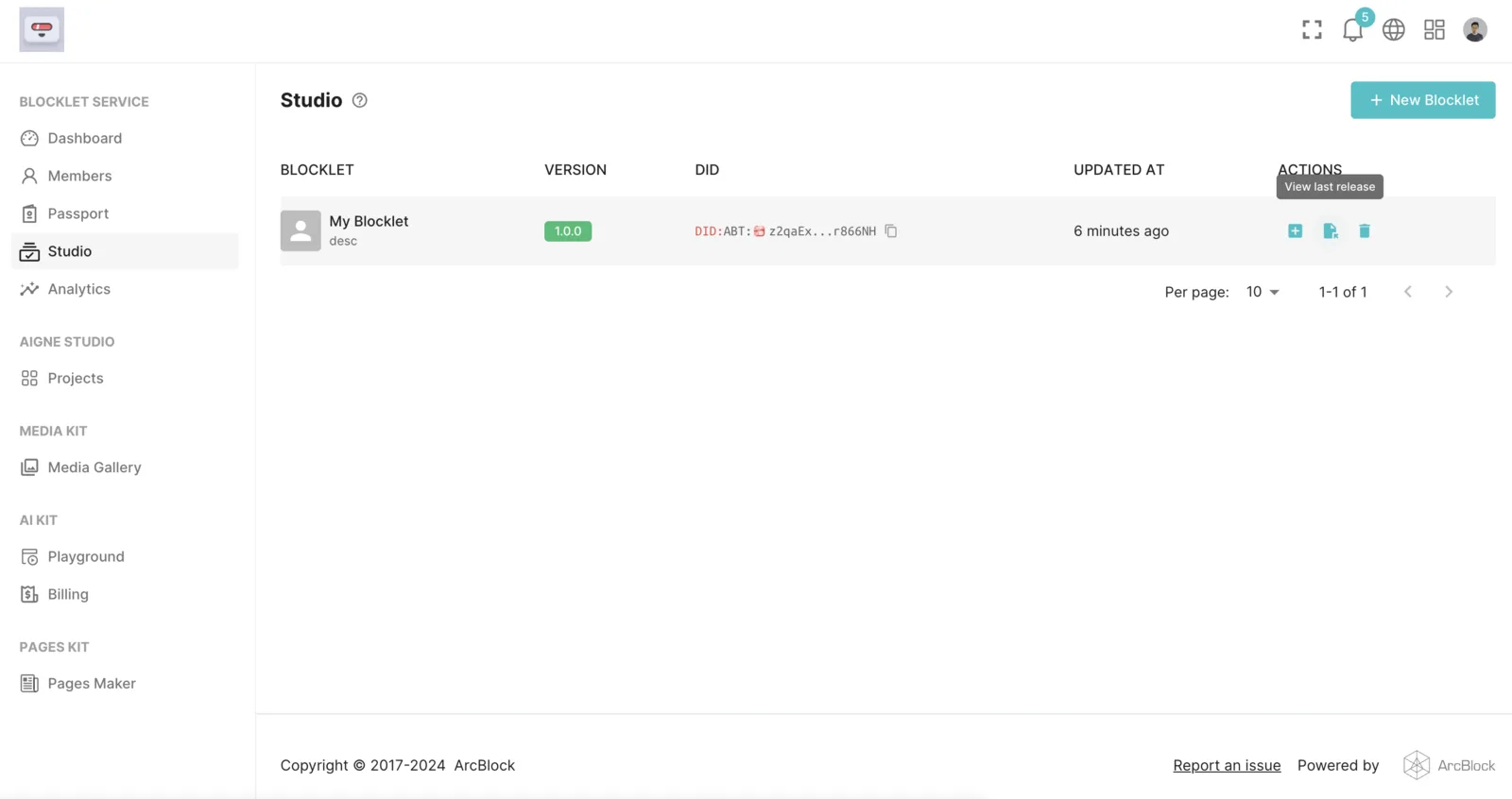
Open Blocklet Studio, select the Blocklet you've created, and click on "View Latest Version Details":
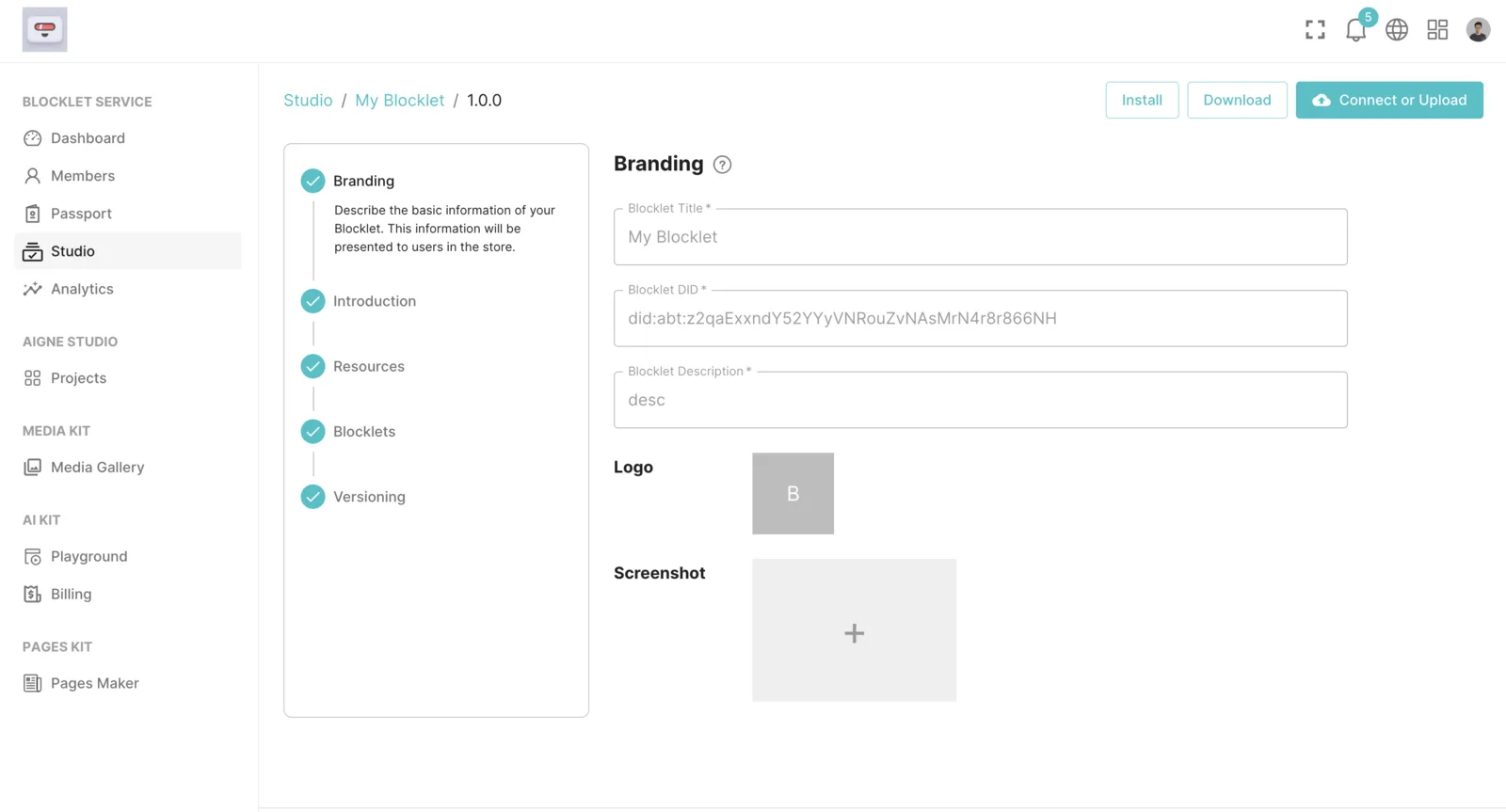
On the details page, click on "Connect or Upload":
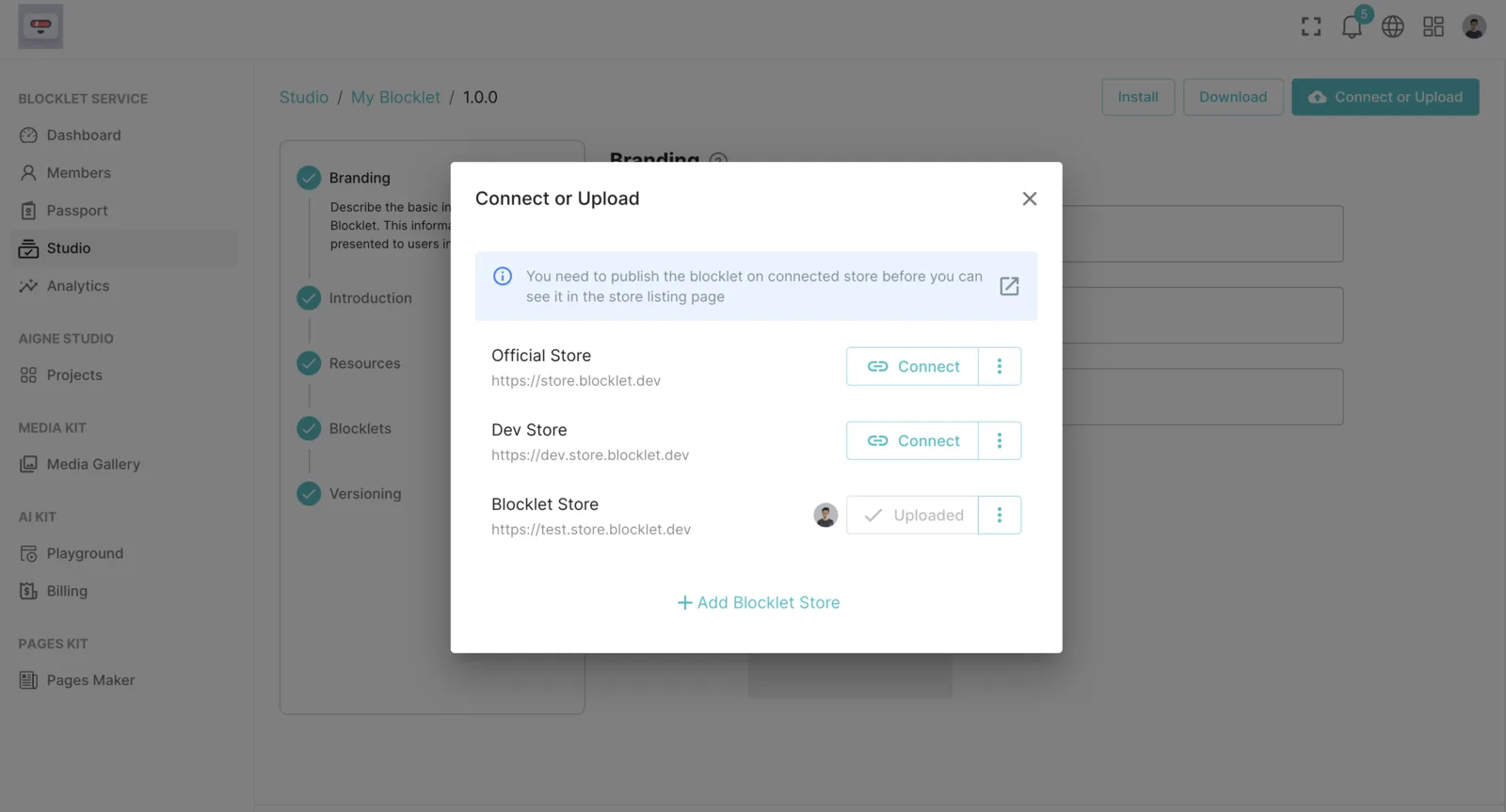
We can associate with the official Blocklet Store. If we want to associate with a non-official Blocklet Store, we can click on "Add Blocklet Store":
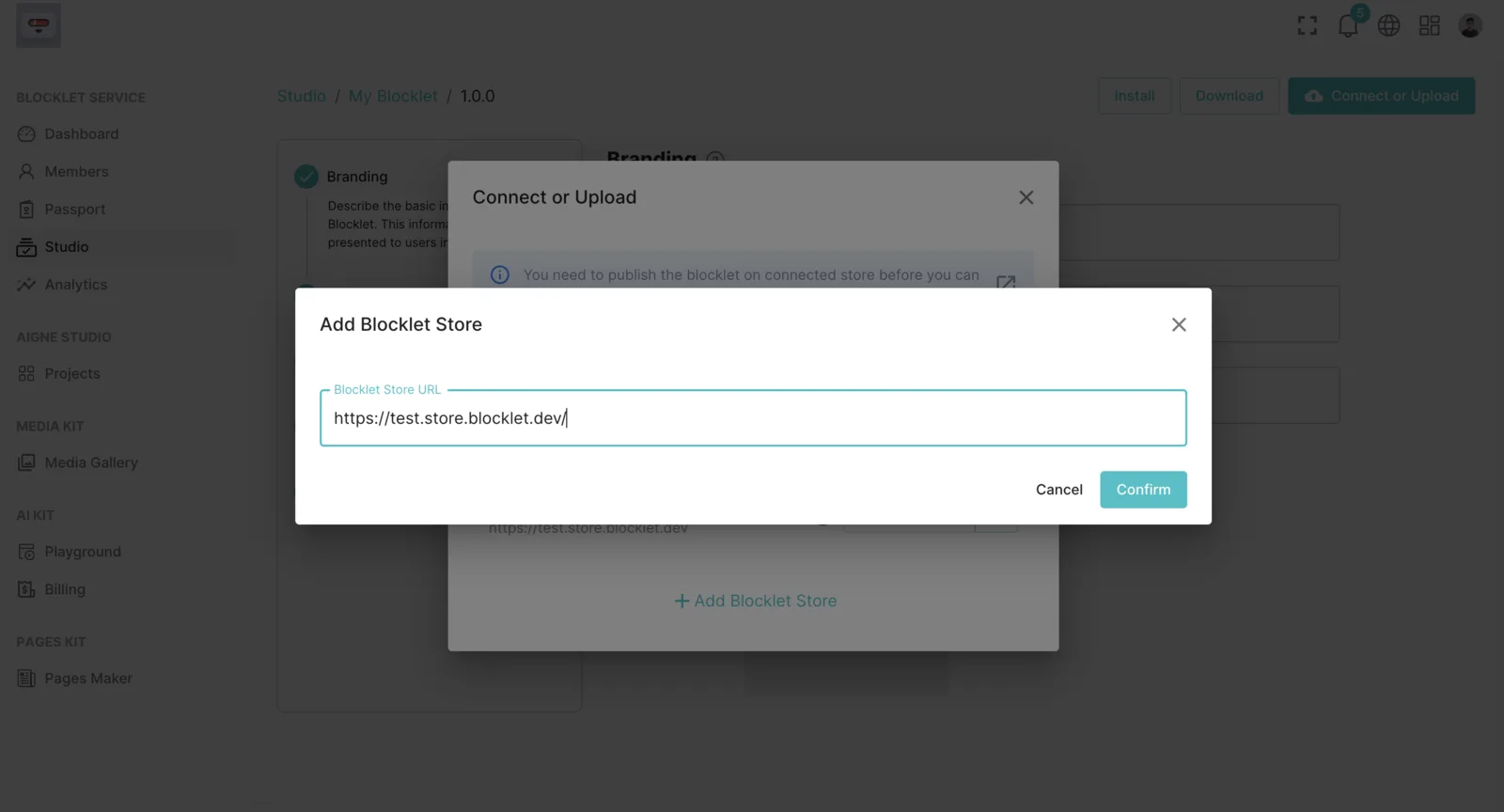
Enter a Blocklet Store address:
Choose a Blocklet Store for association:
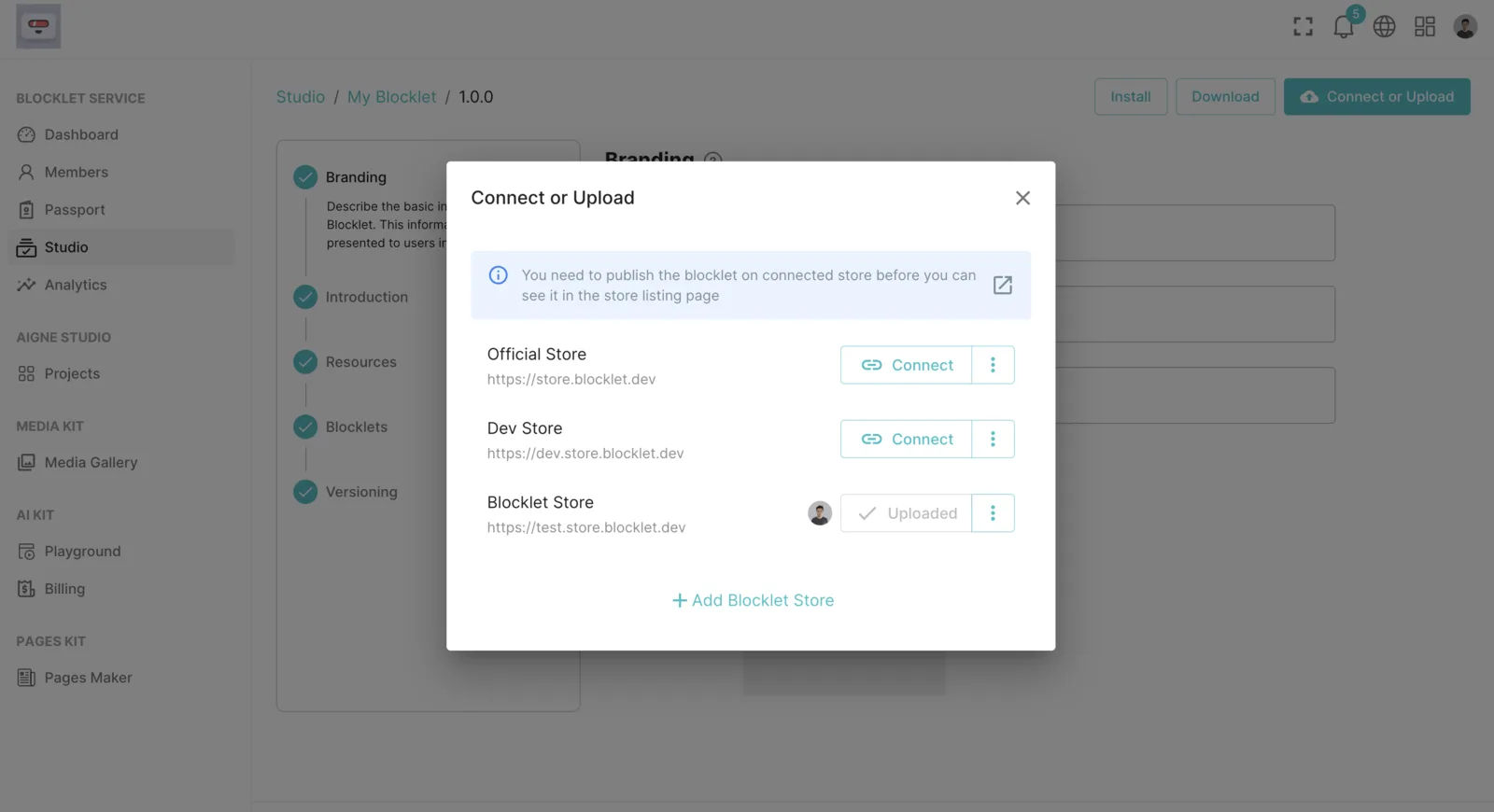
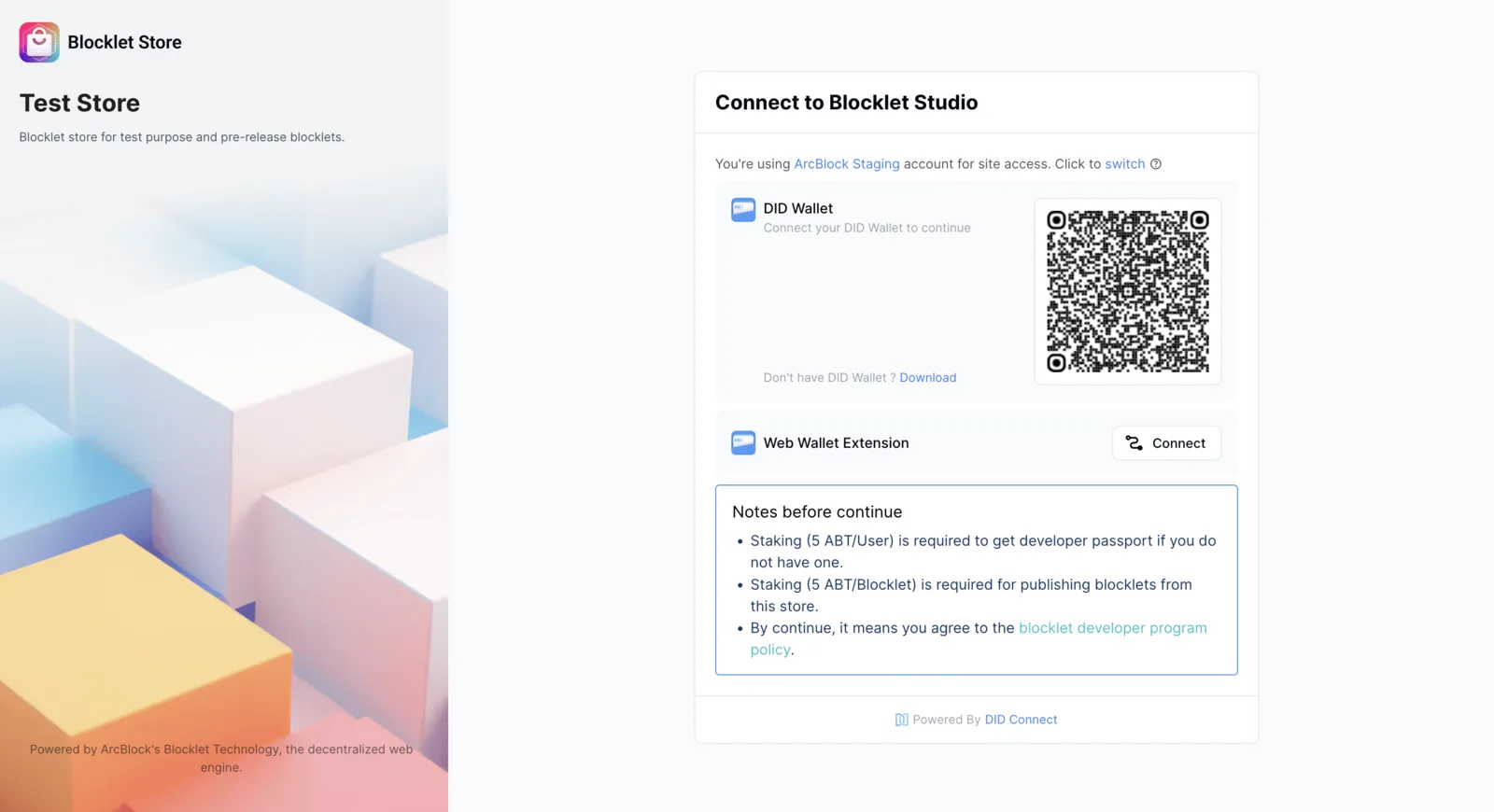
Association requires binding a developer wallet, and the application will be deployed to the account of this developer in this Blocklet Store:
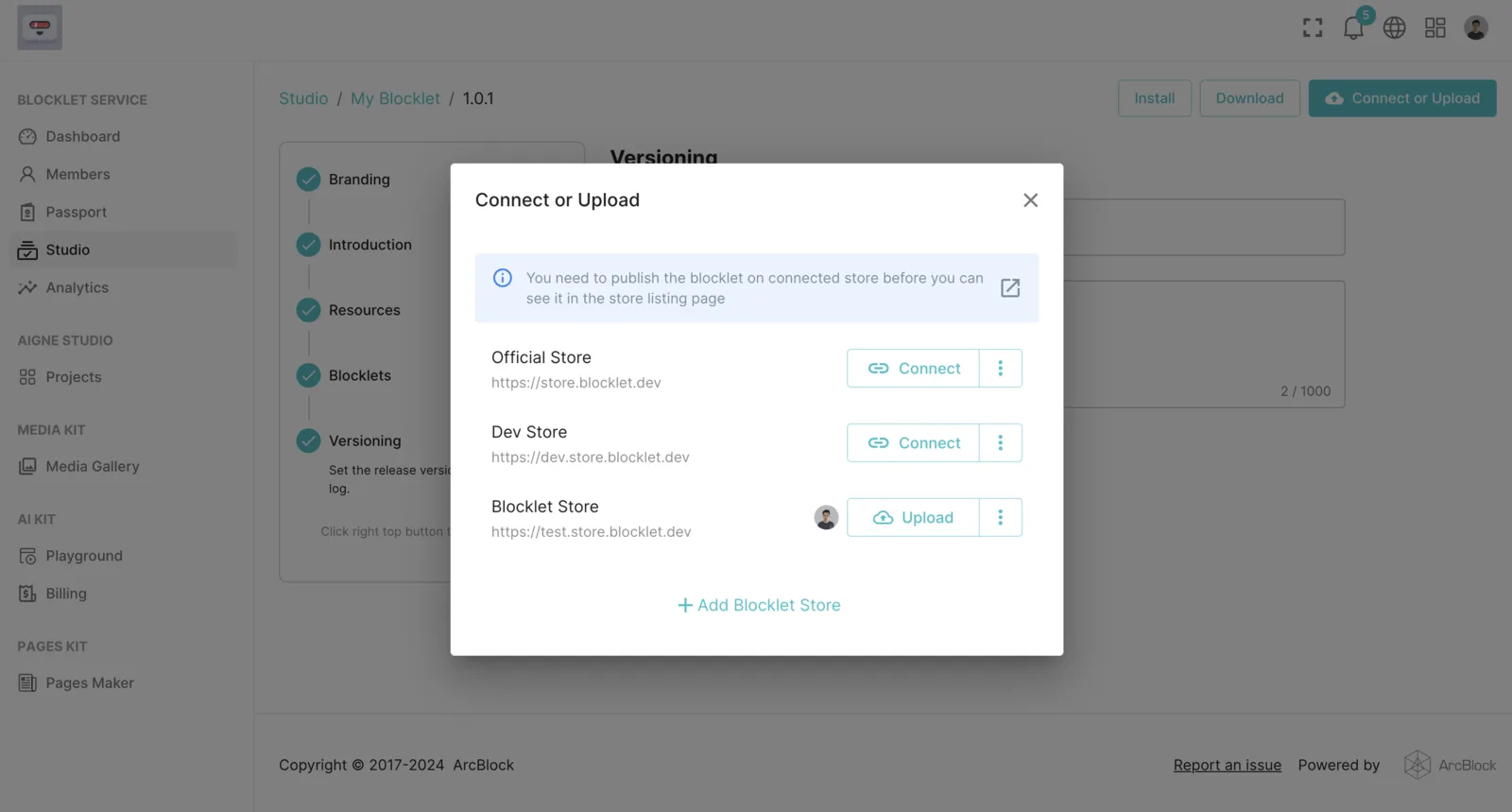
After successful association, we can see that the "Connect" button changes to "Upload", which can be clicked to upload:
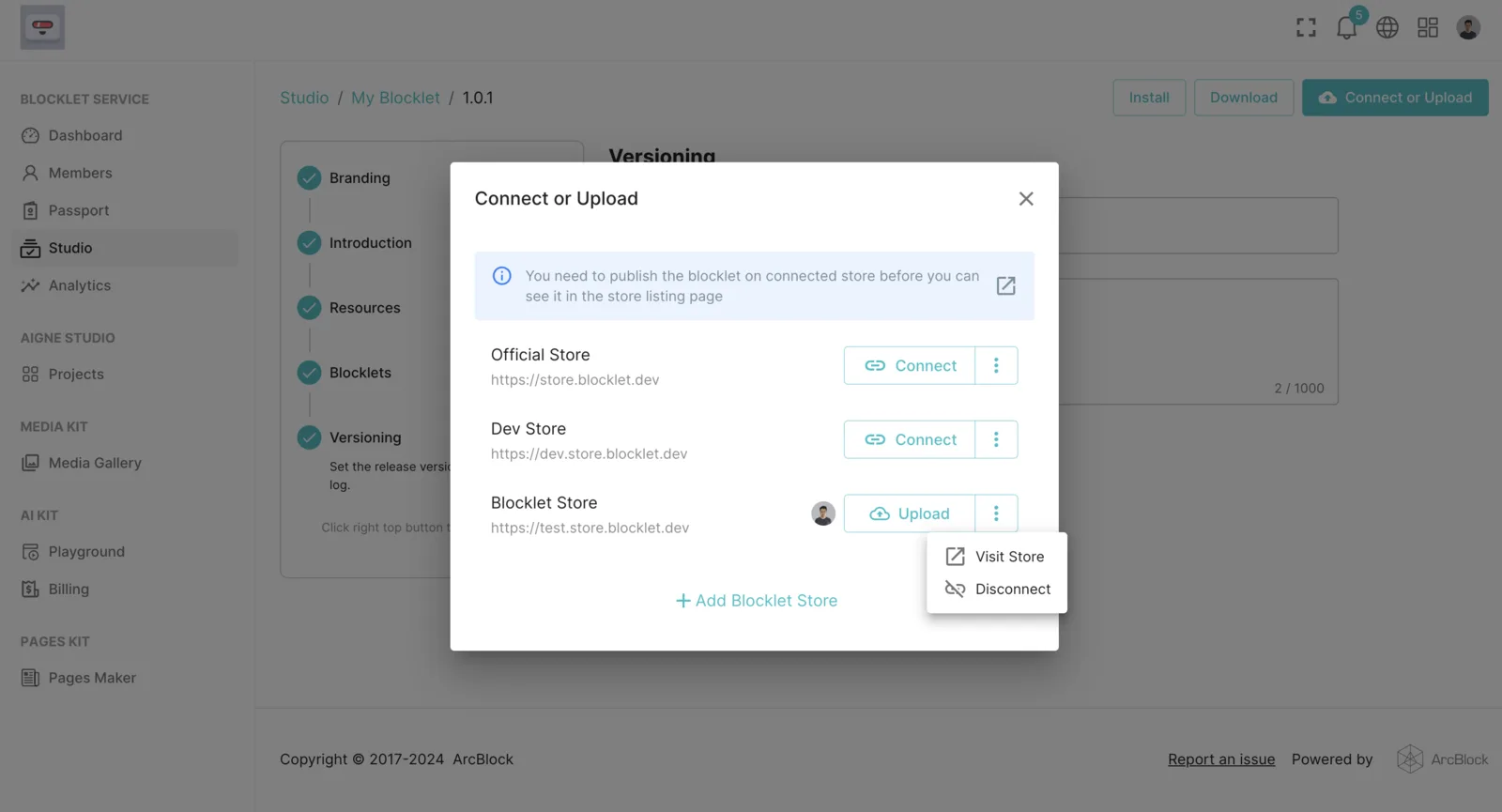
After successful upload, we can click on "More" on the right to access the management page of this Store:
Then we click on "Publish", and it will be visible in the application market:
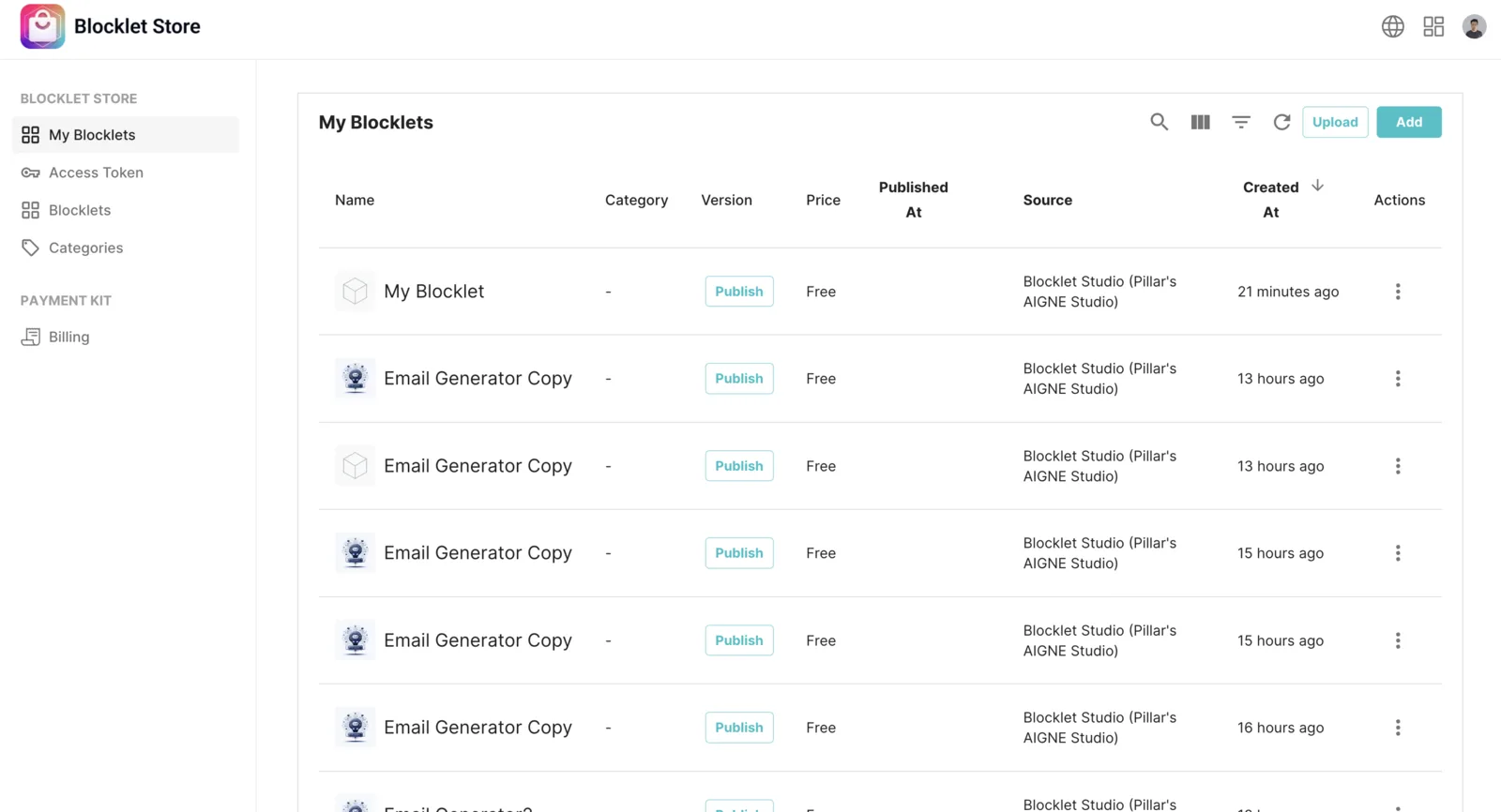
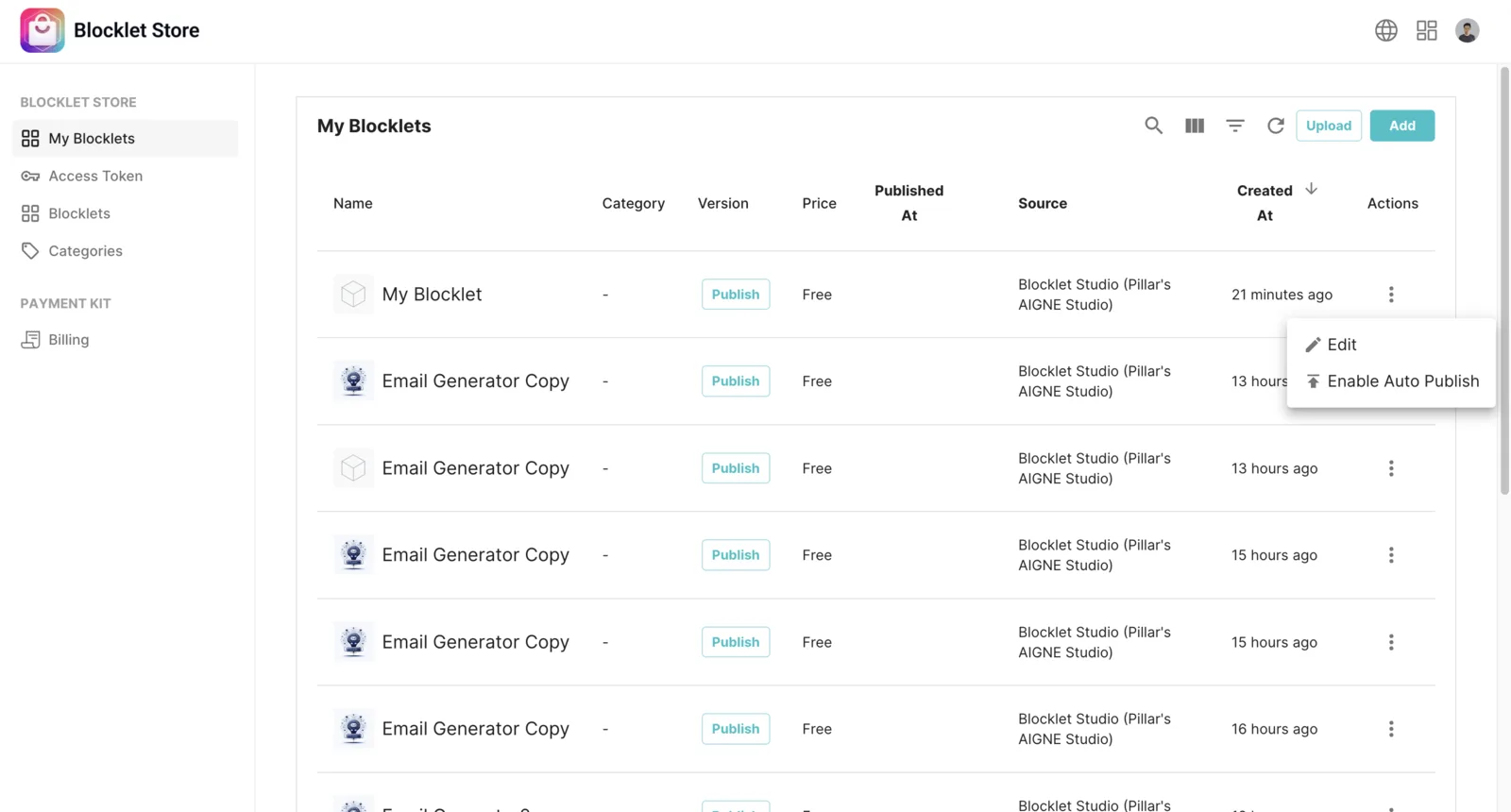
If we enable auto-publishing, the application will be automatically published every time it's uploaded:
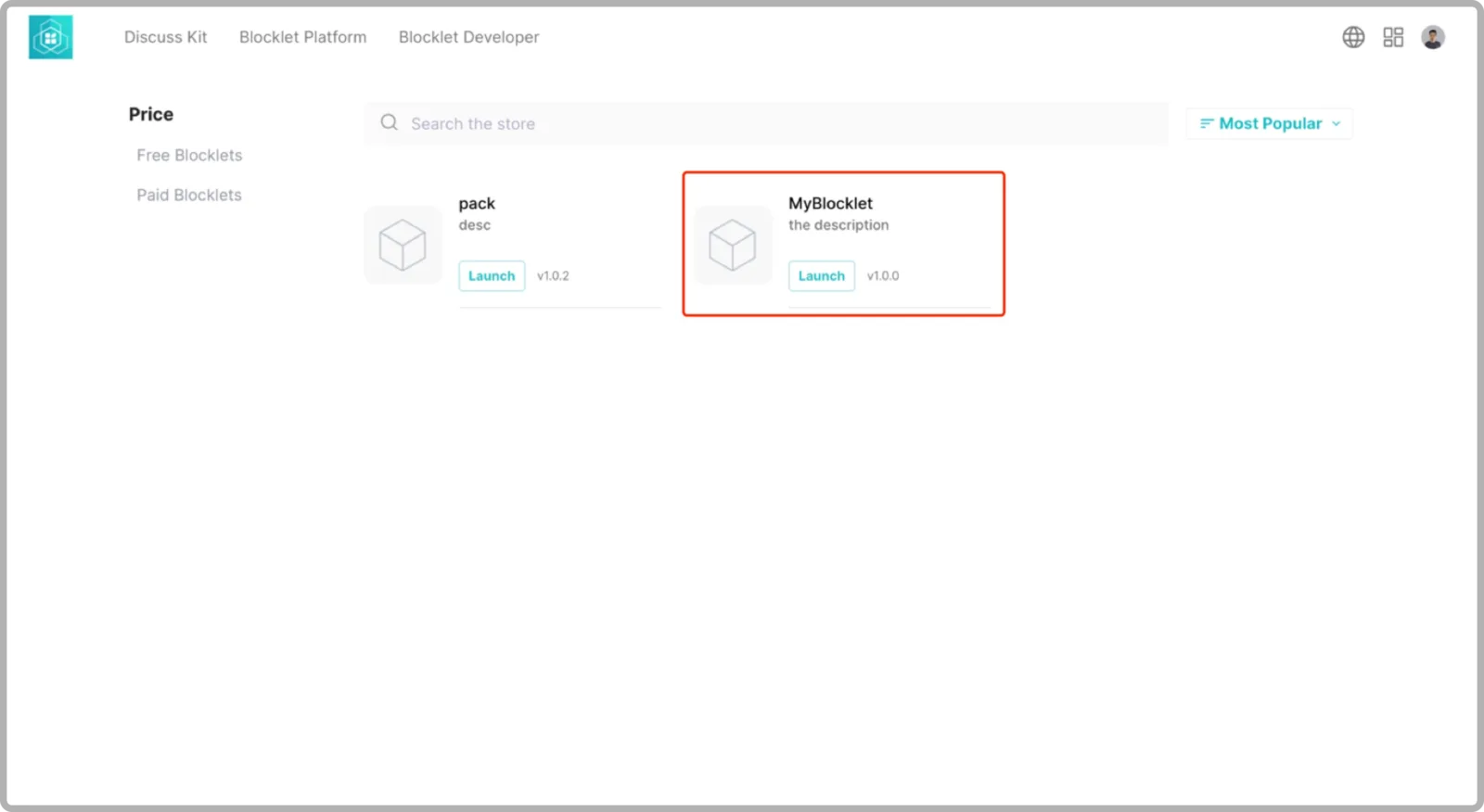
After successful publication, we can see the Blocklet just published on the Blocklet Store, and other users can install and use our Blocklet:
IIf the application we create is a Resource-based Blocklet, we won't be able to see it in the application market. We can add a Resource-based Blocklet to a Blocklet instance, details of which can be found in this article: