This guide demonstrates how to build a stateful chatbot that retains conversation history across sessions. By leveraging the FSMemory plugin, the agent can persist session data to the local file system, enabling it to recall previous interactions.
Overview#
In many conversational AI applications, it is crucial for an agent to remember the context of past interactions to provide coherent and relevant responses. The AIGNE Framework addresses this through its memory components. This example focuses on FSMemory, a straightforward solution for persisting conversation history on your local disk.
This approach is ideal for development, testing, or applications where state can be managed locally without requiring external databases or services. For more advanced or distributed persistence, consider alternatives like DIDSpacesMemory.
How to Run the Example#
You can run this example directly using npx. This command will download the necessary packages and execute the chatbot script.
To start the chatbot in interactive mode, execute the following command in your terminal:
npx -y @aigne/example-memory --interactive
If you have not configured your LLM API keys, you will be prompted to connect to the AIGNE Hub, which provides a simple way to get started.
Code Explained#
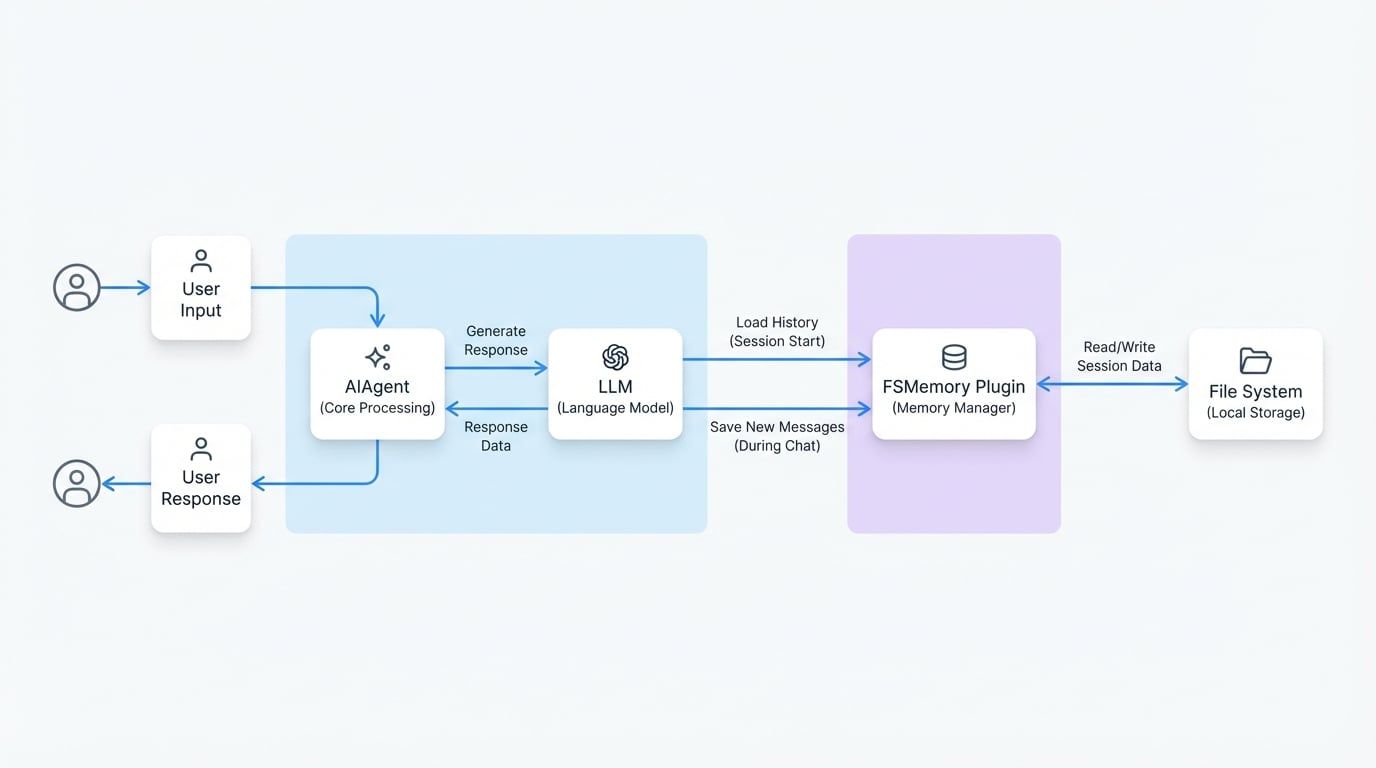
The core of this example is the integration of the FSMemory plugin with an AIAgent. The agent is configured to use this memory module to automatically save and retrieve the conversation history for a given session.
The following diagram illustrates how the AIAgent, FSMemory plugin, and the file system interact during a chat session:
main.ts#
The main script initializes the agent, aigneres the memory plugin, and starts the conversational loop.
import { AIAgent, AIGNE, FSMemory, command, define, option } from '@aigne/framework';
import { ChatOllama } from '@aigne/ollama';
import path from 'node:path';

const program = define({
  name: 'memory-chatbot',
  version: '1.0.0',
});

program(
  command({
    name: 'chat',
    description: 'Chat with the bot',
    options: [
      option({
        name: '--interactive',
        description: 'Chat with the bot',
      }),
    ],
    action: async (_, { session }) => {
      const memory = new FSMemory({
        path: path.join(__dirname, '..', '.memory'),
        sessionId: session.id,
      });
Key components of the script:
- Importing Modules: We import
AIAgent, AIGNE, and FSMemory from the AIGNE framework. - Initializing
FSMemory: An instance of FSMemory is created. path: Specifies the directory (.memory) where conversation logs will be stored.sessionId: A unique identifier for the conversation session. This ensures that the history for different chat sessions is stored separately.
- Configuring
AIAgent: The chatbot agent is instantiated. model: The language model to be used for generating responses.memory: The FSMemory instance is passed to the agent's constructor. This links the agent to the persistence layer.instructions: A system prompt that defines the agent's persona and objective.
- Running the Chat: The
aigne.chat() method starts the interactive session. The framework automatically handles the loading of past messages from FSMemory at the start of the session and saves new messages as the conversation progresses.
Summary#
In this example, you have learned how to create a chatbot with persistent memory using the FSMemory plugin. This enables the agent to maintain context across multiple interactions by storing and retrieving conversation history from the local file system. This foundational concept is key to building more advanced and context-aware AI applications.