Workflow Router
Have you ever needed to direct user queries to different specialized handlers based on their content? This guide provides a complete, step-by-step walkthrough for building a workflow that intelligently routes requests. You will learn how to create a "triage" agent that analyzes input and forwards it to the correct specialized agent, such as product support or feedback collection.
The router workflow is a common and powerful pattern for creating sophisticated, multi-agent systems. It acts as a smart dispatcher, ensuring that user requests are handled by the agent best equipped for the task. This example demonstrates a triage agent that routes questions to one of three specialized agents: productSupport, feedback, or other.
The diagram below illustrates the routing logic:
direction: down

User: {
  shape: c4-person
}

Triage-Agent: {
  label: "Triage Agent"
  shape: rectangle
}

Specialized-Agents: {
  label: "Specialized Agents"
  shape: rectangle

  productSupport: {
    label: "Product Support Agent"
  }

  feedback: {
    label: "Feedback Agent"
  }

  other: {
    label: "Other Agent"
See all 10 lines
Prerequisites#
Before proceeding, ensure your development environment meets the following requirements:
- Node.js: Version 20.0 or higher.
- npm: Comes bundled with Node.js.
- OpenAI API Key: Required for the default model configuration. You can obtain one from the OpenAI Platform.
Quick Start#
You can run this example directly without a manual installation process using npx.
Run the Example#
The example can be executed in several modes.
- One-Shot Mode (Default) This command processes a single, hardcoded input and exits.
npx -y @aigne/example-workflow-router - Interactive Chat Mode Use the
--interactiveflag to start an interactive session where you can send multiple messages.npx -y @aigne/example-workflow-router --interactive - Pipeline Mode Pipe input directly into the command. This is useful for integrating with other scripts.
echo "How do I return a product?" | npx -y @aigne/example-workflow-router
Connect to an AI Model#
When you run the example for the first time, it will detect that no AI model has been configured and will prompt you for setup.

You have several options to connect to an AI model:
1. Connect to the AIGNE Hub (Recommended)#
This is the easiest way to get started. The official AIGNE Hub provides free credits for new users.
- Select the first option:
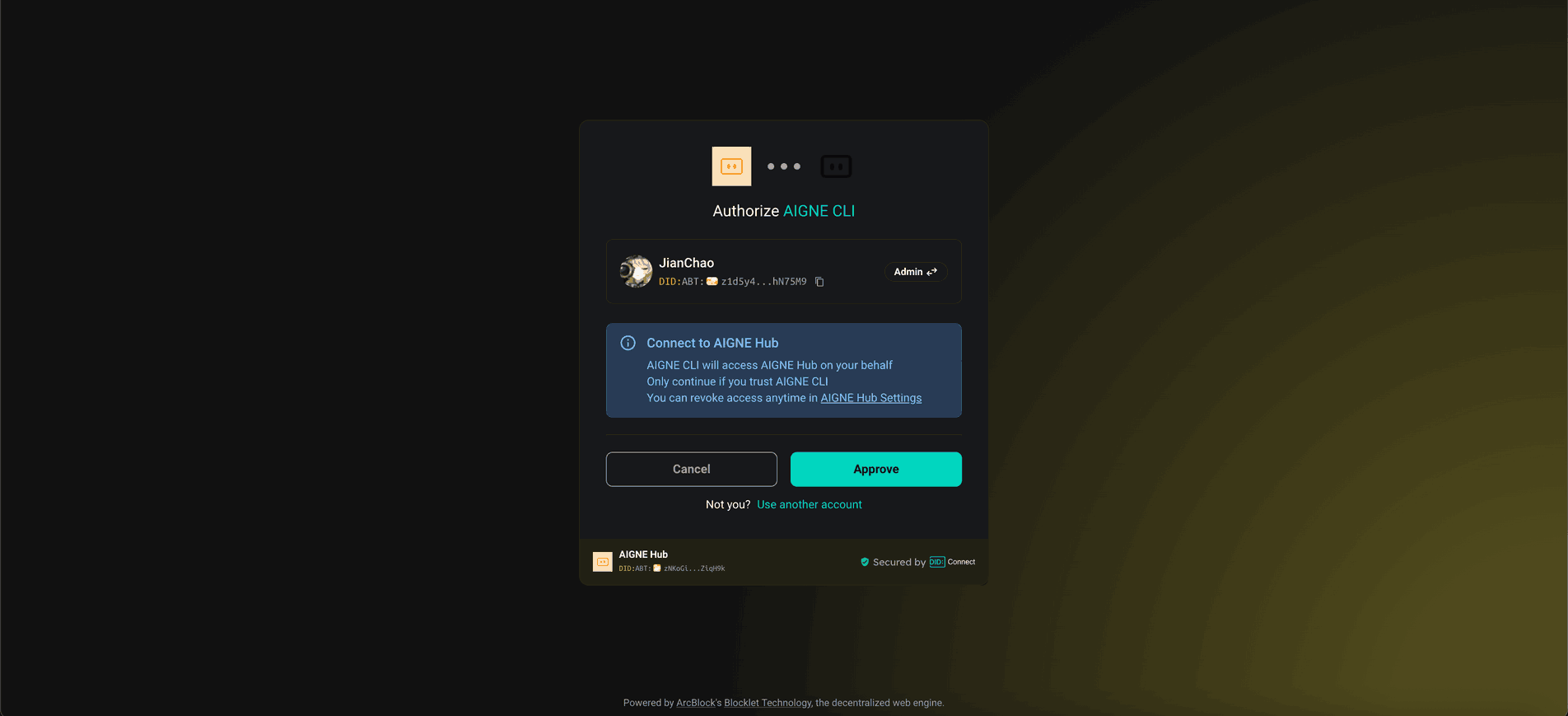
Connect to the Arcblock official AIGNE Hub. - Your web browser will open an authorization page.
- Follow the on-screen instructions to approve the connection.
2. Connect to a Self-Hosted AIGNE Hub#
If you are running your own instance of AIGNE Hub:
- Select the second option:
Connect to your self-hosted AIGNE Hub. - Enter the URL of your AIGNE Hub instance when prompted.

3. Connect via a Third-Party Model Provider#
You can also connect directly to a model provider like OpenAI by setting an environment variable.
Set OpenAI API Key
export OPENAI_API_KEY="YOUR_OPENAI_API_KEY"Replace "YOUR_OPENAI_API_KEY" with your actual key. After setting the environment variable, run the example command again. For other providers like Google Gemini or DeepSeek, refer to the .env.local.example file in the source code for the correct variable names.
Full Example and Source Code#
The core logic involves defining several AIAgent instances: three specialized agents (productSupport, feedback, other) and one triage agent that acts as the router. The triage agent is configured with toolChoice: "router", which instructs it to select one of its available skills (the other agents) to handle the input.
Below is the complete TypeScript code for this example.
index.ts
import { AIAgent, AIGNE } from "@aigne/core";
import { OpenAIChatModel } from "@aigne/core/models/openai-chat-model.js";

const { OPENAI_API_KEY } = process.env;

const model = new OpenAIChatModel({
  apiKey: OPENAI_API_KEY,
});

const productSupport = AIAgent.from({
  name: "product_support",
  description: "Agent to assist with any product-related questions.",
  instructions: `You are an agent capable of handling any product-related questions.
  Your goal is to provide accurate and helpful information about the product.
  Be polite, professional, and ensure the user feels supported.`,
  outputKey: "product_support",
});

const feedback = AIAgent.from({
  name: "feedback",
  description: "Agent to assist with any feedback-related questions.",
  instructions: `You are an agent capable of handling any feedback-related questions.
  Your goal is to listen to the user's feedback, acknowledge their input, and provide appropriate responses.
  Be empathetic, understanding, and ensure the user feels heard.`,
  outputKey: "feedback",
See all 33 lines
Execution and Output#
When the script runs, the aigne.invoke method sends the user's query to the triage agent. The agent then routes the query to the most appropriate specialized agent, and the final output is from that selected agent.
Output for "How to use this product?"
{
  "product_support": "I’d be happy to help you with that! However, I need to know which specific product you’re referring to. Could you please provide me with the name or type of product you have in mind?"
}
Output for "I have feedback about the app."
{
  "feedback": "Thank you for sharing your feedback! I'm here to listen. Please go ahead and let me know what you’d like to share about the app."
}
Output for "What is the weather today?"
{
  "other": "I can't provide real-time weather updates. However, you can check a reliable weather website or a weather app on your phone for the current conditions in your area. If you tell me your location, I can suggest a few sources where you can find accurate weather information!"
}
Command-Line Options#
The example script accepts several command-line arguments to customize its behavior.
Parameter | Description | Default |
|---|---|---|
| Run in interactive chat mode instead of one-shot. | Disabled |
| Specify the AI model to use (e.g., |
|
| Set the temperature for model generation. | Provider default |
| Set the top-p sampling value. | Provider default |
| Set the presence penalty value. | Provider default |
| Set the frequency penalty value. | Provider default |
| Set the logging verbosity (e.g., |
|
| Provide input directly as an argument. | None |
Examples#
Run in interactive mode
npx -y @aigne/example-workflow-router --interactiveSet a specific model and temperature
npx -y @aigne/example-workflow-router --model openai:gpt-4o-mini --temperature 0.5 -i "Tell me about your product."Set logging level to debug
npx -y @aigne/example-workflow-router --log-level DEBUGDebugging#
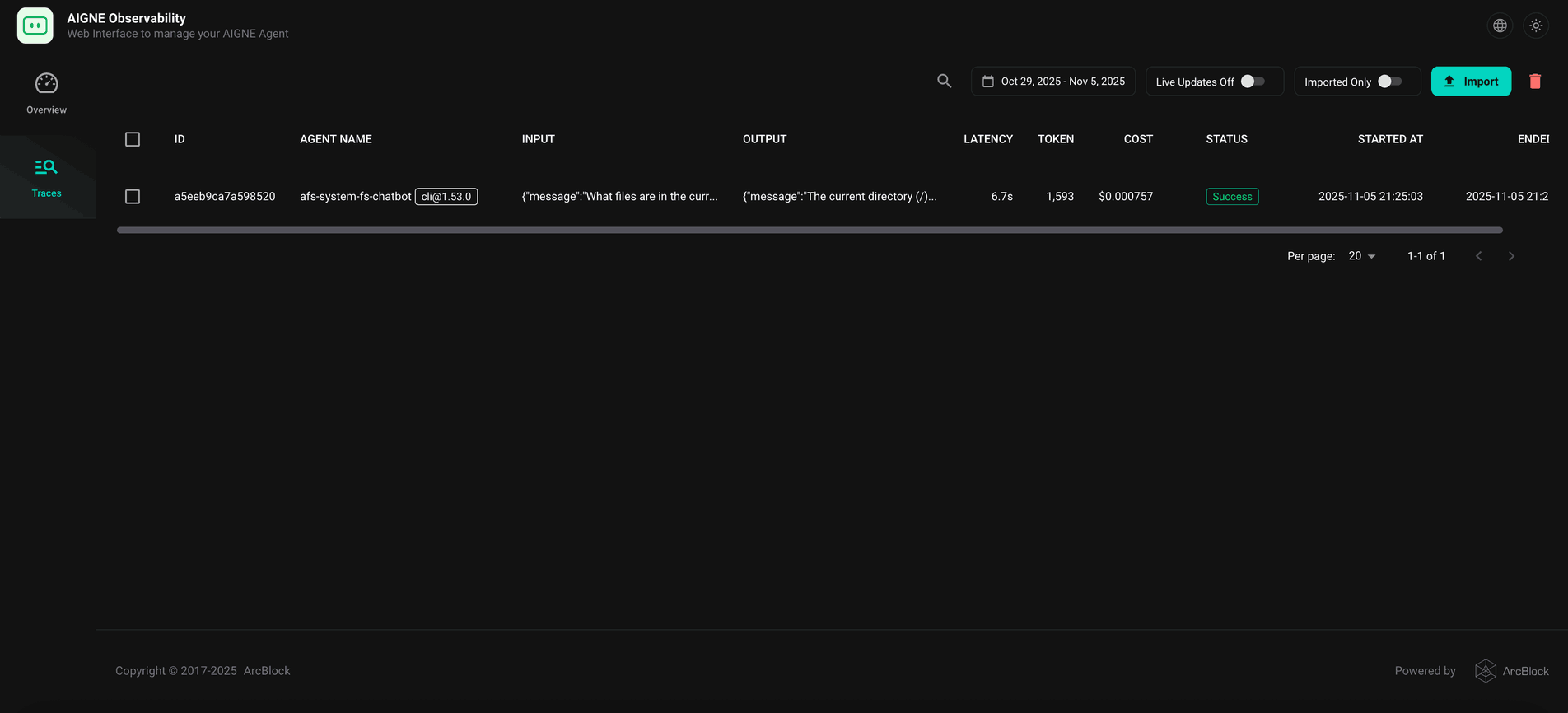
To inspect the execution flow and understand the agent's behavior, you can use the AIGNE observability tool.
First, start the observation server in a separate terminal window:
aigne observe
The server will start, and you can access the web interface at http://localhost:7893. After running the example, the execution traces will appear in the dashboard, allowing you to see how the triage agent made its routing decision and what data was passed between agents.
Summary#
This example has demonstrated how to build a router workflow using the AIGNE Framework. By defining a triage agent with specialized agents as its skills and setting toolChoice: "router", you can create a powerful system that intelligently delegates tasks.
For more complex patterns, explore the following examples: