MCP DID Spaces
This document provides a comprehensive guide to building a chatbot integrated with DID Spaces via the Model Context Protocol (MCP). Following these instructions will enable you to create an AI agent that can securely access and manage files in a decentralized storage environment, leveraging the capabilities of the AIGNE Framework.
Prerequisites#
To ensure successful execution of this example, verify that the following components are installed and configured:
- Node.js: Version 20.0 or a more recent version.
- OpenAI API Key: An active API key is required for the AI model. Keys can be obtained from the OpenAI Platform.
- DID Spaces MCP Server Credentials: Authentication details are necessary for interaction with your designated DID Space.
Quick Start#
This example can be executed directly from your terminal without a local installation by using npx.
1. Set Environment Variables#
Begin by configuring the environment variables with your DID Spaces server credentials. The URL for your space and an access key can be generated from your Blocklet's administration settings.
Set DID Spaces Credentials
# Replace with your DID Spaces application URL
export DID_SPACES_URL="https://spaces.staging.arcblock.io/app"

# Create a key in Profile -> Settings -> Access Keys, setting Auth Type to "Simple"
export DID_SPACES_AUTHORIZATION="blocklet-xxx"
2. Run the Example#
With the environment variables set, execute the command below to initialize the chatbot.
Run the Example
npx -y @aigne/example-mcp-did-spaces3. Connect to an AI Model#
The chatbot requires a connection to a Large Language Model (LLM) to operate. On the first run, a prompt will appear to guide you through the connection setup.

There are three primary methods for establishing a connection:
Option 1: AIGNE Hub (Recommended)#
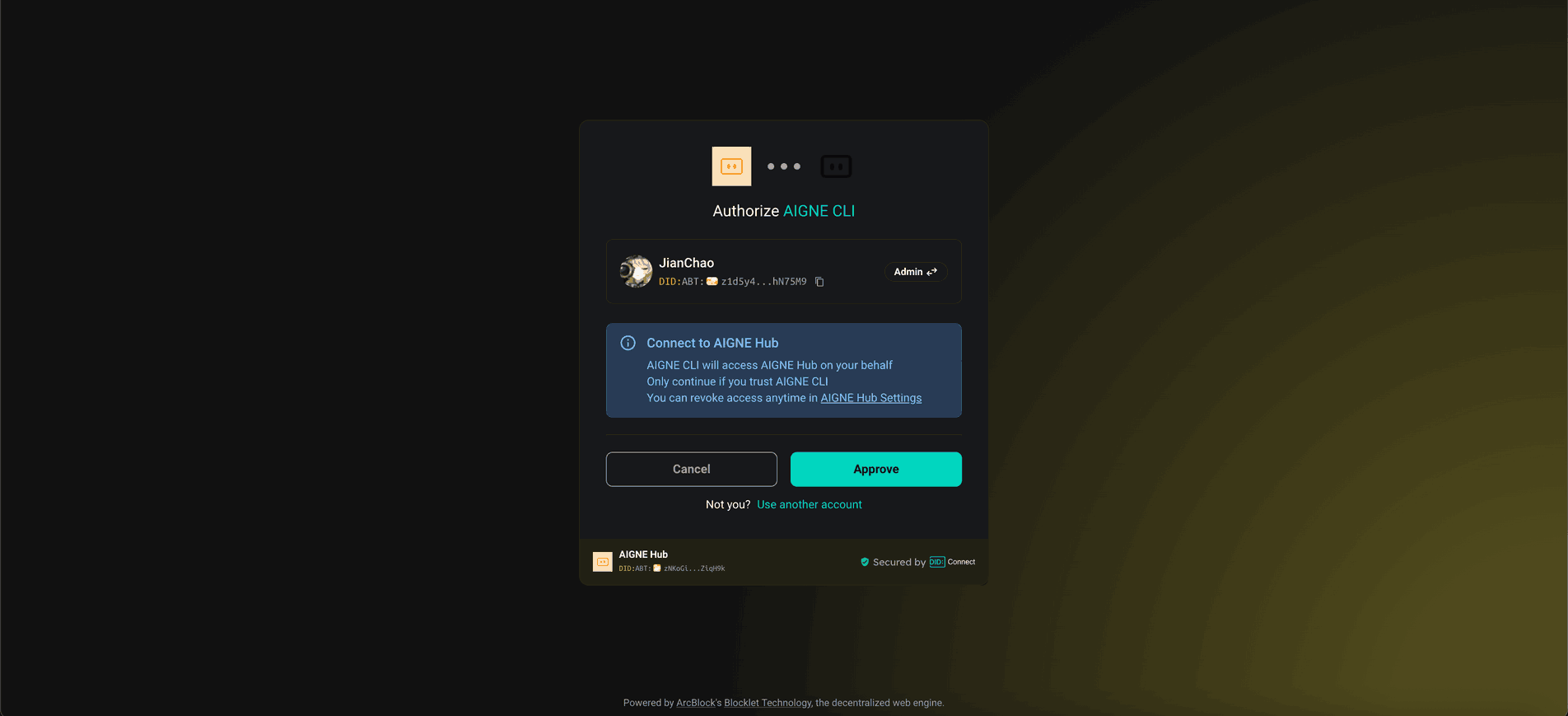
This is the most direct method. The official AIGNE Hub provides new users with complimentary tokens. To use this option, select the first choice in the prompt. Your web browser will open to the AIGNE Hub authorization page, where you can approve the connection request.
Option 2: Self-Hosted AIGNE Hub#
For users operating a private AIGNE Hub instance, select the second option. You will be prompted to enter the URL of your self-hosted hub. Instructions for deploying a personal AIGNE Hub are available at the Blocklet Store.

Option 3: Third-Party Model Provider#
Direct integration with third-party LLM providers such as OpenAI is also supported. Configure the respective API key as an environment variable and execute the run command again.
Configure OpenAI API Key
export OPENAI_API_KEY="YOUR_OPENAI_API_KEY"For additional configuration examples, including providers like DeepSeek and Google Gemini, consult the .env.local.example file within the source repository.
Once the AI model is connected, the example will perform a series of test operations against your DID Space, log the outcomes to the console, and generate a markdown file summarizing the results.
How It Works#
This example employs an MCPAgent to interface with a DID Spaces server using the Model Context Protocol (MCP). This protocol enables the agent to dynamically discover and utilize "skills," which are direct mappings to DID Spaces functionalities.
The following diagram illustrates the operational flow:
direction: down

AI-Agent: {
  label: "AI Agent"
  shape: rectangle
}

MCPAgent: {
  label: "MCPAgent"
  shape: rectangle
}

DID-Spaces-Server: {
  label: "DID Spaces MCP Server"
  shape: rectangle

  Skills: {
    label: "Available Skills"
    shape: rectangle
    list-objects: "list_objects"
    write-object: "write_object"
    read-object: "read_object"
    head-space: "head_space"
    delete-object: "delete_object"
  }
See all 11 lines
The operational flow is as follows:
- The
MCPAgentconnects to the designated DID Spaces MCP server endpoint. - It authenticates using the provided authorization credentials.
- The server makes a set of skills, such as
list_objectsandwrite_object, available to the agent. - The
MCPAgentintegrates these skills, allowing the primary AI agent to perform file and data management tasks within the DID Space in response to user input or programmed logic.
Available Skills#
The integration exposes several key DID Spaces operations as skills that the agent can utilize:
Skill | Description |
|---|---|
| Retrieves metadata about the DID Space. |
| Reads the content of a specified object (file). |
| Writes new content to an object (file). |
| Lists all objects (files) within a directory. |
| Deletes a specified object (file). |
Configuration#
For production deployments, the agent configuration should be updated to target your specific MCP server and employ secure authentication tokens. The MCPAgent is instantiated with the server URL and appropriate authorization headers.
agent-config.ts
const mcpAgent = await MCPAgent.from({
  url: "YOUR_MCP_SERVER_URL",
  transport: "streamableHttp",
  opts: {
    requestInit: {
      headers: {
        Authorization: "Bearer YOUR_TOKEN",
      },
    },
  },
});Debugging#
The aigne observe command provides a tool for monitoring and analyzing the agent's runtime behavior. It launches a local web server that visualizes execution traces, offering insights into inputs, outputs, tool interactions, and performance metrics.
- Start the observation server:
aigne observe
aigne observe
- View execution traces:
Access the web interface athttp://localhost:7893to review a list of recent agent executions. Each trace can be inspected for a detailed analysis of the agent's operations.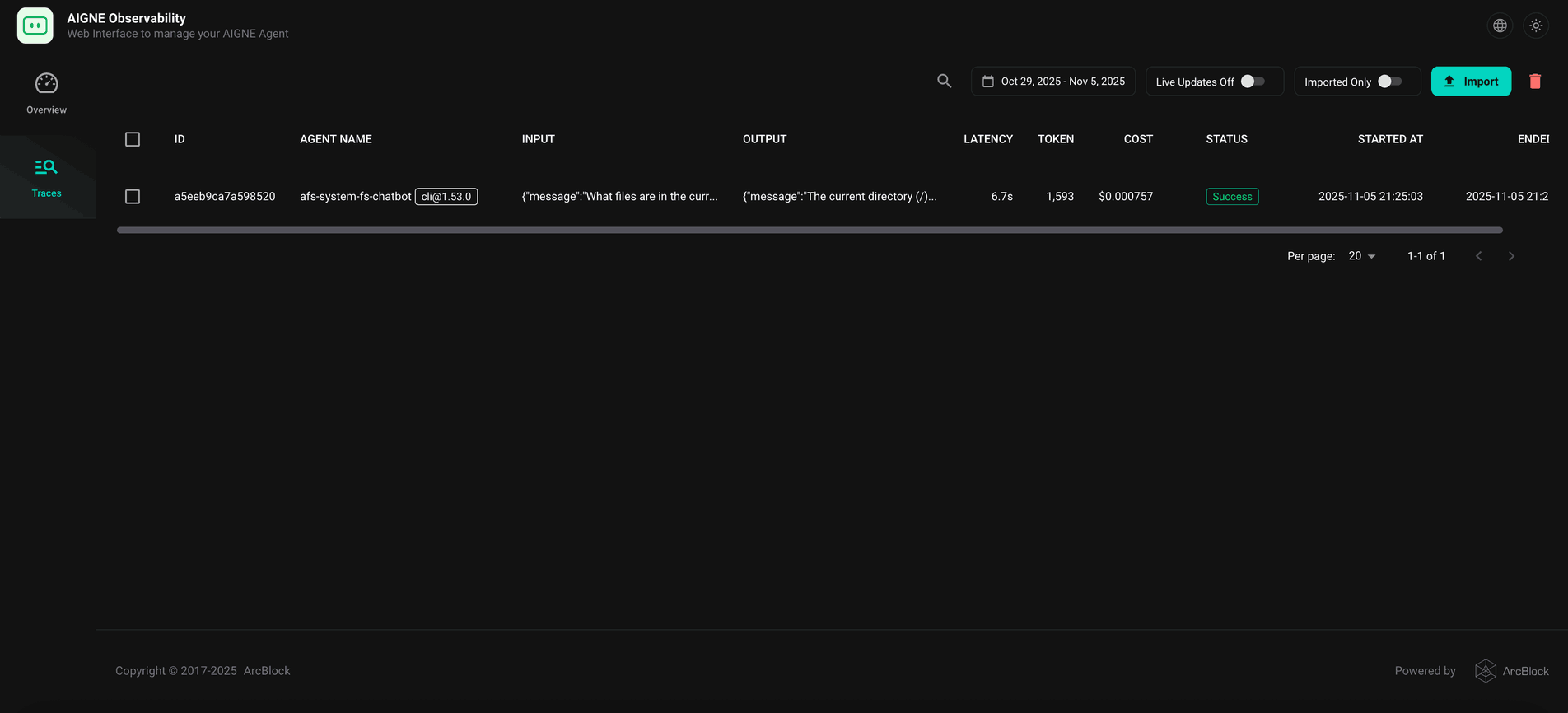
Local Installation and Testing#
For developers intending to modify the source code, the following steps outline the process for local setup and testing.
1. Clone the Repository#
git clone https://github.com/AIGNE-io/aigne-framework2. Install Dependencies#
Change to the example's directory and use pnpm to install the required packages.
cd aigne-framework/examples/mcp-did-spaces
pnpm install
3. Run the Example#
Execute the start script to run the application from the local source.
pnpm start4. Run Tests#
To validate the integration and functionality, execute the test suite.
pnpm test:llmThe test process will establish a connection to the MCP server, enumerate the available skills, and perform basic DID Spaces operations to confirm the integration is functioning as expected.