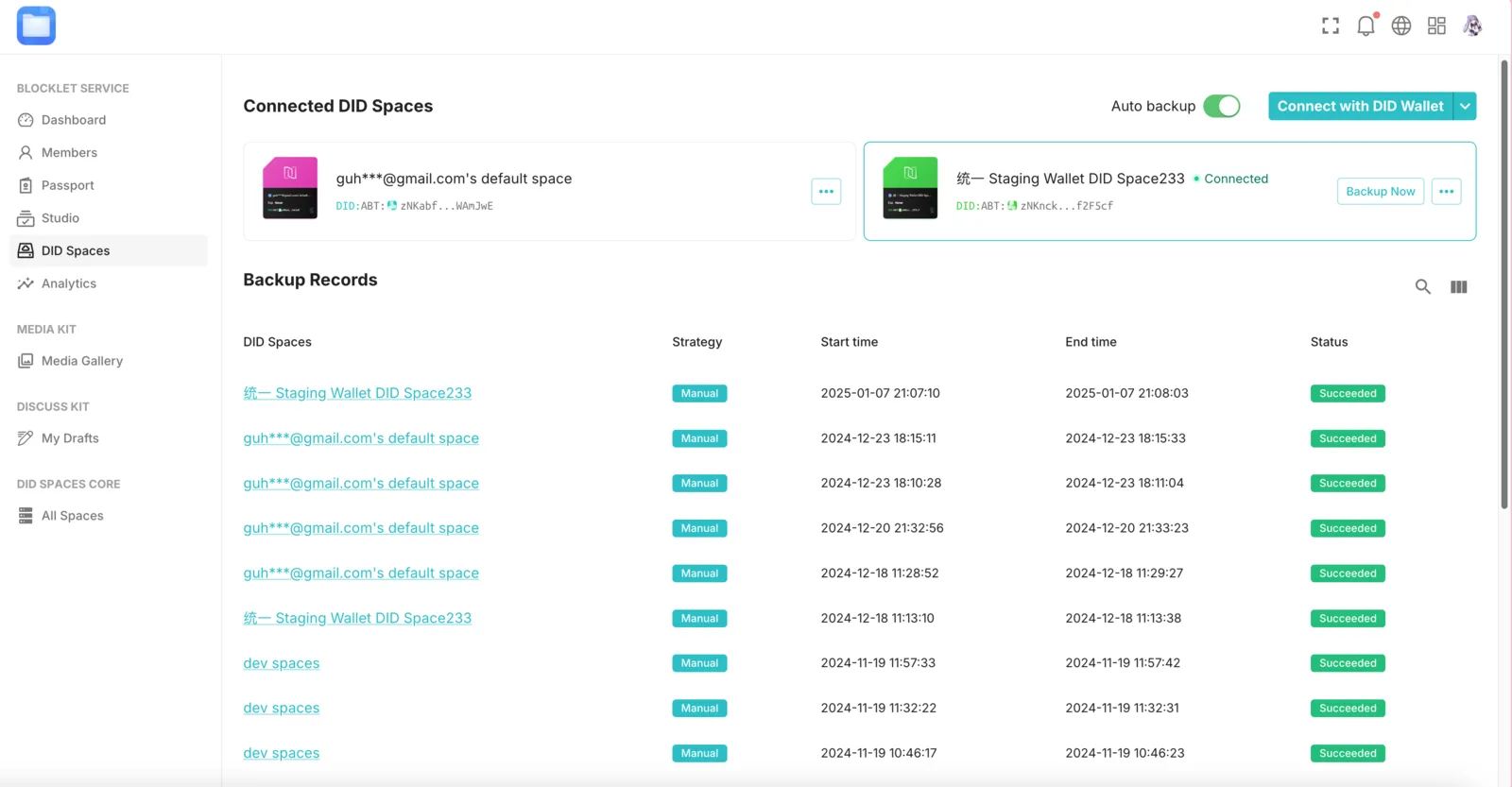
Overview
Data is often an application's most valuable asset. To protect this data and enable seamless migration between different Serverless environments or Blocklet Servers, you can back up an entire Blocklet to DID Spaces and restore it as needed.
Prerequisites
- A usable DID Space can be obtained by obtaining a DID Space
Sign in to your app
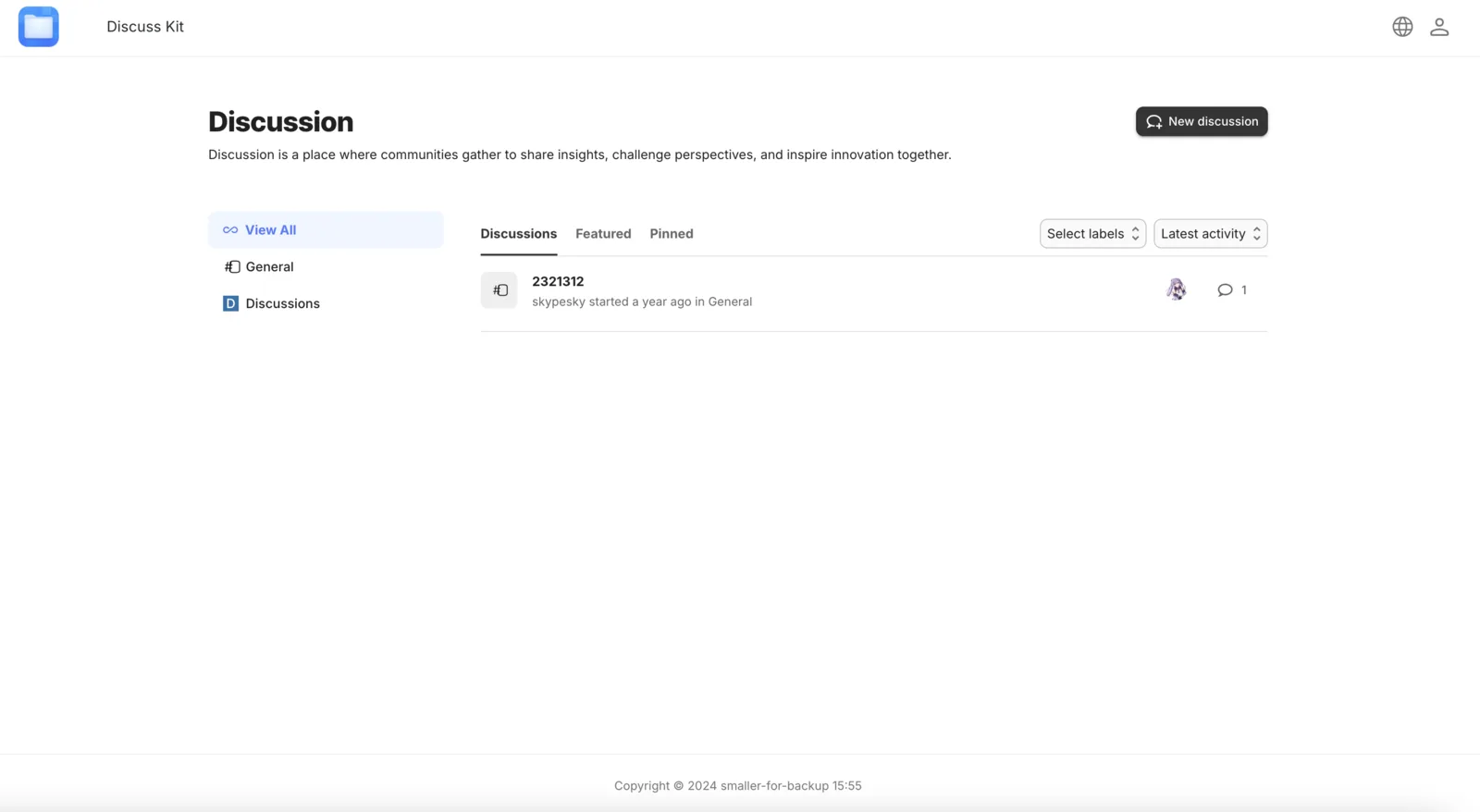
Visit your application homepage, click the icon in the top right corner, and log in as either Owner or Admin.
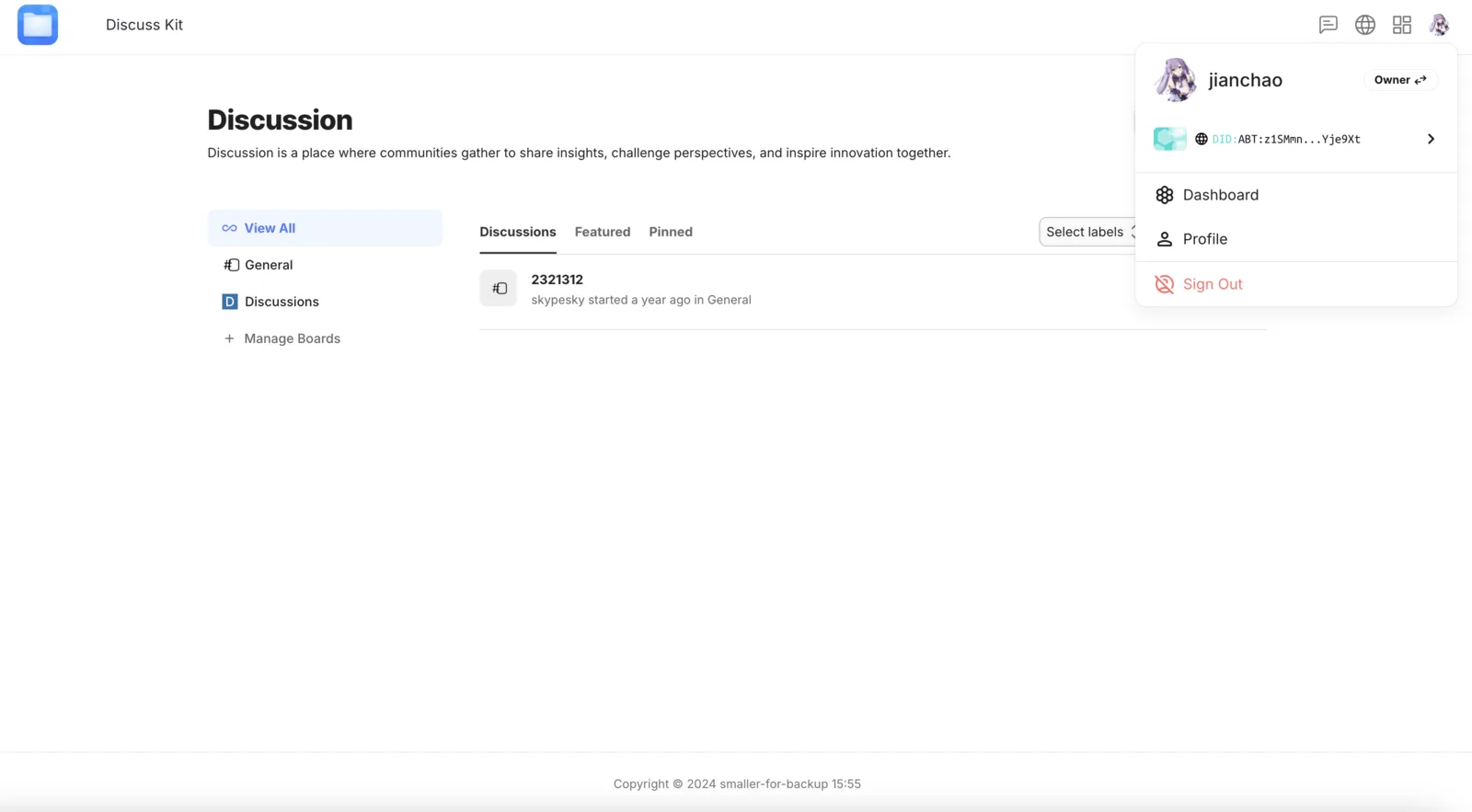
After successfully logging in, click the user avatar in the upper right corner, and then click Dashboard to access the user management interface.
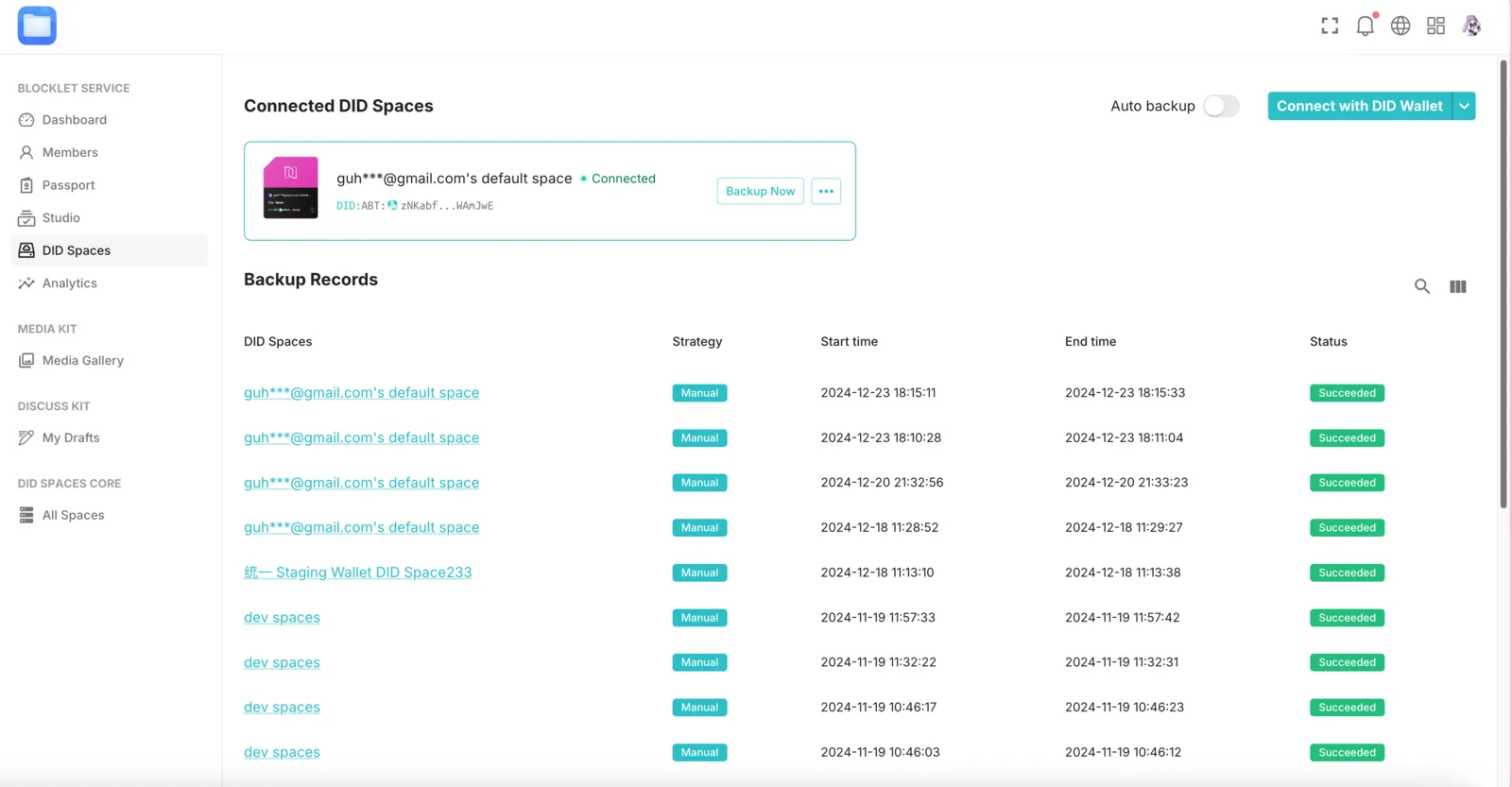
Click the Dashboard on the left, then the DID Spaces tab. This is where you configure application backups.
Back Up Your App
Click Connect with DID Wallet in the upper right corner to connect your DID Space. Confirm to authorize.
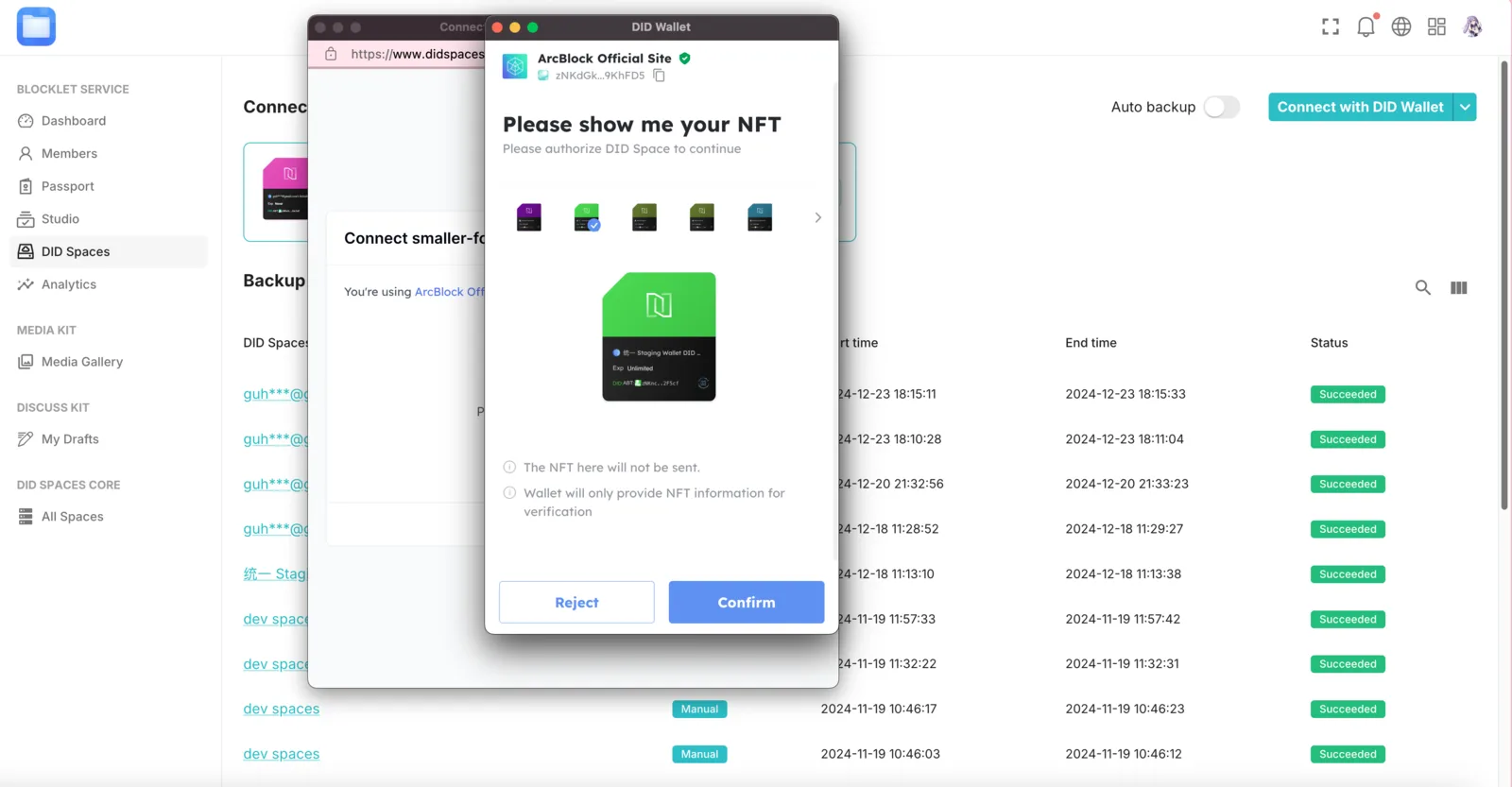
After a successful connection, you can click the Backup Now button to create a backup immediately:
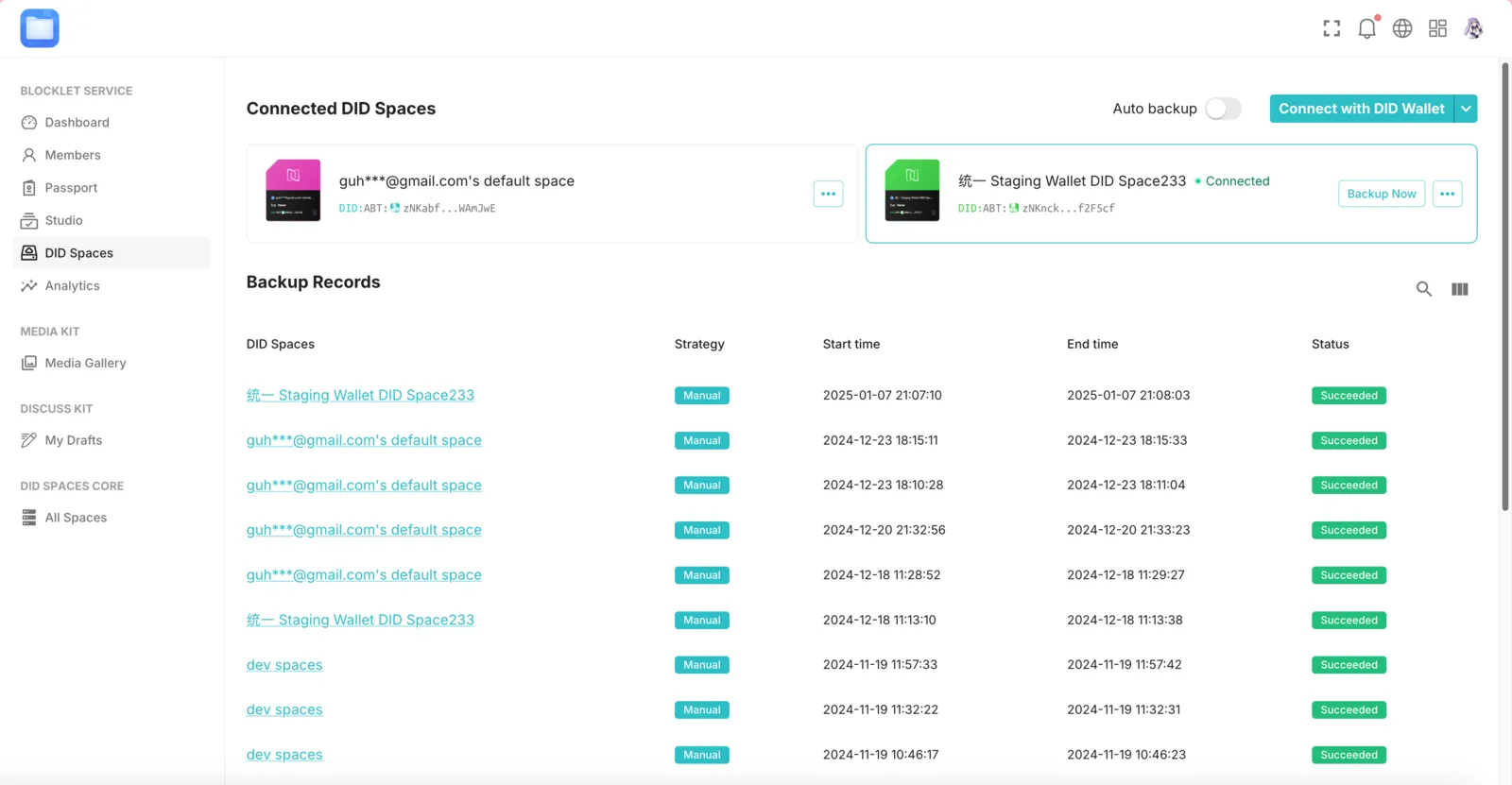
You can also enable automatic backups. By default, the application triggers a backup every two hours. A backup is also triggered one minute after any change in application status (such as starting, stopping, or modifying configurations).