As Blocklet development progresses, a demand for personalized profile page is highly likely to emerge. Because of the Blocklet platform's composability, support for multi-Blocklet personalized profile page has been incorporated from the outset. The following details how to use Blocklet components to implement a customized personal profile page for the entire application.
What is the User Profile?
This button simply links to your profile page.
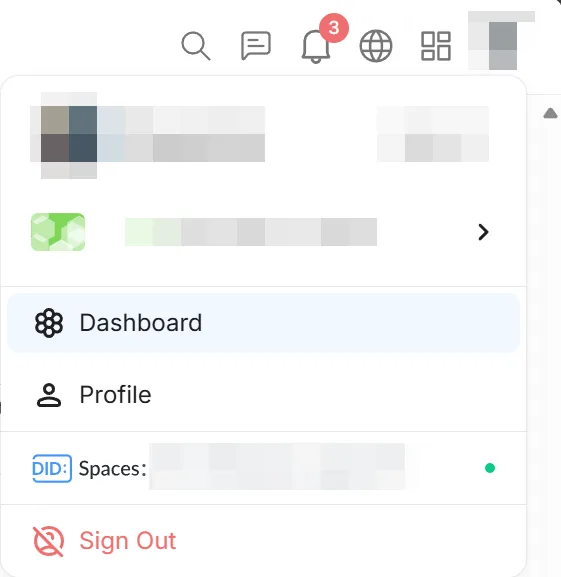
Clicking this link will redirect you to https://www.arcblock.io/.well-known/service/user
This address acts as a relay, locating the application's actual profile page and redirecting to it. This mechanism allows Blocklet components to inject custom profile pages.
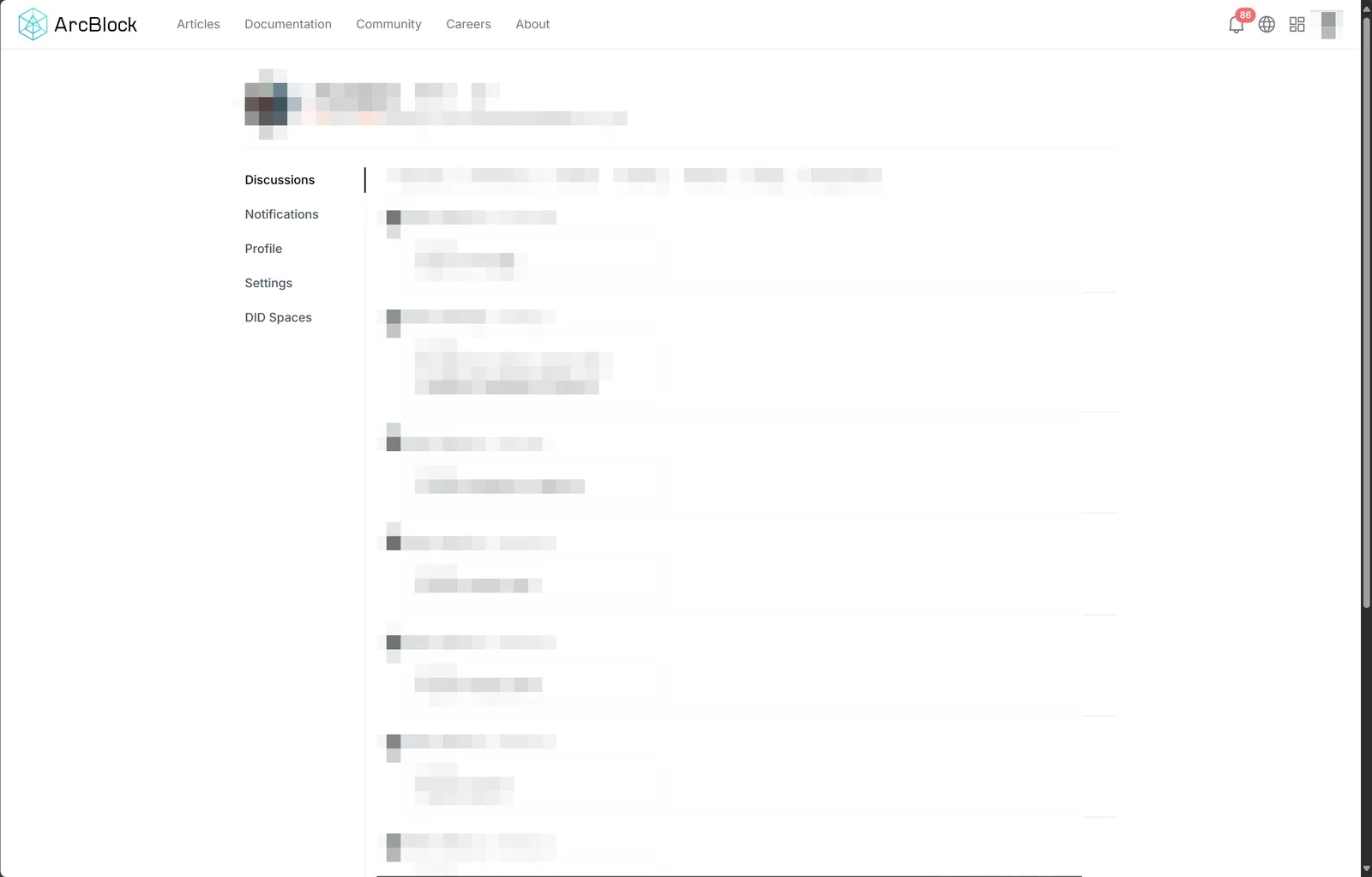
The profile page features a two-column layout. The left column, highlighted in red, serves as the menu and includes default entries for each Blocklet application: Notifications, Profile, Settings, and DID Spaces.
The first menu item, Discussions, is powered by the Discuss Kit.
The blue area to the right is the content area, the specific application providing the content displayed within it.
Integrating a Blocklet Component's Profile Page into Your Application
Developing a customized personal center page is easy; just follow these few steps.
Using the UserCenter Component in a Custom Profile Center Page
import { UserCenter } from '@blocklet/ui-react';

export default function CustomProfile() {
  return (
    <UserCenter currentTab={window.blocklet.prefix}>

  {customContent}

</UserCenter>
  );
}
The customContent property defines the content you want to customize, which will appear in the blue area shown above.
Declare menus in blocklet.yml
Add the following to your blocklet.yml file to declare a menu in the user profile area.
navigation:
  - id: profile
    title:
      en: Profile
      zh: Profile
    link: /
    section:
      - userCenter
Configure menu order in Blocklet settings
Open the /.well-known/service/admin/navigation page for the current application.
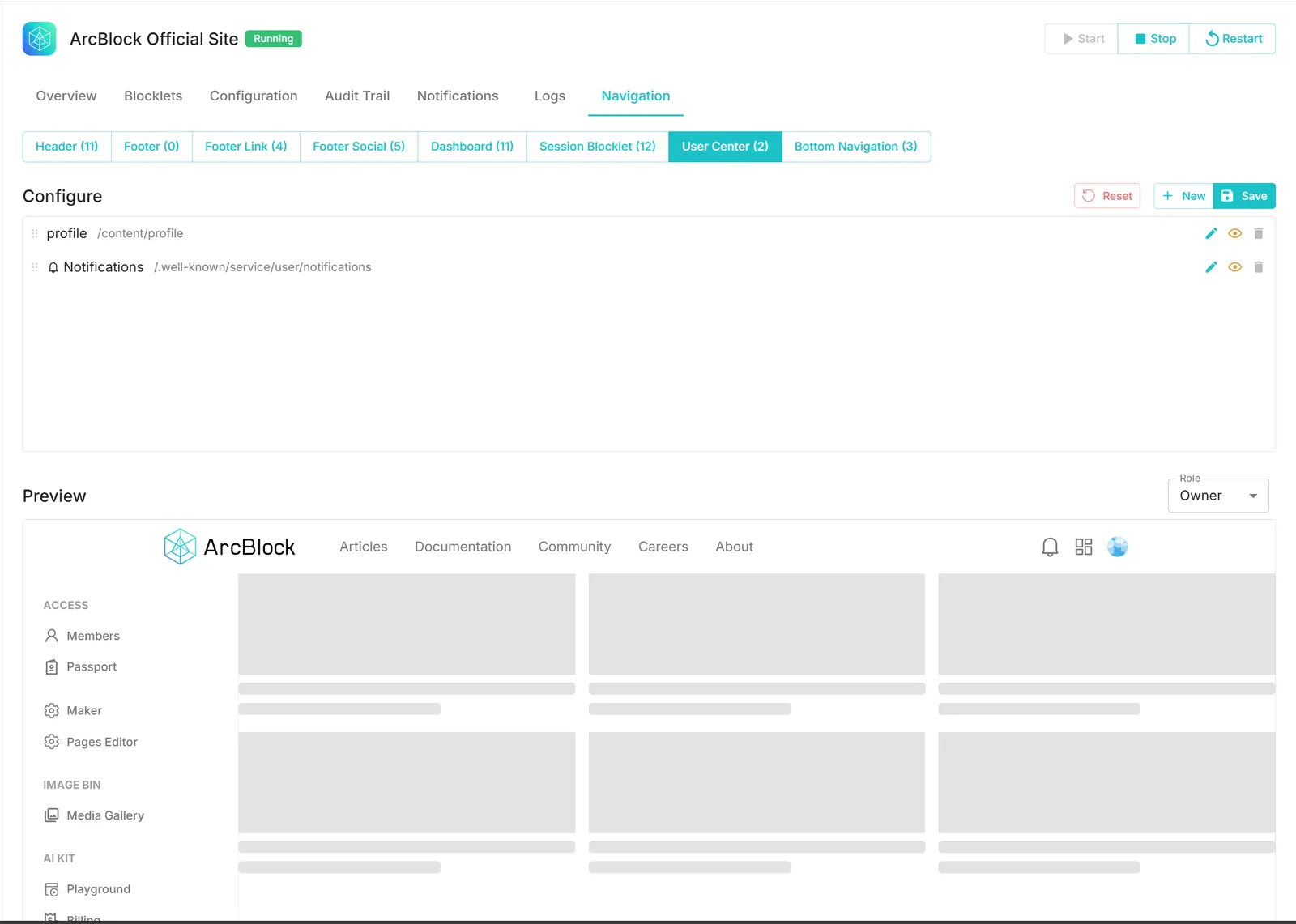
Select the User Center tab. The menu declared in the previous step will automatically appear there.
Drag the dot icon in front of each item to reorder the menu items. Make sure the page you want to access directly from your profile is at the top of the list.
Click the Save button
All setup is now complete