Preconditions
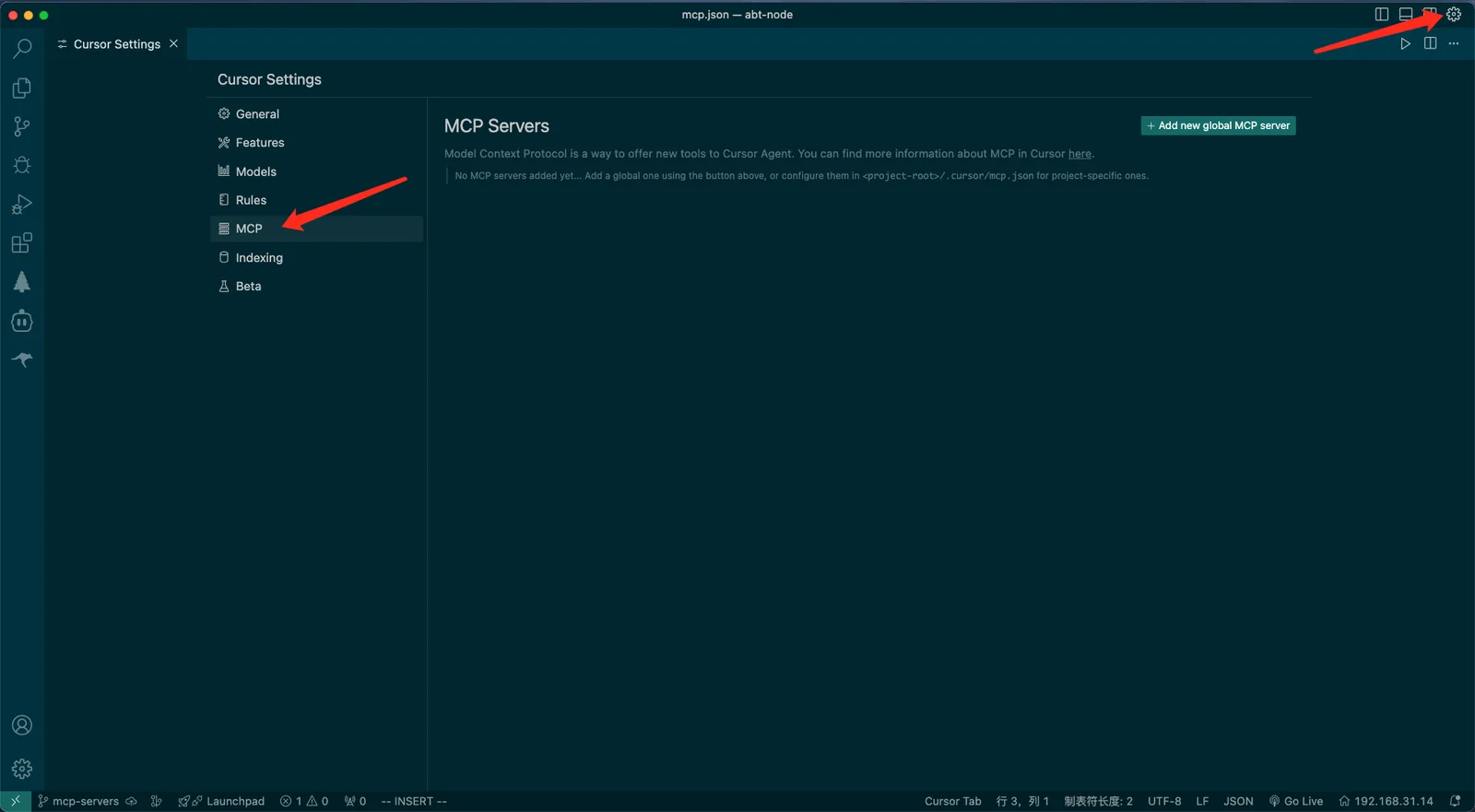
- Open Cursor, go to Settings, then MCP.
- Under normal circumstances, there should be no MCP configuration.
Installation
Install the Blocklet Service
- Visit Dashboard > Integrations > MCP Servers > Cursor.
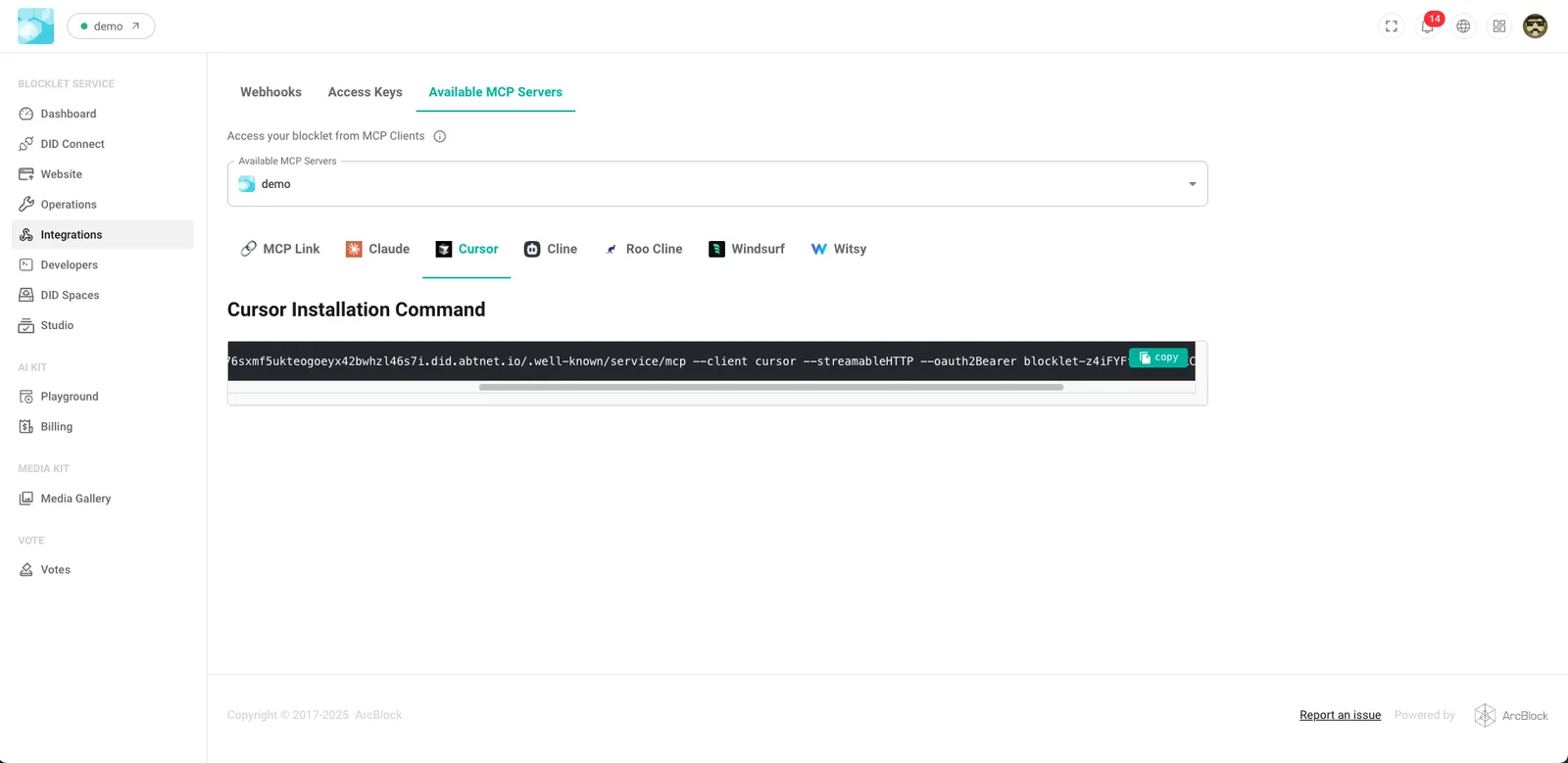
- Run the following installation command
npx @blocklet/install-mcp@latest i https://bbqavvuuki6llb76sxmf5ukteogoeyx42bwhzl46s7i.did.abtnet.io/.well-known/service/mcp --client cursor --streamableHTTP --oauth2Bearer blocklet-z4iFYFf85nNkXFKCJ3d7jKSCJm6WN983Rk5J72rjCasRX- Enter the server name as prompted
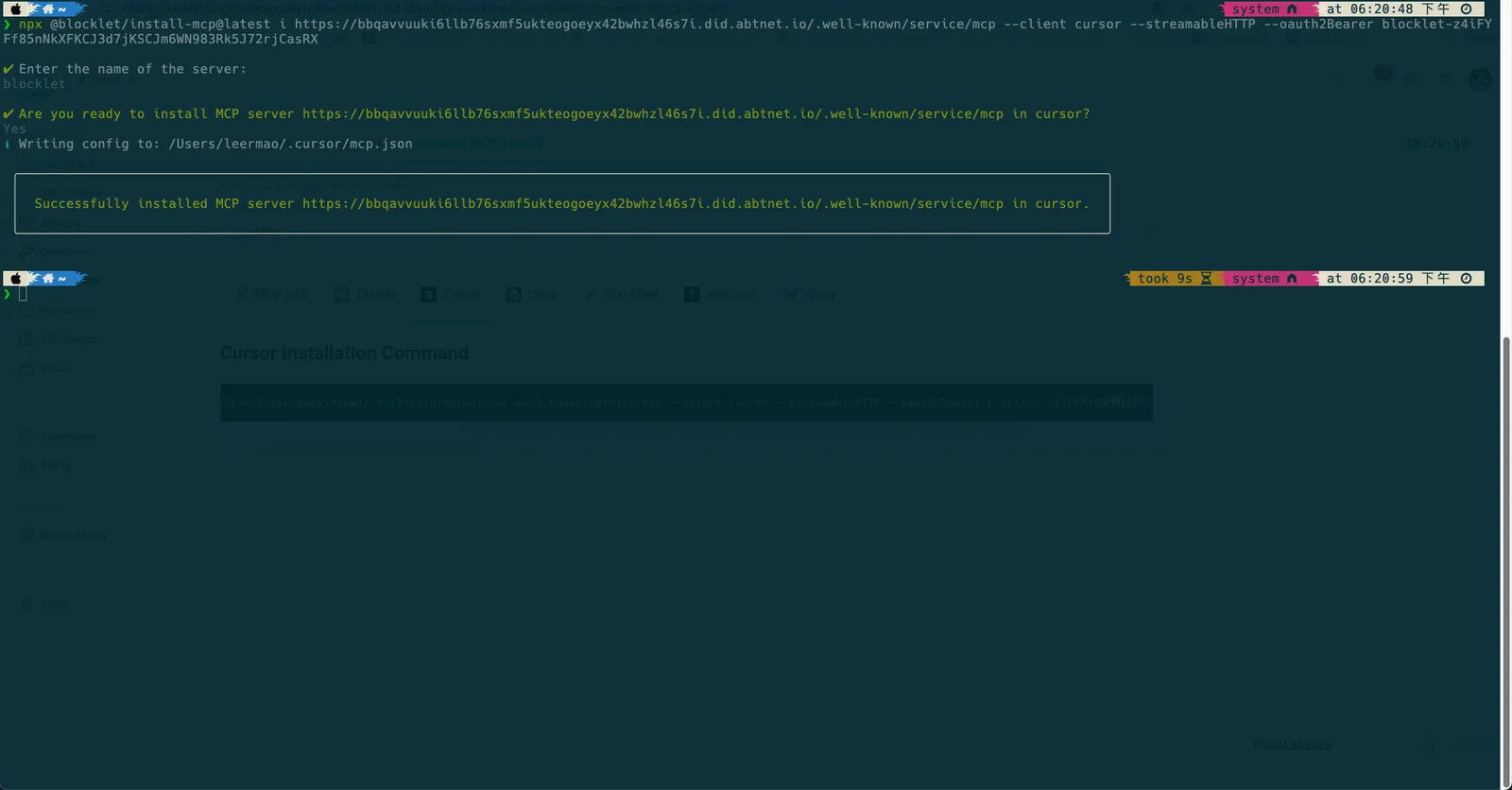
Confirm Installation
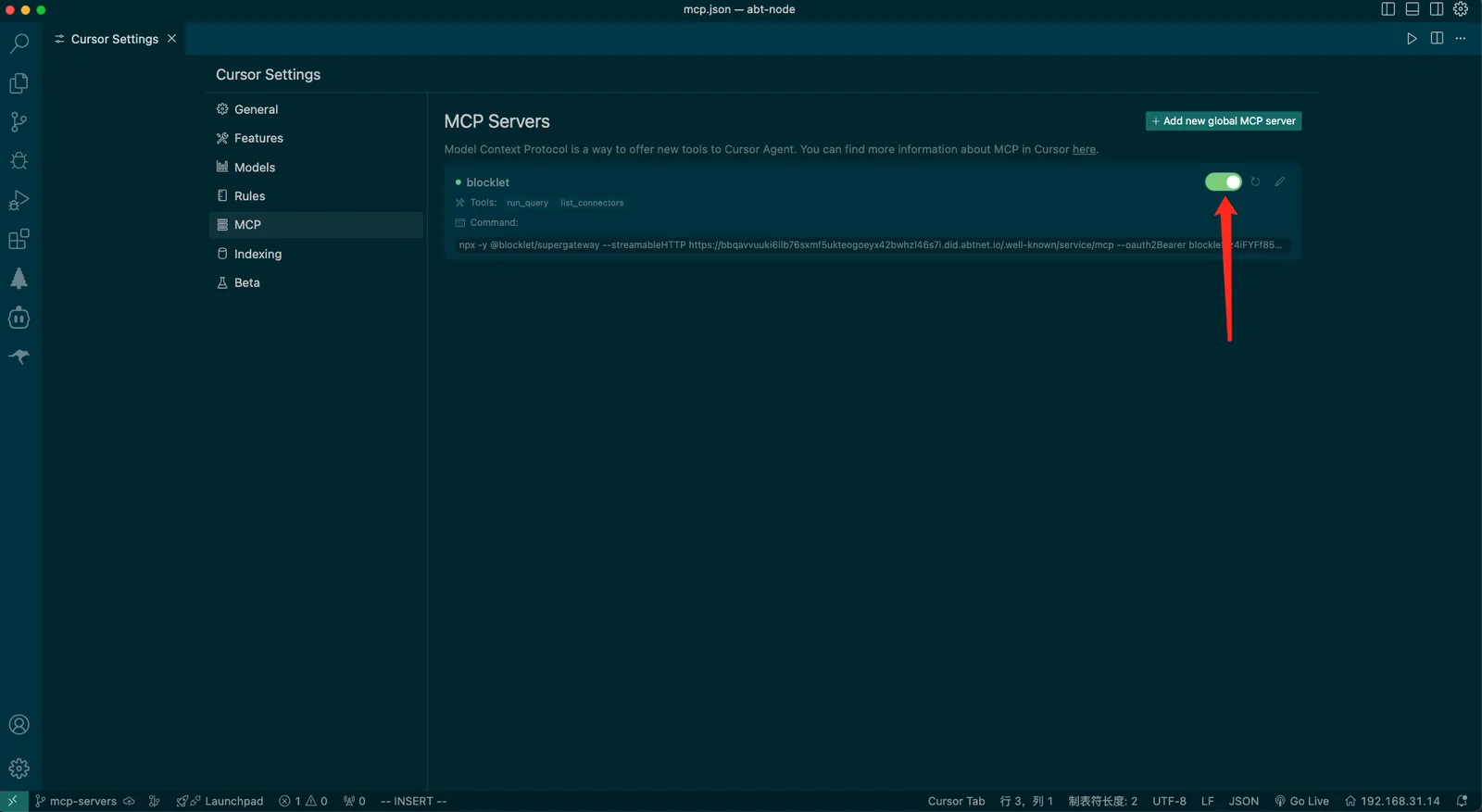
- Re-enable the Blocklet Service
- Verify that the Blocklet Server is displayed and its status is running
MCP Test
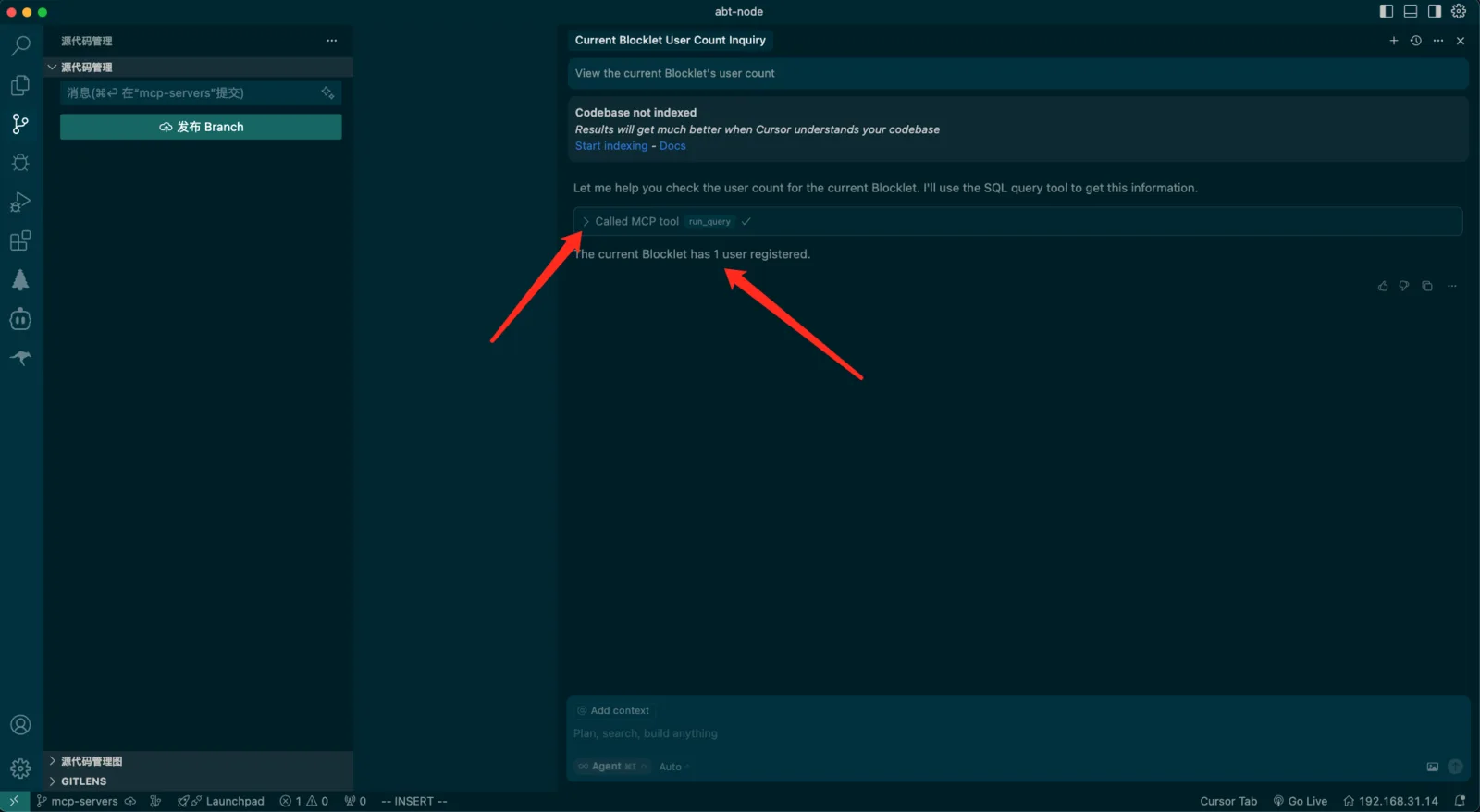
- MCP functionality can be tested through simple queries
- Example query: "View the current Blocklet's user count"
- Verify the presence of MCP call logs and output.
Important Considerations
- The URL in the installation command points to the test environment.
- Ensure the MCP Server refreshes after installation.