Overview
If a Blocklet backup to a DID Space is interrupted by an anomaly, preventing the scheduled backup task from completing, this article will help you quickly resolve the issue.
Prerequisites
- Access to the Blocklet Dashboard is required.
Procedure
Access the Blocklet Store
We need to access the Blocklet's Dashboard, then navigate to the Storage page. There, we can confirm that the automatic backup status is indeed abnormal. Also, ensure that automatic backup is enabled (note: the following is an incorrect example).
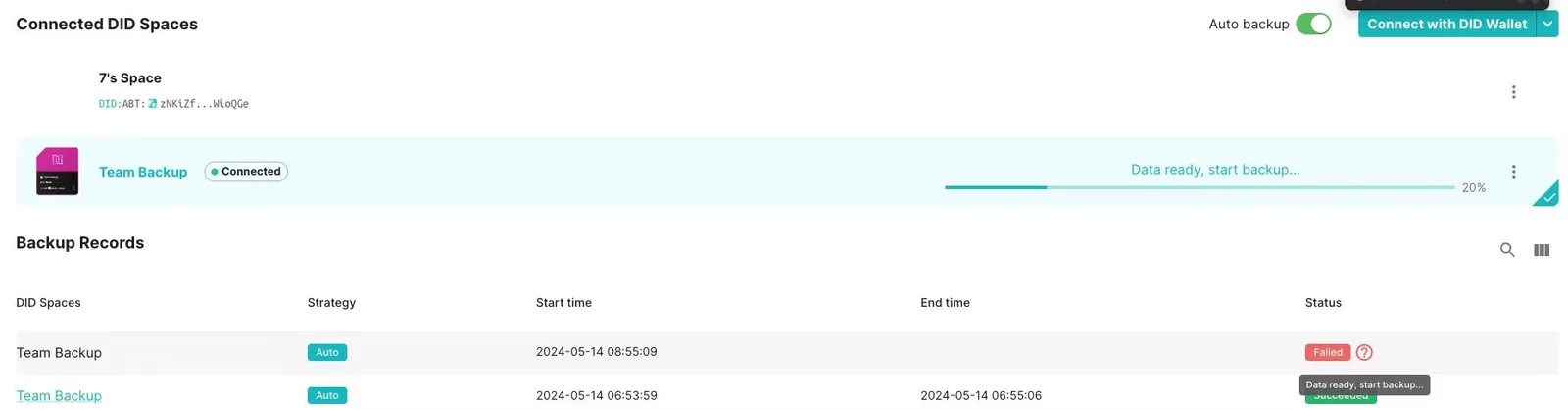
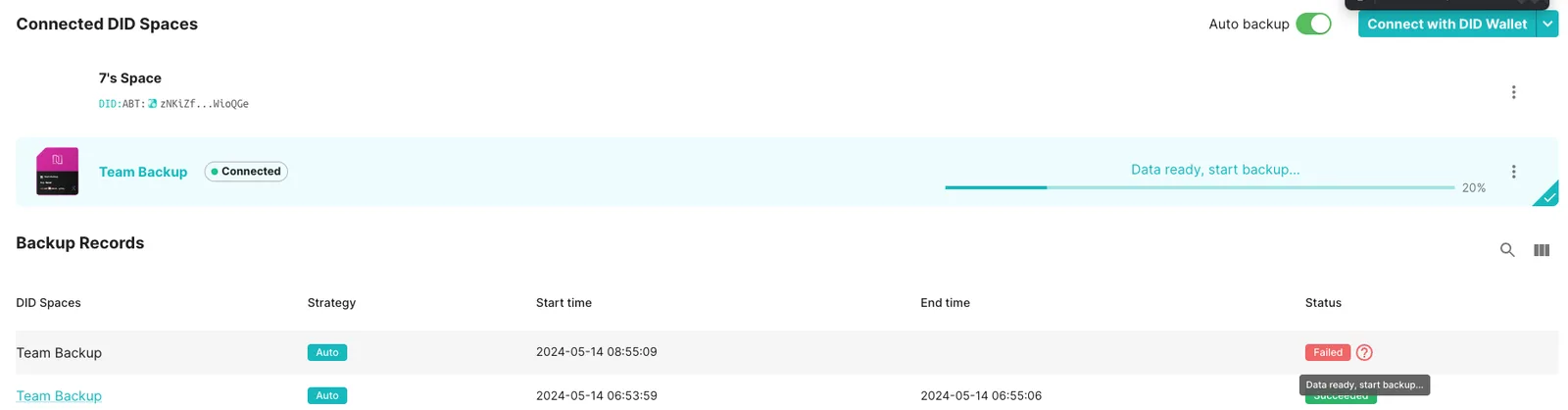
Any change to a Blocklet's configuration triggers an automatic backup.
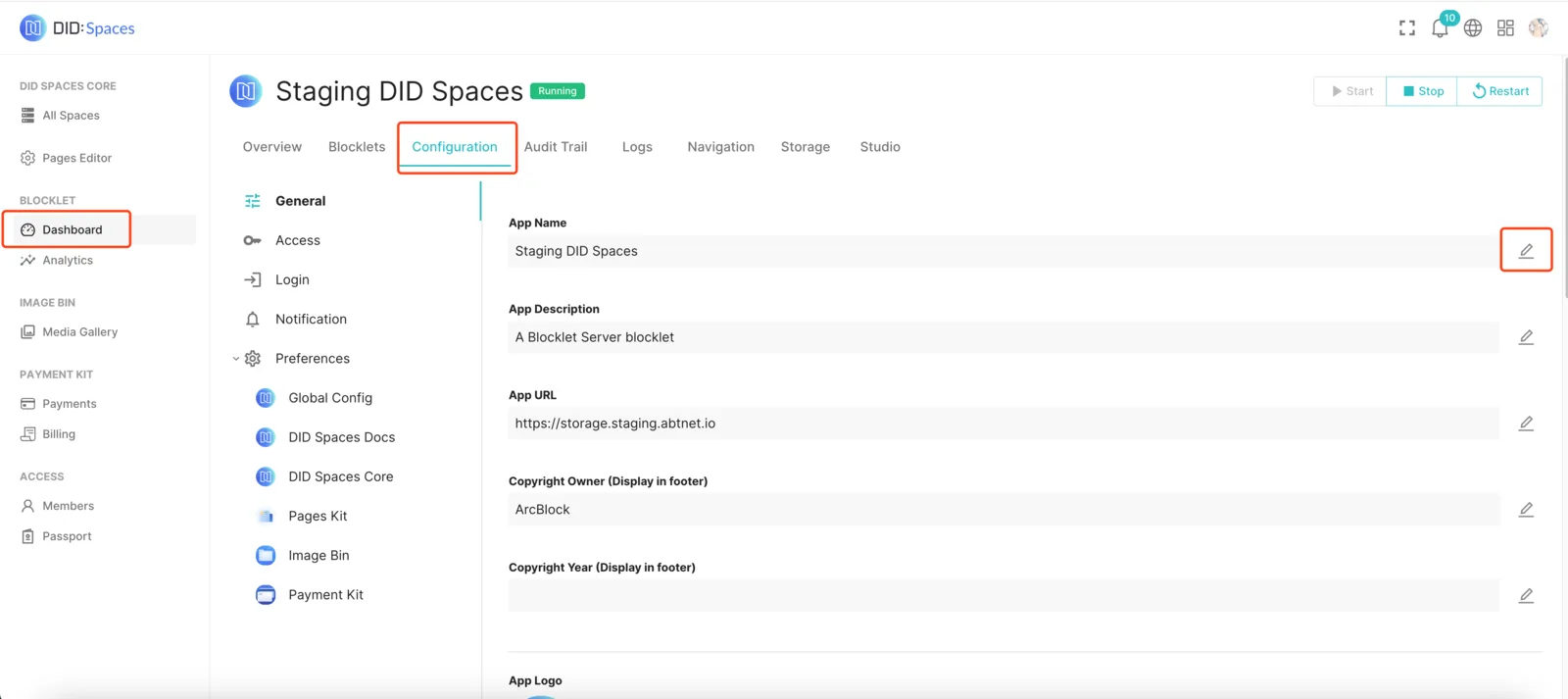
We access the Blocklet's Configuration page, make an arbitrary edit to the configuration, and confirm the change. A backup should be automatically triggered after one minute.
Wait for the automatic backup to trigger and verify its success.
Return to the Blocklet's Storage page. After one minute, the automatic backup should be successfully triggered.
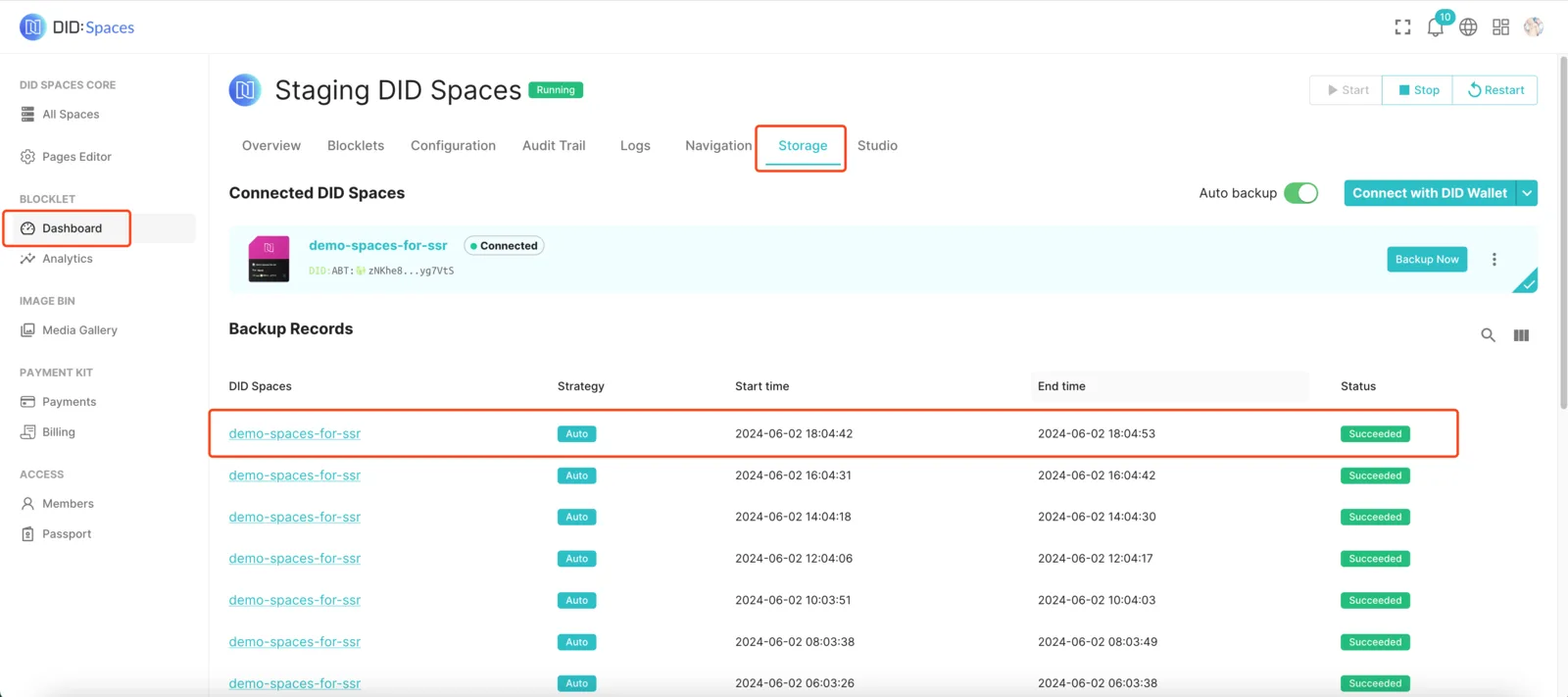
The automatic backup process is now working normally.