The config.yaml file is the central control panel for your website generation. Understanding its settings allows you to customize every aspect of the AI's output, from page structure to content tone. This guide provides a complete, field-by-field reference to help you modify your site with precision.
Overview
The config.yaml file is the primary configuration source for AIGNE WebSmith. It uses the YAML format to store all the parameters the AI agent needs to generate your website. Every time you run a command like generate or update, WebSmith reads this file to understand your requirements.
- File Name:
config.yaml - Location:
.aigne/web-smith/config.yaml(relative to your project's root directory) - Format: YAML (UTF-8)
This file controls the website's purpose, target audience, content generation rules, page structure, multilingual support, and deployment settings.
Creating and Updating the Configuration
The config.yaml file is created automatically when you first use WebSmith.
Creation:
You can create the file in two ways:
During the first generation:
Running
aigne web generatein a new project will launch an interactive wizard to create theconfig.yamlfile before starting the generation process.Separately:
Running
aigne web initlaunches the same wizard to create the configuration file without immediately generating the site.
aigne web init
aigne web init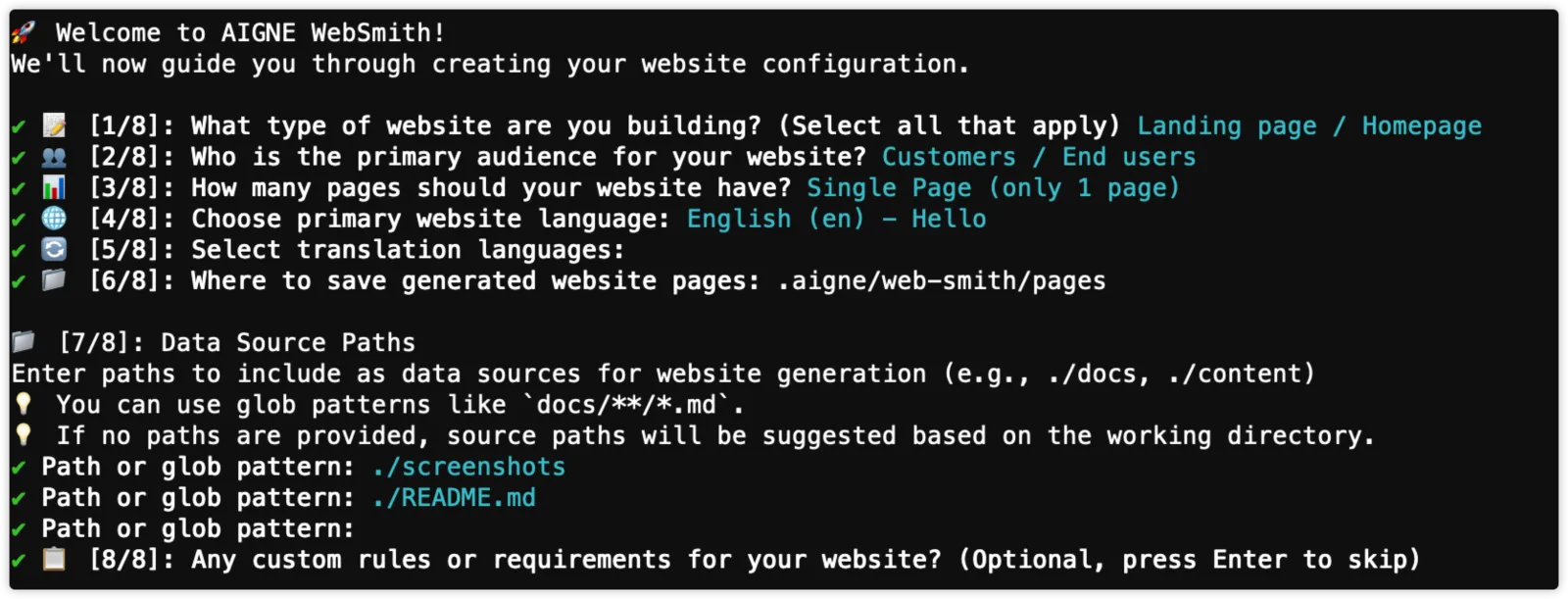
Updating:
You can update your configuration using one of two methods:
Directly edit the file:
Open
.aigne/web-smith/config.yamlin a text editor and modify the fields.Use the interactive wizard:
Run
aigne web initagain. The wizard will load your existing settings and guide you through updating them.
Configuration Parameters
The fields in config.yaml are organized into functional groups. The following sections provide a detailed explanation of each parameter.
Project Basics
This group defines your project's identity, which is used for branding, SEO, and social media sharing.
- projectName
string(required)
Site Strategy
These fields define the high-level strategy for the AI, influencing the site's purpose, content tone, and overall structure.
- pagePurpose
array(required) — Defines the primary goal of the website, which influences the page structure and components used. Possible values include landingPage, ecommerce, saas, portfolio, corporate, blog, nonprofit, and education. - targetAudienceTypes
array(required) — Specifies the target audience, which affects the AI's tone, complexity, and examples. Possible values include customers, businessOwners, marketers, designers, developers, investors, jobSeekers, students, and generalPublic. - websiteScale
string(default:standard) — Controls the number of pages and navigation complexity. Options are: singlePage (one scrollable page), minimal (2-6 pages), standard (7-12 pages, recommended), comprehensive (12+ pages), or aiDecide (lets the AI choose). - rules
string— Provides detailed, multi-line instructions for the AI on content structure, tone, and style. This is a critical field for guiding the generation process to match your specific requirements. Supports Markdown format.
Languages
Configure the primary language and any additional languages for translation.
- locale
string(default:en) — The primary language for the website's base content, specified using an IETF language code (e.g., en, zh, ja). - translateLanguages
array— A list of additional language codes to translate the site into. Each language code will generate a full, translated version of the site structure.
Data Sources
These fields specify the content and data that the AI agent will use as reference material.
- sourcesPath
array(required) — An array of local directory and file paths for the AI to analyze. This is the most important field for content quality, as the AI uses only these sources as references. Include documentation, READMEs, and other key project files. - defaultDatasources
array— An array of file paths that are injected into the context of every page. This is useful for shared data like a media.md file that lists image locations and descriptions.
Output & Deployment
Configure output directories and deployment URLs.
- pagesDir
string(default:./aigne/web-smith/pages) — The output directory where generated site files (e.g., page.yaml) are stored. - appUrl
string— The final deployment URL of your website. This is used by the publish command to determine the deployment target.
Media & Display
These settings control how media assets like images are handled.
- media.minImageWidth
integer(default:800) — The minimum width in pixels for an image to be considered for use on the website. This helps filter out low-quality or small images.
System-Managed Fields
These fields are typically managed by WebSmith and do not require manual editing.
- lastGitHead
string— The Git commit hash of the last generation, used for incremental updates. - checkoutId
string— A temporary variable used during development. - shouldSyncAll
string— A temporary variable used during development. - navigationType
string— A temporary variable used during development.
Applying Changes
Changes to the config.yaml file are not applied automatically. You must run the appropriate command to see your modifications take effect. The command needed depends on which field you changed.
| Field(s) | Command to Apply Changes | Notes |
|---|---|---|
pagePurpose, targetAudienceTypes, websiteScale, locale | aigne web clear && aigne web generate | These require a full regeneration to restructure the site correctly. |
rules, media.minImageWidth, defaultDatasources | aigne web update | Updates existing content without a full regeneration. |
sourcesPath | aigne web clear && aigne web generate or aigne web update | New sources are analyzed to improve content during updates. |
translateLanguages | aigne web translate | Adds new language versions based on the updated list. |
projectName, projectDesc, projectLogo, projectCover, appUrl | aigne web publish | These fields are primarily used during the publishing process. |
Full Configuration Example
The following is a complete config.yaml file from the AIGNE WebSmith project itself, demonstrating a real-world configuration.
config.yaml
projectName: AIGNE WebSmith
projectDesc: "AI-powered website generation tool built on the AIGNE Framework"
projectLogo: https://www.arcblock.io/content/uploads/2e5edbac4a7d5310c117d09601811c.png
projectId: pg4d0000-0000-4000-a000-000000000000
projectSlug: /
pagePurpose:
  - landingPage
targetAudienceTypes:
  - customers
websiteScale: singlePage
rules: |
  ### I. Core Messaging & Strategy: Foundational elements that define *what* you communicate to the user.
  1. Answer Critical Questions "Above the Fold": The very first screen a user sees must clearly and immediately answer:
    * What it is: A concise description of the product.
    * Who it's for: The specific target audience (e.g., solo founders, small teams).
    * Why it's different: Your unique value proposition (e.g., "open, composable, exportable code, agent workflow").
    * Primary Action: A single, clear Call to Action (CTA) that aligns with the user's main goal.
  2. Establish Credibility with Proof: Don't expect users to trust your claims. Show them proof early in the narrative.
    * Show, Don't Just Tell: The most powerful proof is a demo. Include a short (30-45s) silent video loop or a link to a real site built with the tool.
    * Use Social Proof: Before explaining "How it Works," insert tangible evidence like a customer logo, a compelling data point (e.g., "Used by 50+ teams"), or a strong user quote.
  3. Define a Clear Call to Action (CTA):
    * Align CTA with the Audience: The primary CTA should be the main action you want your target user to take (e.g., "Generate My Site").
    * Prioritize CTAs: Relegate secondary actions (like "See it on GitHub") to less prominent positions (tertiary buttons or footer links), especially for non-developer audiences.
    * Maintain a Persistent Mobile CTA: On mobile, a single primary CTA should always be visible.
locale: en
translateLanguages:
  - zh
  - zh-TW
  - ja
pagesDir: .aigne/web-smith/pages
sourcesPath:
  - ./assets/documents
  - ./README.md
  - ./aigne.yaml
  - ./assets/images
  - ./assets/recordings/README.md
  - ./CHANGELOG.md
  - ./agents
defaultDatasources:
  - ./media.md
media:
  minImageWidth: 600
lastGitHead: c4a4d3db4bf230e2c6873419e26b6654c39613a5
checkoutId: ""
projectCover: .aigne/web-smith/cover.png
shouldSyncAll: ""
navigationType: ""
appUrl: https://mhevtaeg.user.aigne.io
Summary
Mastering the config.yaml file gives you full control over the website generation process. By carefully defining your project basics, site strategy, and data sources, you can guide the AI to produce a high-quality, relevant, and customized website.
For more hands-on guidance, see the following guides: