Use this guide to run aigne web translate, select the pages and languages you want, and save localized versions that are ready to publish alongside your primary site.
AIGNE WebSmith provides a powerful and straightforward way to automatically translate your website content into multiple languages, enabling you to reach a global audience with minimal effort. The translate command uses AI to generate high-quality translations for your existing pages.
This document will guide you through the process of translating your content, from basic interactive usage to more advanced options using command-line parameters.
How Translation Works
The translation process is designed to be simple and efficient. When you run the translate command, WebSmith performs the following steps:
Identifies Source Content
It loads your existing website structure and content, determining the primary language from your configuration.
Selects Pages
You can specify which pages to translate. If you don't, it will present an interactive list of all available pages for you to choose from.
Chooses Target Languages
You can provide a list of target languages. If you don't, it will display a list of supported languages for you to select.
Generates Translations
The AI processes the content of each selected page and generates a translated version for every chosen language. It can use an optional glossary to ensure consistent terminology.
Saves Translated Files
The newly translated pages are saved into language-specific directories, ready for you to review and publish.
Basic Usage
For the most straightforward approach, you can run the command without any parameters. WebSmith will guide you through the process with interactive prompts.
Run the following command in your terminal:
Localize Website
aigne web translate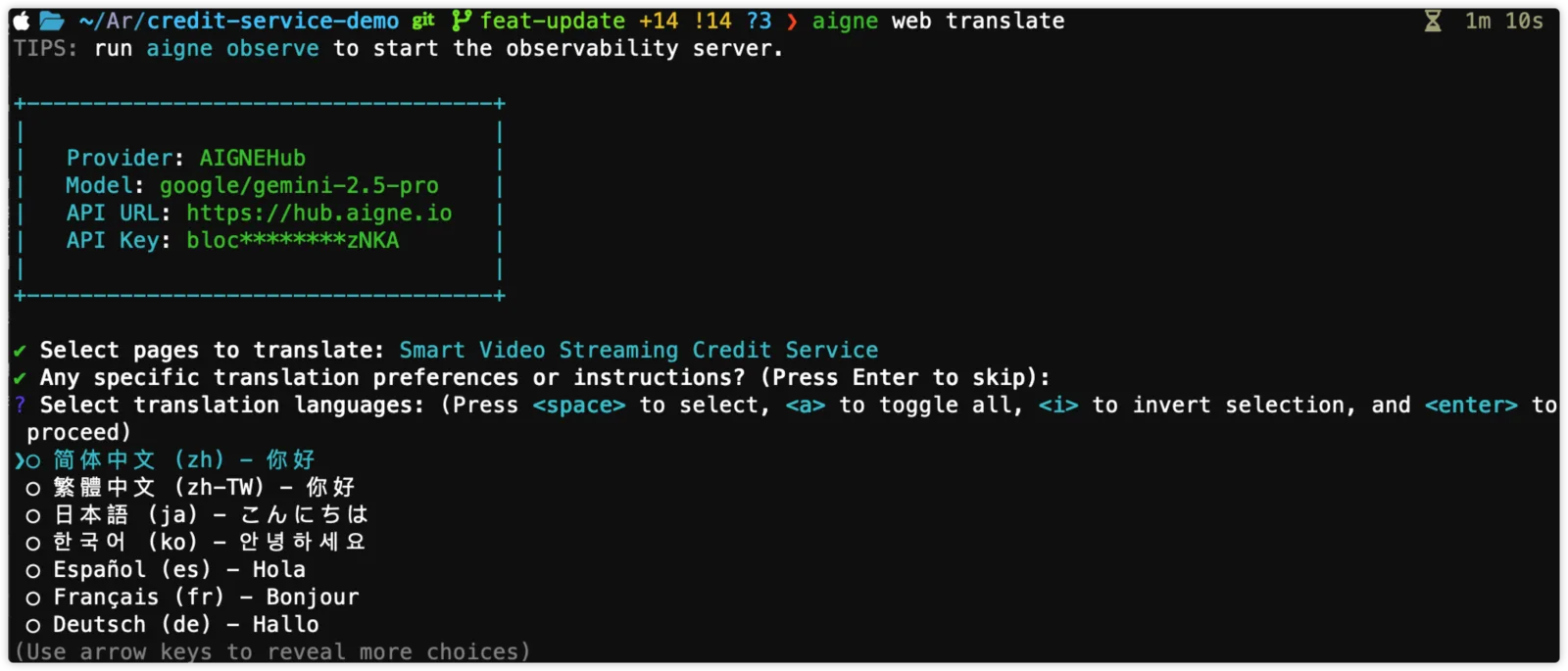
You will be prompted to:
- Select the pages you wish to translate (use the spacebar to select and enter to confirm).
- Select the target languages from a list of supported options.
Once you've made your selections, the AI will begin the translation process.
Command Parameters
For more control and for use in automated scripts, you can use the following command-line parameters.
- --pages
array— An array of page paths to translate. If omitted, you will be prompted to select pages interactively. For example: --pages /about /contact - --langs
array— An array of language codes to translate to. If omitted, you will be prompted to select languages interactively. See the table below for a full list of supported languages. - --glossary
string— A glossary of specific terms to ensure consistent terminology during translation. You can provide a string of key-value pairs or reference a file path using the @ prefix (e.g., @./glossary.txt). - --feedback
string— Provide feedback to the AI to refine and improve existing translations. This is useful for making corrections or adjusting the tone.
Examples
Translate Specific Pages into Multiple Languages
This command translates the /about-us and /services/main pages into Japanese and French without interactive prompts.
Translate Specific Pages
aigne web translate --pages /about-us /services/main --langs ja frUsing a Glossary for Consistent Terminology
To ensure that your brand name "WebSmith" and the term "SaaS" are translated consistently into Spanish, you can use the --glossary parameter.
Translate With Glossary
aigne web translate --langs es --glossary "WebSmith:WebSmith AI,SaaS:Software como Servicio"For a larger glossary, it is more practical to use a file. Create a file named glossary.txt with your terms, and then reference it.
Translate With Glossary File
aigne web translate --langs de --glossary @./glossary.txtSupported Languages
The following table lists all languages currently available for translation.
| Language | Code |
|---|---|
| English | en |
| Chinese (Simplified) | zh |
| Chinese (Traditional) | zh-TW |
| Japanese | ja |
| French | fr |
| German | de |
| Spanish | es |
| Italian | it |
| Russian | ru |
| Korean | ko |
| Portuguese | pt |
| Arabic | ar |
After translating your content, the next logical step is to make it available to your users. Learn how to deploy your multilingual site in the Publish Website section.