Note: Interactive mode is currently in beta. While fully functional, you may encounter unexpected behavior. We appreciate your feedback as we continue to improve this experience.
Use this guide to launch aigne web chat, speak to WebSmith in natural language, and let the assistant trigger generate/update/publish actions on your behalf.
The chat command provides an interactive, conversational interface for building and managing your website. Instead of running individual commands like generate or update, you can describe your needs in plain language, and the AI assistant will guide you through the process. This is an ideal starting point for users who prefer a more guided experience.
How It Works
Interactive mode is powered by a dedicated AI agent that understands your requests and can use other WebSmith tools to perform tasks. It maintains a memory of your conversation, allowing you to make sequential changes and build on previous actions.
The general workflow follows a simple, conversational loop, as illustrated in the diagram below:
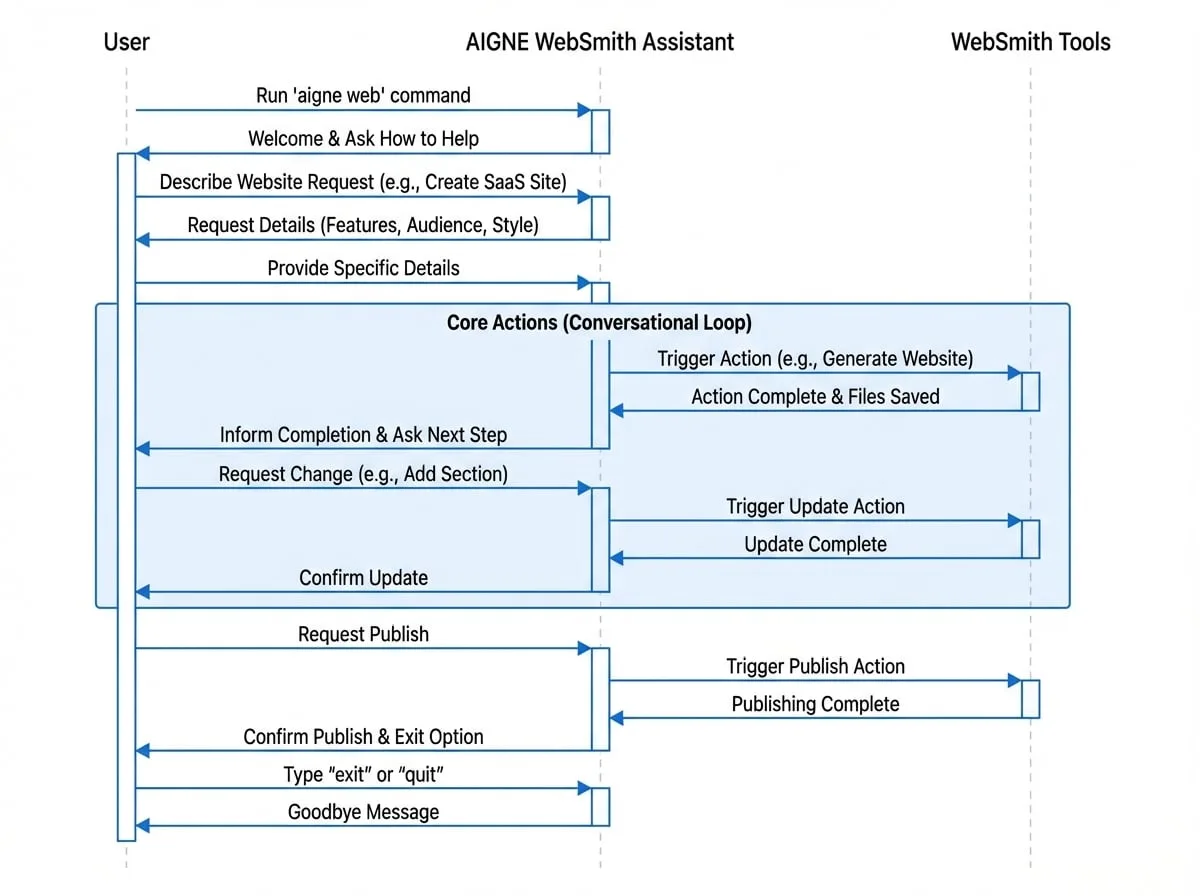
Starting an Interactive Session
To begin, run the chat command from your terminal:
Command
aigne webThis will launch the assistant, which will greet you and wait for your instructions.
What You Can Do
The chat assistant can perform most of the core tasks available in the AIGNE WebSmith CLI. You can simply ask it to:
- Generate a new website: Describe your website requirements, target audience, and desired style.
- Update existing content: Specify which page or section you want to change and provide the new details.
- Translate pages: Request translation of specific pages into another language.
- Publish your site: Tell the assistant you're ready to publish your website to Pages Kit.
- Manage files: Ask to see the current file structure or content of a specific page.
Example Conversation
Here is an example of how you might use interactive mode to create, modify, and publish a simple website.
Command Line
aigne web

> Welcome to the AIGNE WebSmith interactive assistant!
> How can I help you build your website today?

You:
I need to create a website for a new SaaS product that helps teams manage their projects.

> Of course. Could you please provide a few more details?
> - What are the core features of the product?
> - Who is the target audience?
> - What style should the website have (e.g., business, modern, playful)?

You:
The main features are task tracking, team collaboration, and reporting. The target audience is small to medium-sized business owners. Let's go with a modern business style.

> Thank you. I have enough information to plan the website structure.
> I will now generate the following pages:
> - Home
> - Features
> - Pricing
> - About Us
> - Contact
> ...
> [Generation process starts]
> ...
> Website generation is complete. The files have been saved to the 'output' directory.
> What would you like to do next?

You:
On the homepage, add a section for customer testimonials.

> Understood. I will add a customer testimonials section to the homepage.
> [Update process starts]
> ...
> The homepage has been updated. Is there anything else?

You:
No, that's all for now. Please publish the website.

> I will now publish the website to your configured Pages Kit project.
> [Publishing process starts]
> ...
> Your website has been successfully published.
> You can now exit the chat by typing 'exit'.

You:
exit

> Goodbye!
Exit Interactive Mode
To end your session at any time, type exit or quit and press Enter.
Interactive mode is a powerful way to manage your entire website lifecycle without needing to memorize specific commands and parameters. For more direct control, you can always use the standard commands detailed in the following sections.