Overview
If you have your own Blocklet Server, you can restore applications backed up to DID Spaces.
Prerequisites
- You have backed up the app to DID Spaces, and you are the owner of this app.
Procedure
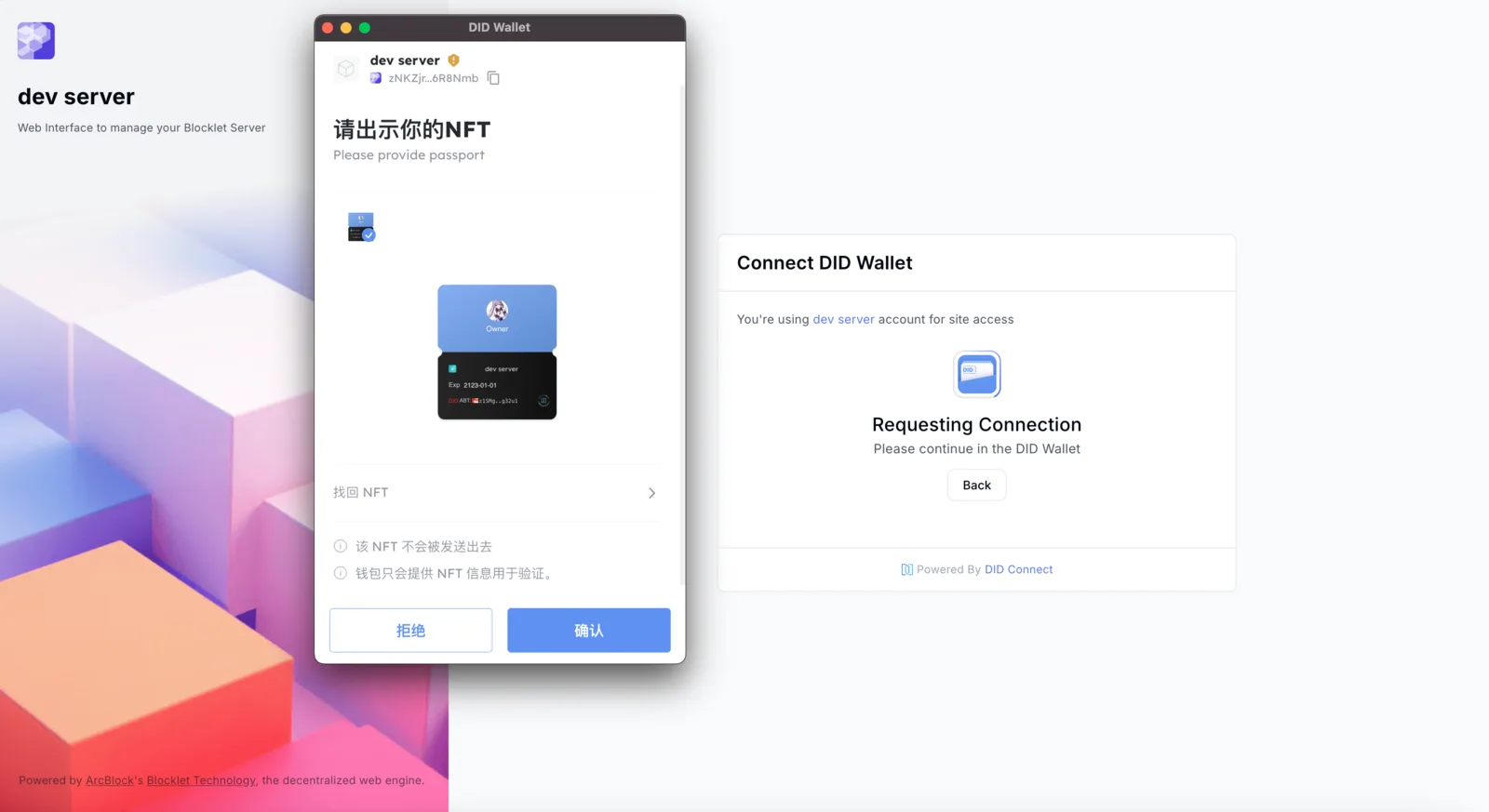
Sign in to Blocklet Server
Sign in to your Blocklet Server
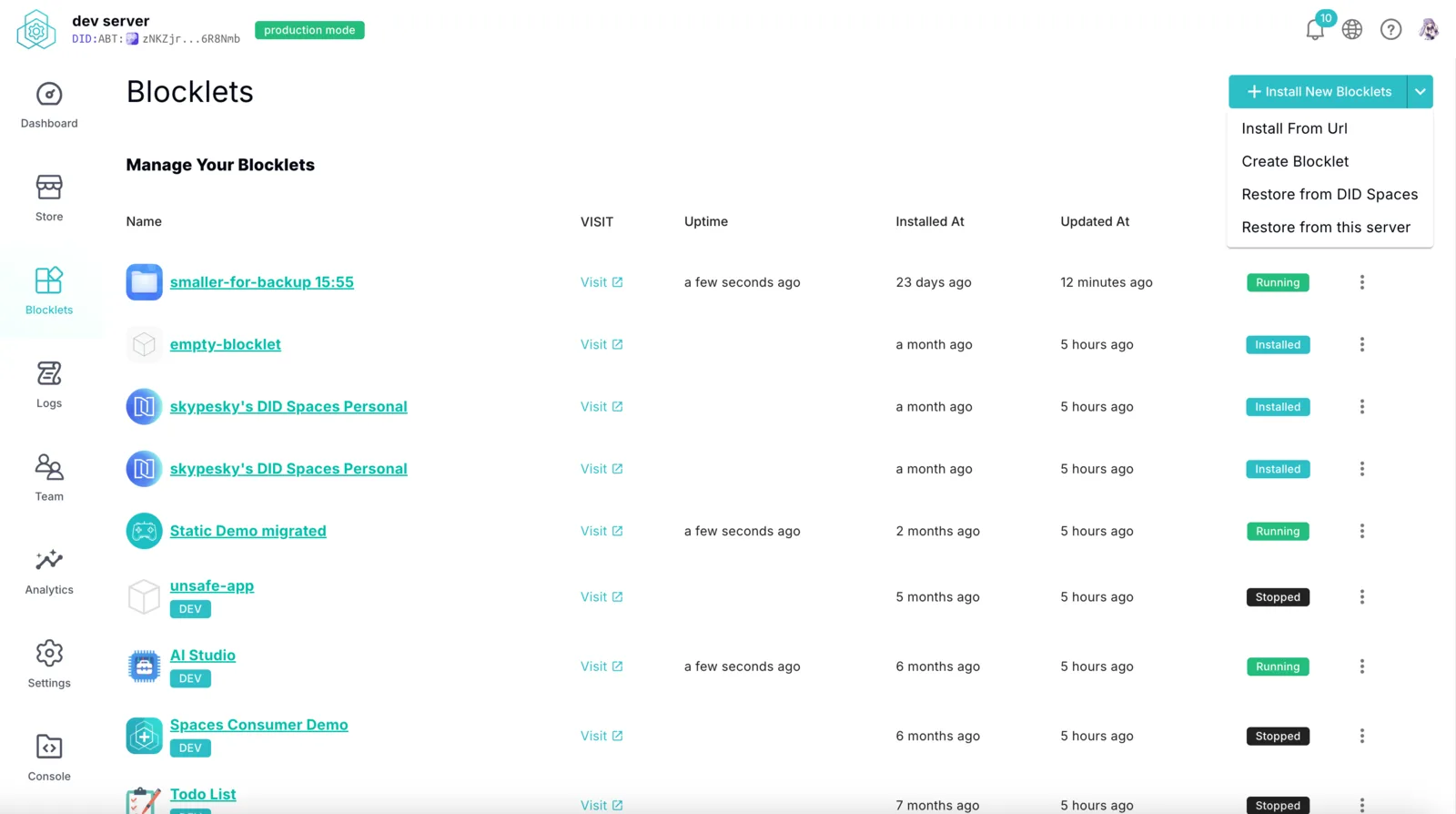
Go to the Blocklets page, click the split button in the top right corner, and then click Restore from DID Spaces to access the application restoration page.
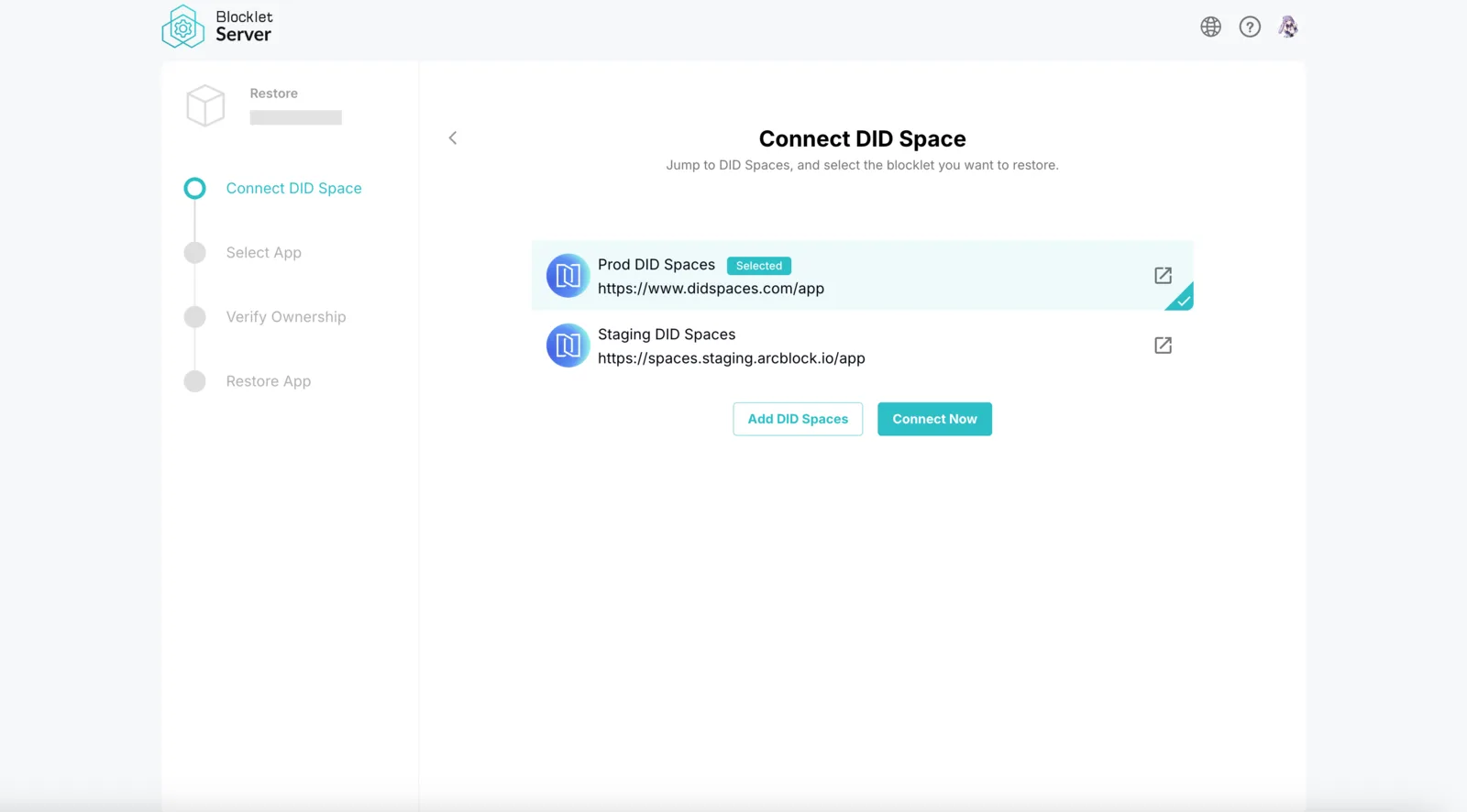
Connecting to DID Spaces
Select your DID Spaces service site (the application you want to restore should be on this site), click Connect Now to connect to DID Spaces.
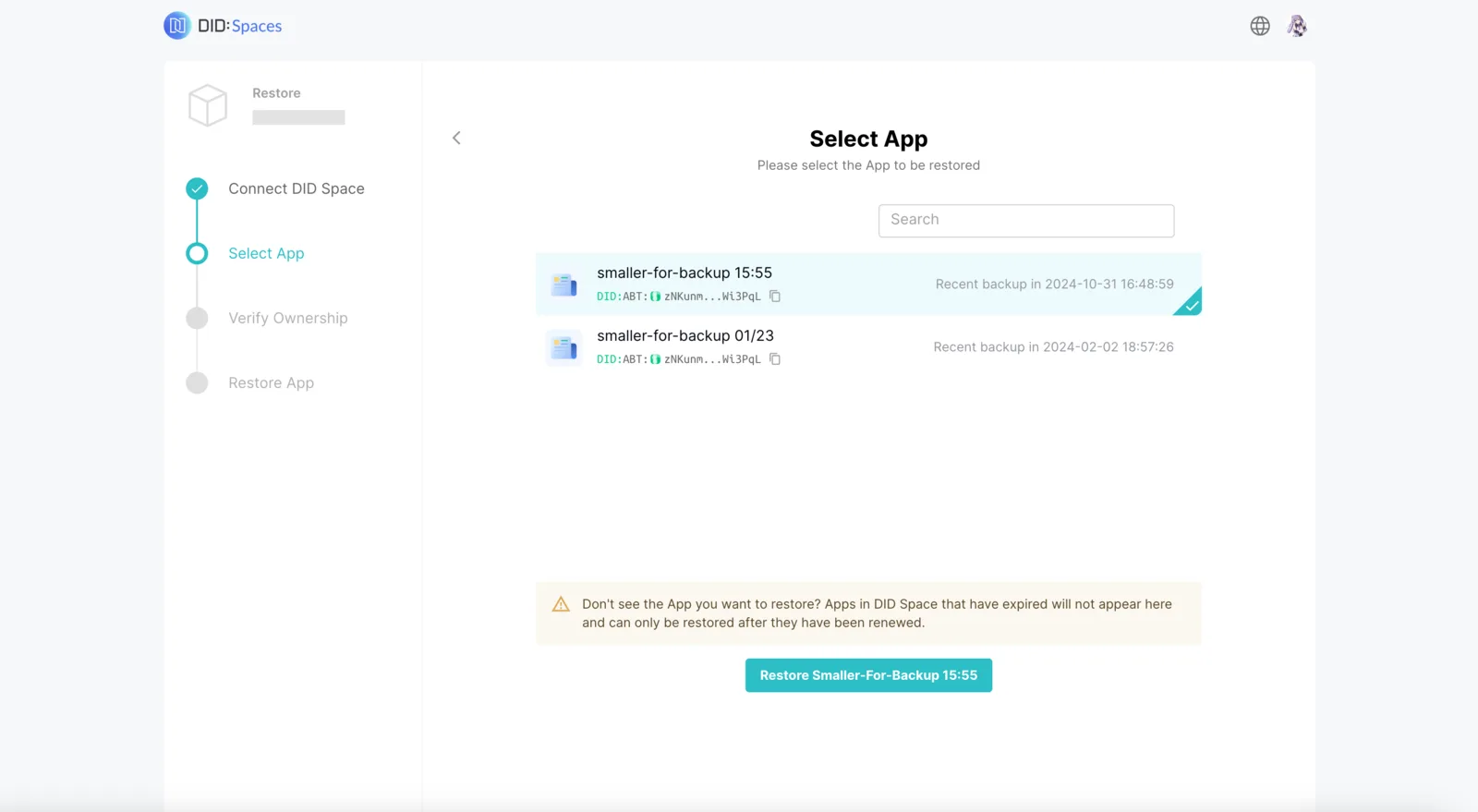
Select the application you want to restore, and click Restore to continue.
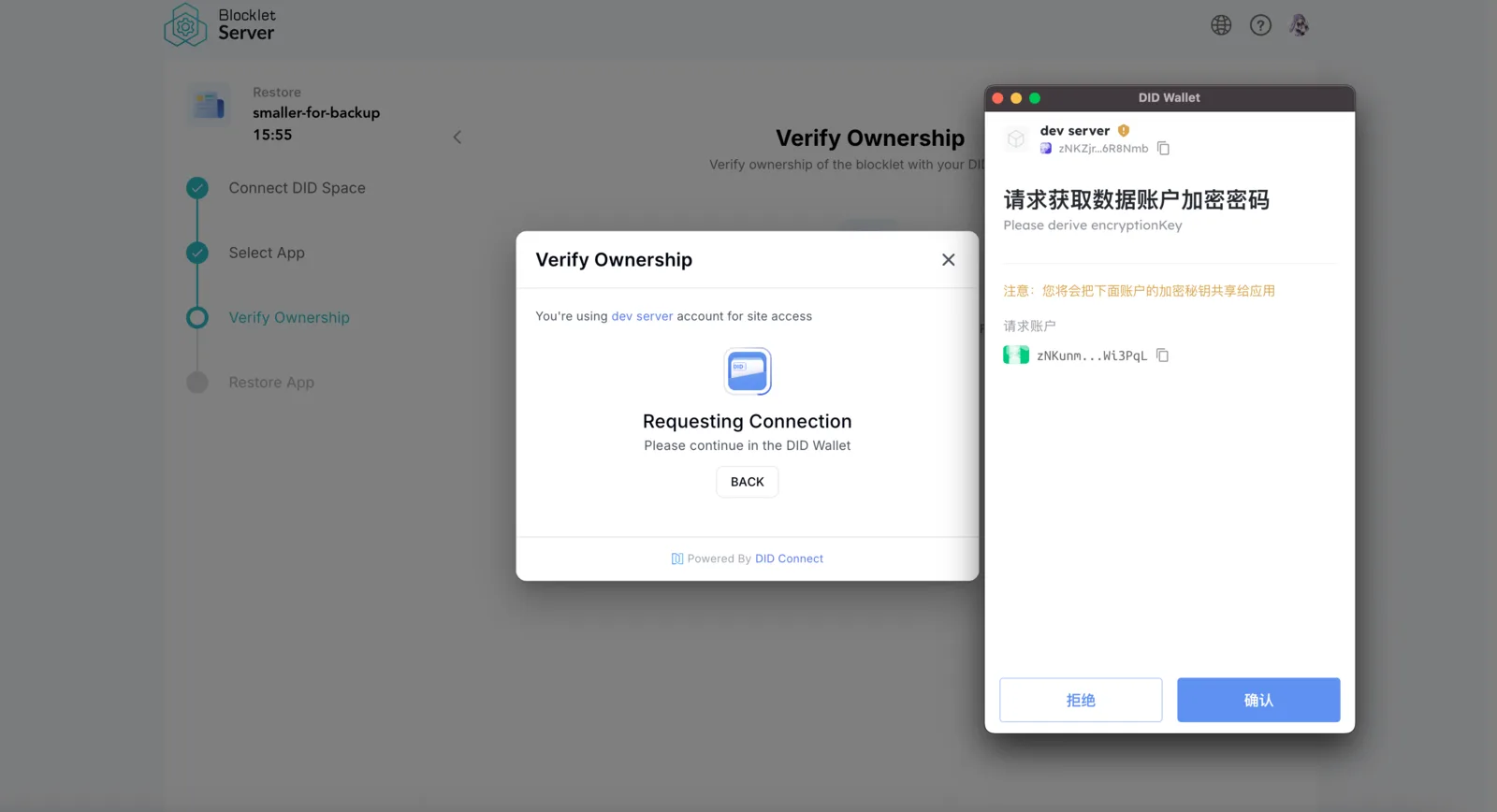
Authorize Blocklet Server Restoration
Restoring this application requires your authorization. Please grant authorization and provide the encryption password to proceed.
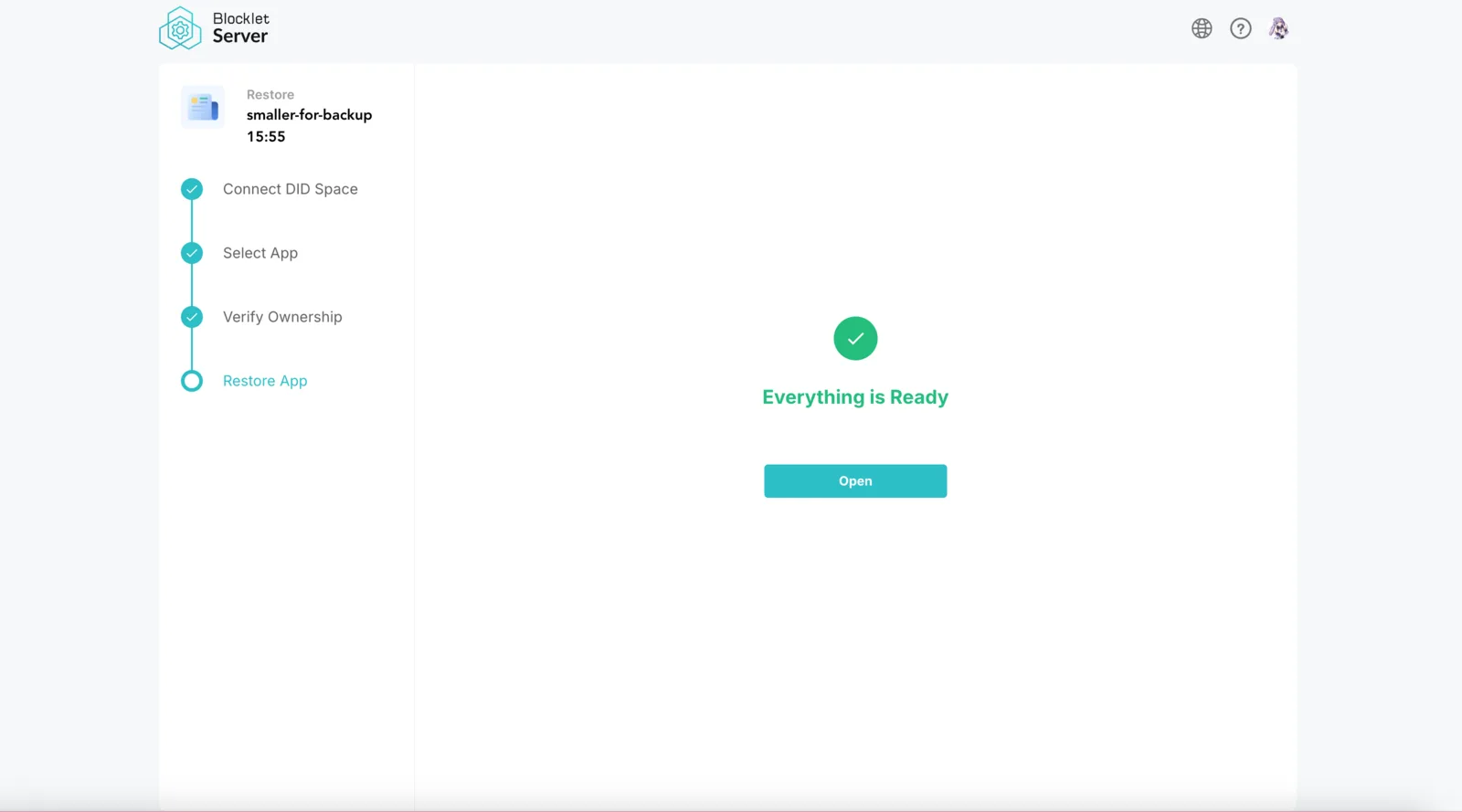
After authorization, the application will begin restoring to your Blocklet Server. Shortly thereafter, the restoration will complete, and the application will be visible on the blocklets page of your Blocklet Server.
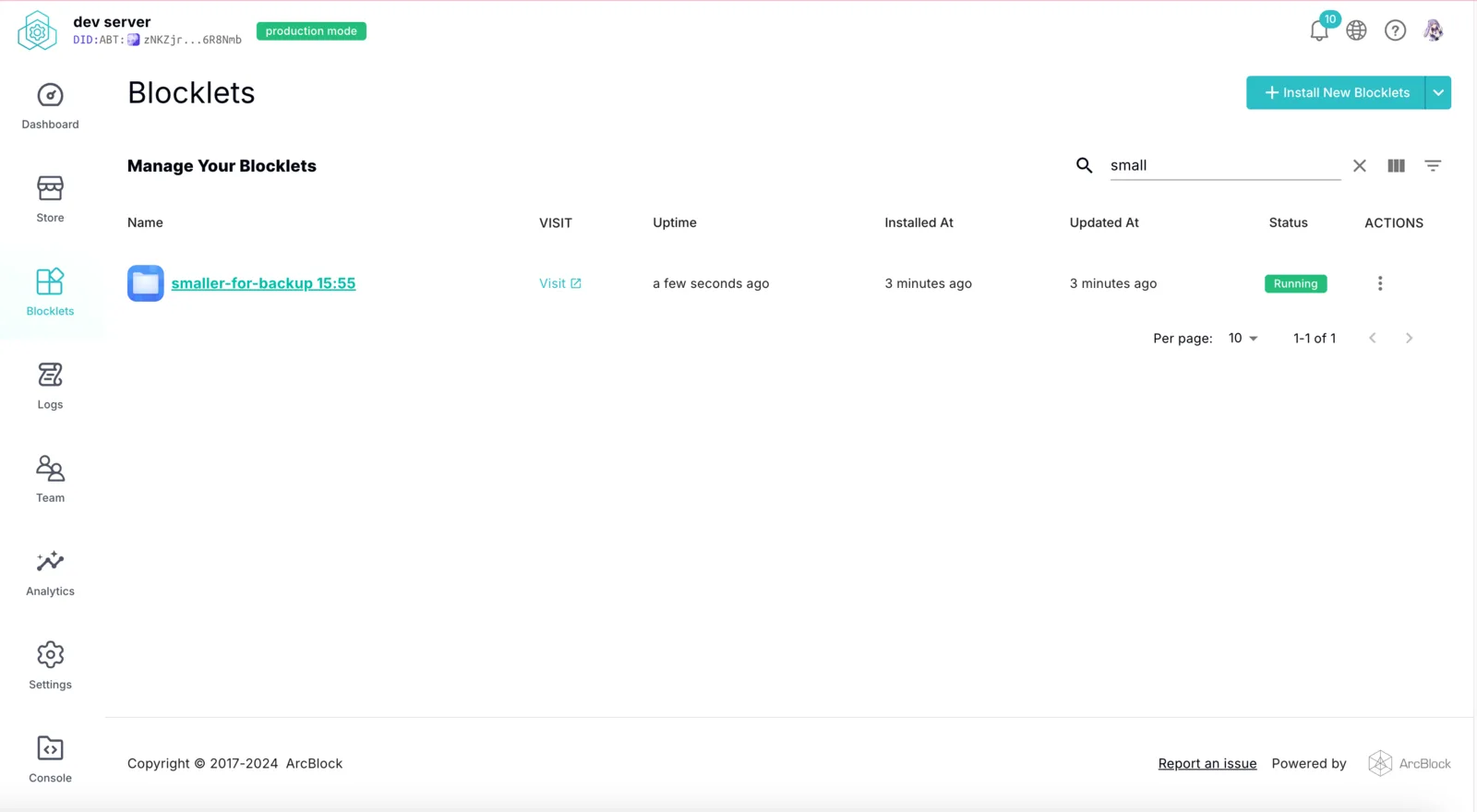
Verify the Integrity of the Restoration
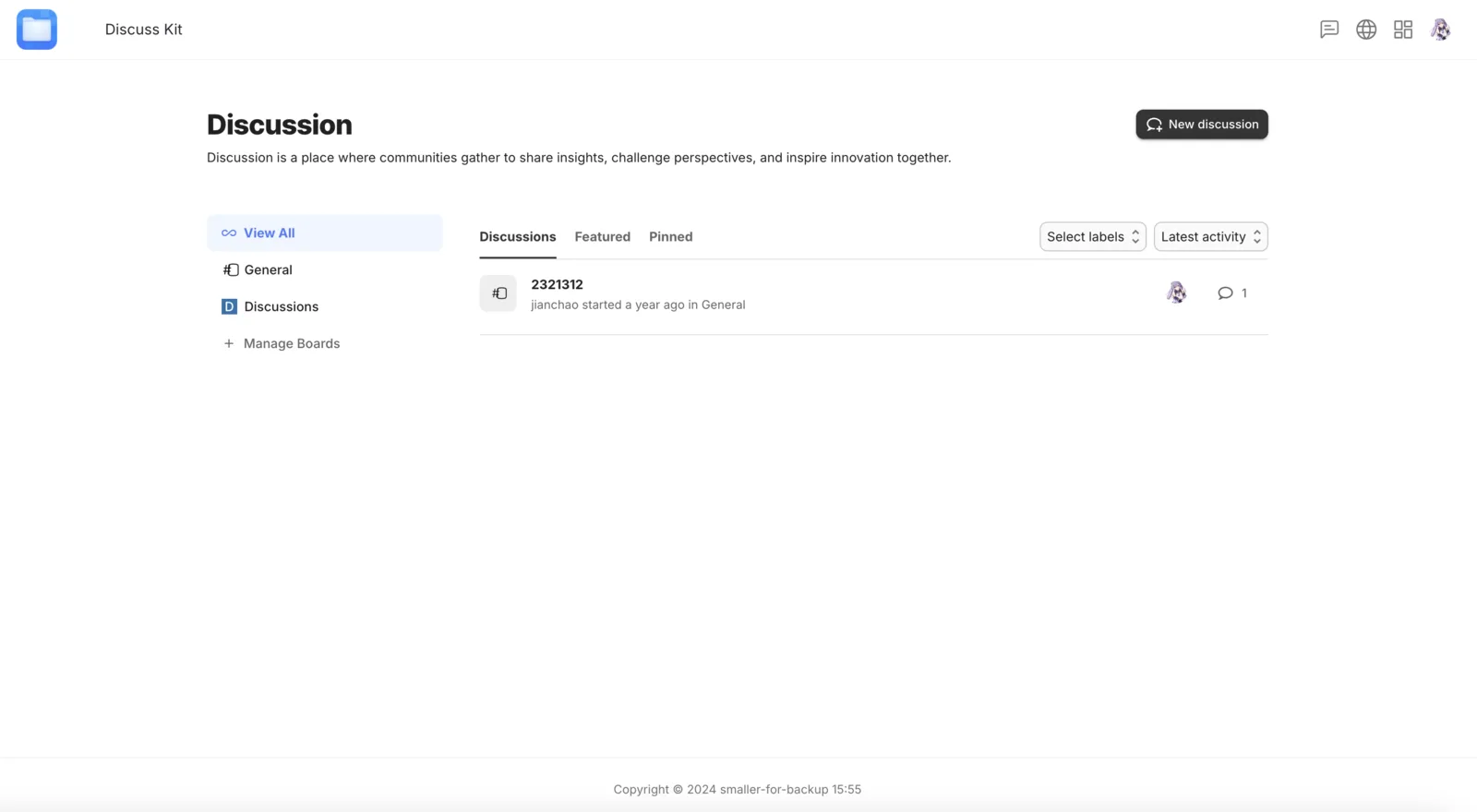
After a successful restoration, the restored Blocklet should appear and be running on the Blocklets interface. Click Visit:
You can see that the application data has been fully restored: