This guide is for administrators and non-technical users, providing step-by-step instructions for configuring and managing the Blocklet Service through its web dashboard. It covers all major functional areas, from initial setup to advanced operations.
Main Sections
The Blocklet Service dashboard is organized into several key sections, each dedicated to a specific area of management and configuration. The following diagram shows the main components of the dashboard. For detailed information, please refer to the corresponding sub-documents.
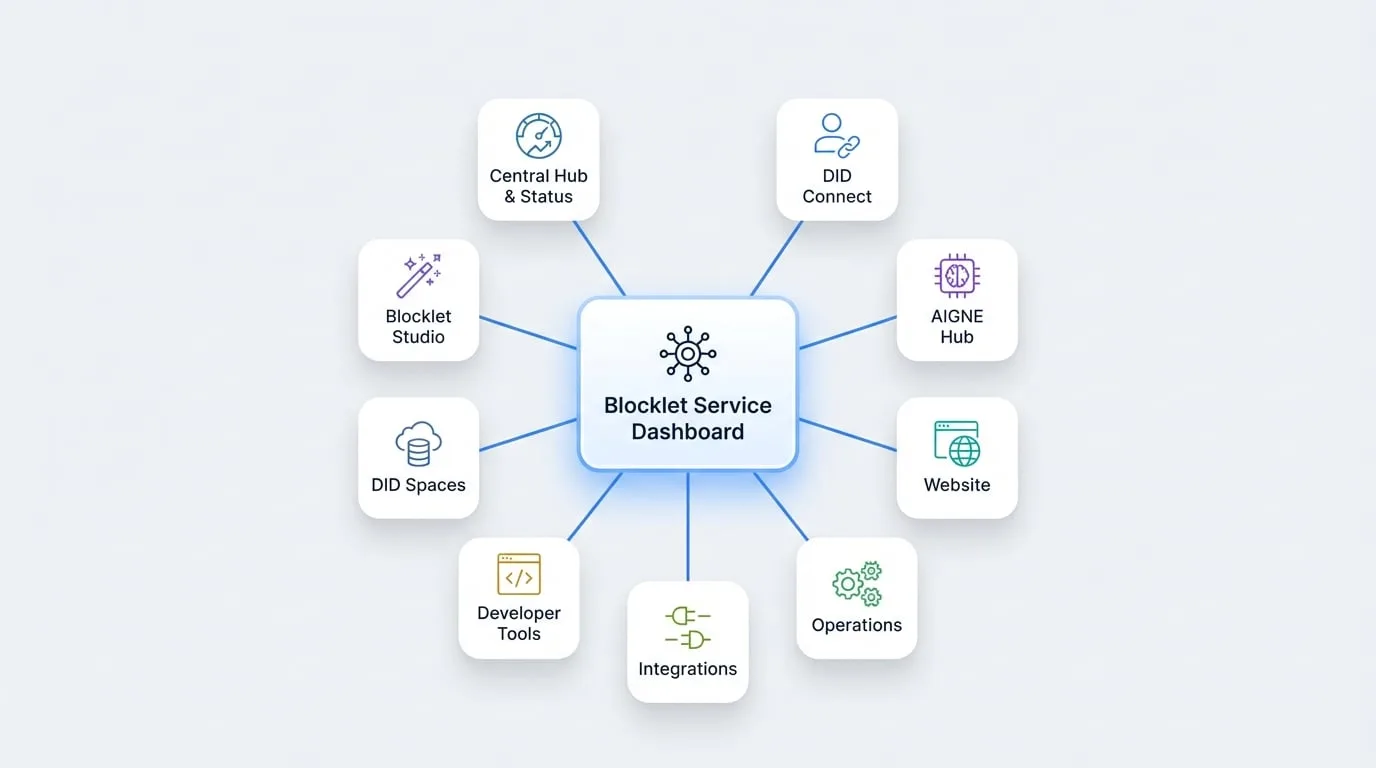
Dashboard
The central hub for managing your blocklets, monitoring system status, and accessing frequently used functions.
DID Connect
A comprehensive user and identity management center for handling members, passports, and authentication settings.
AIGNE Hub
Manage AI capabilities and monitor account balances for all your blocklets through the AIGNE Hub integration.
Website
Manage your website's presentation, branding, and navigation to customize its appearance and user experience.
Operations
Access aggregated operational functions for production management, including notifications, audit logs, and analytics.
Integrations
Manage integrations with external systems and control programmatic API access.
Developer Tools
Access developer-focused tools for logging, performance monitoring, and viewing embedded documentation.
DID Spaces
Manage decentralized storage, backups, and file management using DID Spaces integration.
Blocklet Studio
Use the no-code platform to create, manage, and publish new blocklets from templates.
Summary
This user guide provides a comprehensive overview of the Blocklet Service dashboard's functionalities. Each section is designed to give you control over different aspects of your application, from user management to website branding and operational monitoring.
For developers looking to integrate with Blocklet Service programmatically, please refer to the Developer Guide.