CheckoutTable
The CheckoutTable component provides a complete, out-of-the-box solution for subscription checkouts. It fetches and renders a pricing table, allows users to select a plan, and then seamlessly transitions them to a payment form to complete the purchase. This high-level component is the fastest way to integrate a plan-based payment flow into your application.
It internally uses the PricingTable component to display the plans and the CheckoutForm component to process the payment.
How it Works#
The checkout flow managed by CheckoutTable is straightforward. The following diagram illustrates the sequence of events from displaying plans to finalizing the transaction:
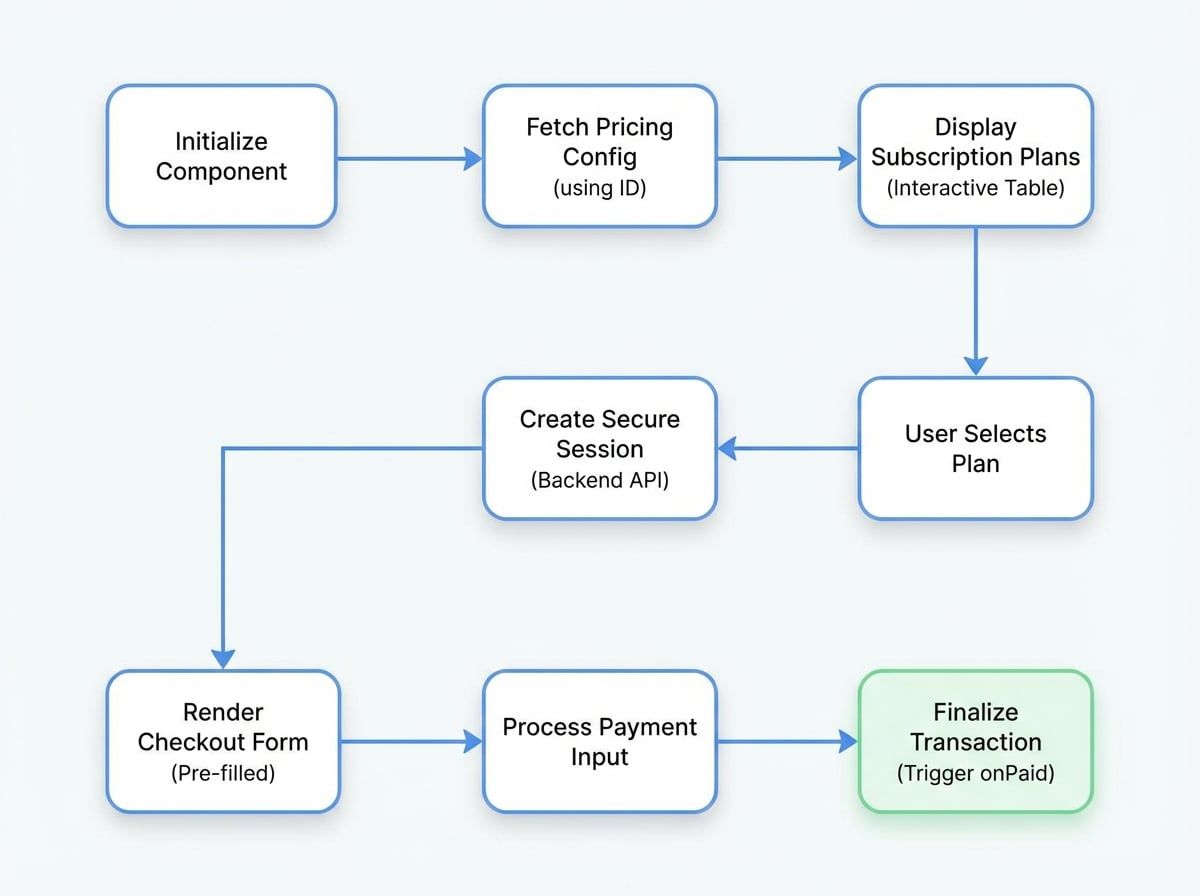
- Fetch Data: The component fetches the pricing table configuration from the server using the provided
id. - Display Plans: It renders the subscription plans in a responsive table, allowing users to switch between billing intervals (e.g., monthly/yearly) and currencies.
- Create Session: When a user selects a plan, the component communicates with the backend to create a secure checkout session.
- Process Payment: It then displays the
CheckoutForm, pre-filled with the session details, allowing the user to enter their payment information and finalize the transaction.
Props#
The CheckoutTable component accepts the following props to customize its behavior and handle events.
The ID of the pricing table to display. This value must be prefixed with prctbl_.
The display mode. In 'standalone' mode, the user is redirected to a separate hosted page upon selecting a plan. In 'embedded' mode, the entire checkout flow occurs inline within the component.
A callback function that is triggered when a payment is successfully completed. It receives the sessionId of the transaction.
A callback function for handling any errors that occur during the checkout process.
A callback function that is triggered for any state change within the underlying CheckoutForm component.
An object containing extra parameters to be sent to the server when creating the checkout session. This is useful for passing custom data, such as a user ID or tracking information.
A function to handle the back action from the payment form, which returns the user to the pricing table view. The component manages the UI transition; this callback is for synchronizing external application state.
Usage#
To use the CheckoutTable component, you must wrap it in a PaymentProvider. Pass the pricing table id and an onPaid callback to handle successful transactions.
MyCheckoutPage.jsx
import { PaymentProvider, CheckoutTable } from '@blocklet/payment-react';
import { useSessionContext } from './path-to-your-session-context'; // Centralize this context as per guidelines

export default function MyCheckoutPage() {
  const { session, connectApi } = useSessionContext();

  const handlePaymentSuccess = (sessionId) => {
    console.log(`Payment successful for session: ${sessionId}`);
    alert('Thank you for your subscription!');
  };

  if (!session) {
    return <div>Loading session...</div>;
  }

  return (
    <PaymentProvider session={session} connectApi={connectApi}>
      <div style={{ height: '700px', width: '100%' }}>
        <CheckoutTable
          id="prctbl_z2v5NvY3tYjH2zK8yL9xP6" // Replace with your actual pricing table ID
          onPaid={handlePaymentSuccess}
        />
      </div>
    </PaymentProvider>
  );
See all 1 lines
Modes of Operation#
Embedded Mode (Default)#
By default, CheckoutTable operates in 'embedded' mode. The component manages the entire flow inline, transitioning from the pricing table view to the payment form within its own container. This is ideal for single-page applications where you want the checkout to feel like an integrated part of the page.
Standalone Mode#
By setting mode='standalone', the component's behavior changes. When a user selects a plan, they are redirected to a dedicated, hosted checkout page. This mode is useful for simpler integrations that don't require an embedded payment form.
StandaloneMode.jsx
import { PaymentProvider, CheckoutTable } from '@blocklet/payment-react';
import { useSessionContext } from './path-to-your-session-context';

export default function StandaloneCheckout() {
  const { session, connectApi } = useSessionContext();

  if (!session) {
    return <div>Loading session...</div>;
  }

  return (
    <PaymentProvider session={session} connectApi={connectApi}>
      <CheckoutTable
        id="prctbl_z2v5NvY3tYjH2zK8yL9xP6"
        mode="standalone"
      />
    </PaymentProvider>
  );
}
Advanced Usage#
Handling Back Navigation#
The goBack prop allows you to define custom logic for when the user navigates back from the payment form to the pricing table. The component handles the view transition automatically, but this callback is useful for synchronizing your application's state.
GoBackExample.jsx
import { PaymentProvider, CheckoutTable } from '@blocklet/payment-react';
import { useSessionContext } from './path-to-your-session-context';
import { useState } from 'react';

export default function CheckoutWithBackNavigation() {
  const { session, connectApi } = useSessionContext();
  const [view, setView] = useState('pricing');

  const handleGoBack = () => {
    console.log('User returned to the pricing table.');
    setView('pricing');
  };

  if (!session) {
    return <div>Loading session...</div>;
  }

  return (
    <PaymentProvider session={session} connectApi={connectApi}>
      <div style={{ height: '700px', width: '100%' }}>
        <CheckoutTable
          id="prctbl_z2v5NvY3tYjH2zK8yL9xP6"
          onPaid={() => alert('Payment successful!')}
          goBack={handleGoBack}
          onChange={() => setView('payment')}
See all 5 lines
Passing Extra Parameters#
Use the extraParams prop to send additional data when creating the checkout session. This data can be associated with the resulting payment and is useful for tracking and reconciliation on your backend.
ExtraParamsExample.jsx
import { PaymentProvider, CheckoutTable } from '@blocklet/payment-react';
import { useSessionContext } from './path-to-your-session-context';

export default function CheckoutWithExtraParams() {
  const { session, connectApi } = useSessionContext();

  if (!session) {
    return <div>Loading session...</div>;
  }

  const user = { id: 'user_12345' }; // Example user object

  return (
    <PaymentProvider session={session} connectApi={connectApi}>
      <div style={{ height: '700px', width: '100%' }}>
        <CheckoutTable
          id="prctbl_z2v5NvY3tYjH2zK8yL9xP6"
          onPaid={() => alert('Payment successful!')}
          extraParams={{ userId: user.id, source: 'marketing_campaign' }}
        />
      </div>
    </PaymentProvider>
  );
}Customization#
While CheckoutTable is a high-level component designed for ease of use, you can achieve more granular control by using its constituent parts. For a fully custom UI, you can use the PricingTable component to display plans and then manually trigger a checkout session that renders in a CheckoutForm.