Troubleshooting
This guide helps you diagnose and fix common issues when working with AIGNE WebSmith. If you encounter problems during generation, publishing, or configuration, check the scenarios below for solutions.
Configuration Issues#
Issue 1: Configuration file format error#
Error message:
Error: Failed to parse config file: Implicit map keys need to be followed by map values at line 112, column 1:

lastGitHead: c4a4d3db4bf230e2c6873419e26b6654c39613a5
appUrl: https://staging.websmith.aigne.io
Error: Failed to parse config file: Map keys must be unique at line 116, column 1:
projectCover: .aigne/web-smith/cover.png
appUrl: https://staging.websmith.aigne.io
^Possible causes: There's a YAML syntax error in your configuration file. Common issues include:
- Using tabs instead of spaces for indentation
- Using full-width colons (:) instead of ASCII colons (:)
- Missing required quotes
- Duplicate configuration items
How to fix:
- Check the line number mentioned in the error message to locate the issue
- Verify the indentation on that line (use spaces, not tabs)
- Make sure the colon is an ASCII colon (:), not a full-width colon (:)
- Use an online YAML validator to check the syntax
- Re-run
aigne web publishafter fixing
Tip: Except for configuration file format errors that need to be fixed, if some parameters are not configured correctly, the system will automatically use default values, which won't affect basic functionality.
Generation Issues#
Issue 2: Generated content doesn't match expectations#
You might encounter:
- The tone of generated content doesn't match your requirements
- The page structure doesn't match what you expected
- Some important information is missing
Possible causes:
- The
rulesdescription in your config is insufficient or unclear - The
targetAudienceTypessetting doesn't match your actual target audience - There are too few or irrelevant reference documents in
sourcesPath
How to fix:
- Enrich
rules: Add detailed guidance in yourconfig.yaml:rules: | ### Page Structure Requirements 1. Above the fold must include: * Clear product headline * Concise description * Primary call-to-action ### Content Tone - Use positive, confident language - Include concrete data and examples - Avoid marketing jargon - Adjust audience: Ensure
targetAudienceTypesmatches your actual audience:targetAudienceTypes: - customers # For end users - developers # For technical audience - Add more sources: Include relevant documentation in
sourcesPath:sourcesPath: - ./README.md - ./docs - ./CHANGELOG.md
Issue 3: Images are low quality or missing#
You might encounter:
- Low-resolution images in generated pages
- Expected images not appearing
Cause: The media.minImageWidth setting is too high, filtering out some images.
How to fix:
- Open the
config.yamlfile and find themediaconfiguration:media: minImageWidth: 800 # Current threshold - Adjust this value based on your needs:
- 400-600: Will include more images, but some may be lower quality
- 600-800: Balanced quality and quantity (recommended setting)
- 800-1000: Only high-quality images are kept, quantity will be reduced
- Run the update command after saving the file:
aigne web update
Publishing Issues#
Issue 4: URL invalid error when publishing#
Error message:
Error: ⚠️  The provided URL is not a valid website on ArcBlock platform

💡 Solution: Start here to set up your own website to host pages:
Cause: The appUrl in your configuration is empty or points to an invalid website address.
How to fix: Set the correct deployment address in config.yaml:
# Enter your website address
appUrl: https://your-site.user.aigne.io

# If you don't have a website yet, you can clear this configuration
# appUrl: ""
Issue 5: Authorization expired error when publishing#
Error message:
❌ Failed to publish pages: bundle: not authorizedCause: Your login credentials have expired and need to be re-authorized.
How to fix: Run the following commands in order:
# First, clear old authorization information
aigne web clear

# Then republish, the system will prompt you to log in again
aigne web publish
How to Recover#
Method 1: Restore using Git#
If you're using Git to manage your code, you can quickly restore to a previously working configuration:
# Stash current changes
git stash
Then regenerate the website:
aigne web generateTip: If you want to restore the stashed changes later, you can run
git stash pop
Method 2: Clean and regenerate#
If you encounter issues that are hard to locate, you can clear all generated files and regenerate from scratch:
# Clear all generated files, then regenerate
aigne web clear && aigne web generate
Note: This will delete all generated content, but won't affect your configuration files. After execution, the system will regenerate the website based on the current configuration.
Usage Tips#
Here are some practical tips to help you avoid common issues:
- Save your change history: If you're using Git, remember to commit after each configuration file change, so you can easily go back to a previous version if something goes wrong
- Back up before making changes: Before modifying important configurations, copy your configuration file as a backup, just in case
- Test immediately after changes: After each configuration change, run
aigne web generateright away to test, so you can catch any issues early - Check if the format is correct: After modifying YAML files, you can use online tools to check if there are any format errors
- Start simple: Begin with the simplest configuration, and after confirming everything works, gradually add more complex features
- Keep notes of your changes: Simply note down what you changed and why, so it's easier to find the cause when problems occur later
Getting More Help#
If the methods above don't solve your problem, you can try:
- Check configuration documentation: Review Config Reference for detailed descriptions of each configuration item
- Check command documentation: Refer to Command Reference for detailed command usage
- Check error logs: Carefully read the error messages displayed in the terminal, which usually contain specific hints
- Use AIGNE Observability: Use the AIGNE Observability tool described below to get detailed execution records
- Seek community help: Visit the AIGNE Community to ask questions, other users or developers may be able to help
Using AIGNE Observability to Troubleshoot#
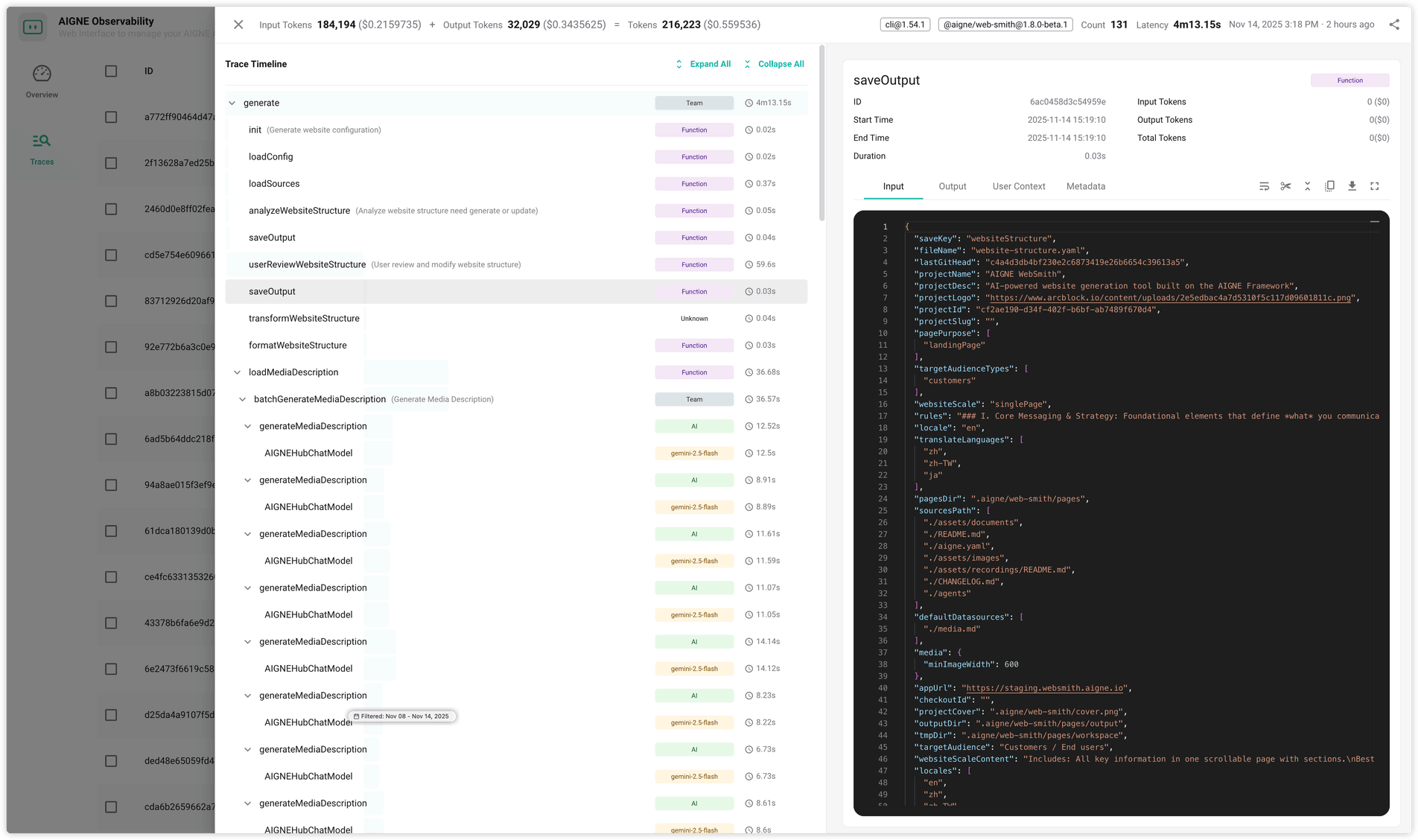
When you need to investigate complex issues in depth or report problems to the community, you can use AIGNE Observability. It records detailed execution processes for each step to help you or technical support staff quickly find issues.
Start the Observability Server#
Run the following command to start the local observability server:
Start Observability Server
aigne observeYou'll see output showing:
- Database path: where trace data is saved
- Server address: open this address in your browser to view the observability dashboard

View Execution Records#
- Open the dashboard: Click the server address shown in the output or open it in your browser
- View operation records: The dashboard displays all WebSmith operations, including:
- Input and output data
- Time taken for each step
- Operation steps executed and their results
- Detailed error information
Report Issues with Observability#
When reporting problems to the community:
- Capture the trace: Keep the observability server running during the problematic operation
- Export the trace data: Export the relevant execution records from the dashboard
- Report the issue: Visit the AIGNE Community and attach:
- Description of the problem
- Steps to reproduce
- Exported trace file
- Your configuration (if relevant)
Tip: Trace records contain complete information about WebSmith's execution, including operations and results for each step. Providing this information to technical support or the community can greatly improve problem-solving efficiency.