Customize Theme
Consistent colors, typography, and spacing make your site feel professional. This guide walks through the exact commands to generate a new WebSmith theme with AI assistance and then apply it to your live site.
AIGNE WebSmith streamlines theme management with two sub-commands:
theme generate– capture your design direction and save it as a YAML theme file.theme apply– upload any saved theme to your live site.
Follow the steps below to create and apply a theme end to end.
Generating a New Theme#
- Start the generator
Run command
aigne web theme generate
Alias:aigne web theme gen - Describe the look and feel
The terminal asks for a name, palette, typography, and mood. Provide concrete cues (“dark background, neon accents, rounded headings”) so the AI can shape the design. - Review the preview list
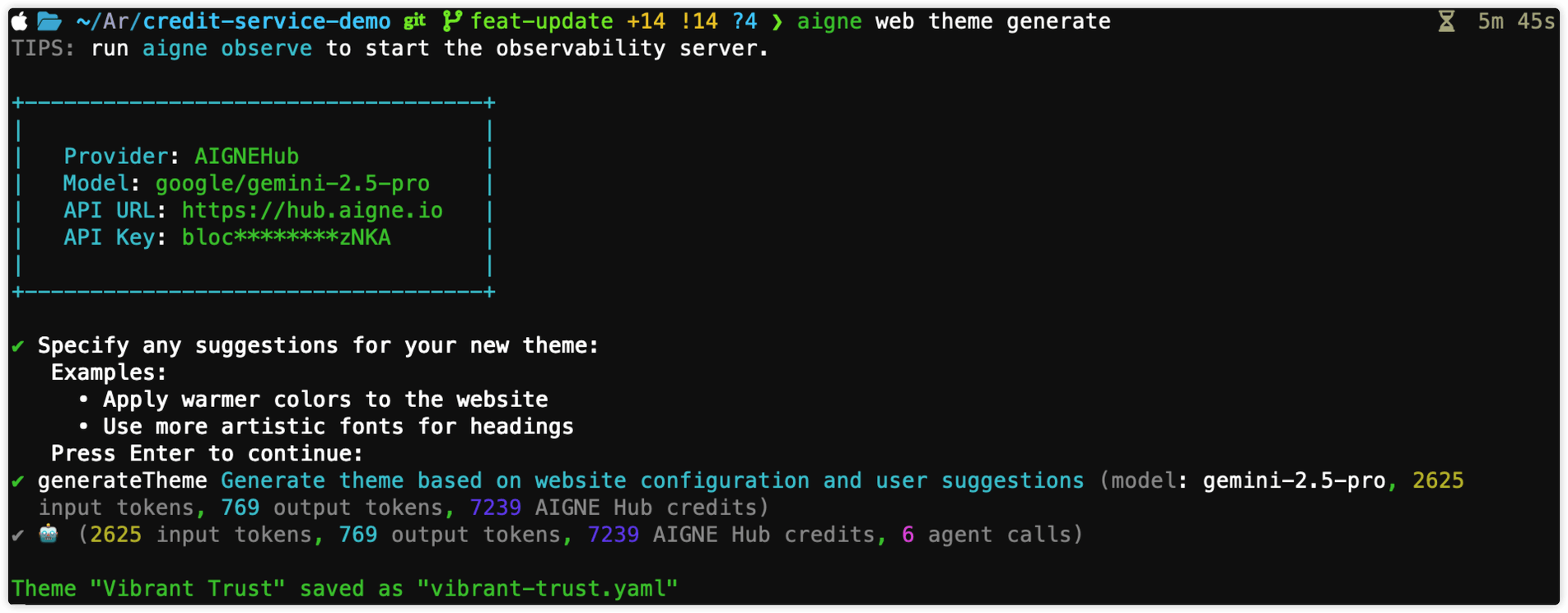
After generation, the theme appears in the localthemesdirectory with metadata (primary color, fonts) as shown below. Edit the YAML if you want to fine‑tune tokens.
Applying a Theme#
After generating one or more themes, the theme apply command allows you to select a saved theme and apply it to your website. This command reads your local theme files, presents them as a list, and, upon your confirmation, uploads the selected theme to your site, making the changes live.
Process#
- Run the Command: Execute
aigne web theme applyin your terminal. - Select a Theme: The tool scans the
themesdirectory and displays a list of all available themes you have generated. The list includes details like the theme name, primary color, and fonts to help you choose. - Review and Confirm: The system will display the target website URL, the currently active theme, and the new theme you have selected. You will be asked for a final confirmation before any changes are made.
- Apply to Website: Once confirmed, the theme is uploaded and applied to your website. A success message will indicate that the process is complete.
Usage#
To apply an existing theme, use the command below.
aigne web theme applyYou can also specify the website URL directly as a parameter. If omitted, the appUrl from your config.yaml file will be used.
aigne web theme apply --appUrl https://your-website.comParameters#
The apply command accepts the following parameters:
The full URL of your website. If you do not provide this, the command will use the appUrl defined in your config.yaml configuration file.
The location of your configuration file. Defaults to the standard config.yaml path.
Handling a Locked Theme#
To protect a website's live theme from accidental changes, Blocklet applications include a "theme lock" feature. If a theme is locked, any attempt to apply a new one from the terminal will be blocked.
When you try to apply a theme to a locked site, you will encounter a 403 Forbidden error:
Failed to apply theme: Failed to upload theme data: 403 Forbidden
{"code":"internal_server_error","error":"Theme is locked and cannot be modified"}
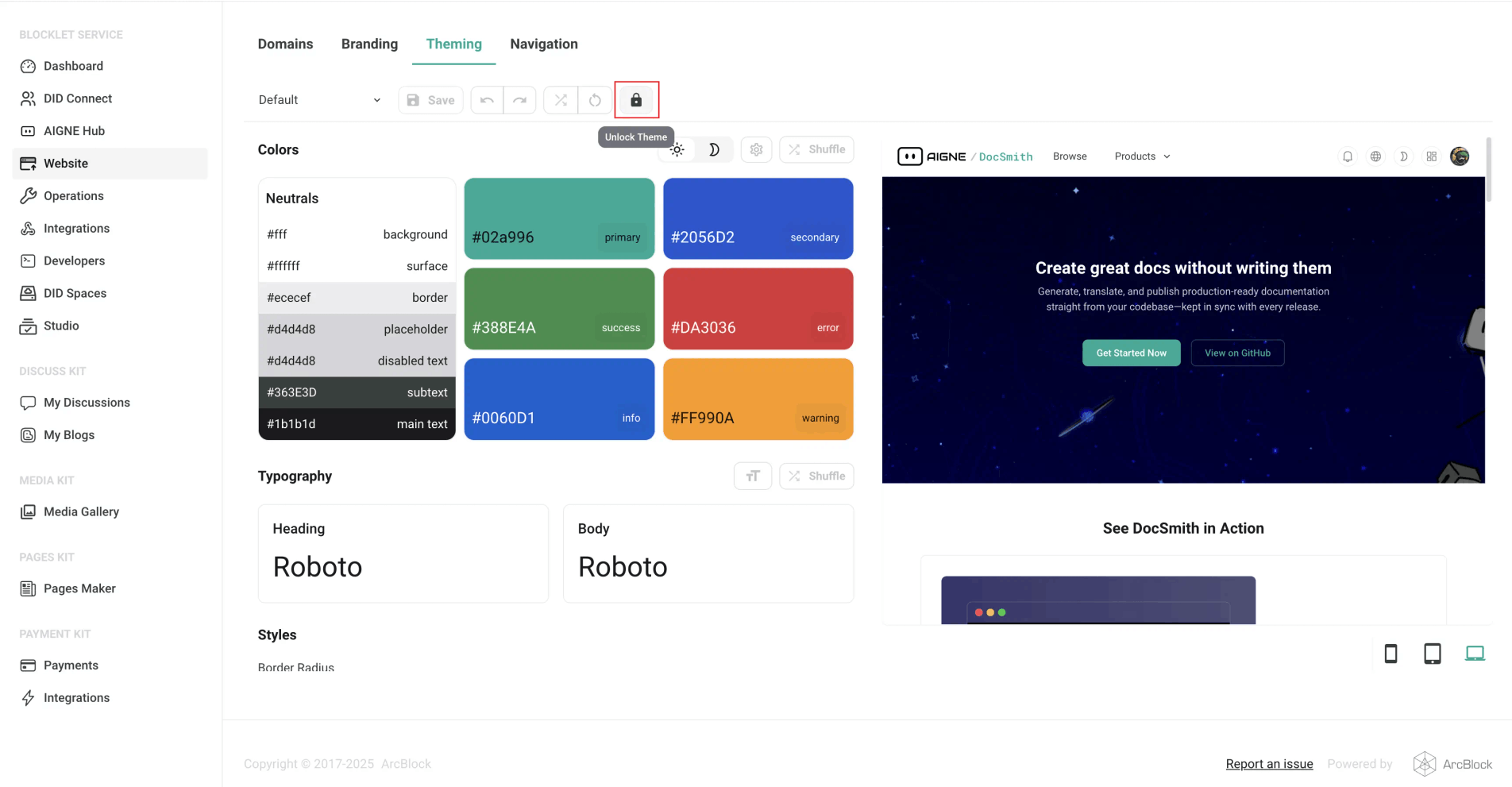
To resolve this, you must unlock the theme through the website's administrative interface:
- Log in to your website's administrative dashboard.
- Navigate to WebSite > Theming in the admin menu.
- Click the unlock button to remove the theme lock.
- Run
aigne web theme applyagain.
By following these steps, you can effectively manage your website's visual identity. For the next step after updating your theme, you may want to review how to publish your website.