Build a travel collection in Aside
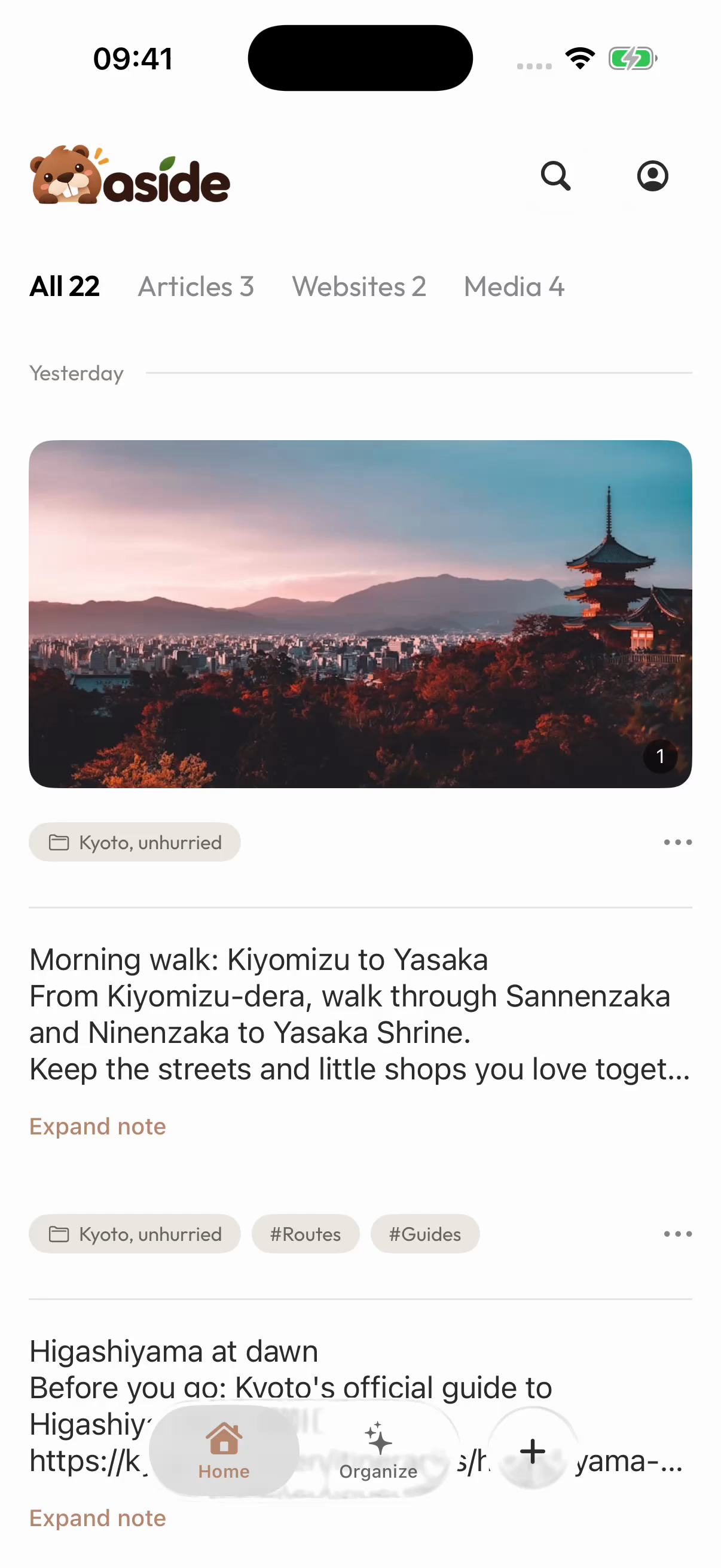
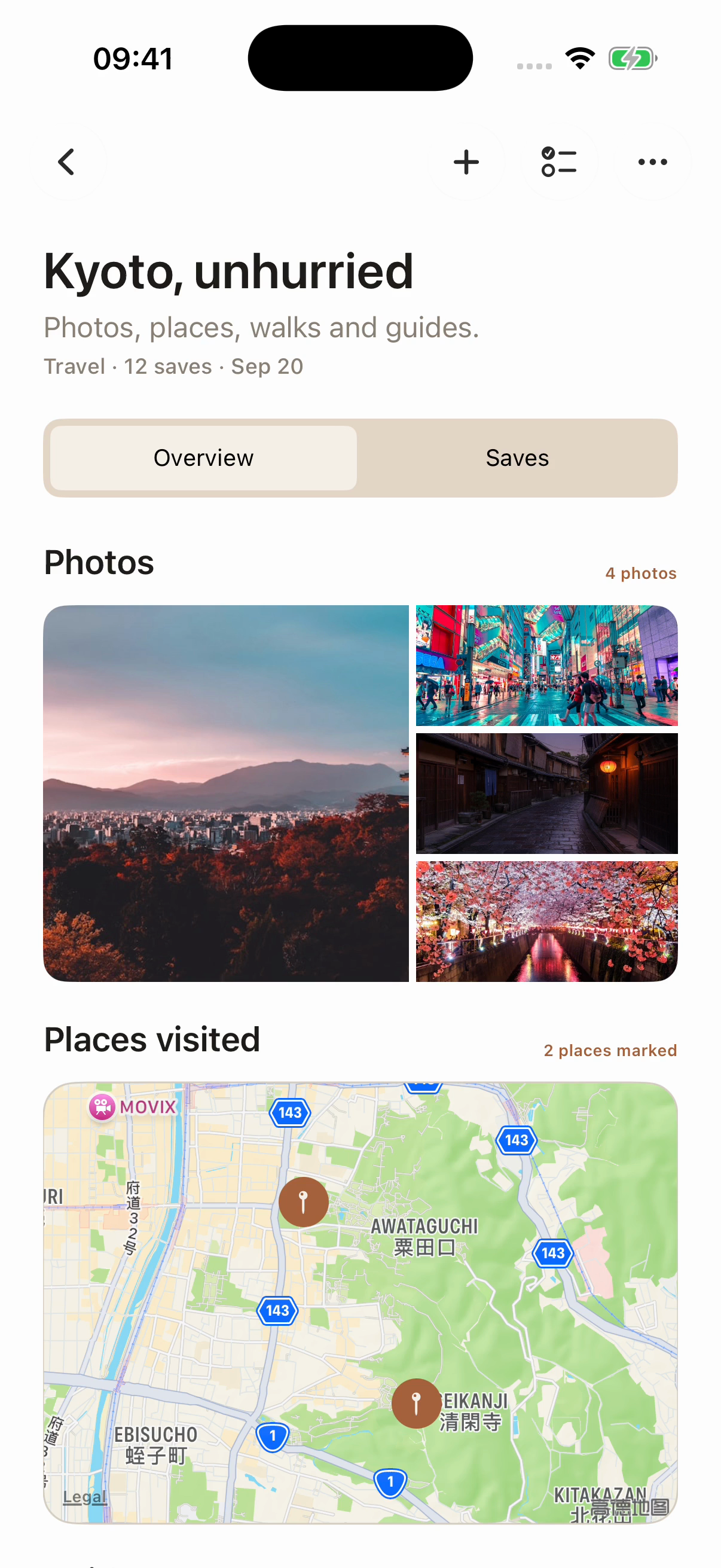
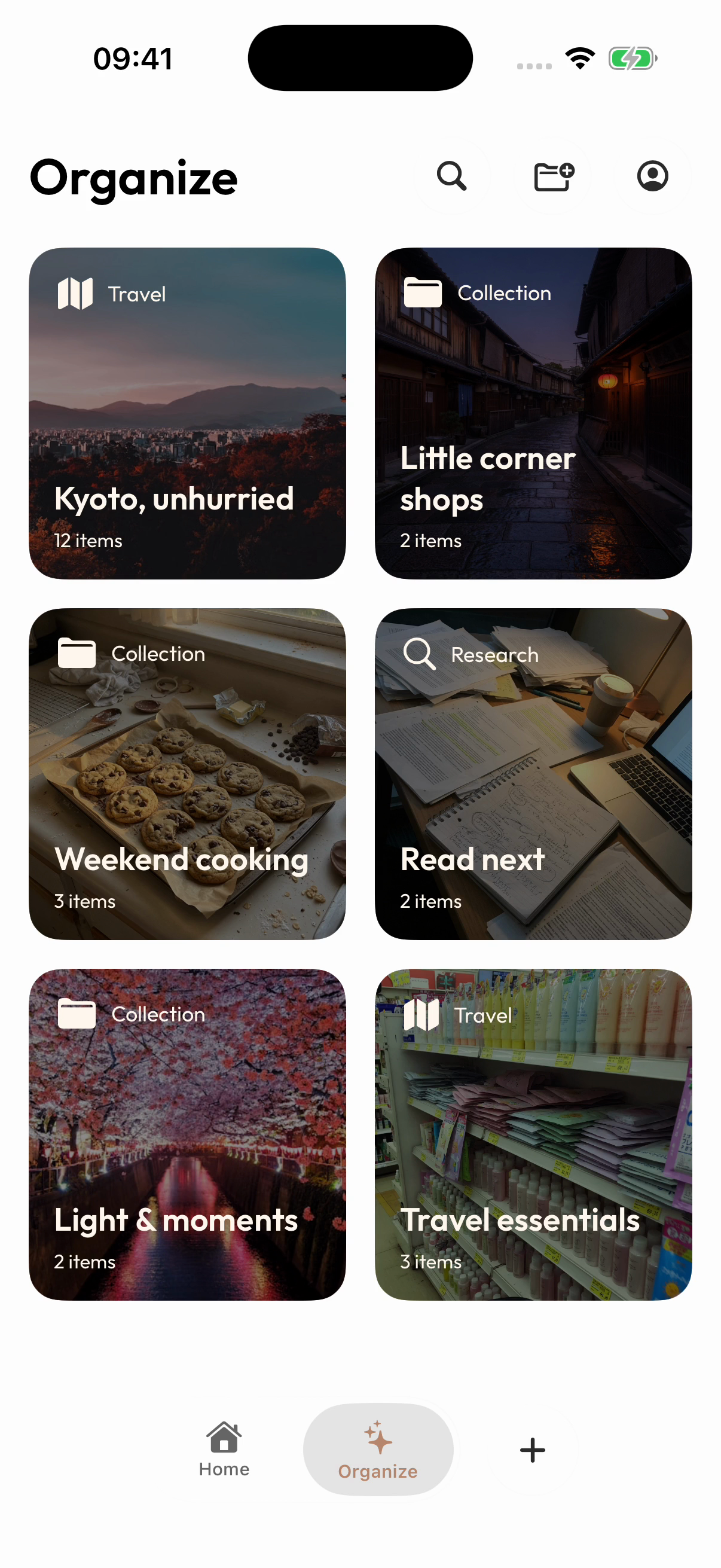
Home, a travel collection and Organize in Aside. Tap an image to enlarge it.
Before a trip, you save a guide. Along the way, you take a few photos and make a mental note to visit one street again at sunset. Once you're home, where do you find those pieces together?
In Aside, a travel collection can hold both the material you saved before leaving and the things you recorded along the way. Start with one route guide, a photo and a few words of your own. You don't need to sort your entire camera roll.
Robert covered the idea behind the app in Why We Built Aside. This guide picks up with using it on an iPhone: save something, capture a thought, then bring the pieces together. These steps use Aside 1.2.0 for iOS. You choose what goes into the collection; Aside doesn't automatically write a travel journal.
1. Save a route you might use
Open a travel page in Safari, tap the system Share button and choose Aside. If Aside isn't visible, look under More in the row of apps. Check what you're saving, then complete the save.
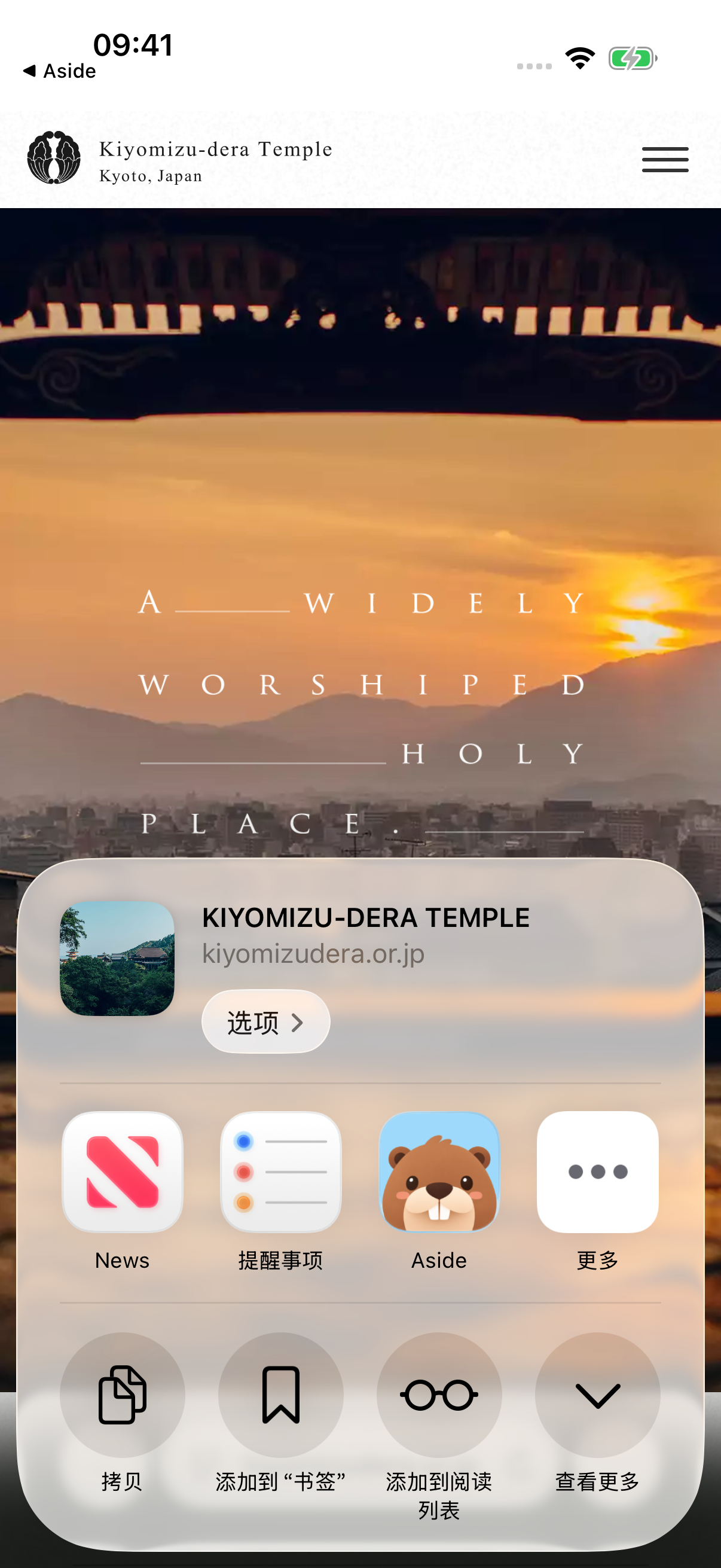
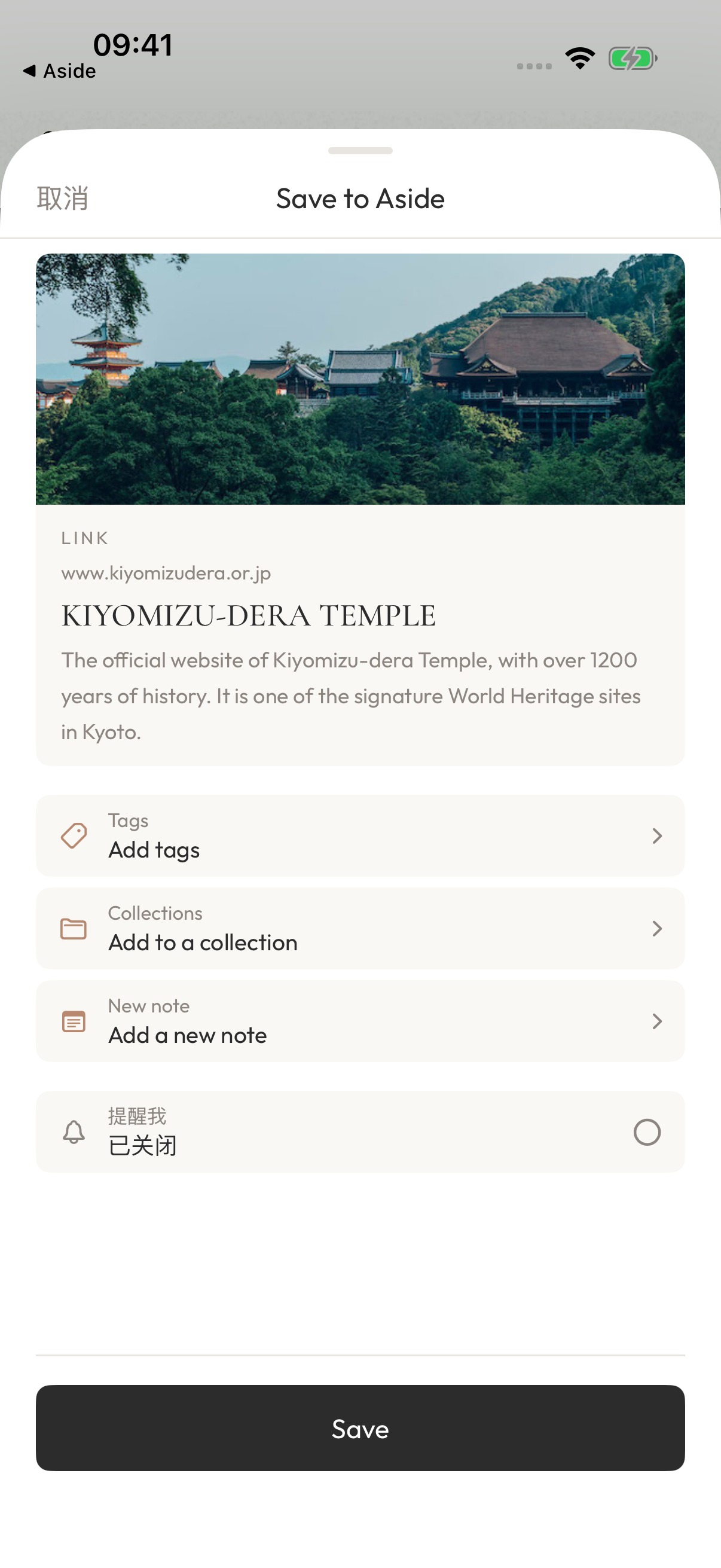
Save the Kiyomizu-dera Temple website: choose Aside in Safari’s Share Sheet, check the page and save.
Back on Aside's Home screen, find the page you just saved. Open it to check that it's the reference you wanted. You can leave it there for now, without creating a collection or deciding how to categorize everything.
You can also save from other apps that support the system Share Sheet. What you can send depends on what the source app makes available.
2. Capture something of your own
For a thought or experience, tap + at the bottom of Home to open Quick Capture. Write a line, such as “Come back along this street at sunset.” Use the photo button in the bottom toolbar to choose a photo, or the camera button to take a photo or record a video. Tap the checkmark at the top right to save. A text-only entry works too. You don't need a link to get started.
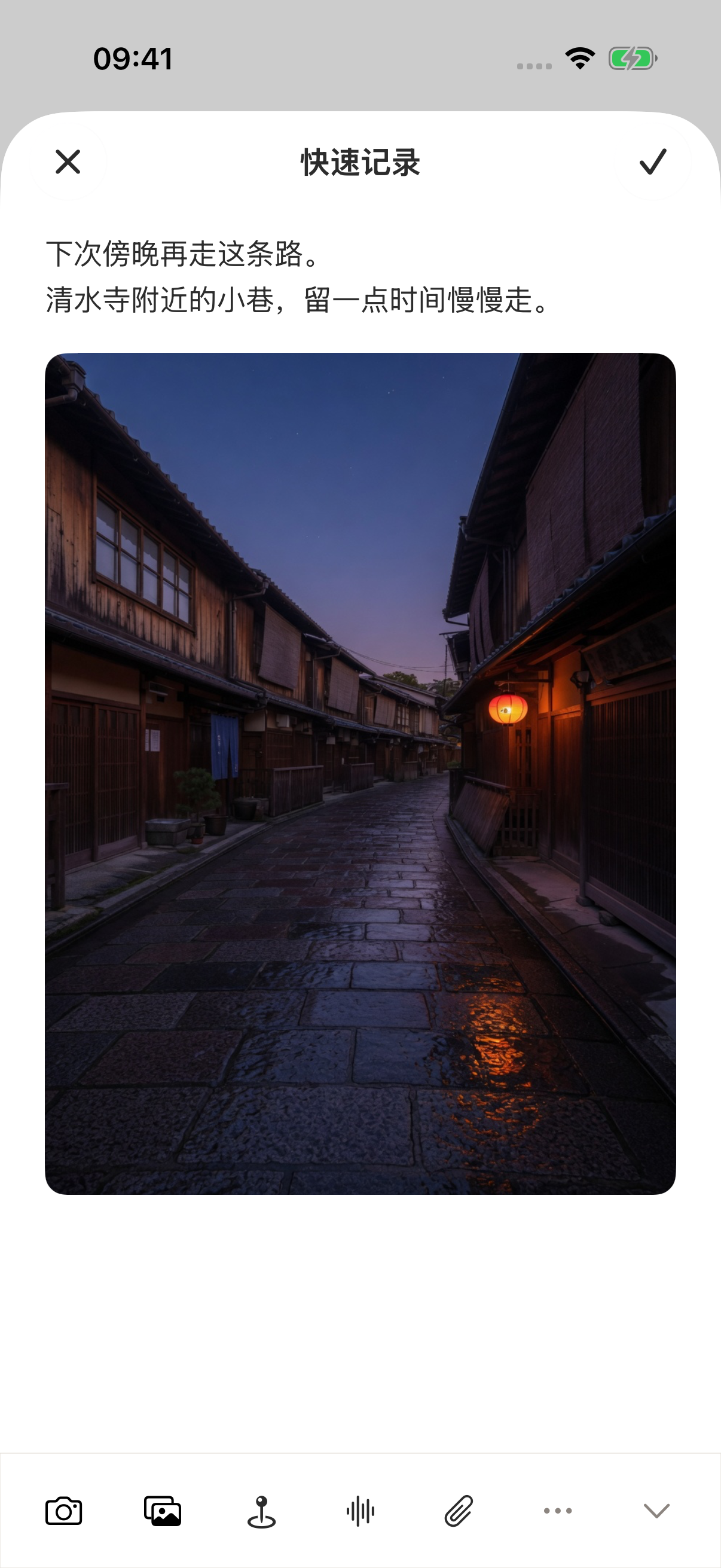
A thought and a photo become one entry.
Return to Home and open the new entry to check the text and any photo or video you added. You now have two things to work with: a route you found and a moment you recorded yourself.
That text is part of your entry. Adding a note to something you've already saved serves a different purpose.
3. Leave a reason beside the reference
Open the saved route guide and add a thought in its Notes section. For example: “Keep this walk for the last day, when there's more time.” Save the note. When you return, you can see why you saved the page.
If Notes isn't visible, expand the information panel at the bottom of the detail screen. On Home, items with notes put your words first, with the saved content providing context. Notes are optional. Leave it blank when you have nothing to add.
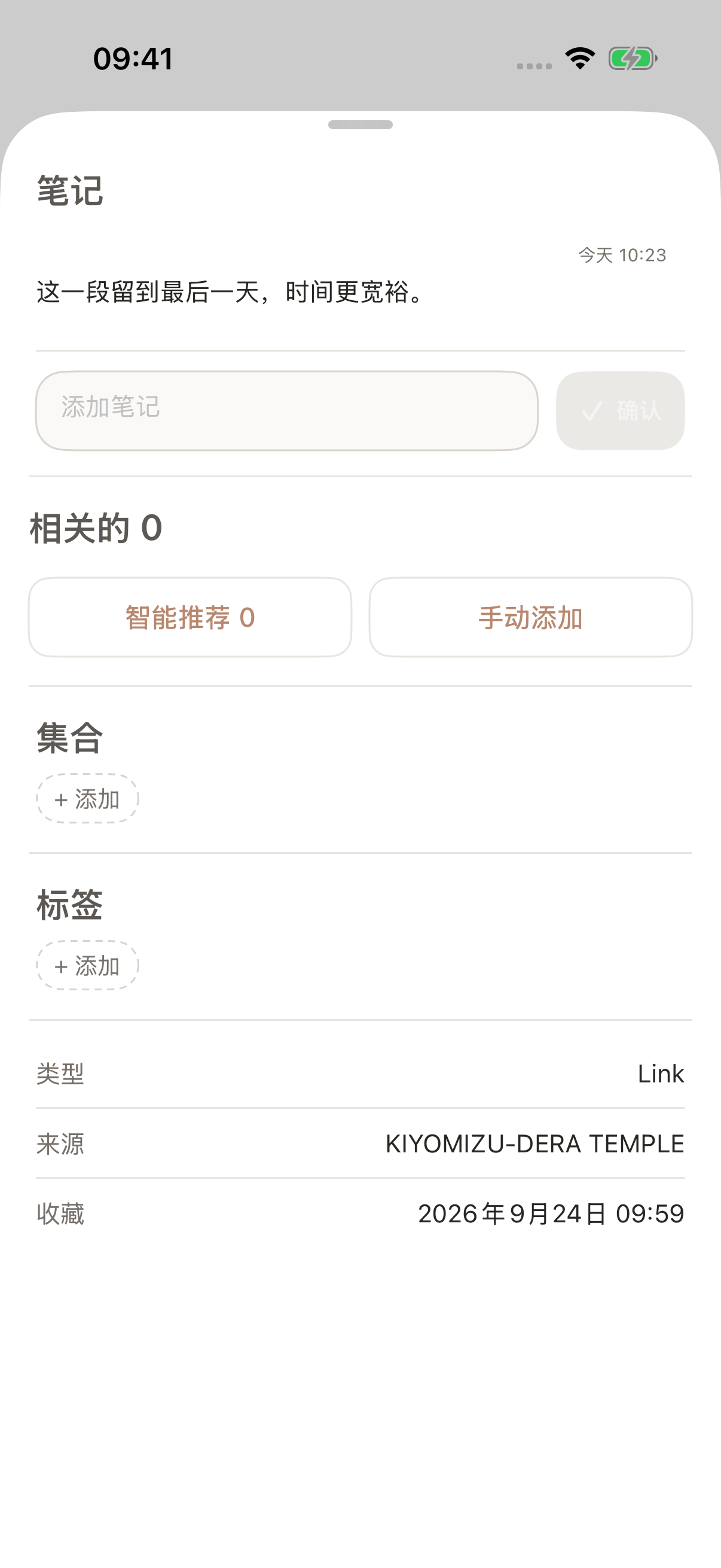
The saved page now keeps your reason for saving it alongside the reference.
4. Put the trip together
Open Organize in the bottom navigation, tap the folder icon with a + at the top right, then choose Record a trip. Under This trip, enter a name you'll recognize, such as “A weekend in Kyoto.”
Tap Create collection and start to enter the new collection, then switch to Saves. In the empty collection, tap + Add saves, select the route guide and your photo entry, then tap the checkmark at the top right to confirm.
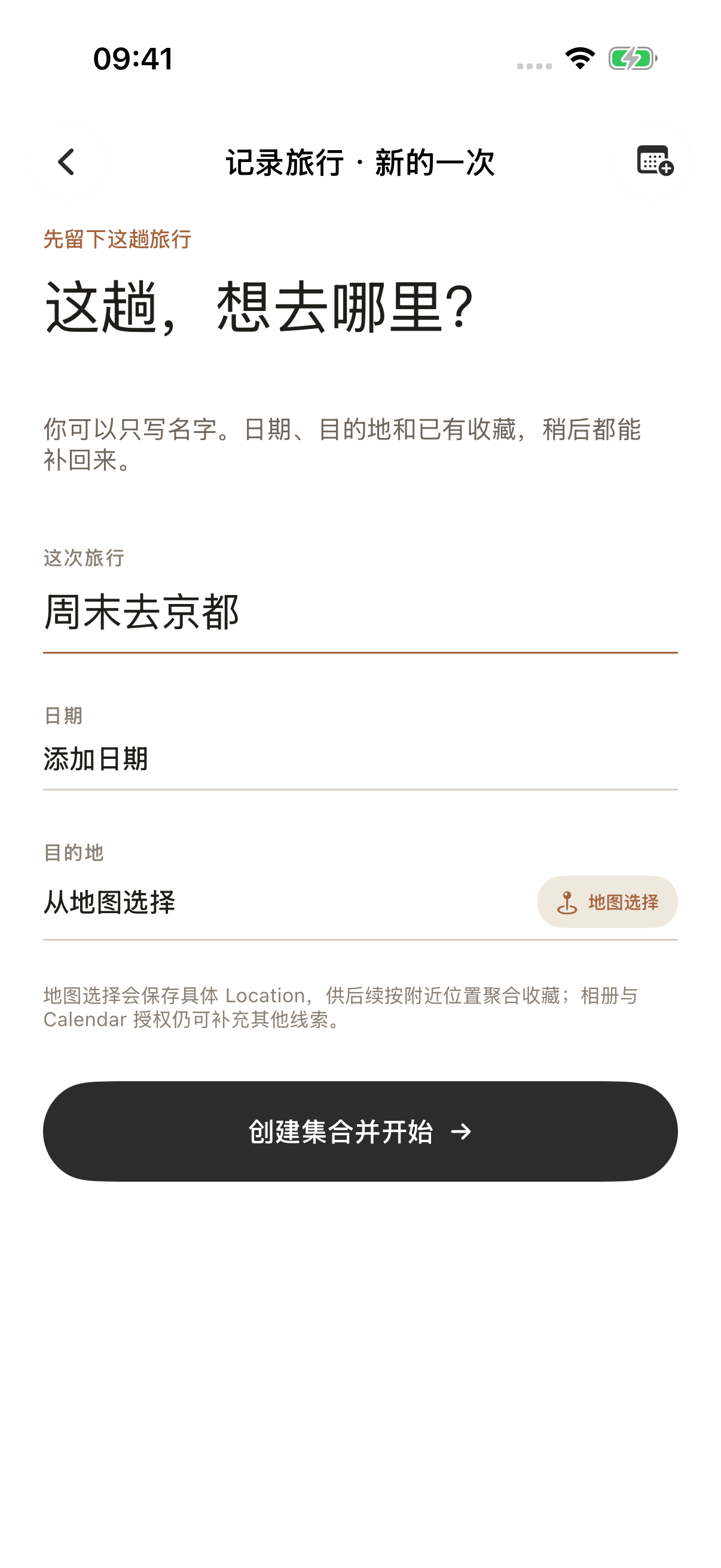
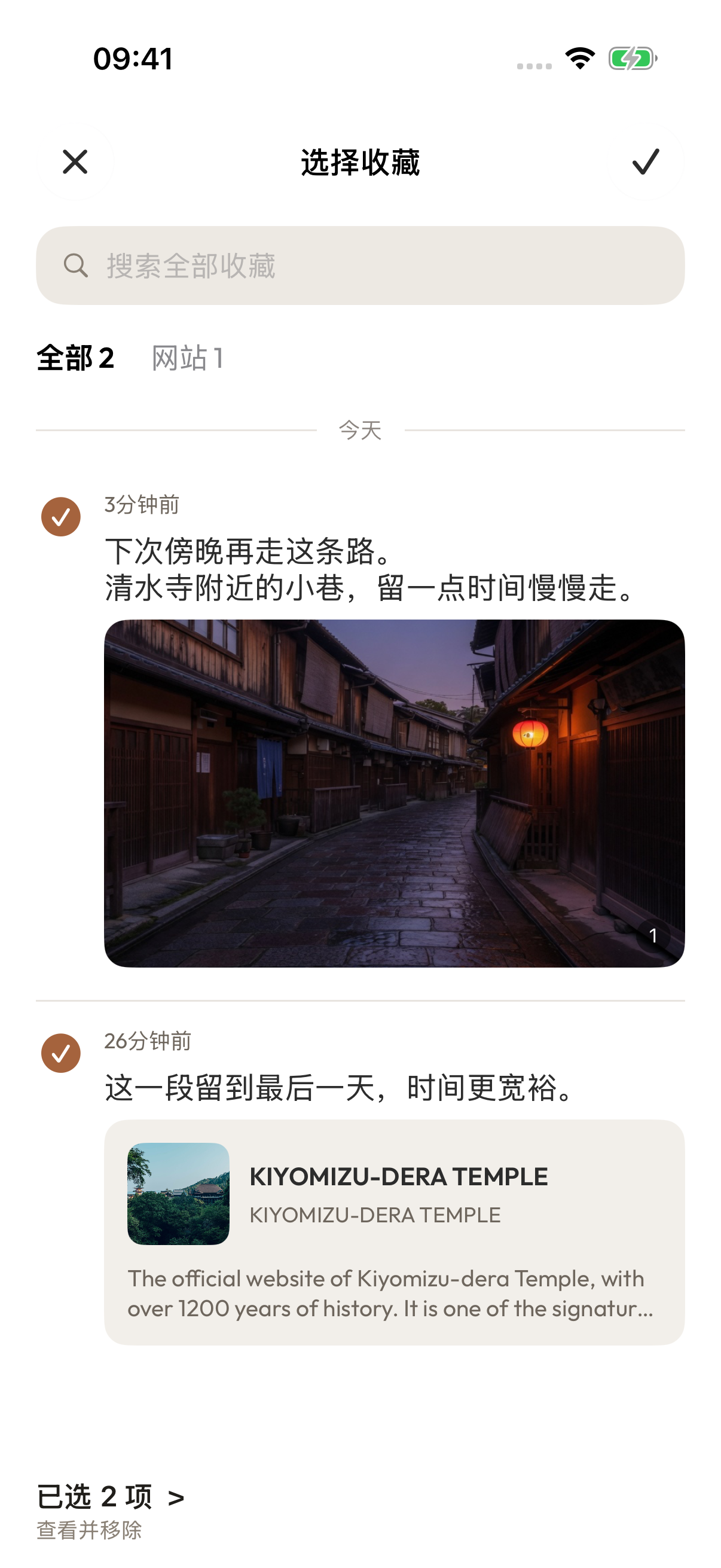
Name the trip, then choose the saved page and your photo entry.
Open the new collection and check that both items are there. A travel collection presents different sections according to its contents, with photos and places to revisit in Overview. Start with what you have and add more as the trip unfolds.
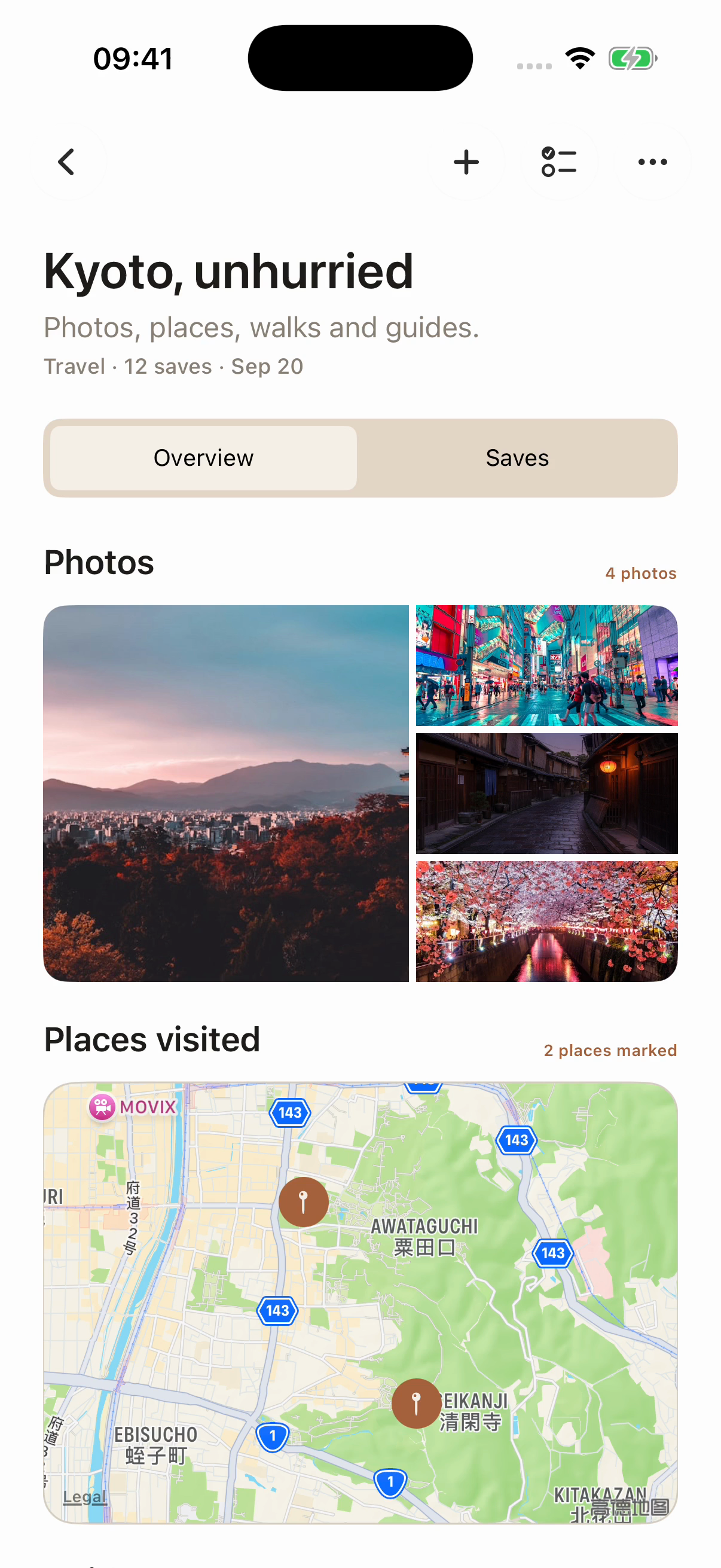
Photos and visited places in the Overview of “Kyoto, unhurried.”
Add more material as you find or record more. Or collect first and organize once you're home. You don't have to file everything the moment you save it.
Come back through the collection
Next time, open Organize and choose this trip. Open the route to revisit your plan, or the photo entry to read what you wrote at the time. A reference from someone else and a moment of your own now have a shared place to return to.
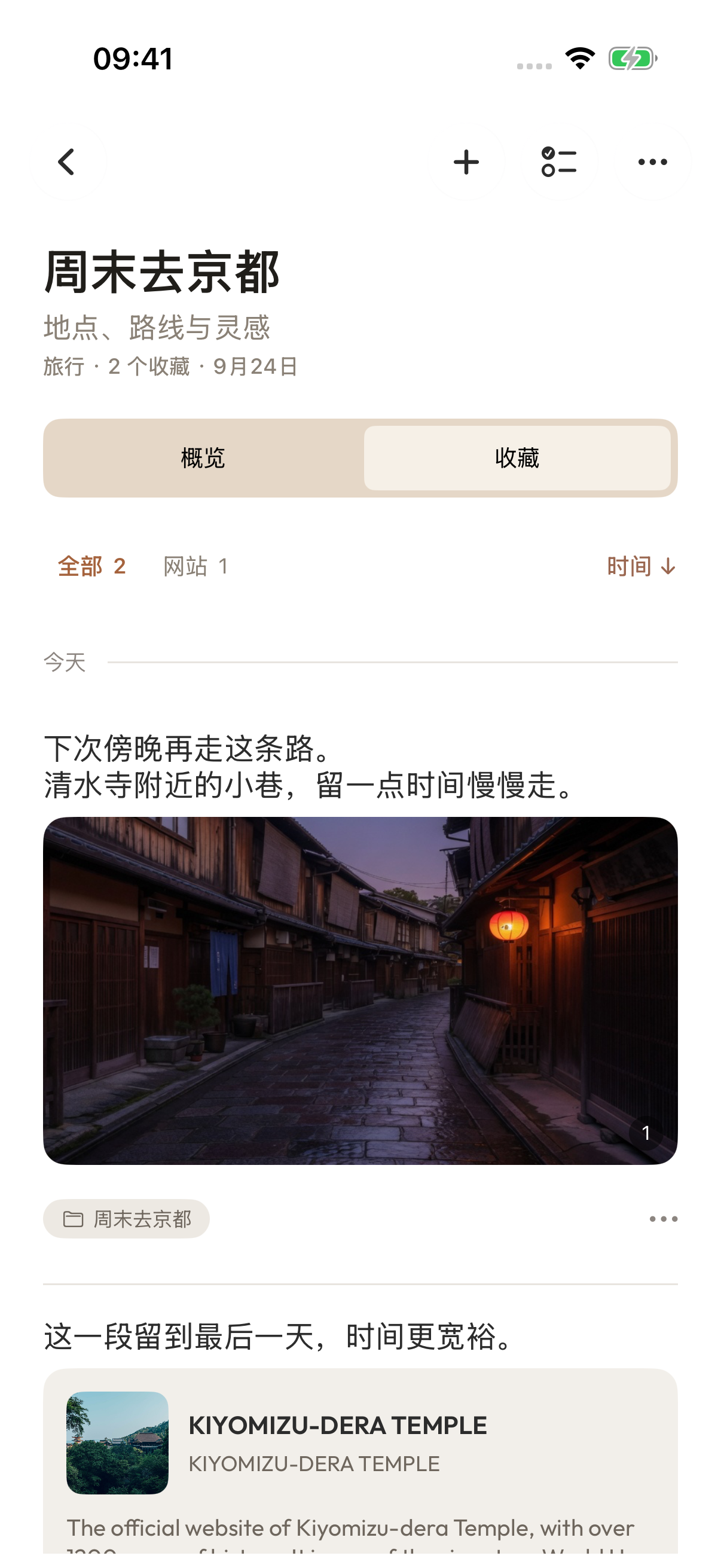
Reopen the Kyoto collection: the photo entry and the annotated webpage are together under Saves.
Try it with your own material: save a reference you'd like to use, make one entry of your own, and put them into a travel collection. When you think back to that trip, start there.
本頁涉及
產品
-
Aside
active
收藏吸引你的內容,用合集整理靈感。