The Image Service provides robust, on-the-fly image processing capabilities through a simple URL-based API. Developers can perform various manipulations such as resizing, cropping, format conversion, and applying filters by adding query parameters to an image URL. This service is designed to optimize image delivery and enhance performance by generating and caching different image variations dynamically.
How It Works
The service intercepts requests for images that include specific imageFilter query parameters. When such a request is received, the service follows a clear, efficient workflow. The following diagram illustrates this process:
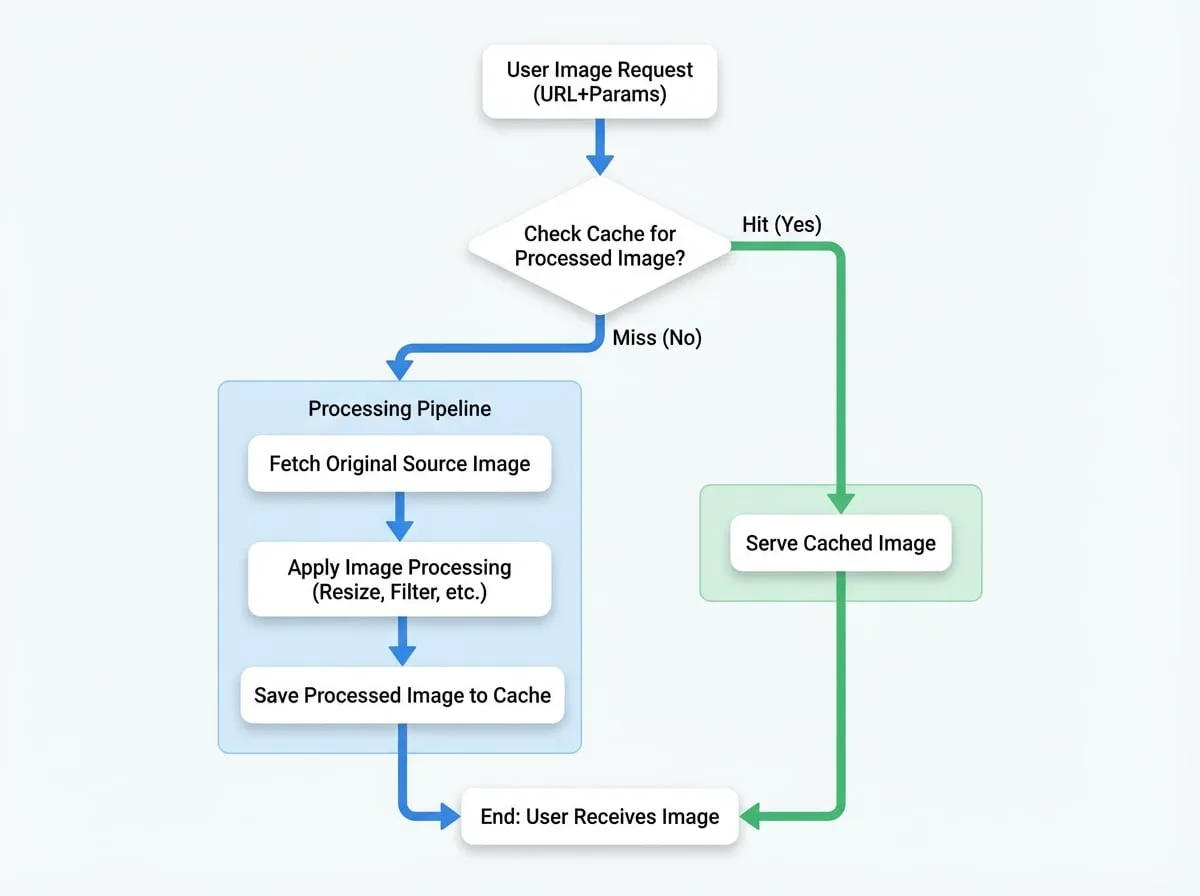
Request & Cache Check
The service first checks if a processed version of the requested image with the same parameters already exists in its cache.
Cache Hit
If a cached version is found, it is served directly to the user, ensuring a fast response.
Cache Miss
If the image is not in the cache, the service fetches the original, source image from its upstream location.
Image Processing
The source image is then processed in real-time based on the query parameters provided in the URL (e.g., resizing, applying a filter).
Caching & Delivery
The newly generated image is saved to the cache for future requests and then delivered to the user.
This process ensures that image manipulations are performed only once for a given set of parameters, minimizing server load and speeding up subsequent deliveries.
Usage
To use the Image Service, append query parameters to the URL of the image you wish to modify. The primary parameter is imageFilter, which specifies the main operation to be performed.
The basic structure of a request is as follows:
https://<your-blocklet-url>/path/to/image.jpg?imageFilter=<operation>&<...other_parameters>Operations
The service supports three main operations, determined by the imageFilter parameter.
Resize
The resize operation changes the dimensions of an image. You must provide at least a width (w) or a height (h).
Example: Resize an image to a width of 300 pixels.
?imageFilter=resize&w=300Crop
The crop operation extracts a specific region of an image. You must provide both a width (w) and a height (h). You can also specify the top (t) and left (l) coordinates for the crop area.
Example: Crop a 100x100 area from the top-left corner.
?imageFilter=crop&w=100&h=100&t=0&l=0Convert
The convert operation changes the image format. You must specify the target format (f).
Example: Convert an image to the WebP format.
?imageFilter=convert&f=webpParameters
The following table details all available query parameters for image manipulation. These can be combined to create complex transformations.
| Parameter | Name | Description | Values | Default |
|---|---|---|---|---|
imageFilter | Operation | The main processing operation to perform. | resize, crop, convert | (Required) |
w | Width | The target width in pixels. Required for crop. | Integer (1-2048) | - |
h | Height | The target height in pixels. Required for crop. | Integer (1-2048) | - |
q | Quality | The compression quality for the output image. | Integer (10-100) | Varies by format (e.g., 80 for WebP) |
f | Format | The target image format. Required for convert. | png, jpeg, webp, gif, avif, heif | Original format |
m | Mode | The resizing mode (fit). | cover, contain, fill, inside, outside | inside |
t | Top | The top offset in pixels for cropping. | Integer (0-2048) | 0 |
l | Left | The left offset in pixels for cropping. | Integer (0-2048) | 0 |
r | Rotate | Rotates the image by a specified angle. | 90, 180, 270 | - |
g | Greyscale | Converts the image to greyscale. | 0 (off), 1 (on) | 0 |
b | Blur | Applies a Gaussian blur effect. | Integer (1-2000) | - |
s | Sharpen | Applies a sharpening effect. | Integer (0-2000) | - |
n | Negative | Applies a negative (invert) effect. | 0 (off), 1 (on) | 0 |
p | Progressive | Enables progressive rendering for formats like JPEG. | 0 (off), 1 (on) | 1 |
a | Alpha | Toggles the alpha (transparency) channel. | 0 (remove), 1 (ensure) | 1 |
e | Error | If an error occurs, returns a text message instead of a default error image. | 0 (off), 1 (on) | 0 |
Combined Example
You can combine multiple parameters in a single request. For instance, to resize an image to 200x200, convert it to WebP format with 75% quality, and apply a greyscale filter, you would use the following query string:
?imageFilter=resize&w=200&h=200&f=webp&q=75&g=1This provides a powerful way to generate complex image variations without needing to store each version manually.