The DID Connect Workflow
A DID Connect session is a secure, decentralized authentication process that allows a user to interact with a decentralized application (DApp) using their DID Wallet. This guide breaks down the end-to-end process, from the initial QR code scan to the final handling of the user's response.
The typical workflow involves four main actors:
- User: The individual interacting with the application.
- Browser (DApp Frontend): The user interface of your application running in the user's browser.
- DApp Backend: Your server-side application where the
@arcblock/did-connect-jslibrary is integrated. - DID Wallet: The user's mobile or web-based wallet that manages their decentralized identity (DID) and private keys.
Visual Overview#
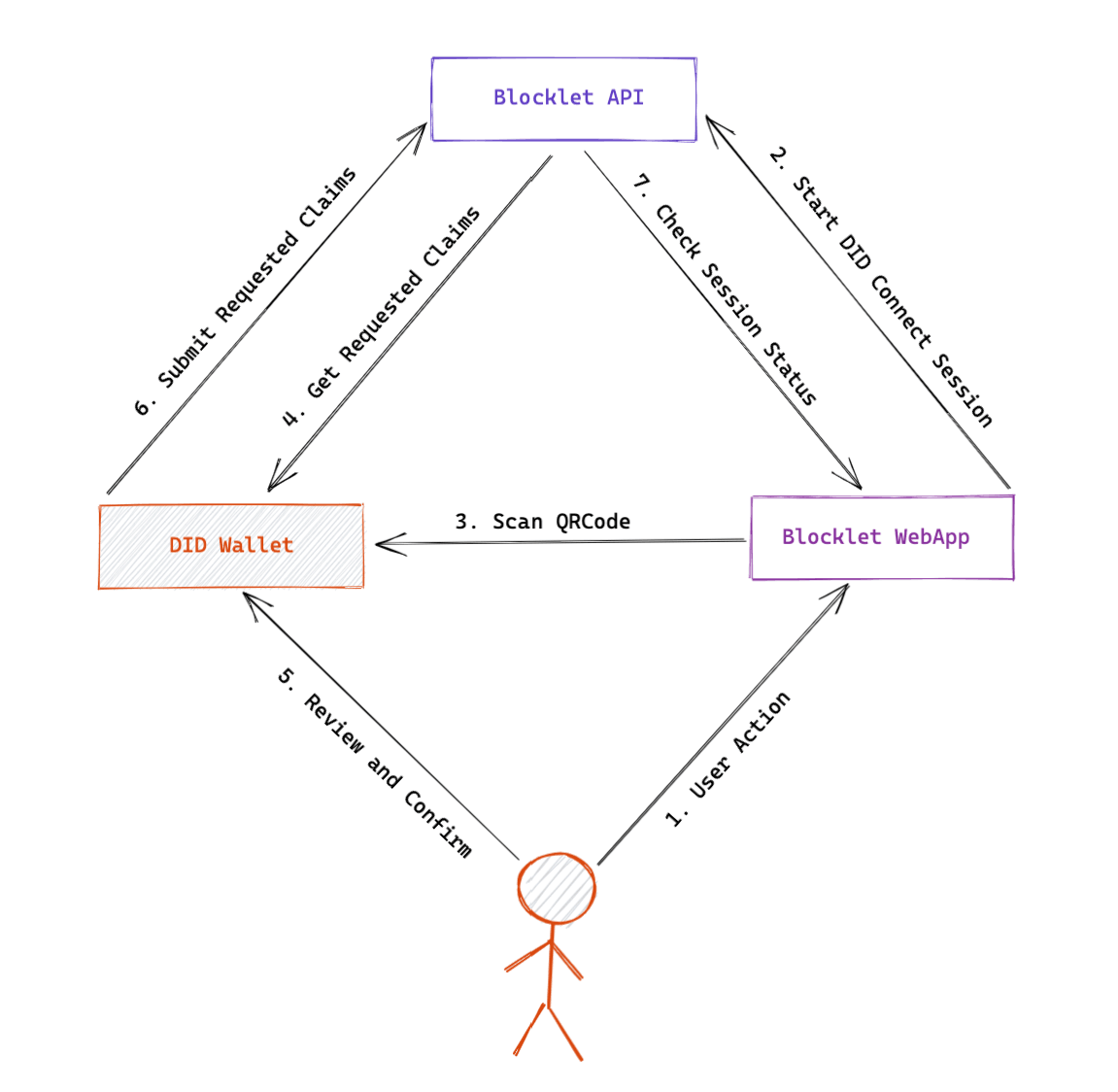
The following diagram illustrates the high-level interaction between the DApp and the DID Wallet during a typical authentication session.
Step-by-Step Breakdown#
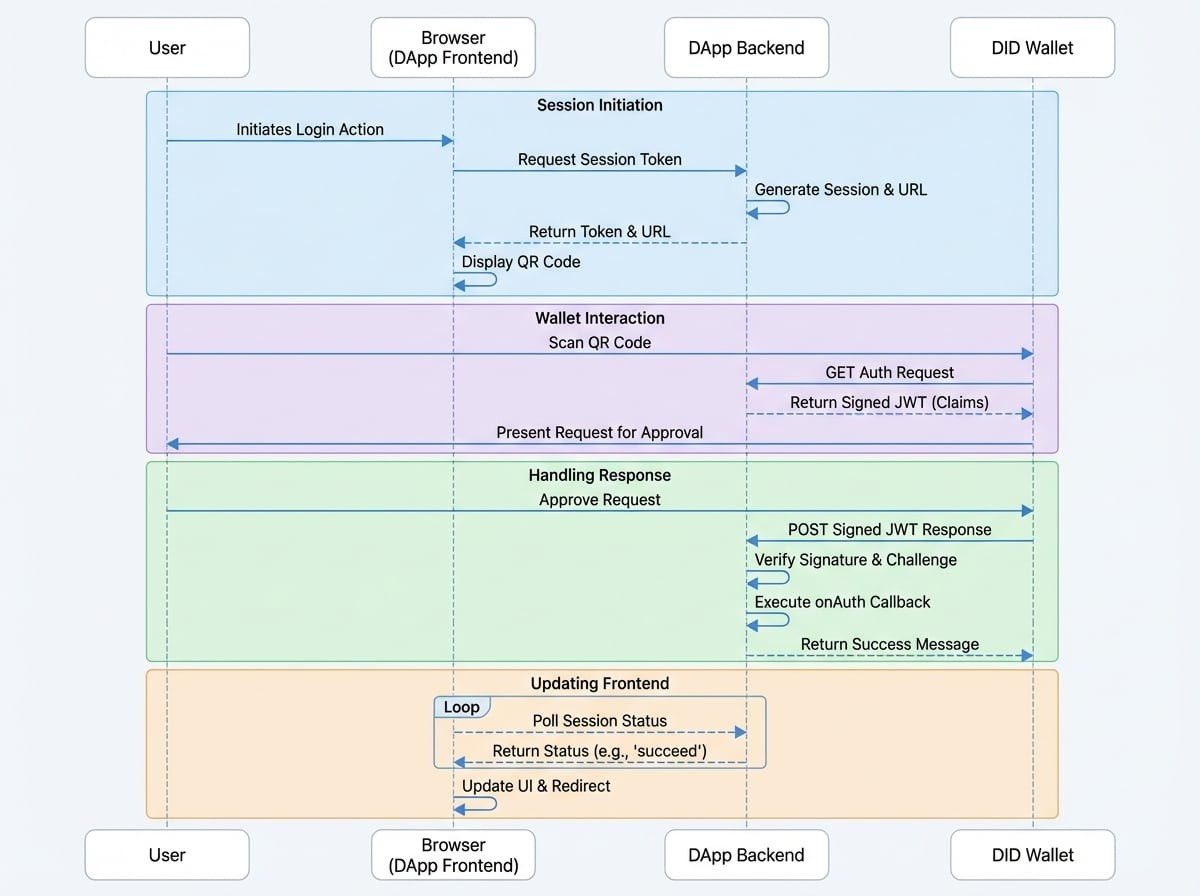
Let's dive into the technical details of each step in the process. The sequence diagram below shows the complete communication flow.
1. Session Initiation: Generating the QR Code#
The process begins when the user wants to log in or perform a protected action.
- Frontend Request: The DApp's frontend makes a request to a dedicated endpoint on its backend (e.g.,
GET /api/did/login/token). - Backend Handler: The
did-connect-jshandler (generateSession) on your backend creates a new, unique session. It generates: - A unique
tokento identify the session. - A cryptographic
challengeto prevent replay attacks. - A full DID Connect URL (e.g.,
https://didconnect.io/i/?url=...) containing this information.
- A unique
- Frontend Display: The backend returns the
tokenand theurlto the frontend. The frontend then renders theurlas a QR code for the user to scan.
2. Wallet Interaction: Scanning and Approval#
- Scan: The user scans the QR code with their DID Wallet.
- Request Claims: The wallet makes a
GETrequest to the auth URL from the QR code. This hits theonAuthRequesthandler on your backend. - Backend Response: Your backend updates the session status to
scannedand sends back a signed JSON Web Token (JWT). This JWT contains the information your application is requesting from the user, known as claims (e.g.,authPrincipalto request a connection, orprofileto request user data). - User Approval: The wallet verifies the JWT and presents the request to the user. The user can then choose to approve or decline the request.
3. Handling the Response#
- Wallet Submission: If the user approves, the wallet creates and signs its own JWT containing the requested information. It then
POSTs this JWT back to the same auth URL. - Backend Verification: This request is handled by the
onAuthResponsefunction in your backend. The library automatically verifies the wallet's signature and the challenge. This is the most critical step for security. - Execute Business Logic: If the verification is successful, the library triggers your
onAuthcallback. This is where you put your core business logic, such as: - Finding or creating a user account based on their
userDid. - Processing the
claimsdata (e.g., saving the user's profile). - Generating a web session token for the browser.
- Using
updateSessionto store data that the frontend can later retrieve.
- Finding or creating a user account based on their
- Session Completion: The backend marks the session status as
succeed.
4. Updating the Frontend#
While the user is interacting with their wallet, your DApp's frontend polls a status endpoint (e.g., GET /api/did/login/status?_t_={token}). Once it sees the status change to succeed, it knows the process is complete. It can then fetch any necessary data (like a login token) from the session and update the UI accordingly, for example, by redirecting the user to their dashboard.
This entire flow provides a secure, passwordless authentication experience that puts the user in control of their data.
For a deeper understanding of how to manage the data received from the wallet, proceed to our guide on Handling Wallet Responses.