Upload to Store
After you have successfully bundled your blocklet, the next step in distribution is to upload it to a Blocklet Store. The blocklet upload command sends your blocklet bundle to the designated store, making it available for others to discover and install. This is the primary method for public distribution.
Before proceeding, ensure you have already bundled your blocklet and configured your CLI to connect to a store.
Command Usage#
The command uploads the blocklet bundle found in the default release directory.
Basic Usage
blocklet upload [metaFile]Arguments and Options#
Argument/Option | Description |
|---|---|
| Optional. The path to the |
| Optional. The access token for the Blocklet Store. This flag overrides any token set in your configuration profile. |
| Optional. Specifies which configuration profile to use. This is useful if you manage multiple store connections (e.g., development, staging, production). Defaults to |
Upload Workflow#
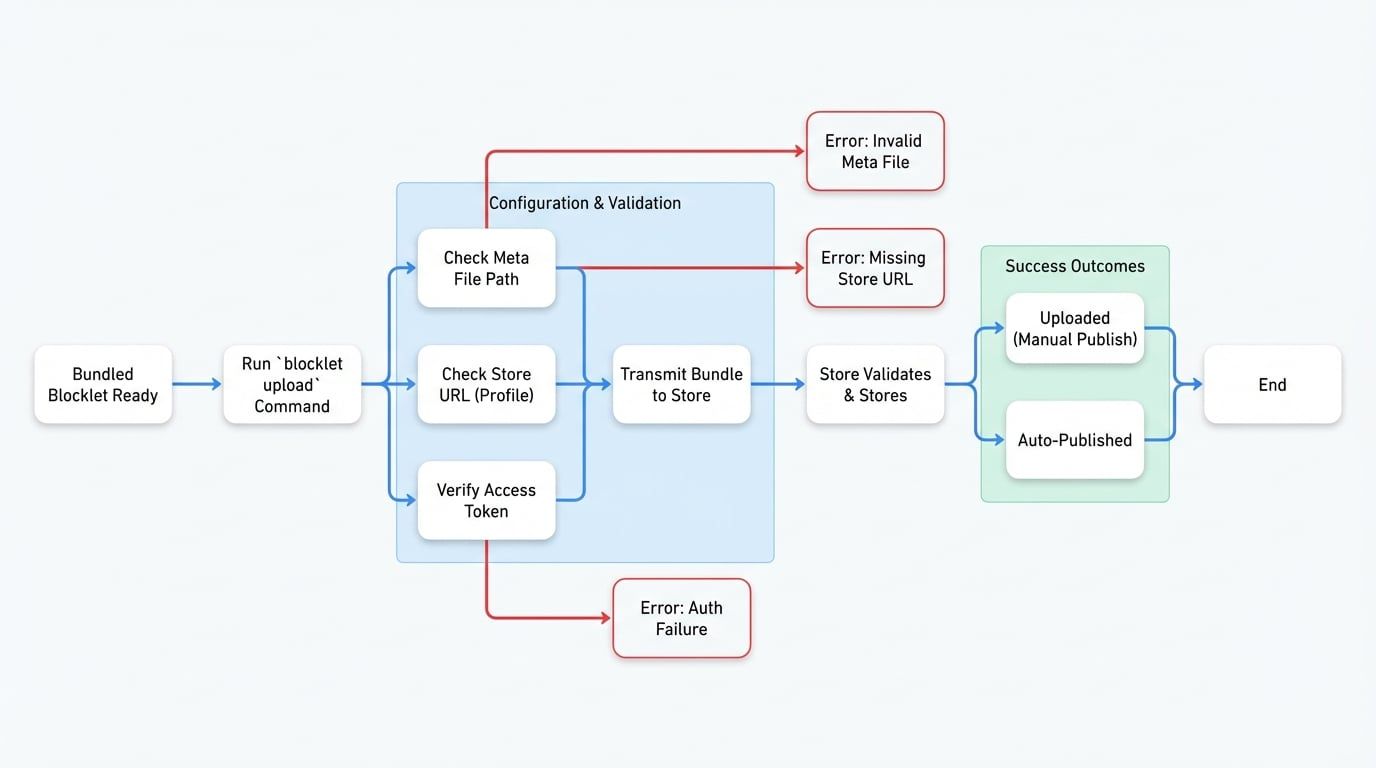
The upload process involves the CLI reading your local configuration and the blocklet bundle, then securely transmitting it to the Blocklet Store for validation and storage. The following diagram illustrates this process:
Examples#
Standard Upload#
If you are in the root directory of your project and have configured a default profile, simply run the command without any arguments.
Upload from Project Root
blocklet uploadUploading a Specific File#
To upload a blocklet bundle from a specific location, provide the path to its blocklet.json file.
Upload a specific bundle
blocklet upload /path/to/my-blocklet/.blocklet/release/blocklet.jsonUsing a Different Profile#
If you have multiple store configurations, use the --profile flag to specify which one to use for the upload.
Upload using a profile
blocklet upload --profile productionOverriding the Access Token#
You can provide an access token directly on the command line, which is useful for CI/CD environments.
Upload with a specific token
blocklet upload --access-token bst_xxxxxxxxxxxxxxxxxxxxxxSuccessful Upload#
Upon a successful upload, you will see a confirmation message. The exact message depends on the store's configuration.
Uploaded (Manual Publish Required)#
Most commonly, the blocklet is uploaded and awaits manual publishing from the developer dashboard.
Example Output: Uploaded
ℹ Blocklet My Awesome Blocklet 1.0.0 successfully uploaded to https://store.blocklet.dev!
ℹ Tips: You need to publish the blocklet at https://store.blocklet.dev/developer/blocklets to make it public accessibleAuto-Published#
In some cases, the store may be configured to automatically publish new uploads.
Example Output: Auto-Published
✔ Blocklet My Awesome Blocklet 1.0.0 auto published successfully: https://store.blocklet.dev/blocklets/z8iZ......... !Troubleshooting#
Invalid Meta File
Error: `Invalid meta file: '...'`. This means the command cannot find the `blocklet.json` file. Ensure you have run `blocklet bundle` first and are in the correct directory.
Missing Store URL
Error: `Can not find the store url...`. Your CLI profile is missing the store's address. Run `blocklet config set store [storeUrl]` to fix it.
Access Token Error
Error: `accessToken is required...` or `[NO-ACCESS]`. This indicates an authentication failure. Your access token is either missing, invalid, or expired. You can set it globally with `blocklet config set accessToken [token]` or pass it for a single command with the `--access-token` flag.