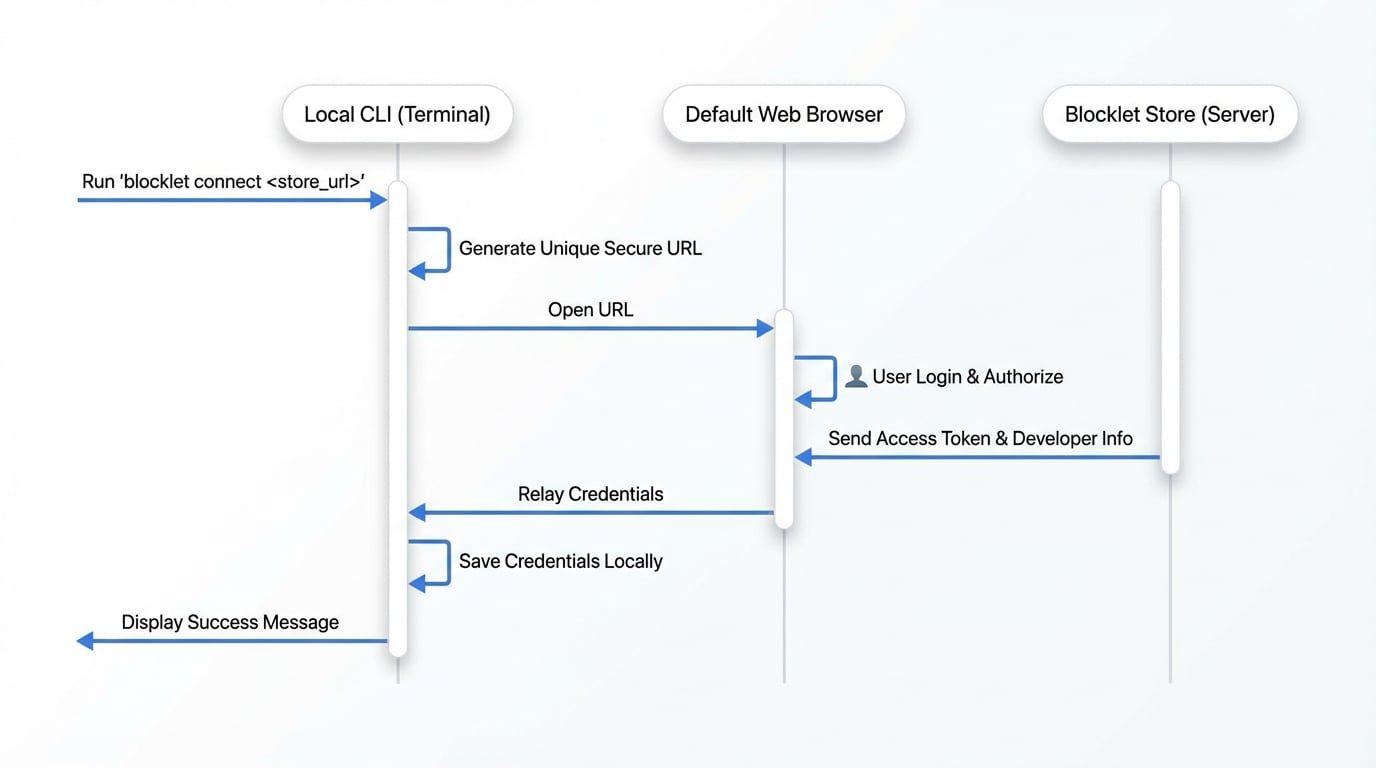
Before you can upload a blocklet to a Blocklet Store, you first need to connect your local CLI to it. The blocklet connect command facilitates a one-time setup process that authenticates your machine with a specific store, saving the necessary credentials locally for future commands like blocklet upload.
This process involves a secure, browser-based authentication flow to link your developer account to your local environment.
How It Works#
The connection process is an interactive flow between your terminal, your web browser, and the Blocklet Store. When you run the command, the CLI generates a unique, secure URL and opens it in your browser. After you log in and authorize the connection, the store sends back an access token and your developer information, which the CLI saves to your local configuration file.
Usage#
To initiate the connection, run the command with the URL of the target Blocklet Store.
blocklet connect <store_url>
Arguments#
The full URL of the Blocklet Store you want to connect to. For example, https://store.blocklet.dev. The URL must be a valid web URI using http or https.
Options#
Connect using a specific configuration profile. This is useful if you work with multiple Blocklet Stores and want to keep their credentials separate.
Step-by-Step Guide#
- Run the Connect Command
Open your terminal and execute the blocklet connect command, providing the URL of your store.
Connect to the Official Store
blocklet connect https://store.blocklet.dev
- Authenticate in Browser
The CLI will automatically open a new tab in your default web browser. You will be asked to log in to the Blocklet Store (if you aren't already) and then approve the request to grant the CLI access to your account. - Confirmation
Once you approve the request in the browser, the CLI will receive the necessary credentials (secretKey, developerDid, name, email). You'll see a success message in your terminal confirming the connection.
Successfully connected, and now you are ready to upload blocklets to https://store.blocklet.dev
Tips: Use the following command to view the configuration: blocklet config list
- Verify the Configuration
As the tip suggests, you can view the saved configuration to confirm that your details have been stored correctly.
If you used a profile, remember to add the --profile flag:
View Configuration with Profile
blocklet config list --profile <your-profile-name>
Overwriting an Existing Connection#
If you have already connected to a store and you run blocklet connect again with a different store URL, the CLI will prompt you to confirm whether you want to overwrite the existing configuration.
The store url has been set, do you need to overwrite it? (y/N)
Press y and Enter to proceed with connecting to the new store, or simply press Enter (the default is N) to cancel the operation.
Next Steps#
With your CLI successfully connected to the store, you are now ready to publish your blocklets.