Getting Started
This guide will walk you through the essential steps to install the AIGNE CLI, create a new project, and run your first AI agent. By the end, you'll have a functioning agent running locally.
Step 1: Install the AIGNE CLI#
First, you need to install the @aigne/cli package globally on your system. You can use your preferred JavaScript package manager.
Using npm#
npm install -g @aigne/cliUsing yarn#
yarn global add @aigne/cliUsing pnpm#
pnpm add -g @aigne/cliStep 2: Create a New Project#
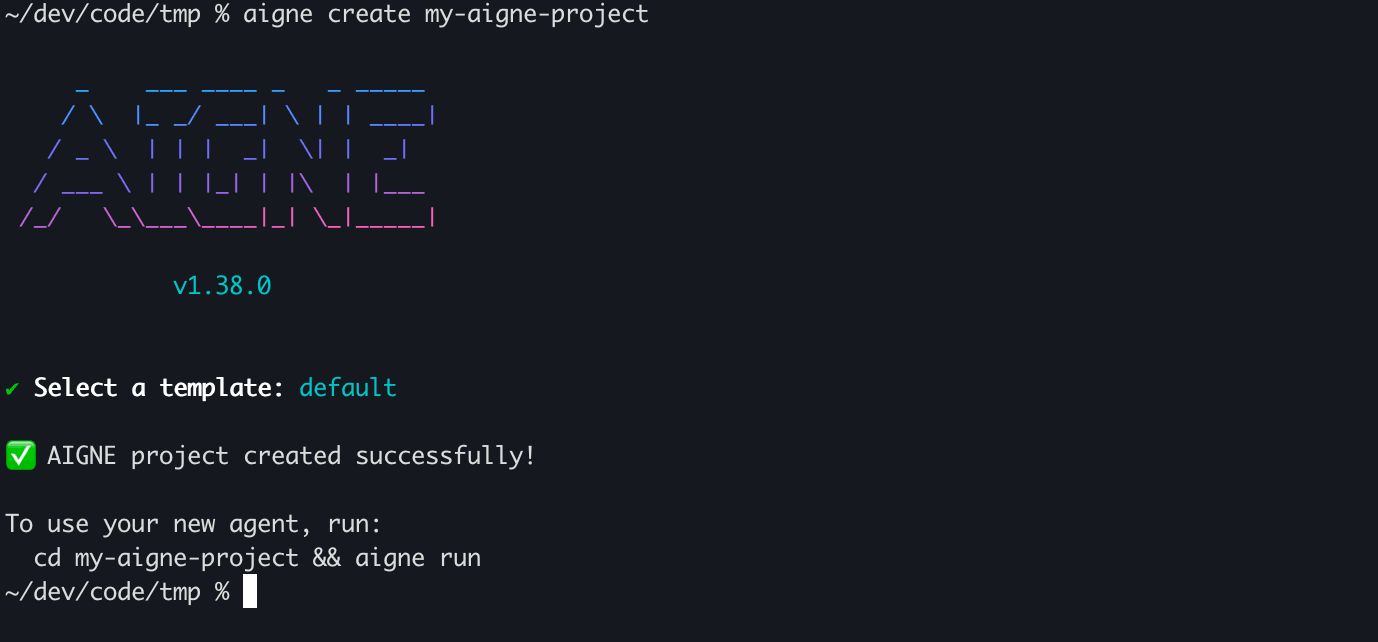
Once the CLI is installed, you can create a new AIGNE project using the aigne create command. This command scaffolds a new directory with a default agent template, including all the necessary configuration files.
aigne create my-first-agentThe CLI will then guide you through an interactive setup process. You'll be prompted to confirm the project name and select a template. For this guide, you can accept the default options by pressing Enter.
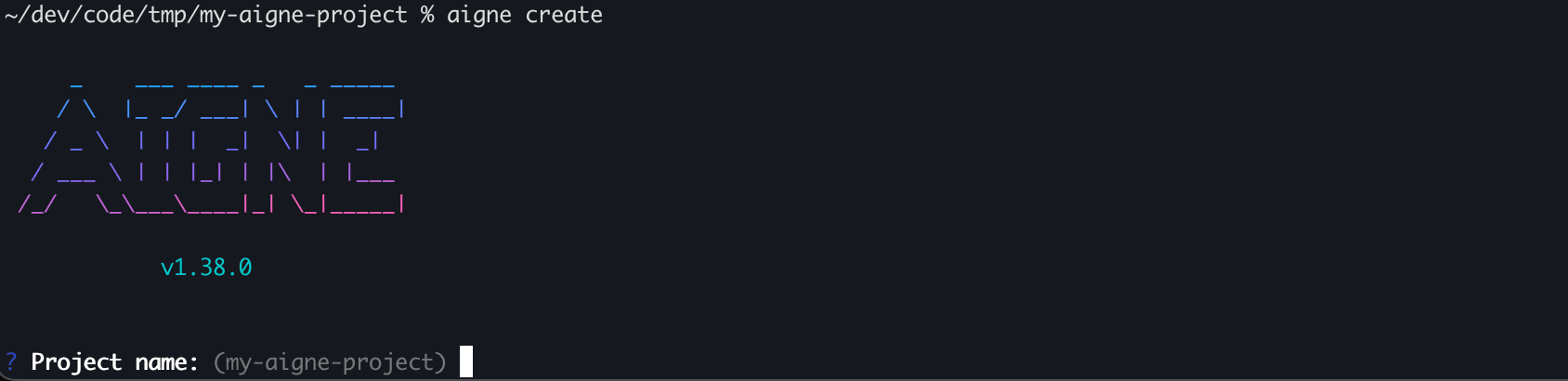
After the process completes, you'll see a success message with instructions on how to start using your new agent.
Step 3: Set Up Environment Variables#
Before running the agent, you need to configure your AI model provider's API key.
First, navigate into your newly created project directory:
cd my-first-agentThe project template includes an example environment file named .env.local.example. Copy it to a new file named .env.local to create your local configuration.
cp .env.local.example .env.localNow, open the .env.local file in your editor. You need to add your OpenAI API key. The default template is pre-configured to use OpenAI.
.env.local
# OpenAI
MODEL="openai:gpt-4o-mini"
OPENAI_API_KEY="YOUR_OPENAI_API_KEY"
Replace "YOUR_OPENAI_API_KEY" with your actual key.
Step 4: Run Your Agent#
With the configuration in place, you can now run your agent. Execute the aigne run command from within your project directory.
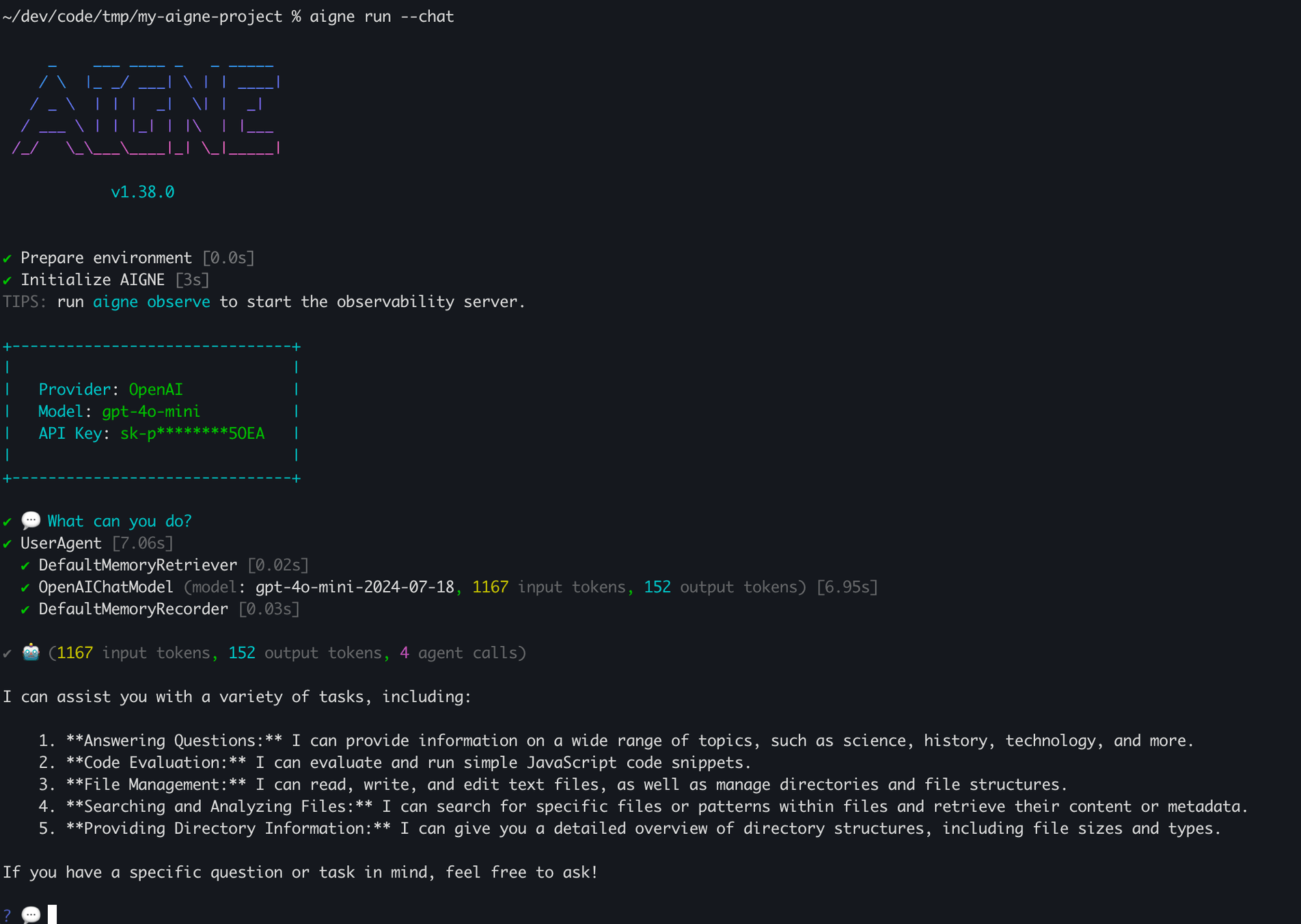
aigne runThis command starts an interactive chat session with the default agent defined in your project. You can now start sending messages and interacting with your AI agent directly in the terminal.
Next Steps#
Congratulations! You've successfully installed the AIGNE CLI, created a project, and run your first agent.
To understand the files you've just created and how an AIGNE project is structured, head over to the Core Concepts section.