Keep Portfolio References and Draft Ideas in Aside
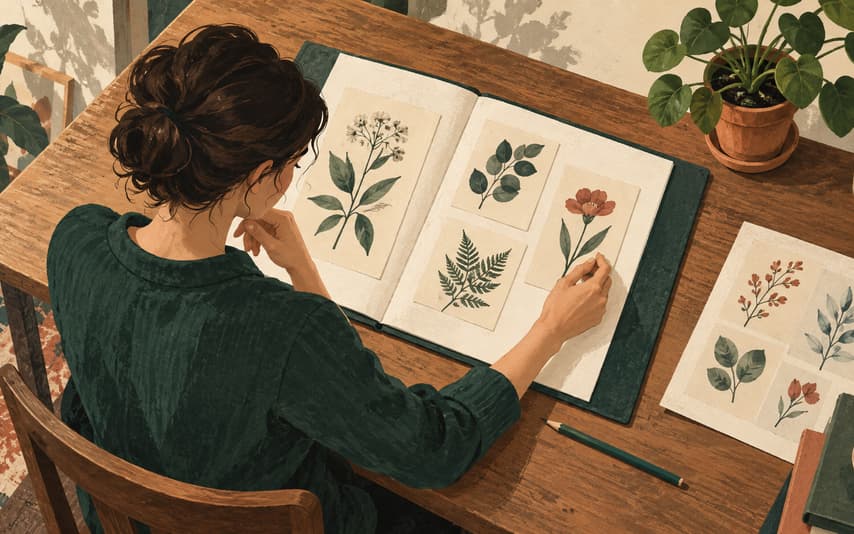
When you find a portfolio page you like, saving the link is easy. Remembering what caught your attention a few days later can be harder. Was it the opening, the project description, or one small detail?
In Aside, you can keep a reference page with a note about what you want to borrow, then collect it alongside your own draft ideas. Start with one page and follow the steps below on your iPhone. When you return to your portfolio, the collection gives you a place to reopen the source and pick up where you left off.
Save a reference from Safari
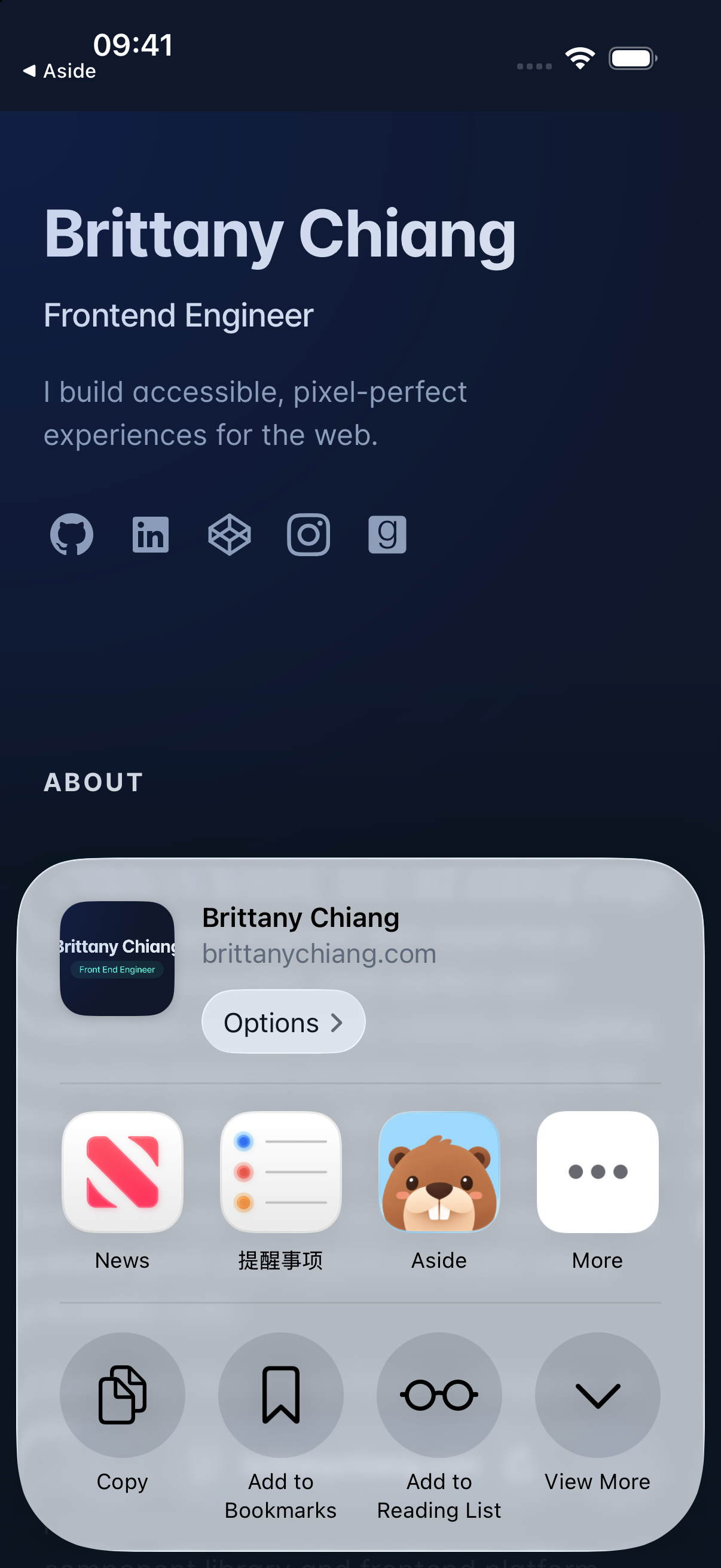
Try it with Brittany Chiang’s website. Open the page in Safari, tap “More” in the lower right, then “Share,” and choose Aside. If Aside is not visible in the app row, look under “More.” Check that you are sharing the page you intended, then tap Save at the bottom.
Return to Aside’s home screen and open the saved item. You can use the same route for the next project page that catches your eye, without deciding on a collection first.
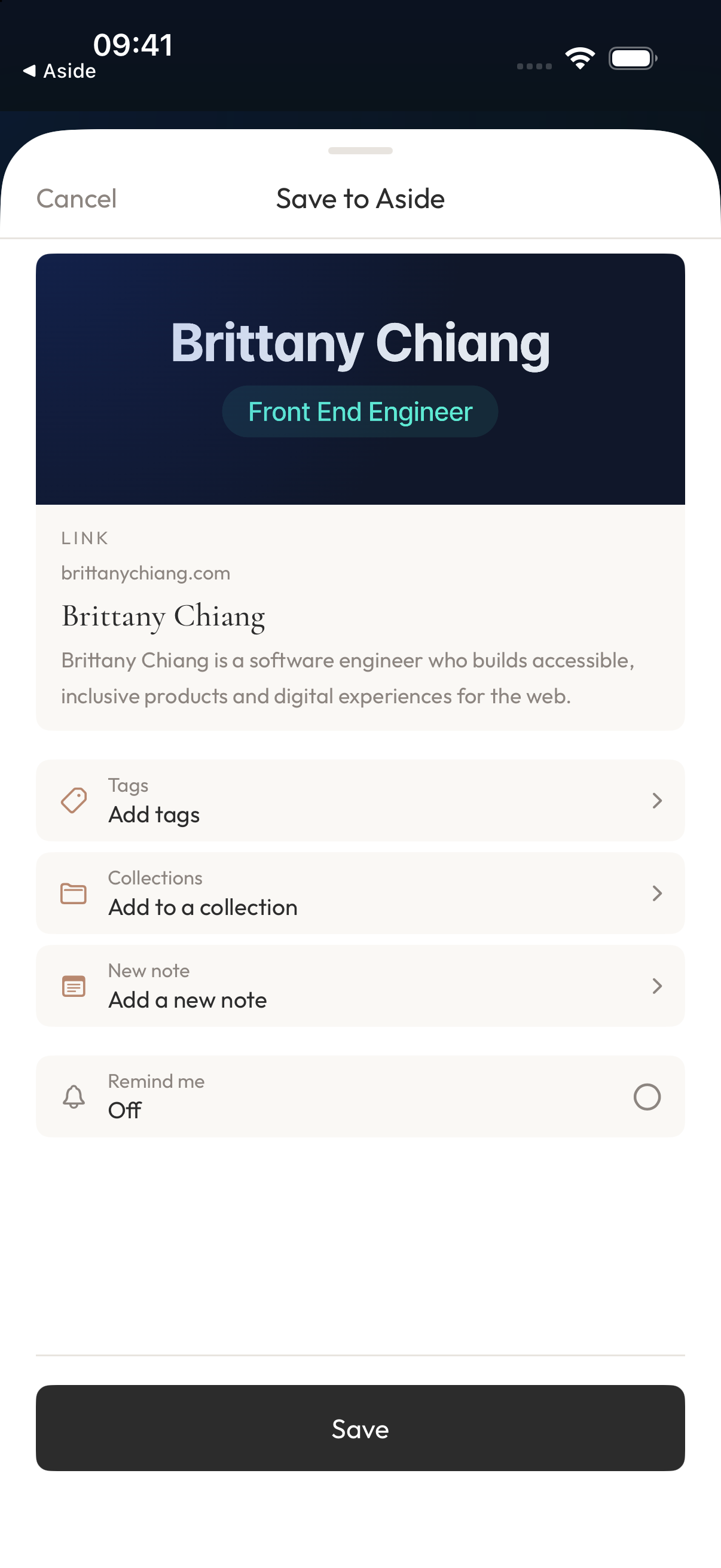
With the page saved, add what made you want to keep it.
Note what you want to borrow
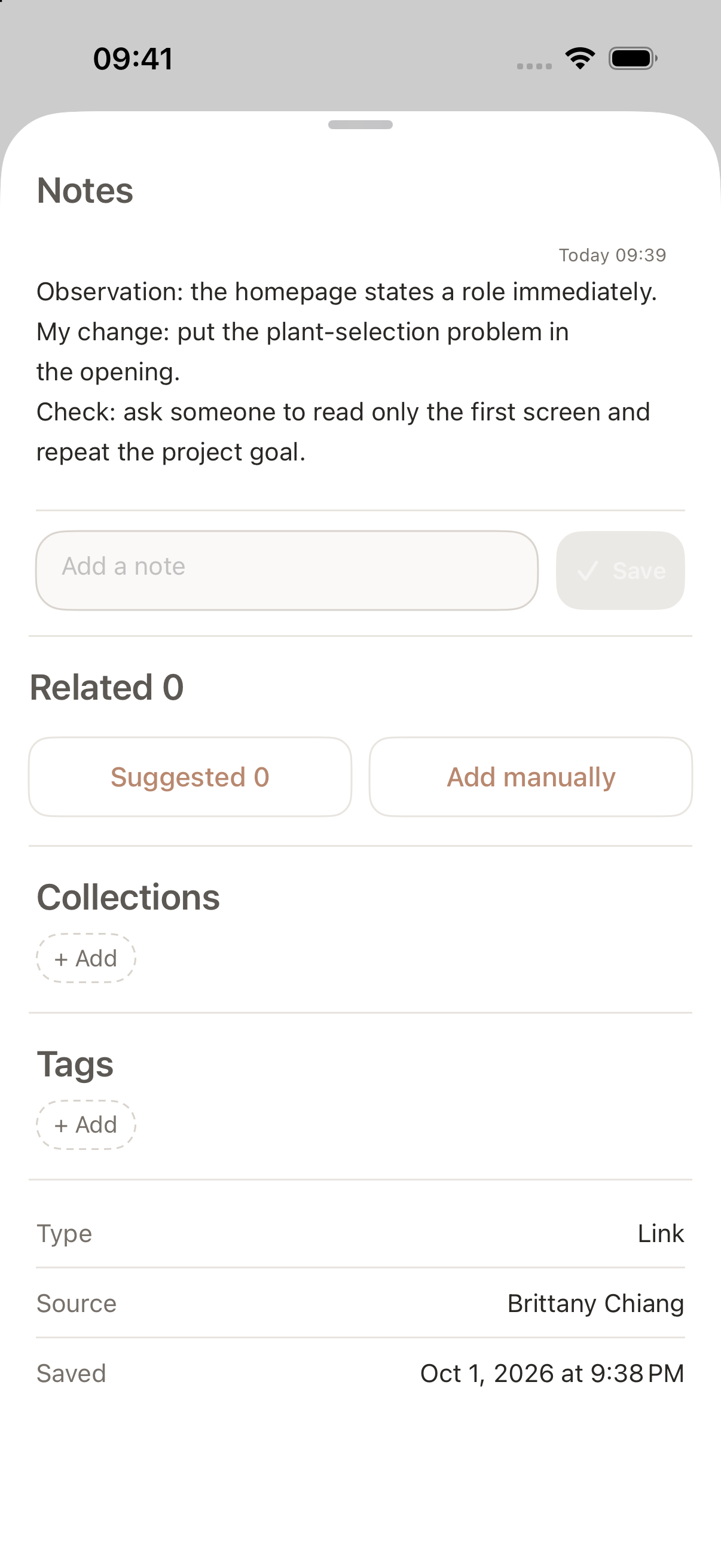
Open the item and tap the notes bar at the bottom of its detail view to expand the information panel. Enter your observation in “Add a note” and tap “Save.” This website introduces the author’s role near the start. A note could say: “The role is clear right away. I want to try a more direct opening for my project, too.”
If you already have a change in mind, add it. Here is an example using Field Notes, a fictional plant-app concept:
Observation: the homepage states a role immediately.
My change: put the plant-selection problem in the opening.
Check: ask someone to read only the first screen and repeat the project goal.
These labels are simply text you type into the note. Use whatever wording helps you. Once saved, the note belongs to the same item as the reference page, so you can revisit them together.
“Looks good” leaves you with the same question next time. “States the role in the opening” or “Revisit this process illustration” gives you a detail to look for when you return.
Use Quick Capture for your own draft
If a new opening comes to mind while browsing references, return to Aside’s home screen and tap “+” to open Quick Capture. You can write your own text here without saving a webpage first.
Start the note with a recognizable line, such as “Field Notes: compare two openings,” and write the candidates below it:
- A: Field Notes, a plant app concept.
- B: Helping new plant owners choose plants for the light in their homes.
Add a reminder to try both in the same design and check the title wrapping and type size on a phone. Tap the checkmark in the upper right to save.
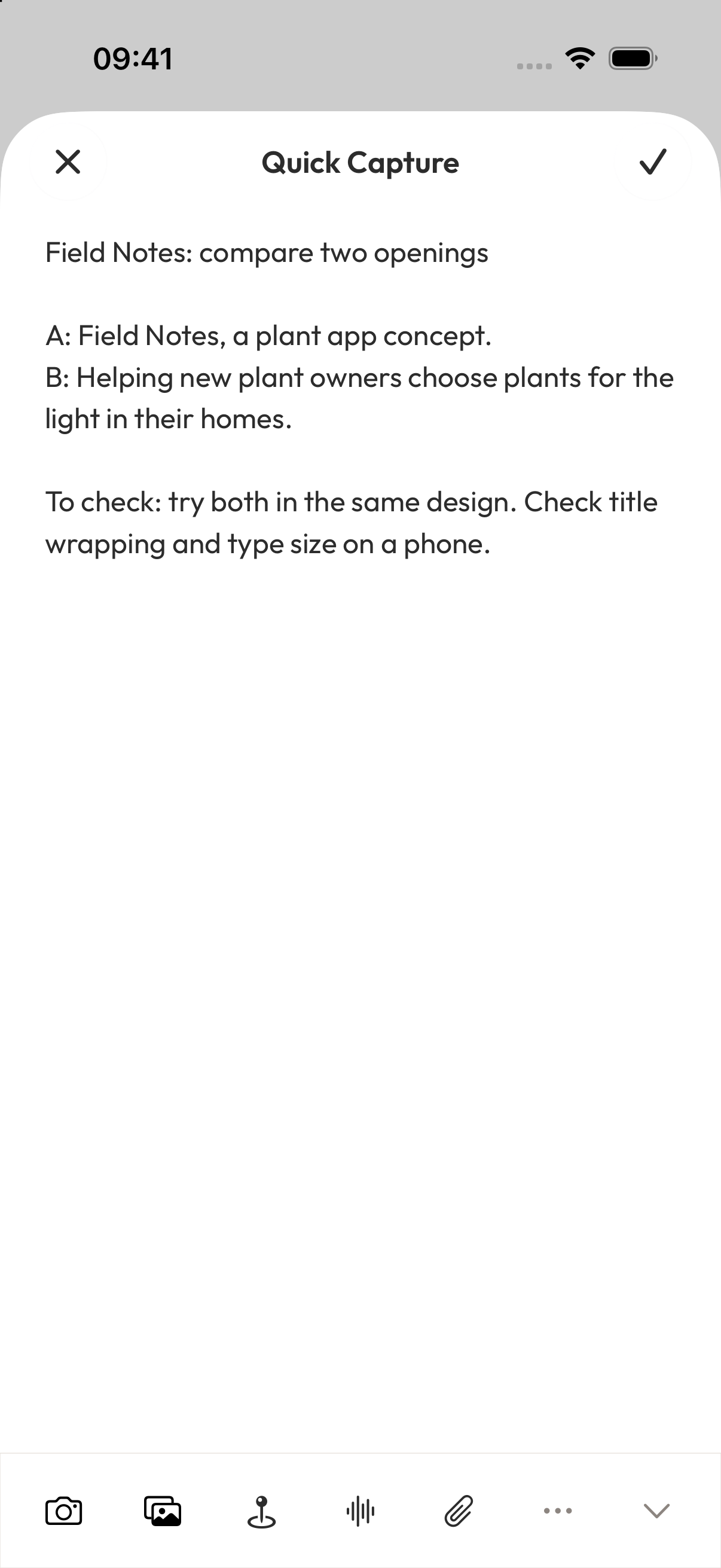
You now have two items in Aside: a reference page with your reason for saving it, and a draft of your own. When you return, you can tell what came from the reference and what you want to try yourself.
Keep them in a Portfolio Refresh collection
Open Organize from the bottom bar. Tap the folder-with-a-plus button in the upper right and choose “Create a collection and start.” Name it “Portfolio Refresh,” then tap “Create collection and start.” After creating it, return to Home. Tap the “…” button in the lower-right corner of each item’s card to open “More actions,” choose “Add to Collection,” and select “Portfolio Refresh.” Tap the checkmark in the upper right to return.
Open the collection from Organize and check that both the webpage and your draft are there. Add further references the same way, including items you saved earlier.
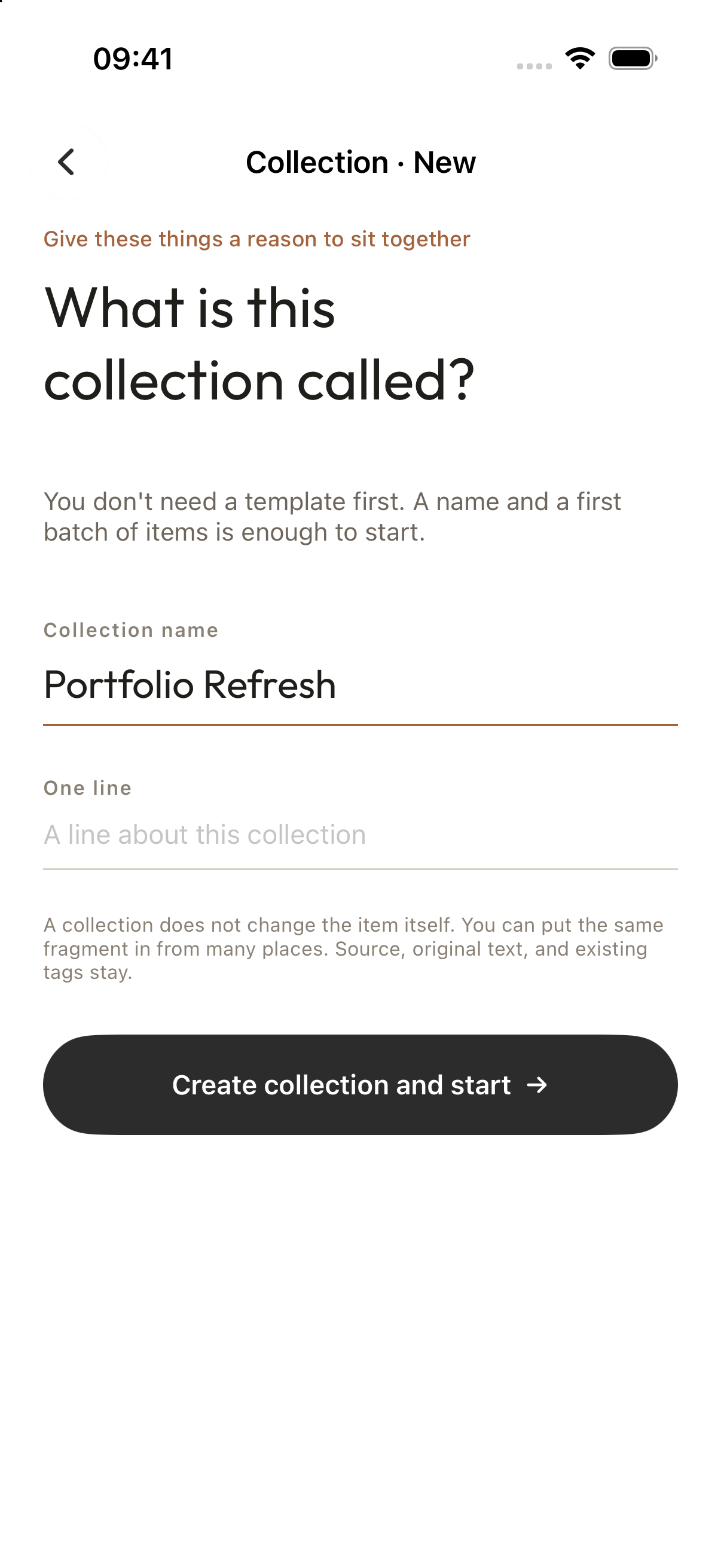
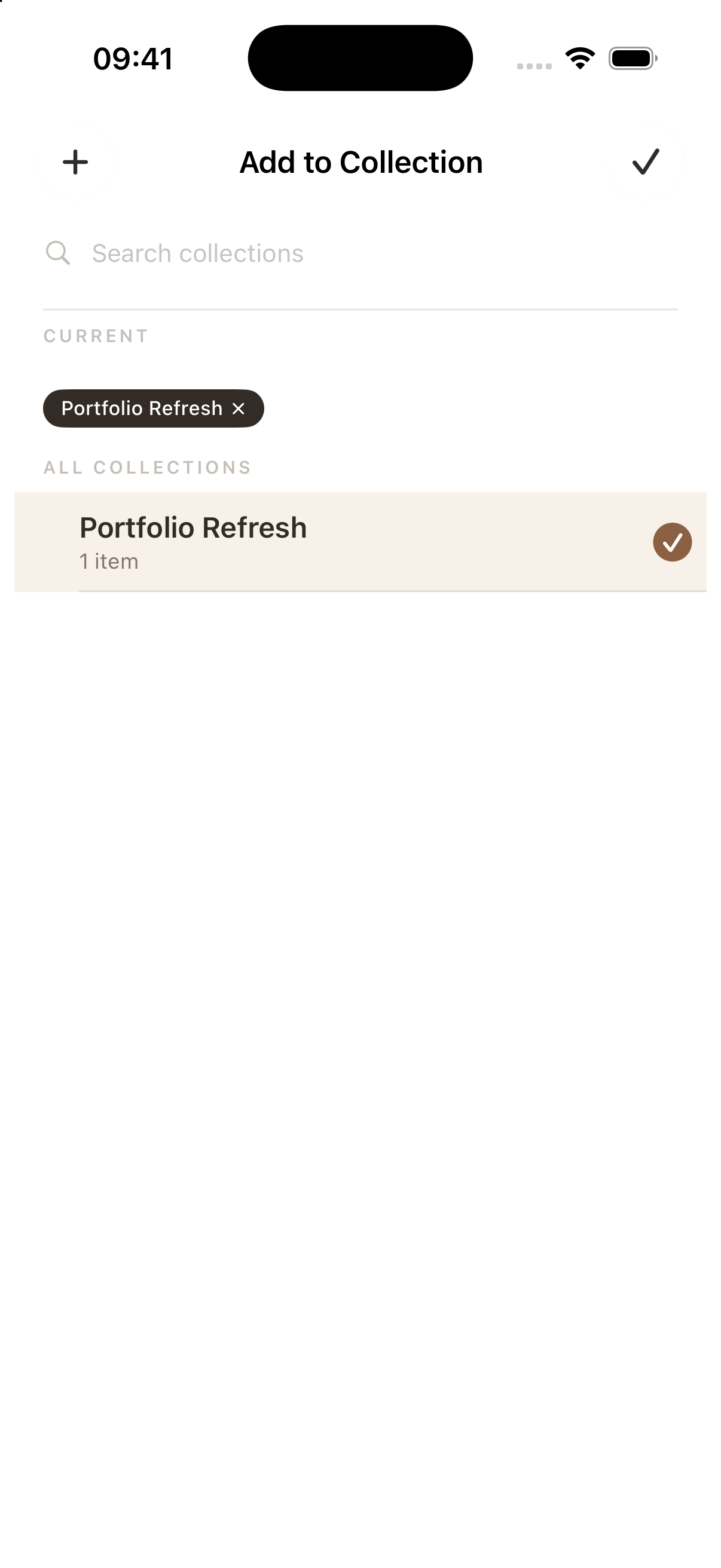
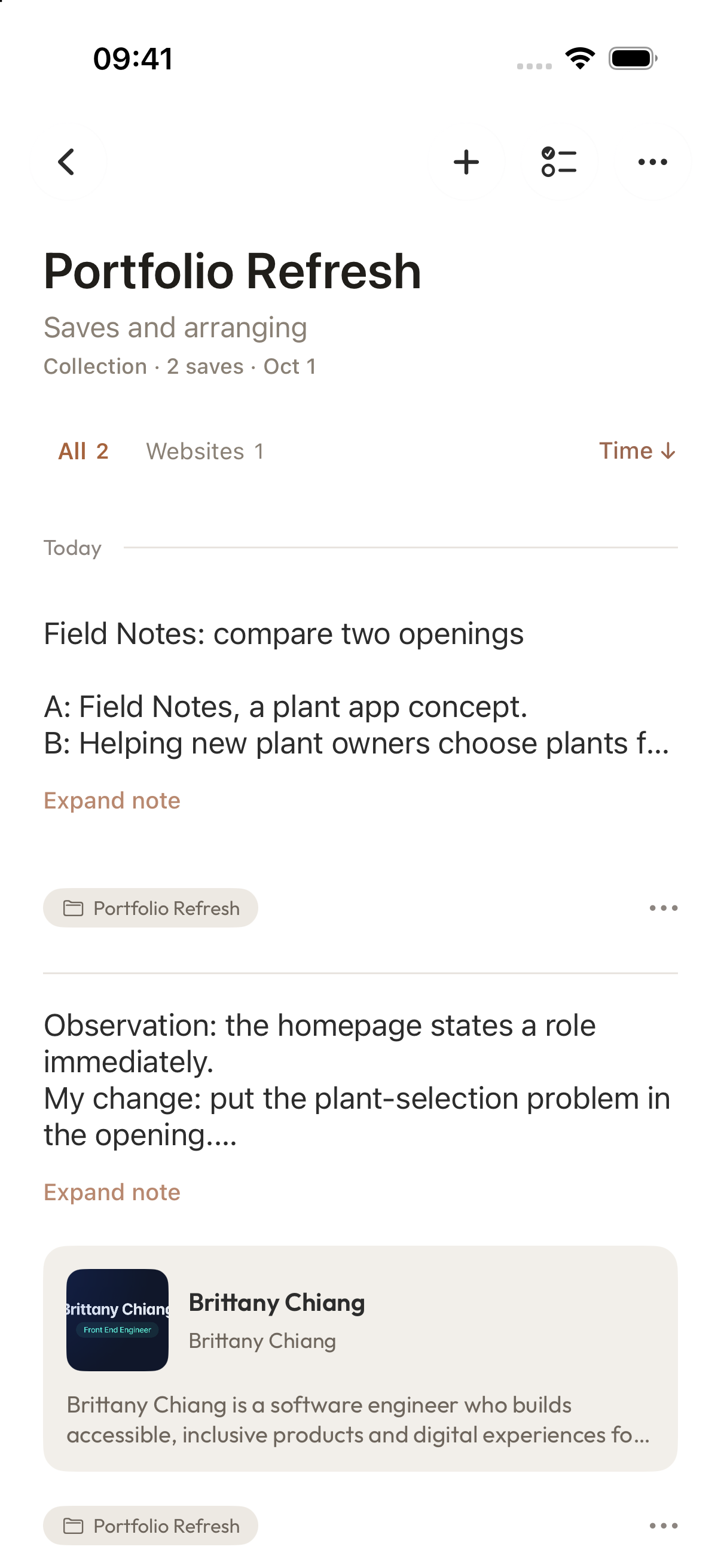
Next time you work on your portfolio, start here. Open the reference item to revisit the page and your note, then open “Field Notes: compare two openings” to continue the draft. When you are ready to test the layout, take those candidates into your design tool. Aside keeps the material for this change and the reason you wanted to make it.
Try it with one portfolio page you like: share it to Aside and note the detail you want to borrow. When an idea of your own follows, save it with Quick Capture.
本頁涉及
產品
-
Aside
active
收藏吸引你的內容,用合集整理靈感。