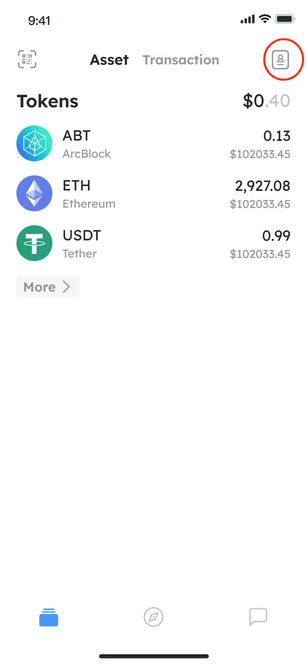
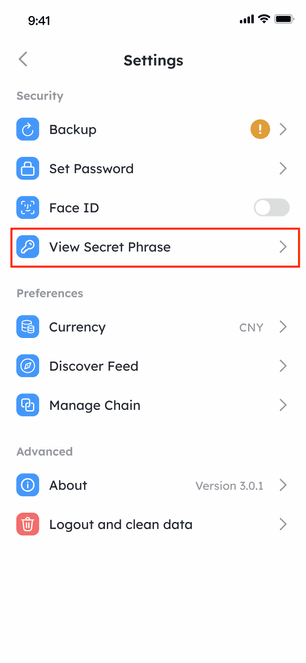
Open DID Wallet and go to the home page of assets. Click the icon in the upper right corner to enter the Settings page. Continue to click the icon in the upper right corner to enter the settings page.
If no password is set, you will be prompted to set a password. Click Confirm to set a password right now.
After you set the password, continue to click on the settings page to view the mnemonic. If biometric (Face ID or Touch ID) is enabled, the biometric interface will pop up. If not, the password input page will pop up to ensure wallet security.
Once you have authenticated, you will see your mnemonic, click copy and save it in a safe place.
Note that if your wallet was created and initialized prior to version V4, you may not be able to support the view mnemonic code, but this will not prevent you from continuing to use the latest DID wallet.