Deploy Blocklet
The blocklet deploy command is your direct line for pushing a blocklet from your local development environment to a running Blocklet Server instance. This is essential for testing in a staging environment or deploying directly to production. The command handles bundling, versioning, and uploading your project in one step.
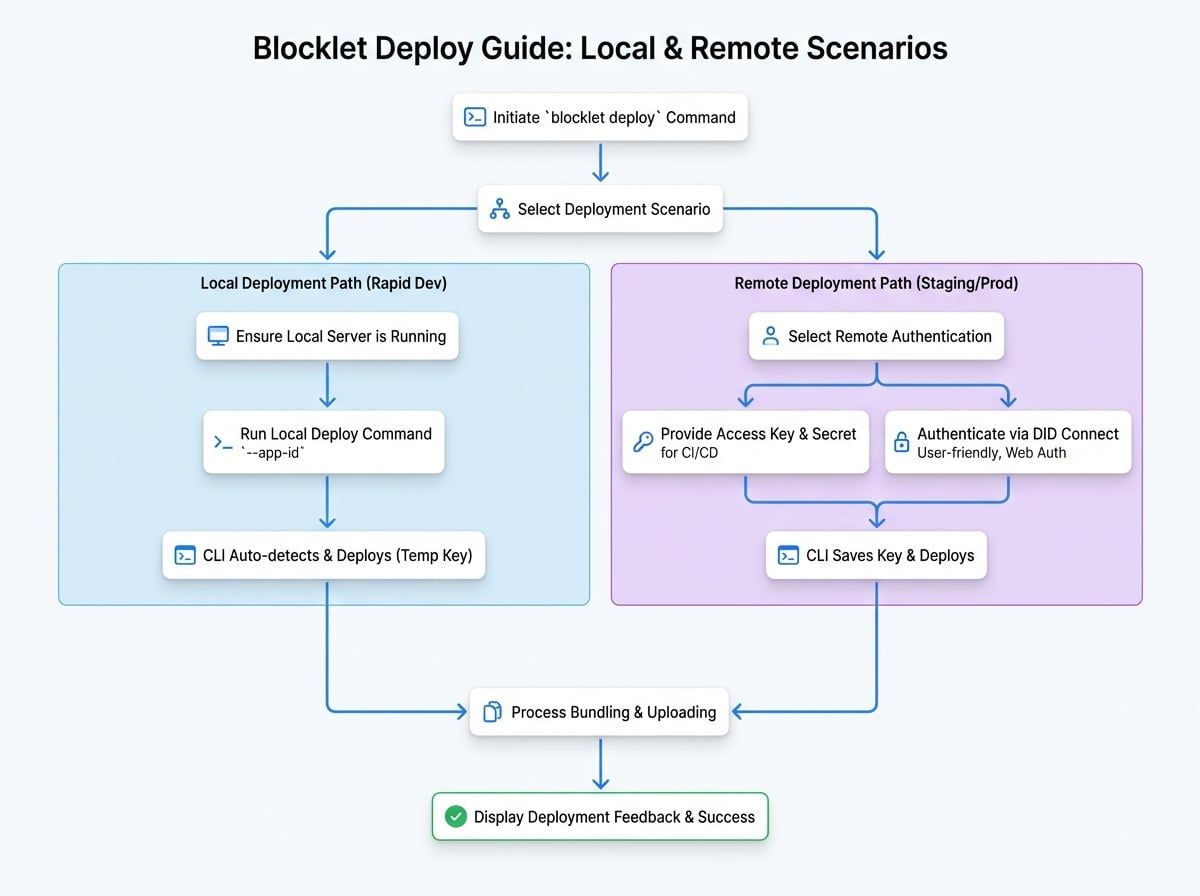
There are two primary ways to deploy: to a local server for development and testing, or to a remote server for staging or production.
Command Usage#
The basic syntax for the deploy command is:
Basic Usage
blocklet deploy <directory> [options]<directory>: The path to your blocklet project's root directory. You can use.to specify the current directory.
Deployment Scenarios#
1. Deploying to a Local Server#
When you're running Blocklet Server on your local machine, deploying is straightforward. The CLI automatically detects the running server, generates a temporary access key for the operation, and handles the deployment without needing manual configuration.
This is the recommended workflow for rapid development and testing.
Deploying Locally
# First, ensure your local Blocklet Server is running
blocklet server start

# Navigate to your blocklet project and deploy
cd /path/to/my-blocklet
blocklet deploy . --app-id <your-local-app-did>
The CLI will find the running server, deploy the blocklet, and then revoke the temporary access key it used.
2. Deploying to a Remote Server#
Deploying to a remote server requires specifying the server's endpoint and providing authentication credentials.
Method A: Using Access Key & Secret#
If you have an access key and secret, you can provide them directly as command-line options. This method is ideal for CI/CD environments where user interaction is not possible.
Deploying with Access Keys
blocklet deploy . \
  --endpoint https://my-server.arcblock.io \
  --access-key 'your_access_key_id' \
  --access-secret 'your_access_key_secret' \
  --app-id z2qa9sD2tFAP8gM7C1i8iETg3a1T3A3aT3bQ
Method B: Using DID Connect for Authentication#
If you don't provide an access key and secret, the CLI will initiate a secure authentication process using DID Connect. This is a user-friendly method for manual deployments from your development machine.
Deploying with DID Connect
blocklet deploy . \
  --endpoint https://my-server.arcblock.io \
  --app-id z2qa9sD2tFAP8gM7C1i8iETg3a1T3A3aT3bQ
When you run this command, the CLI will prompt you to open a web page to generate a new access key. After you authenticate with your DID Wallet, the key is securely sent to the CLI and saved locally for future deployments to the same application.
This flow is illustrated below:
Command Options#
The URL of the remote Blocklet Server. Required for remote deployments.
The access key ID for authenticating with the remote server.
The access key secret for authentication.
The DID of the root application where this blocklet will be deployed as a component. The CLI will throw an error if this is not provided. You can also use --app-did.
The URL path where the blocklet will be accessible (e.g., /my-component). If not provided, a default is generated from the blocklet's title or name.
Enables incremental deployment. The CLI will compare local file hashes with the server and only upload changed files, speeding up the process significantly.
Deployment Output#
During deployment, the CLI provides feedback on the files being processed. If you use the --incremental flag, it will show which files are new, changed, or deleted.
Example Deployment Output
ℹ Info: Try to deploy My Blocklet@1.0.0 from /path/to/my-blocklet to My App in server https://my-server.arcblock.io.
ℹ Info: Use default mountPoint: /my-blocklet
ℹ Info: Incremental mode, fetching blocklet diff...
ℹ Info: Name: my-blocklet
ℹ Info: DID: z8iZp329XWHe7iMqtTVmFobb82E9CR4X3sKAU
ℹ Info: Version: 1.0.0
ℹ Info: Added Files: 2
  - new-feature.js
  - assets/icon.png
ℹ Info: Changed Files: 1
  - blocklet.yml
ℹ Info: Deleted Files: 0
⠙ Uploading my-blocklet...
✔ Success: My Blocklet@1.0.0 was successfully deployed to My App in server https://my-server.arcblock.io.
After a successful deployment, your blocklet will be running on the target Blocklet Server.