I hope this document can help everyone understand how to set preferences for Discuss Kit.
Currently, the Discuss Kit includes the following modules:
- Manage Module
- Board Manager
- Label Manager
- Collection Manager (WIP)
- Post Module
- Discussion
- Blog
- Doc
- Bookmark
- Chat
- User Profile
These modules are all related in Discuss Kit, with some of our preference configurations placed in Discuss Kit, and the rest in Blocklet's Configuration. Please don't worry, the documents below will detail where the preference configuration entry for each module is.
Side note: If Luci wants to view a Discussion written by Jack, they may go through the following process.
Label Manager Important Useless Board Manager Discussion Boards Blog Doc Bookmark I need a new post what is the post type? Yes! Select board from Discussion Boards I can add to a board Select any labels I can add to any labels Done Notice Post Module User Profile Feeds Comments Following ... go to luci user Profile Jack Luci I want to see Jack Discussion go to jack user Profile go to discussion list
Manager Module
Board Manager
First of all, it needs to be clear that: each Post Module has a Board Manager entry, and the Boards of different Post Modules are independent of each other. For example, Docs cannot be mounted on Discussion Boards.
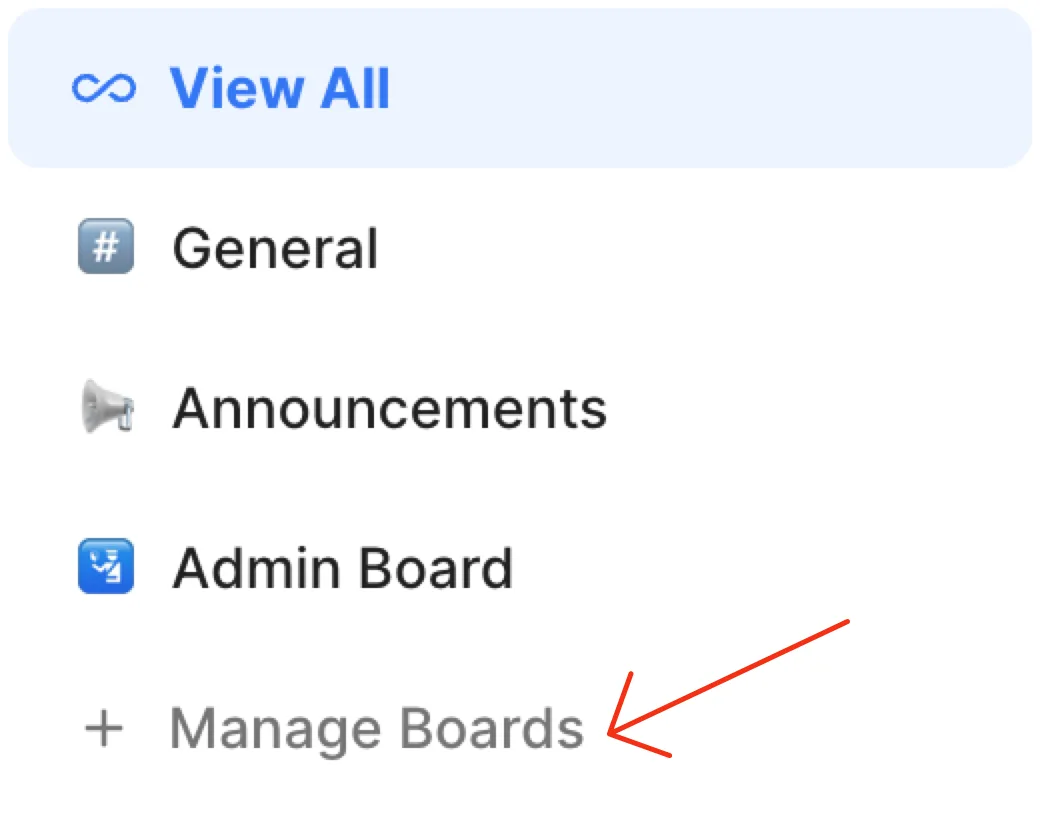
Taking Discussion as an example, you can enter Board Manager by clicking on Manage Boards.
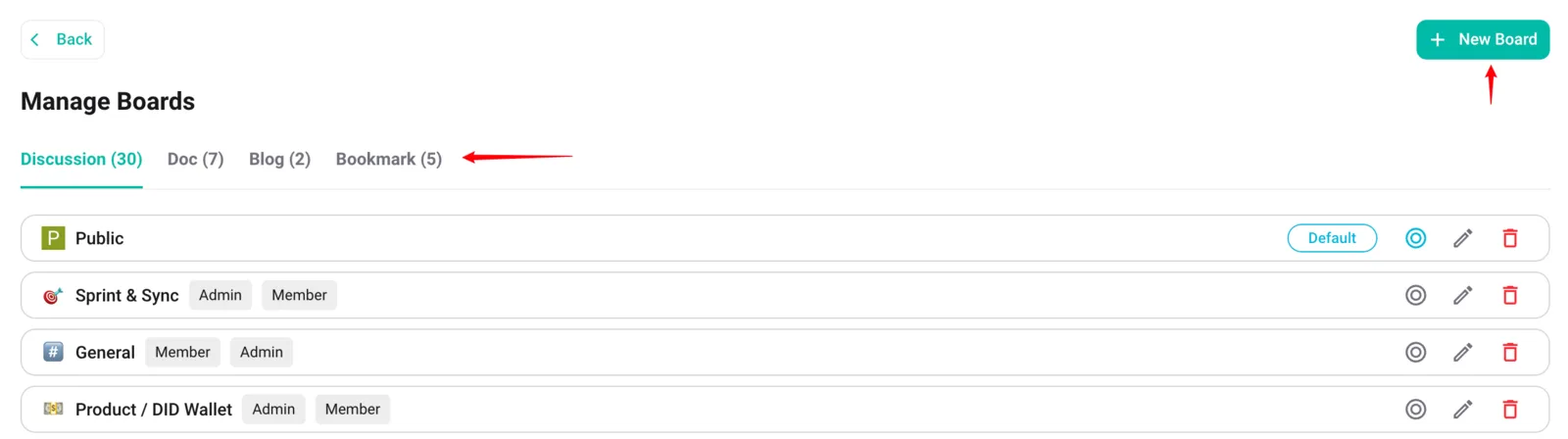
In the Board Manager, you can filter by Post Module, and you can also perform a series of operations on the Board.
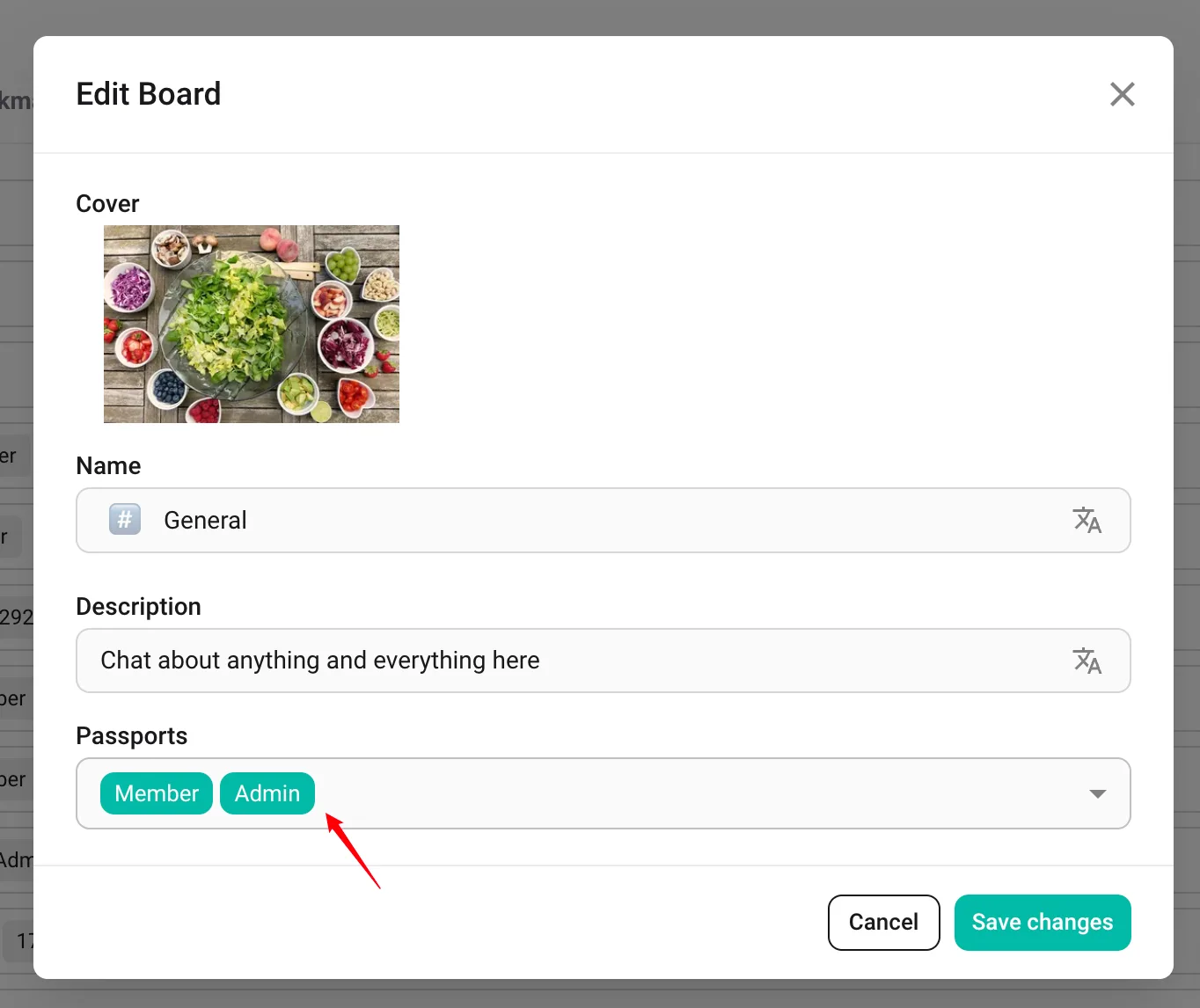
It is worth mentioning that, due to the fact that the permission mechanism of Discuss Kit is implemented through Passport, in the configuration of Board, Passports can be configured to be visible to some users.
Label Manager
Label Manager is similar to Board Manager, but it is not associated with any Post Module. For example, there is a label called Important, which can be used to mark both documents and discussions.
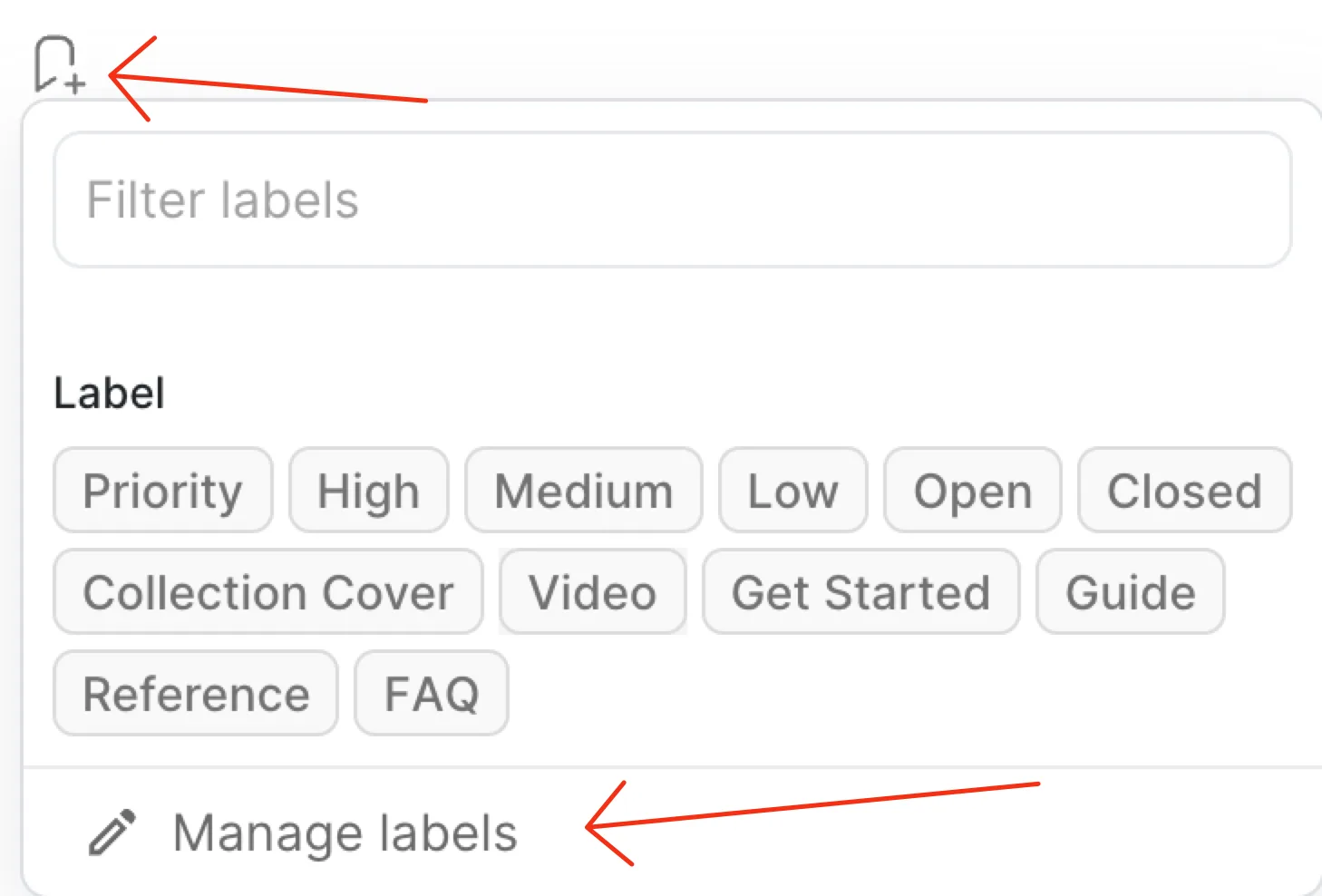
Taking Discussion as an example, you can enter the Label Manager by clicking on the Label Icon - Edit Labels.
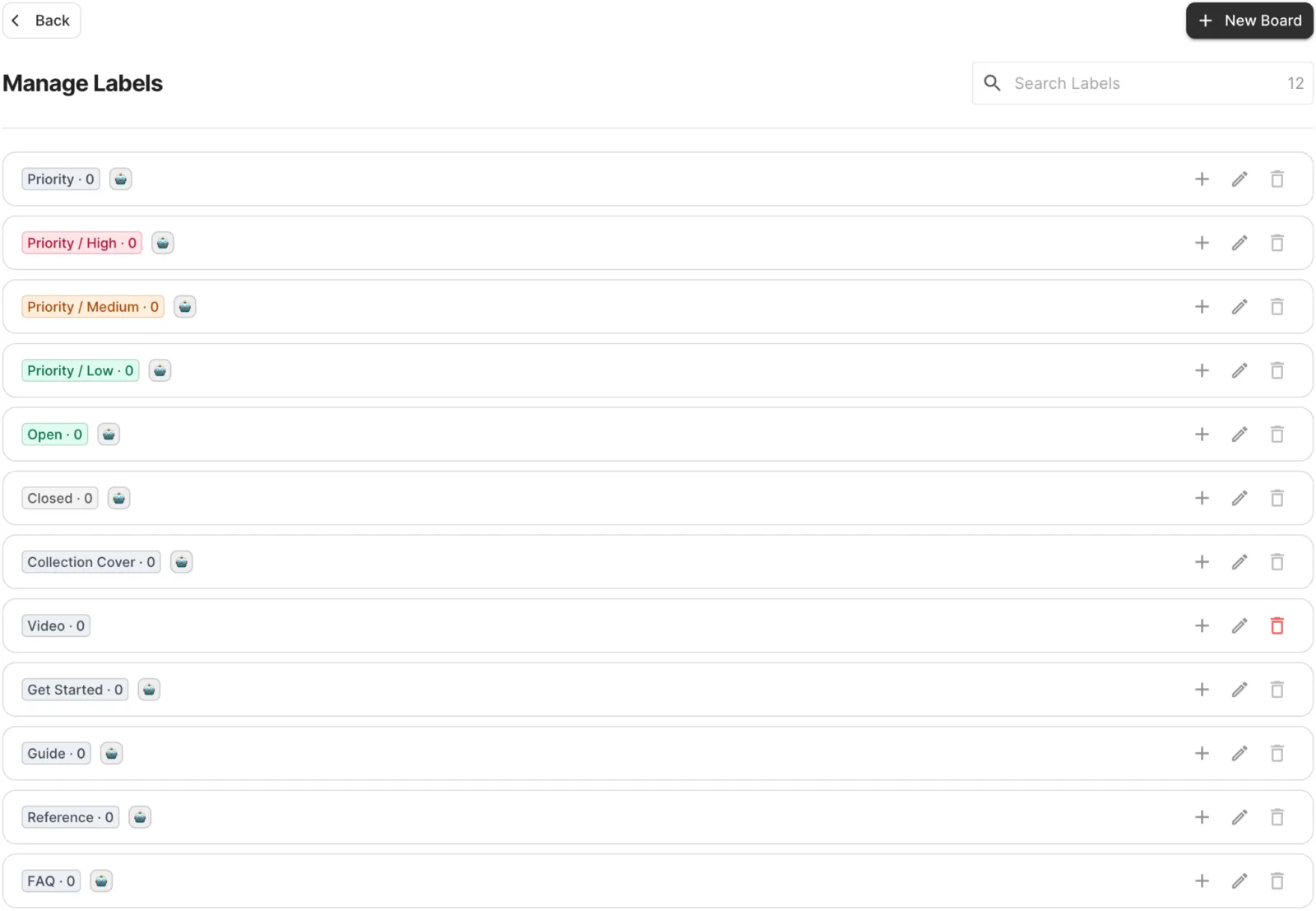
In Label Manager, you can perform a series of operations on labels.
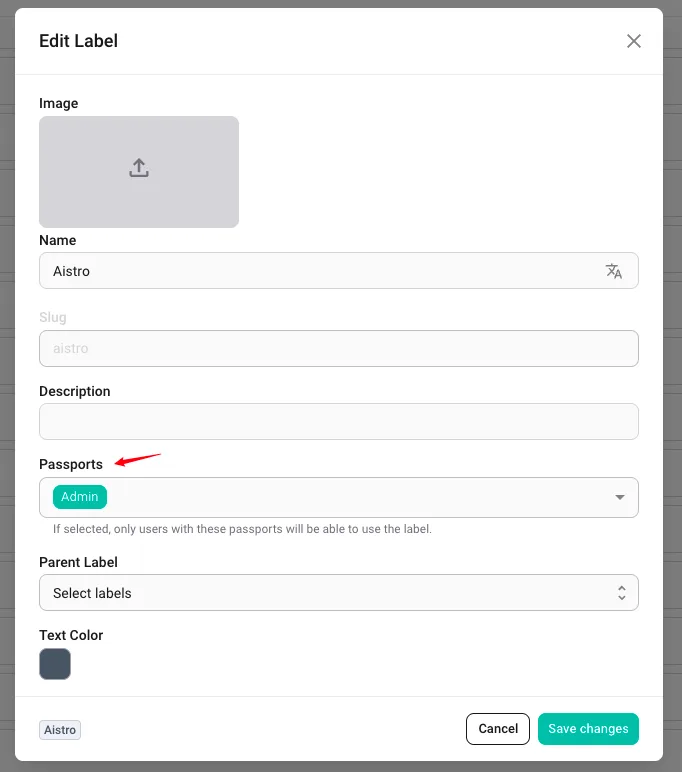
It is worth mentioning that Labels also support specifying Passports, which allows users holding specific Passports to use Labels to mark Posts.
Collection Manager
The feature is still under development, please stay tuned for updates.
Post Module
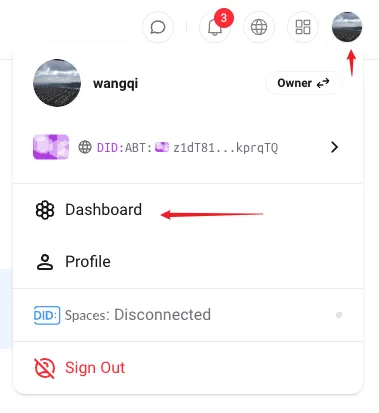
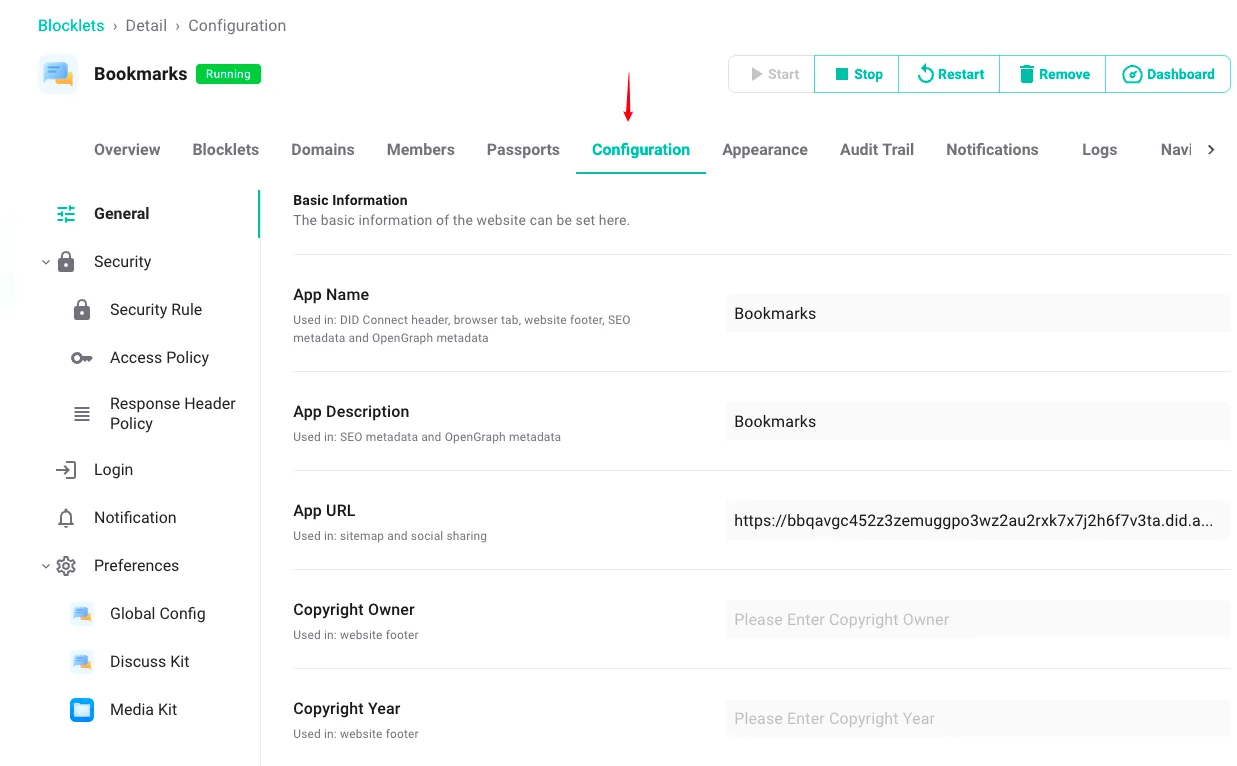
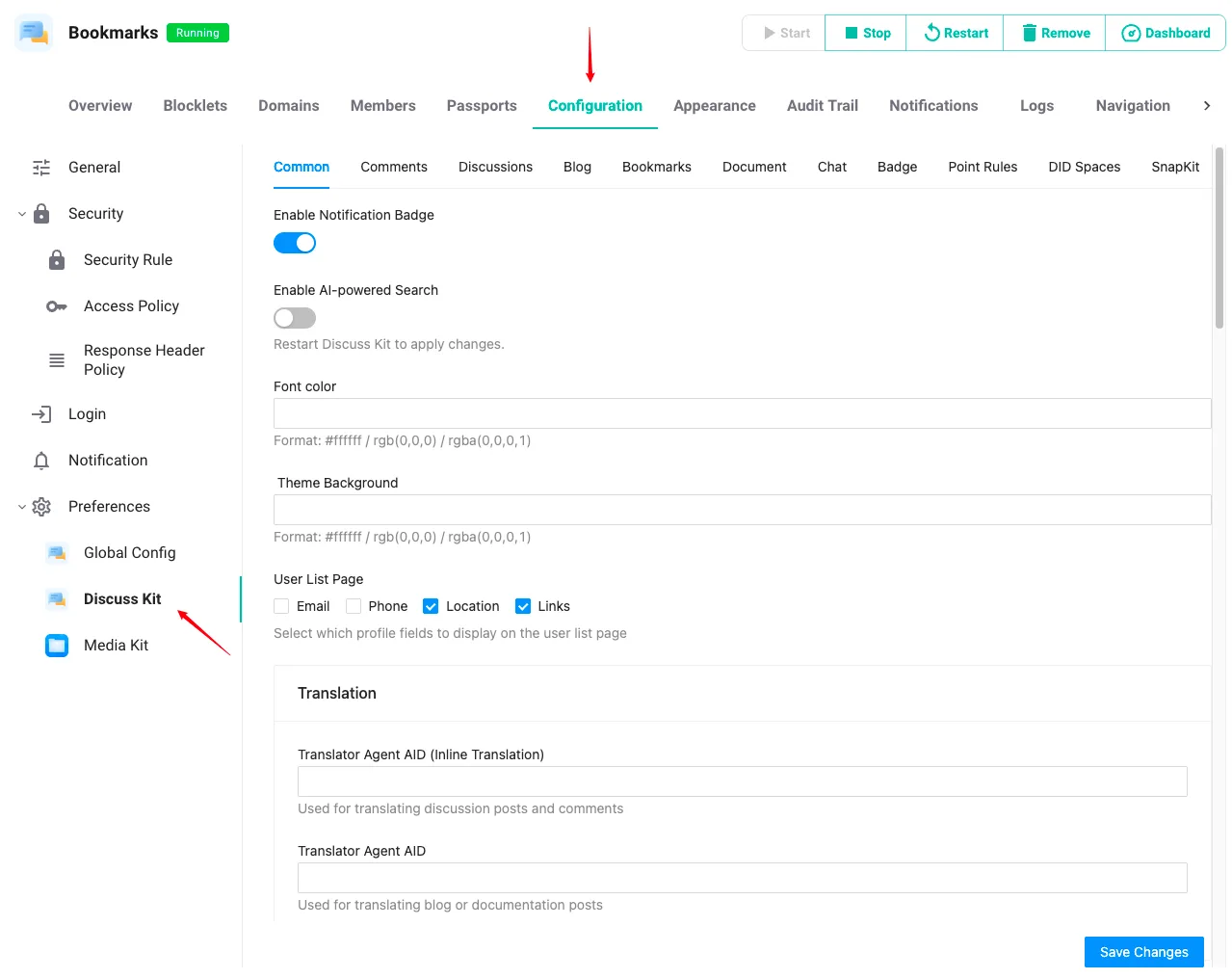
The configuration of the Post Module is generally found in Dashboard - Configuration - Preferences - Discuss Kit. Administrators can access it through the profile menu in the upper right corner.
After entering the settings page, you can perform some basic site settings in Configuration.
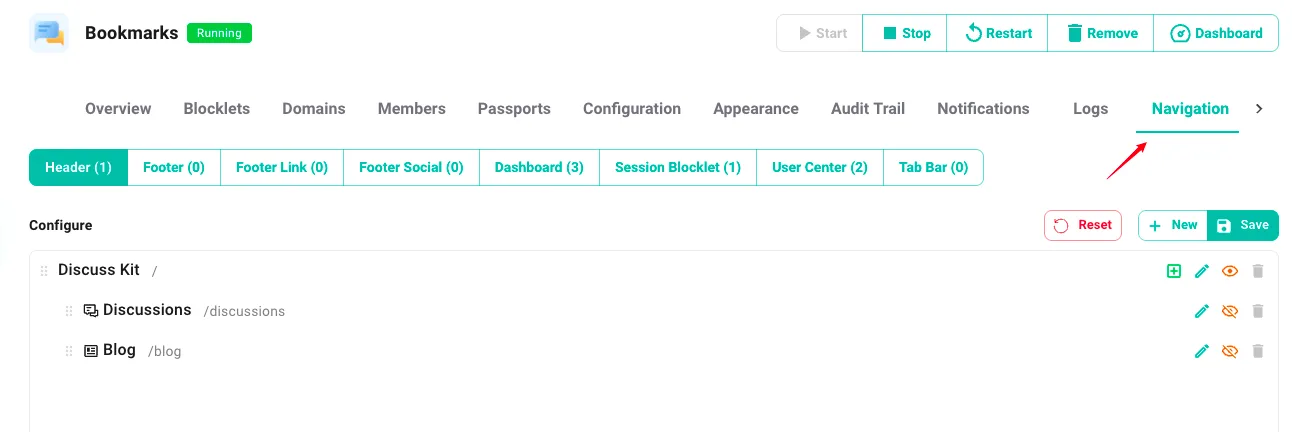
Also can add some new navigation to the site.
In the preference settings, many tabs are also divided, corresponding to different post modules. The vast majority of settings do not require restarting the blocklet. Of course, if you find that the saved settings are not taking effect, you can try restarting.
Discussion
Module configuration for Discussion, by selecting the Common Tab and Discussions Tab, the functional configuration remains consistent with the text description, and administrators can choose as needed.
If you need to modify the Title and Description of the Banner, you can go to the Common Tab to define the Banner.
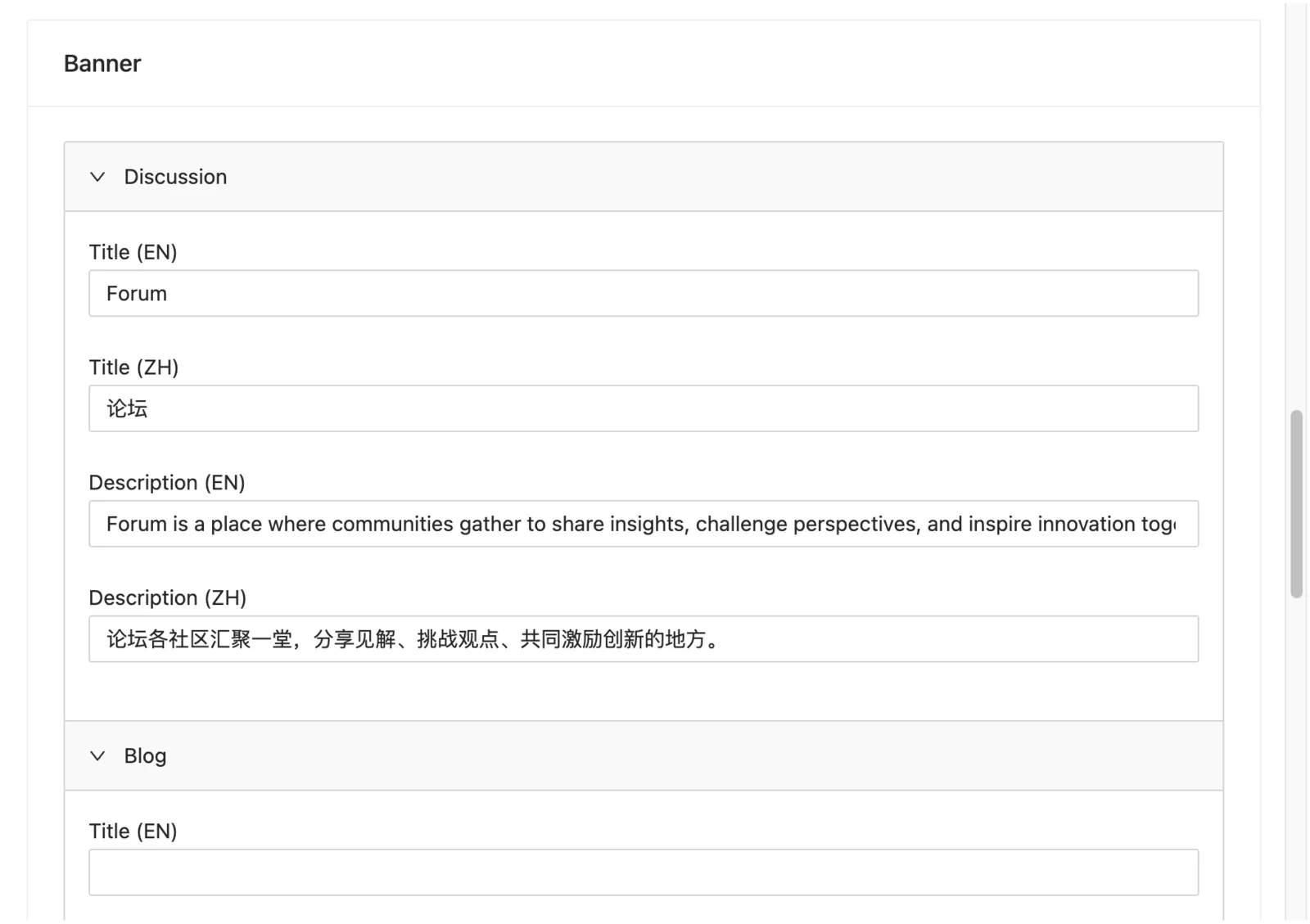
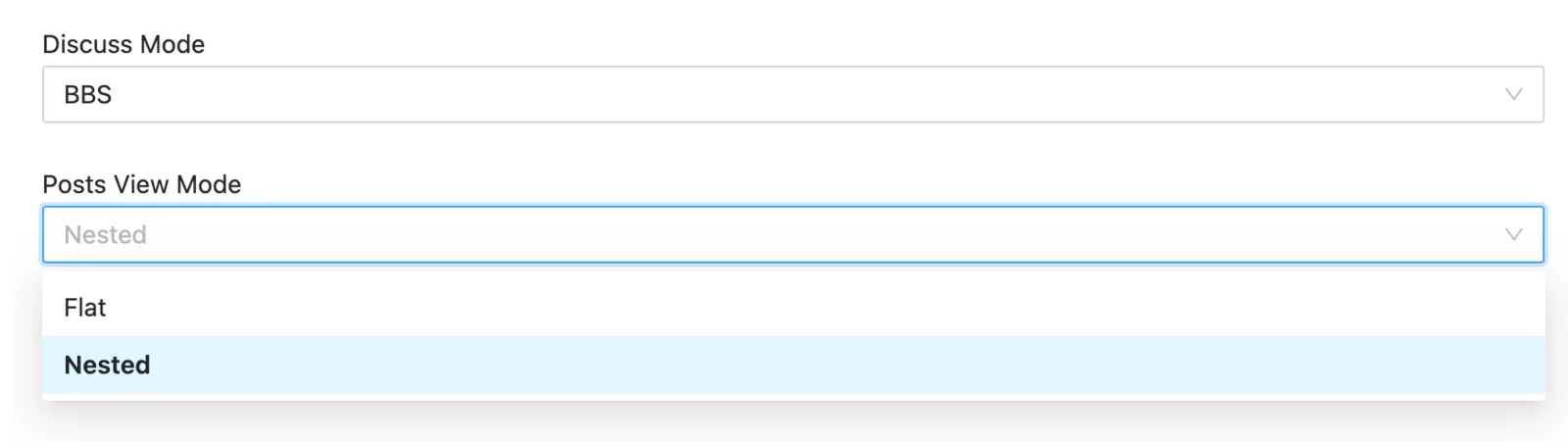
It is worth mentioning that, if you need BBS/Forum functionality, it is recommended to go to the Discussions Tab and adjust these two options to the ones in the image below, for a better reading experience.
Blog
Module configuration of Blog, configured through selecting the Blog Tab.
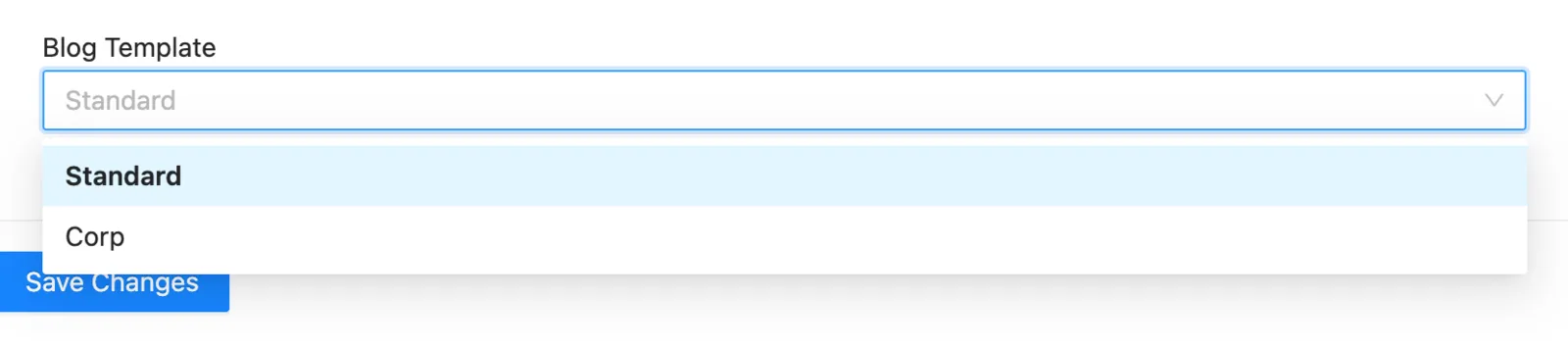
It is worth noting that the options for the Blog Template support both the Standard template and the Corp template. If you need to publish a more stylish business blog, then Corp is an option.
Doc
Doc's module configuration is mainly within the Discuss Kit application.
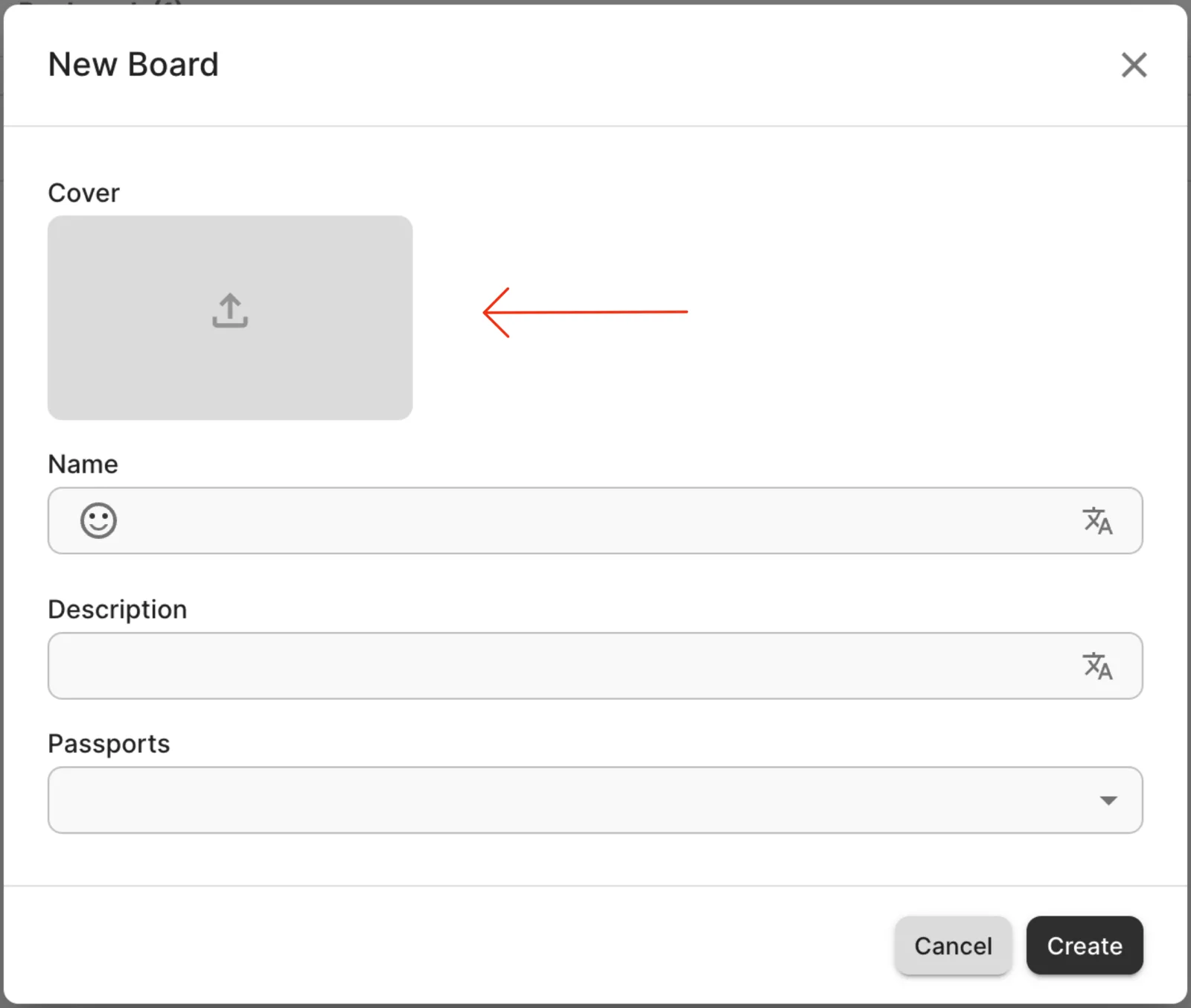
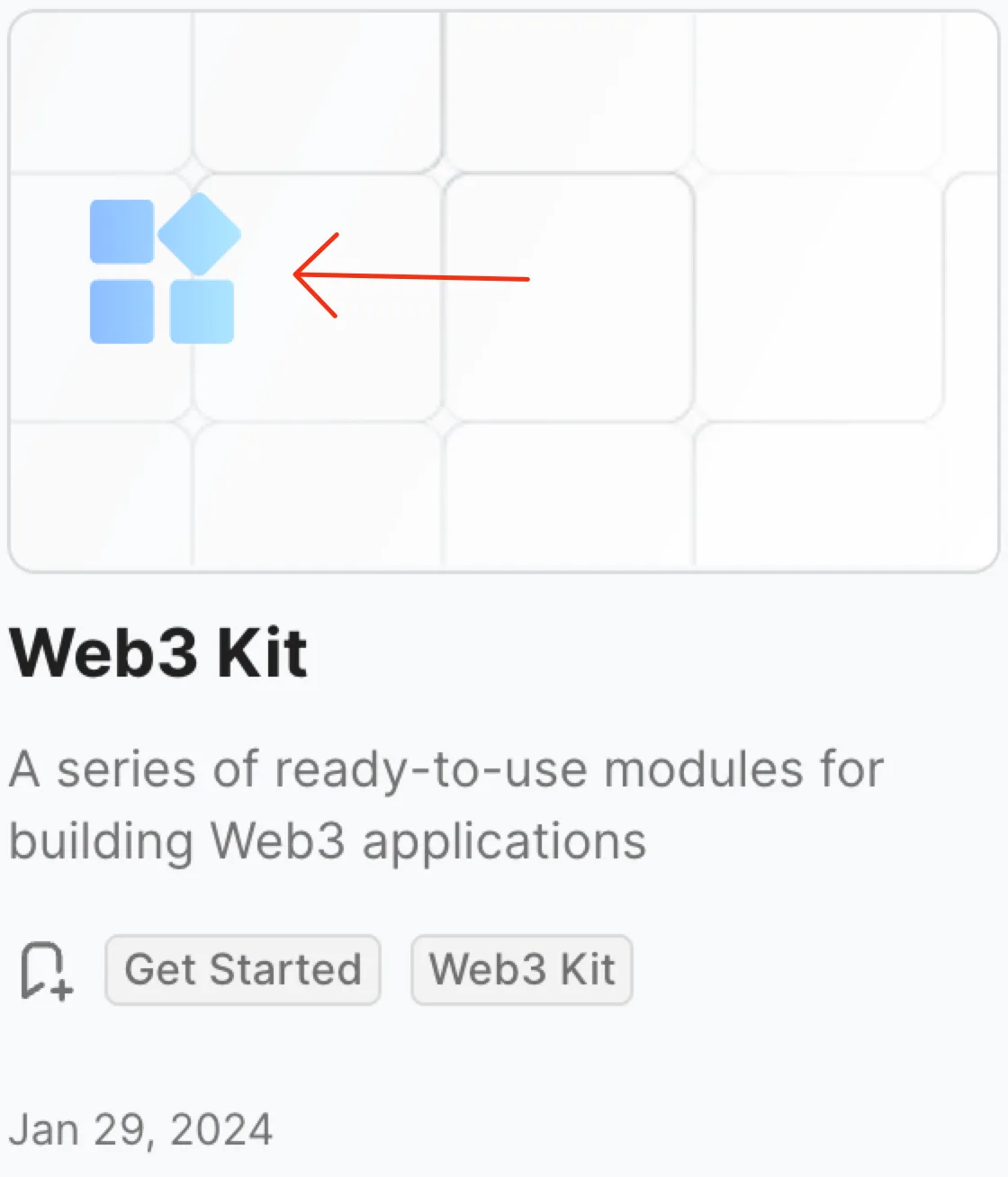
When creating a Board of type Doc, if you choose to upload a Cover, then the Cover will be displayed on the cover.
Its corresponding position is here.
Bookmark
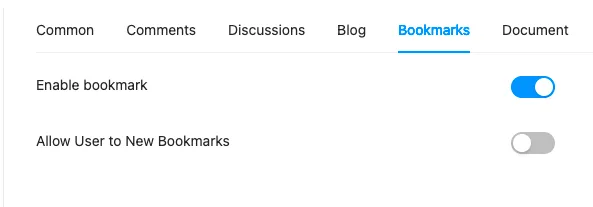
The module configuration of Bookmark is configured by selecting the Bookmarks Tab.
Support configuration allows regular users to collect bookmarks.
Chat
There is currently no module configuration for Chat, please stay tuned.
User Profile
User Profile can be accessed through the avatar in the upper right corner. It will redirect to a new page.
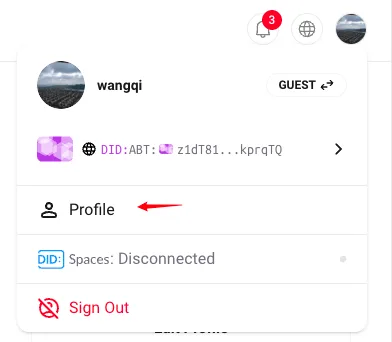
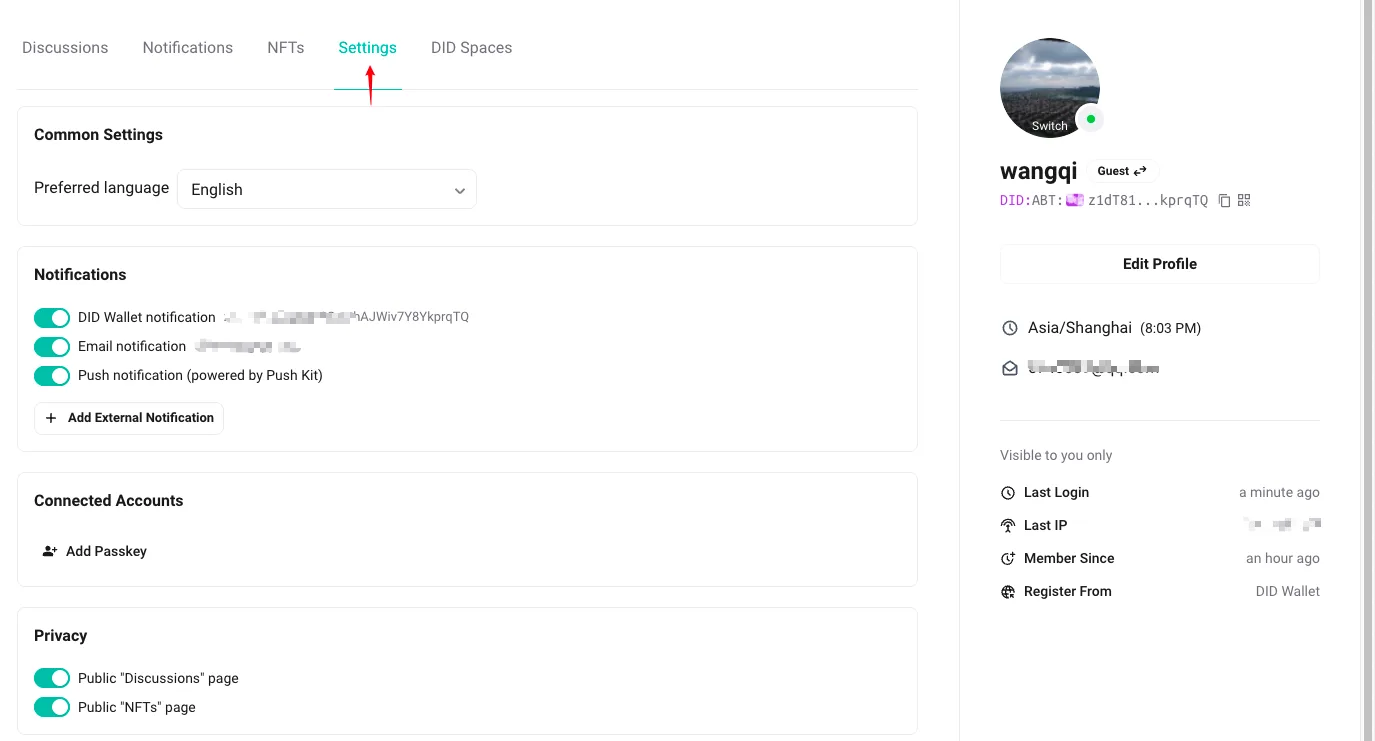
By clicking on the icon, you can set preferences for individual notifications, personal privacy, and login status.