The DIDSpaceConnect component provides a versatile button for initiating connections to a DID Space. It simplifies various authentication flows, including initial connections and reconnections, and can be integrated with a user session for persistent storage.
How It Works
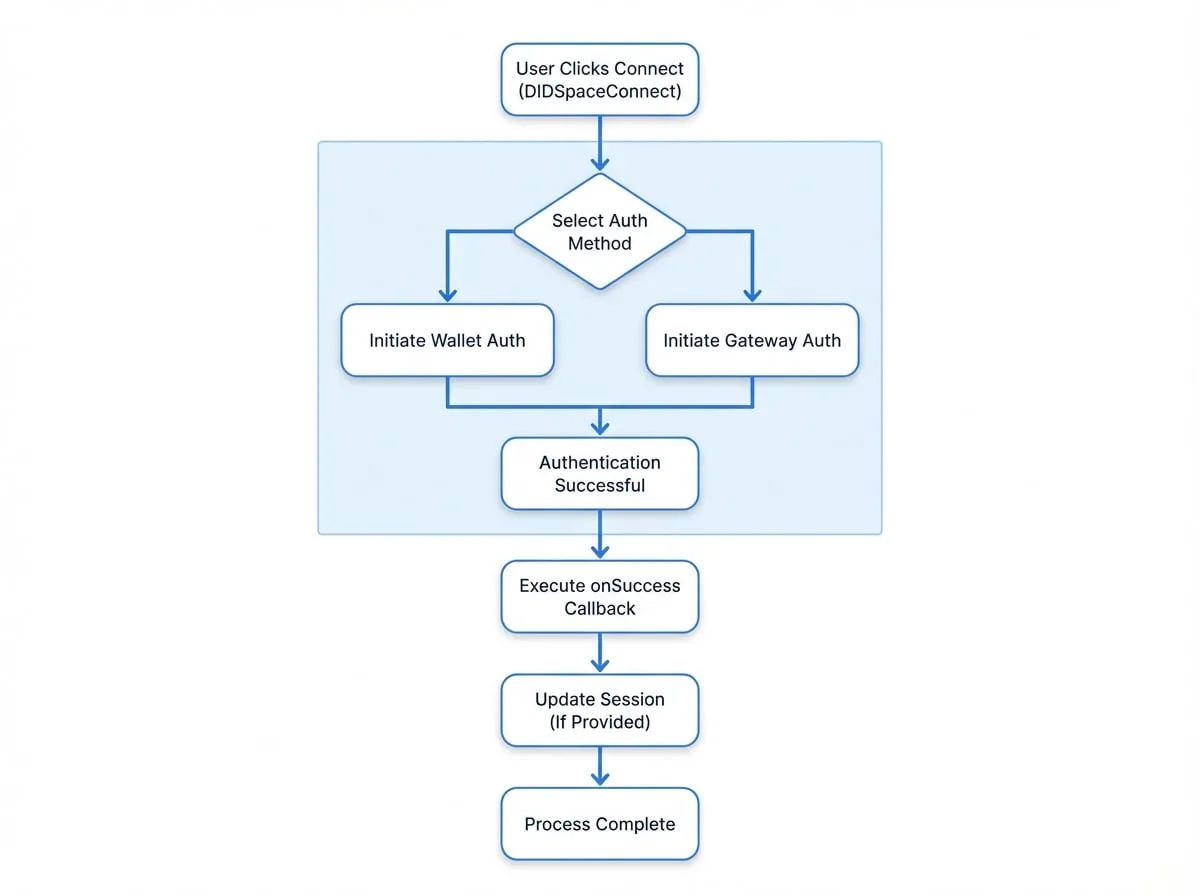
The component renders a split button that gives the user two primary ways to connect:
Use Wallet
This initiates a connection process via the user's DID Wallet, which is the recommended and most common method.
Use Space Gateway
This allows the user to manually enter the URL of their DID Space gateway to establish a connection.
Upon a successful connection, the component returns a spaceGateway object containing essential details about the connected space.
Props
The DIDSpaceConnect component is highly customizable through its props.
- session
object— An optional session object from @arcblock/did-connect-react. If provided, the connected spaceGateway is automatically saved to the user's session, and session.refresh() is called. - reconnect
boolean(default:false) — If true, the component renders as a reconnect button. This mode requires spaceDid and spaceGatewayUrl to be set. - spaceDid
string— The DID of the space to reconnect to. Required when reconnect is true. - spaceGatewayUrl
string— The gateway URL of the space to reconnect to. Required when reconnect is true. - options
DIDSpaceConnectOptions— Additional options to pass to the underlying authentication process. - connectScope
'user' | 'app'(default:'user') — The scope of the connection, determining how the connection is handled and stored. - connectText
string | React.ReactNode— Custom text or element to display on the main connect button. - onSuccess
function— Callback executed on successful connection. It receives an object containing spaceGateway, the raw response, and a decrypt function. - onError
(error: Error) => void— Callback executed when an error occurs during the connection process. - ...rest
ButtonProps— Any other props from Material-UI's Button component are passed down to customize the button's appearance.
Usage Scenarios
1. Basic Connection (Stateless)
This is the most direct use case. The component is used to establish a connection and retrieve the spaceGateway object via the onSuccess callback. The application is then responsible for managing this object.
Demo.tsx
import Toast from '@arcblock/ux/lib/Toast';
import { DIDSpaceConnect, type DIDSpaceGateway } from '@blocklet/did-space-react';
import { useState } from 'react';
import Button from '@mui/material/Button';
import Box from '@mui/material/Box';
import Typography from '@mui/material/Typography';

export default function Demo() {
  const [spaceGateway, setSpaceGateway] = useState<DIDSpaceGateway | null>(null);

  const handleSuccess = async ({ spaceGateway: gw }: { spaceGateway: DIDSpaceGateway }) => {
    try {
      // Store or use the spaceGateway object as needed
      setSpaceGateway(gw);
      Toast.success(`Connected to ${gw.name}`);
      console.log('Connected Space Gateway:', gw);
    } catch (error: any) {
      console.error(error);
      Toast.error(error.message);
    }
  };

  const handleDisconnect = () => {
    setSpaceGateway(null);
    Toast.info('Disconnected.');
  };

  if (spaceGateway) {
    return (
      <Box>
        <Typography>Connected to: {spaceGateway.name} ({spaceGateway.did})</Typography>
        <Button onClick={handleDisconnect} variant="outlined" sx={{ mt: 2 }}>
          Disconnect
        </Button>
      </Box>
    );
  }

  return <DIDSpaceConnect onSuccess={handleSuccess} variant="contained" />;
}
2. Connecting and Saving to User Session
By providing the session prop, the component will automatically save the connection details to the user's session upon a successful connection and then trigger a session refresh. This is the recommended approach for applications with user accounts.
SessionDemo.tsx
import { DIDSpaceConnect } from '@blocklet/did-space-react';
import { useSessionContext } from '@arcblock/did-connect-react';
import Box from '@mui/material/Box';
import Typography from '@mui/material/Typography';

export default function SessionDemo() {
  const session = useSessionContext();

  // The user's connected space will be available in session.user.didSpace
  const connectedSpace = session.user?.didSpace;

  if (connectedSpace) {
    return (
      <Box>
        <Typography variant="h6">Welcome, {session.user.name}!</Typography>
        <Typography>Your connected space is: {connectedSpace.name}</Typography>
        <Typography variant="caption">DID: {connectedSpace.did}</Typography>
      </Box>
    );
  }

  return (
    <div>
      <p>You have not connected a DID Space yet.</p>
      <DIDSpaceConnect session={session} variant="contained" />
    </div>
  );
}
3. Reconnecting to a Previously Linked Space
If a user has already connected a DID Space (e.g., stored in their session), you can provide a way for them to re-establish a connection. Set the reconnect prop to true and provide the spaceDid and spaceGatewayUrl from the stored connection details. The component will render a dedicated reconnect button.
ReconnectDemo.tsx
import { DIDSpaceConnect } from '@blocklet/did-space-react';
import { useSessionContext } from '@arcblock/did-connect-react';
import Toast from '@arcblock/ux/lib/Toast';
import { useState } from 'react';
import Button from '@mui/material/Button';
import Box from '@mui/material/Box';
import Typography from '@mui/material/Typography';

export default function ReconnectDemo() {
  const session = useSessionContext();
  const { did, url } = session.user?.didSpace ?? {};
  const [isConnected, setIsConnected] = useState(true); // Assume initially connected

  const handleSuccess = () => {
    setIsConnected(true);
    Toast.success('Successfully reconnected!');
  };

  const handleDisconnect = () => {
    // In a real app, you would clear the invalid session/token here
    setIsConnected(false);
    Toast.info('Connection lost. Please reconnect.');
  };

  if (!did || !url) {
    // If no space is linked, show the initial connection button instead.
    return <DIDSpaceConnect session={session} variant="contained" />;
  }

  if (!isConnected) {
    return (
      <Box>
        <Typography color="error">Connection to {did} has been lost.</Typography>
        <DIDSpaceConnect
          reconnect
          spaceDid={did}
          spaceGatewayUrl={url}
          session={session}
          onSuccess={handleSuccess}
          onError={(err) => Toast.error(`Reconnection failed: ${err.message}`)}
          variant="outlined"
          sx={{ mt: 1 }}
        />
      </Box>
    );
  }

  return (
    <Box>
      <Typography color="primary">Connected to space: {did}</Typography>
      <Button onClick={handleDisconnect} variant="text" color="warning" sx={{ mt: 1 }}>
        Simulate Disconnect
      </Button>
    </Box>
  );
}
Next Steps
After establishing a connection, you'll likely want to display information about the connected DID Space. The DIDSpaceConnection component is designed for this purpose.
DIDSpaceConnection
A display card that shows information and connection status for a DID Space, with options for customization.
View Component