This guide explains how to configure additional payment options for EVM-compatible chains.
1. Add a Payment Method (EVM Chain)
Navigate toayments → Settings → Payment Methods → Add Payment Method
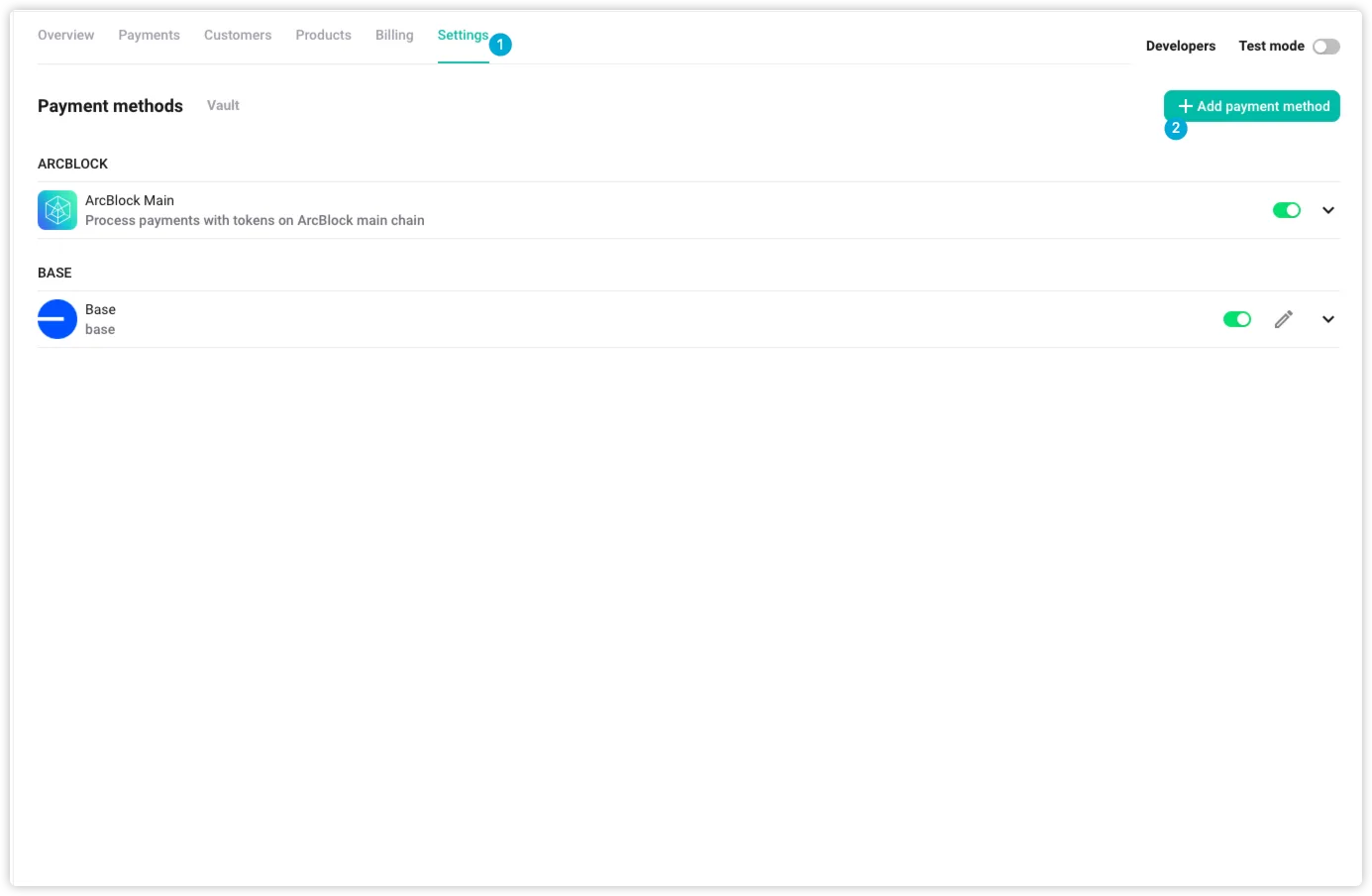
Then, enter the following:
- Name: The name of the chain, e.g., “Ethereum” or “Base”
- Description: A short description of the network (e.g., "Polygon is a scalable Ethereum Layer 2 chain")
- RPC Endpoint: A valid node RPC URL, e.g.,
- 👉 Where to get RPC endpoints?
- Example:
- Ethereum:
https://ethereum-rpc.publicnode.com - Base:
https://base-rpc.publicnode.com
- Ethereum:
- Explorer Host: The blockchain explorer for viewing transaction history, e.g.,
- Example:
- Ethereum:
https://etherscan.io/ - Base:
https://basescan.org/
- Ethereum:
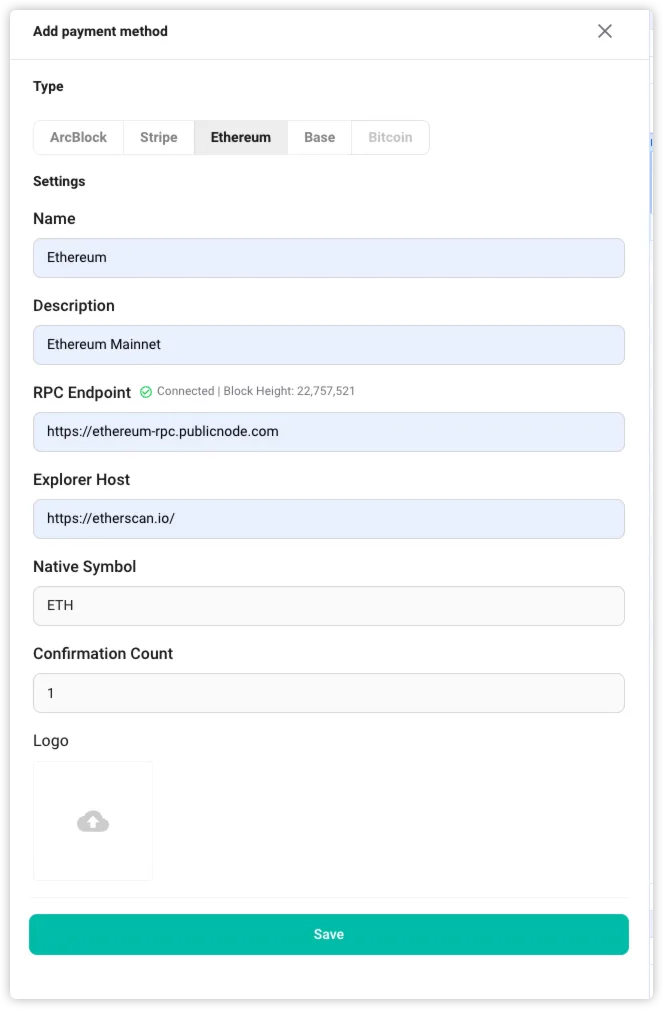
Once saved, the chain will be initialized and ready for use.
2. Add Currencies
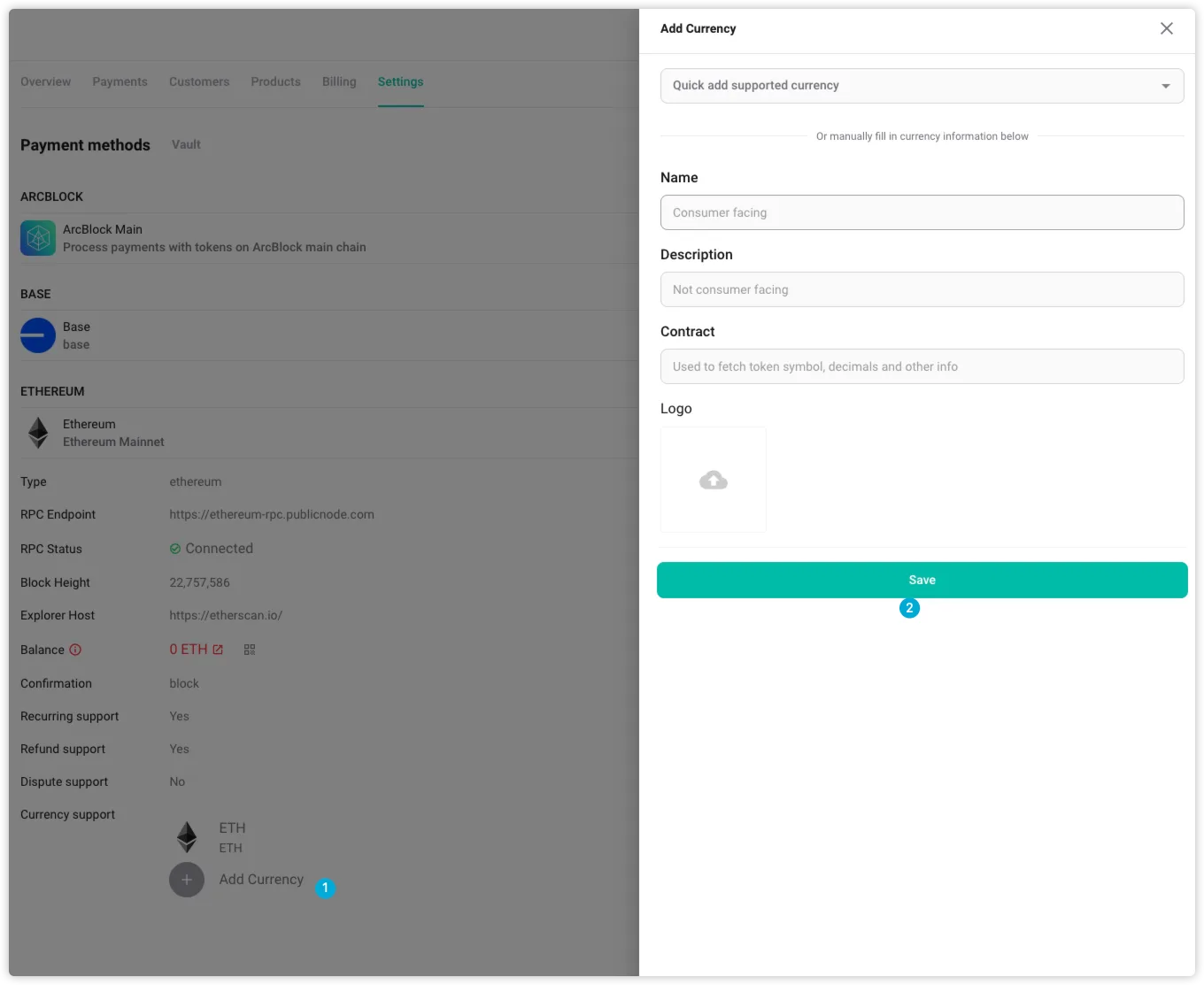
To enable tokens on the newly added chain:
Payments → Settings → [Your Method] → Add Currency
You have two options:
- Quick Add: Select a predefined currency from the list. All token info (contract, symbol, logo) will be prefilled.
- Manual Entry: Enter token info manually:
- Token Name: e.g., "USDC"
- Description: e.g., “Stablecoin for payments”
- Contract Address: Must match the on-chain deployed token
- Logo URL (optional): Used in UI; default logo is used if not set
After saving, the currency will become available in checkouts and billing.
3. Deposit for Gas Fees
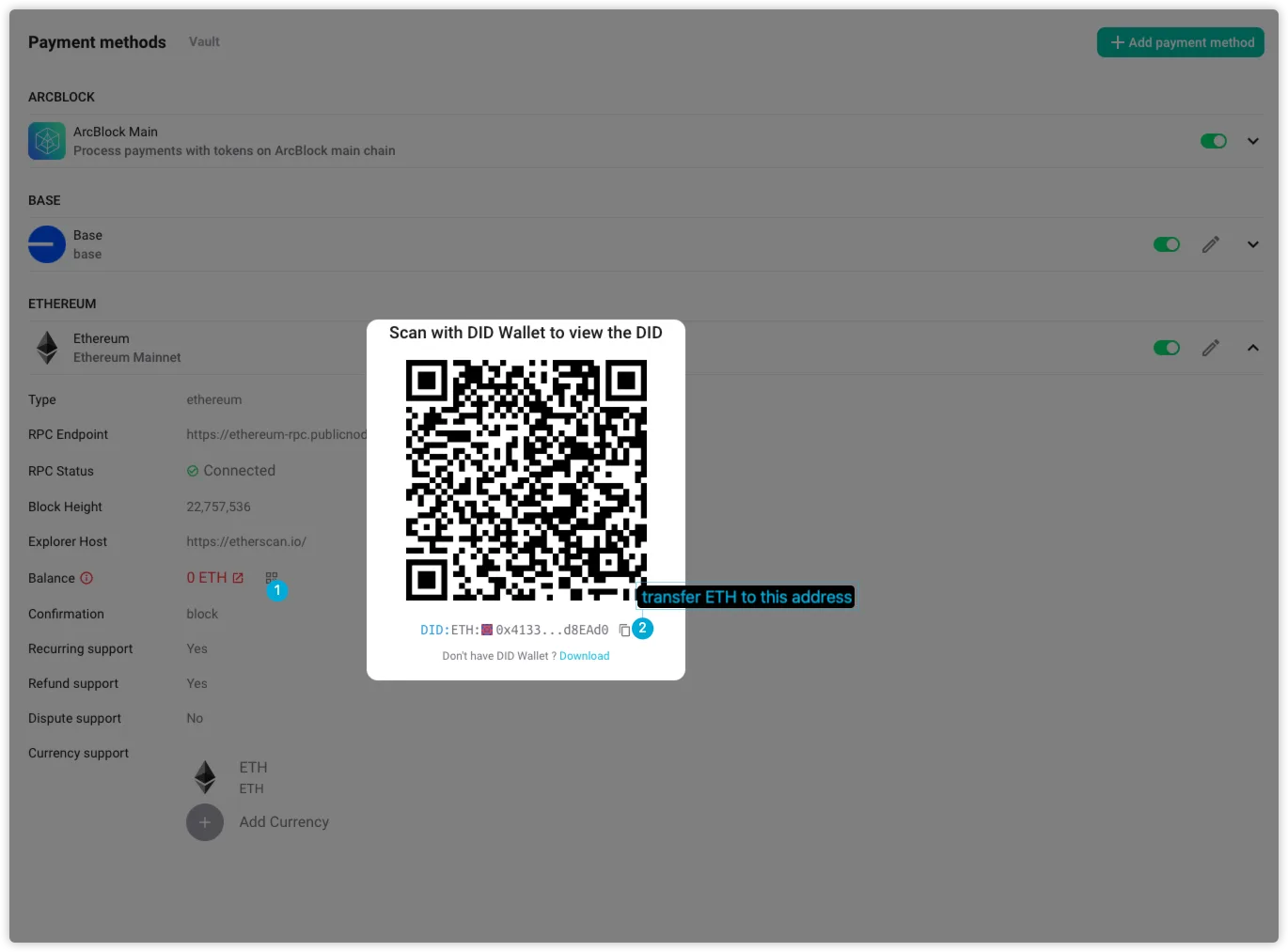
To perform transactions on a chain, your application wallet must have the chain's native token (e.g., ETH).
Steps:
- Go to Payments → Settings → [Your Method]
- Locate your application wallet address under the Deposit section
- Use an external wallet to send the required gas token:
- ETH for Ethereum/Base
- After the deposit, your wallet balance will appear in Overview and Settings
Ready to Use in Pricing
After completing the above steps, you can select the new payment method and its currencies when configuring product pricing.