Use this page to browse a running local AFS surface in a browser instead of the CLI. Everything below was verified against a local daemon running arc 2.0.0-beta.34, with the AFS Explorer blocklet served at http://explorer.localhost:4900. Your mounts, paths, and children will differ. For the CLI equivalent of every read operation here, see Inspect a local AFS surface.
The Explorer is declared with scope: root: it sees your entire AFS namespace, including every mount. Treat it as a private inspection surface for your own machine or your own deployment, and apply the same secret-hygiene rules as arc afs mount list output — provider URIs visible in the tree can embed tokens.
1. Open the Explorer
On a local daemon (started via arc), the Explorer answers on the explorer.localhost domain of the daemon port:
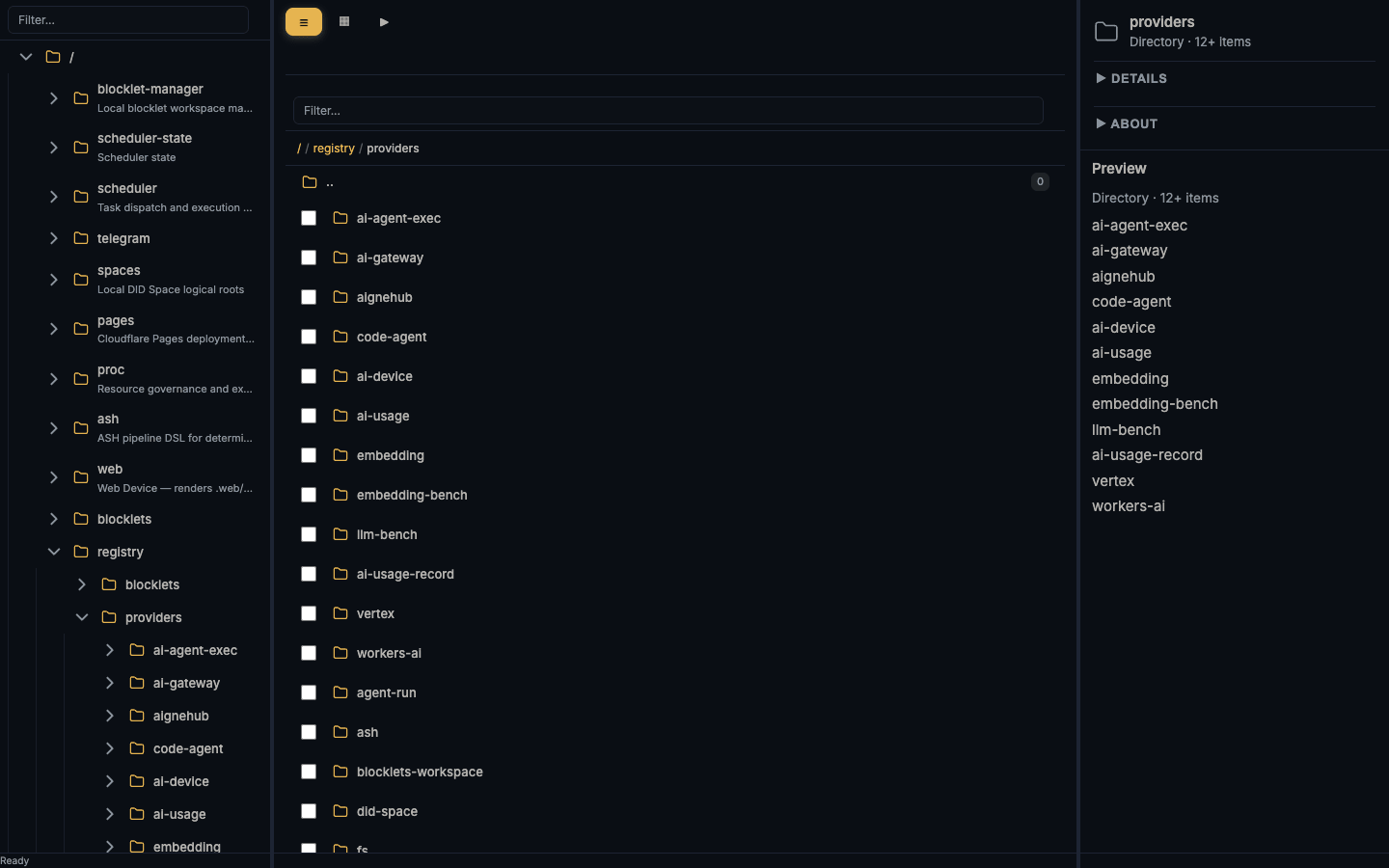
http://explorer.localhost:4900/The URL path is the AFS path. Navigating to /registry/providers in the app puts /registry/providers in the address bar, and pasting that URL back opens the same directory. Selecting a file adds a ?sel= query parameter:
http://explorer.localhost:4900/registry/providers          ← directory = URL path
http://explorer.localhost:4900/modules/project?sel=%2Fmodules%2Fproject%2FREADME.md
Both forms are shareable deep links. One verified caveat: on first load the app may restore the location you visited last instead of the URL you pasted — load the URL a second time and it lands correctly (see Failures to expect).
2. Read the four panes
| Pane | What it shows (verified) |
|---|---|
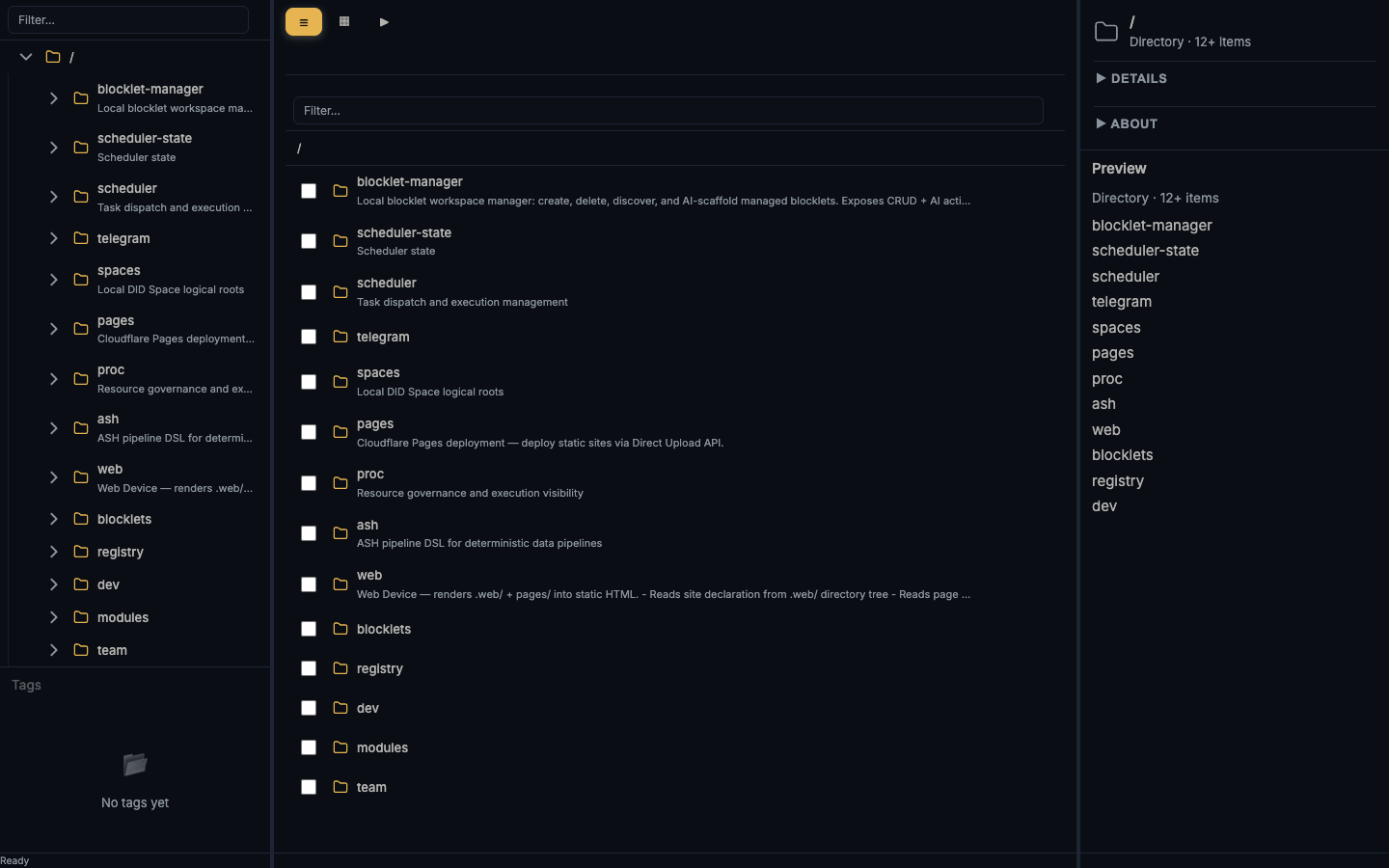
| Sidebar | A directories-only tree of the whole namespace with its own filter box. It auto-expands to the path you are on. Below it, a Tags section shows No tags yet until entries carry tags. |
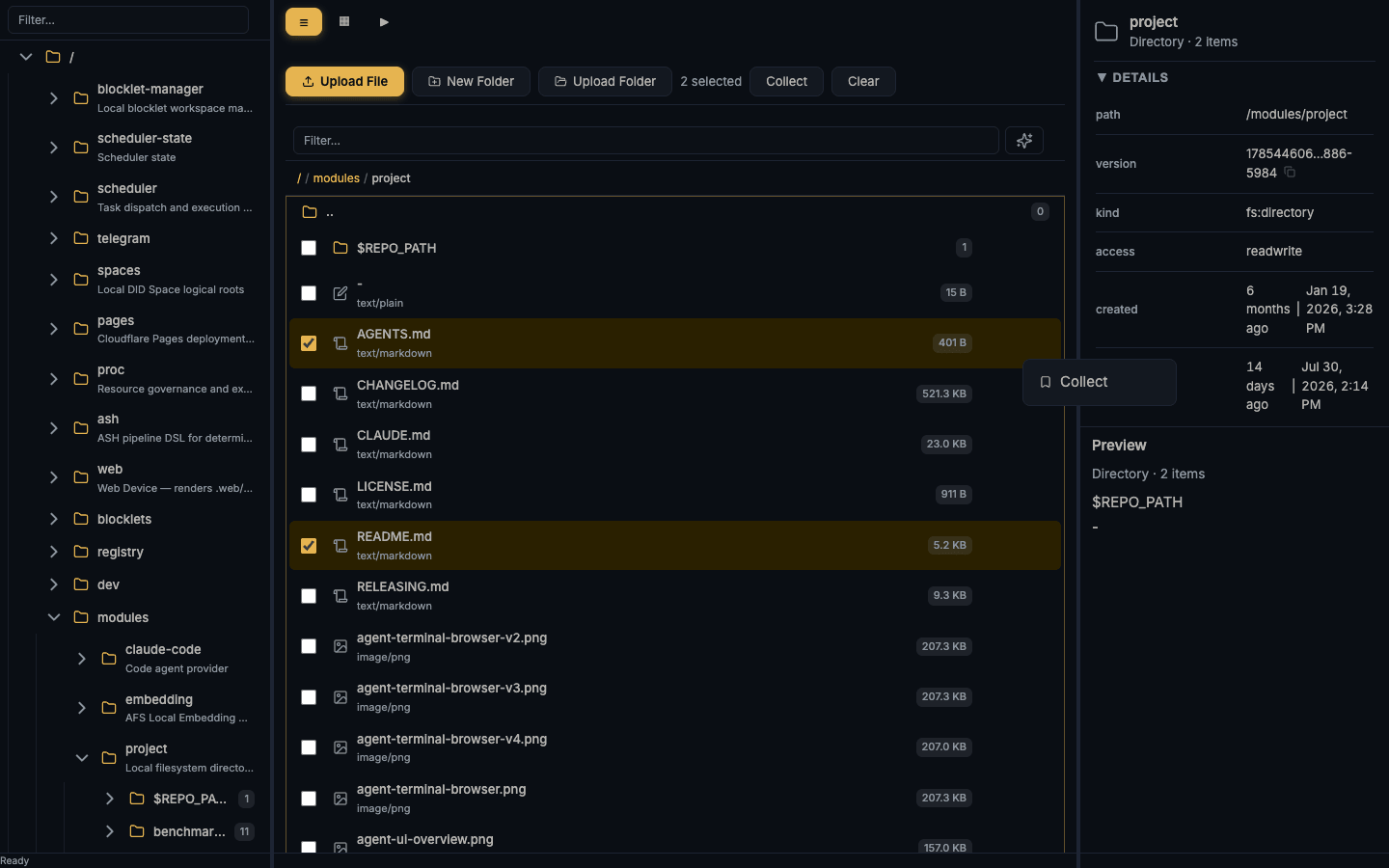
| Primary list | The current directory: view-mode toggle (☰ list, ▦ grid, ▶ slideshow), a filter box, a clickable breadcrumb, a .. row, and one row per entry with type and size badges. Long directories load incrementally; a footer such as 69 of 185 shows how much of the directory is loaded. |
| Inspector | The selected entry: name and size header, Download / Open / Copy link actions, collapsible Details and About sections, and a Preview. |
| Status bar | The static text Ready. It is not an activity indicator. |
3. Navigate
| Action | Result (verified on beta.34) |
|---|---|
| Click an entry | Selects it; the inspector updates and ?sel= is added to the URL |
| Double-click a directory | Opens it |
Click .. or a breadcrumb segment | Goes up / jumps to that ancestor |
↑ / ↓ | Moves the selection (URL ?sel= follows) |
Enter | Opens the selected directory |
Backspace | Goes to the parent directory |
| Sidebar directory click | Jumps there; the tree expands along the way |
Type in either filter box to narrow the tree or the current listing.
4. Inspect a file
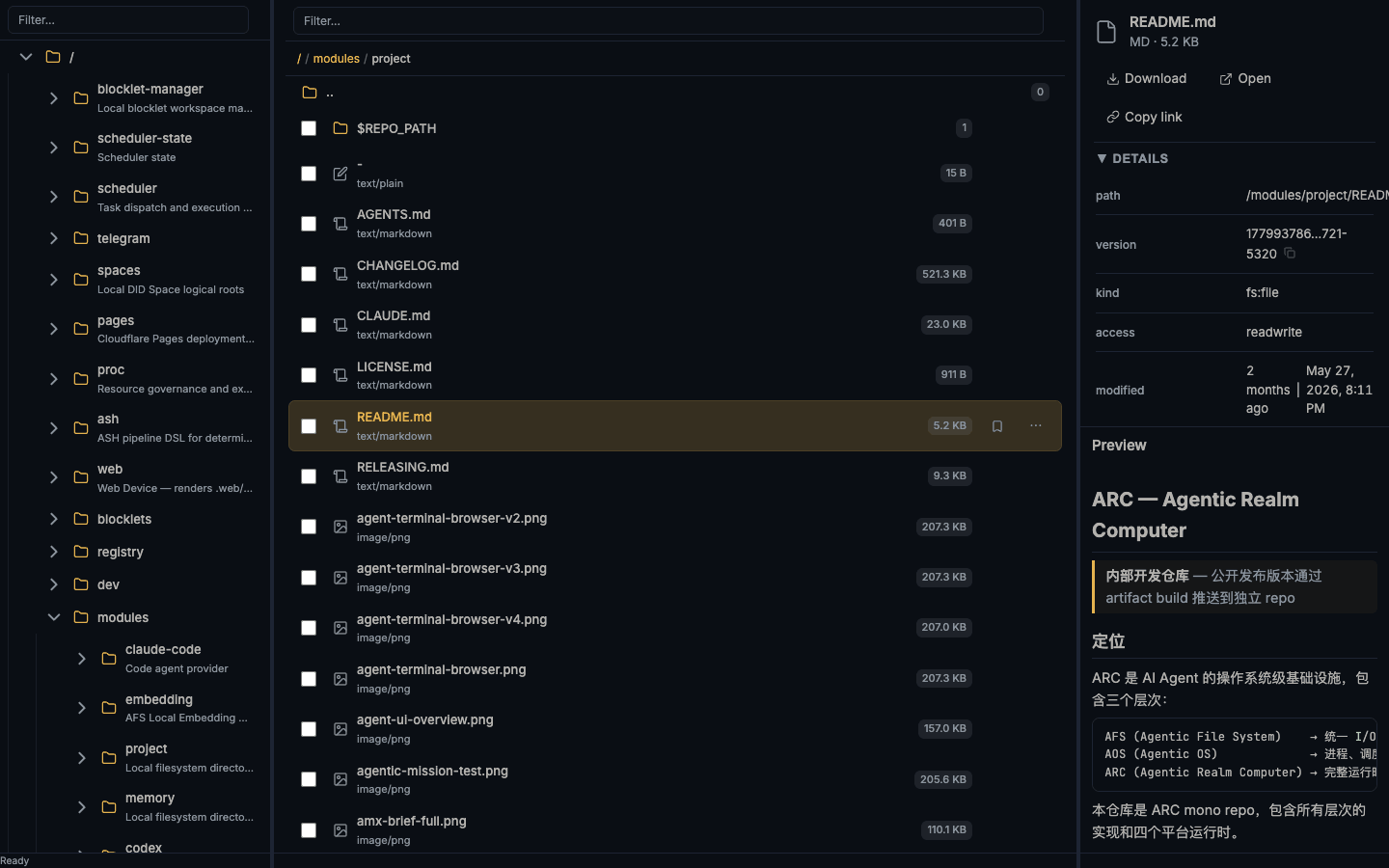
Select a file and open Details. Verified fields for a file on a local fs mount:
path          /modules/project/README.md
version       177993786…721-5320        ← opaque optimistic-concurrency token
kind          fs:file
access        readwrite
modified      2 months ago | May 27, 2026, 8:11 PM
capabilities  list read stat search write delete exec explain
The Preview renders what it can inline — verified: Markdown files render as formatted text, images load through a signed /api/afs/raw URL, and directories show an item list. Entries the preview cannot render inline (verified with a registry:guide node) show No preview available plus a working Download link. Download / Open / Copy link are the only actions in the inspector header — the list row additionally offers Collect (see section 6).
5. Switch views
- List
☰— rows with mime-type and size badges, selection checkboxes, and per-row actions. - Grid
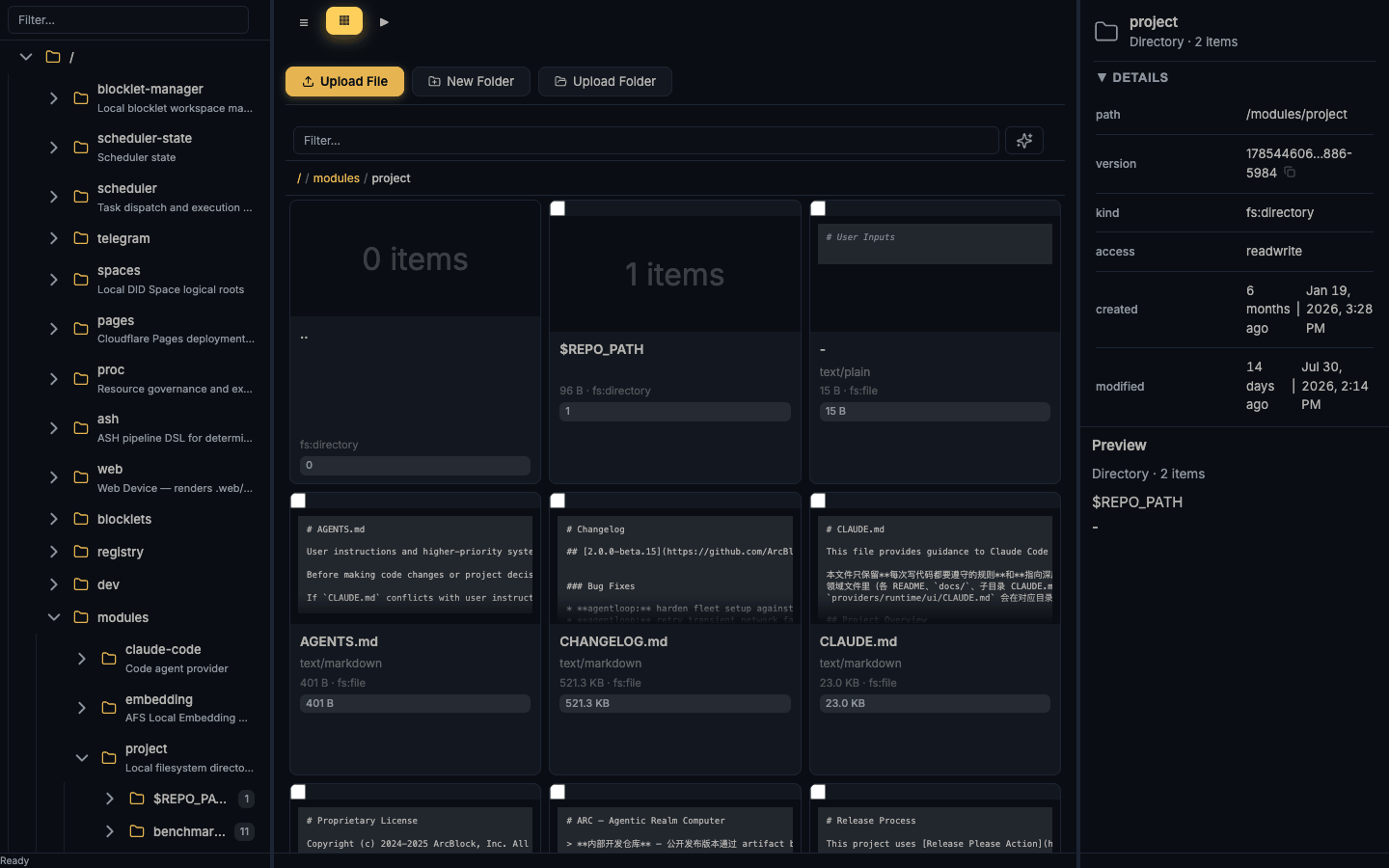
▦— cards with content thumbnails (text files show their opening lines, images show the picture), plus the same checkboxes and per-card actions. - Slideshow
▶— one large card at a time with a◀ 1 / N ▶pager; browsing only, no selection.
6. Select entries and use the item menu
Tick checkboxes in list or grid view. The toolbar shows N selected with two batch actions: Collect and Clear. Right-clicking a row and clicking its ⋯ button open the same menu; on beta.34 it contains exactly one action, Collect, which bookmarks the entry into your per-user collection. Collect appears on every entry, including entries in read-only directories.
There is no rename, delete, move, or copy anywhere in this surface on beta.34 — not in the menu, not in the batch bar. See Failures to expect.
7. Write into a writable directory
The Explorer probes each directory's writability as you navigate. On directories that probe writable, the toolbar gains Upload File, New Folder, and Upload Folder; on read-only directories these buttons stay hidden. New Folder opens an inline name input — type a name and press Enter.
Whether the write then succeeds depends on the mount actually implementing plain writes. Verified failure case: on /blocklet-manager (a workspace mount whose declared capabilities do not include write), the toolbar appears, the name input accepts and clears — and nothing is created, with no error shown. The same write through the CLI fails explicitly (ERROR: Internal server error). Trust the mount's declared capabilities, not the toolbar, before relying on a write.
8. Use it on a narrow screen
Below roughly phone width the four panes collapse into a tab bar — sidebar / primary / inspector — showing one pane at a time. Verified at 390 px width.
Failures to expect
| What you do | What happens on beta.34 | Meaning |
|---|---|---|
| Paste a deep link into a running session's browser | May land on the last-visited path instead | Load the same URL again; it then resolves correctly |
New Folder on a mount without plain write support | Input accepted, nothing created, no error | Silent no-op; check the entry's capabilities in Details first |
| Look for rename / delete / move / copy | Not present in any menu or toolbar | This surface is browse + collect + upload only |
| Look for an "execute action" button | Not present; exec may still appear under capabilities | Action execution is not exposed here — use arc afs exec, or the daemon's /explorer-classic/ route (see Appendix) |
Select a registry: documentation node | No preview available + Download | Inline preview depends on the node kind, not the file extension |
| Watch the status bar for progress | Always Ready | Static text, not a live indicator |
Appendix: the classic explorer (no longer a separate command)
There used to be a second, standalone way to reach this UI: arc explore [path] --port <port> started its own local server independent of any running daemon. That command was removed in ArcBlock/arc#5234 (it registered no automated callers) — but the UI itself did not go away. Every daemon started with arc service start now serves it directly at /explorer-classic/ (verified: curl http://localhost:<port>/explorer-classic 301-redirects to /explorer-classic/, which returns the same AFS Explorer page with Browse / Mounts / Registry tabs, mount management, and action execution — this is a different, fuller surface than the blocklet-served /explorer documented above, whose Failures to expect table explicitly lacks mount management and action execution). If you have old notes or scripts calling arc explore, replace them with arc service start and open http://localhost:<port>/explorer-classic/.
What this page does not do
- It does not claim your instance shows the same mounts, paths, or children as the screenshots.
- It does not document tag authoring — the Tags section was verified only in its empty state.
- It does not promise write support on any given mount; capabilities are declared per mount.
- It does not cover formal publish or DID Space deployment checks; see Runtime boundaries.