PutNftObjectCommand
The PutNftObjectCommand is a specialized command designed to upload a digital asset (like an image, video, or audio file) and simultaneously create or update its associated DID Document. This process effectively links a decentralized identifier (DID) to a specific piece of data, a crucial step in managing Non-Fungible Tokens (NFTs) and other verifiable digital assets within DID Spaces.
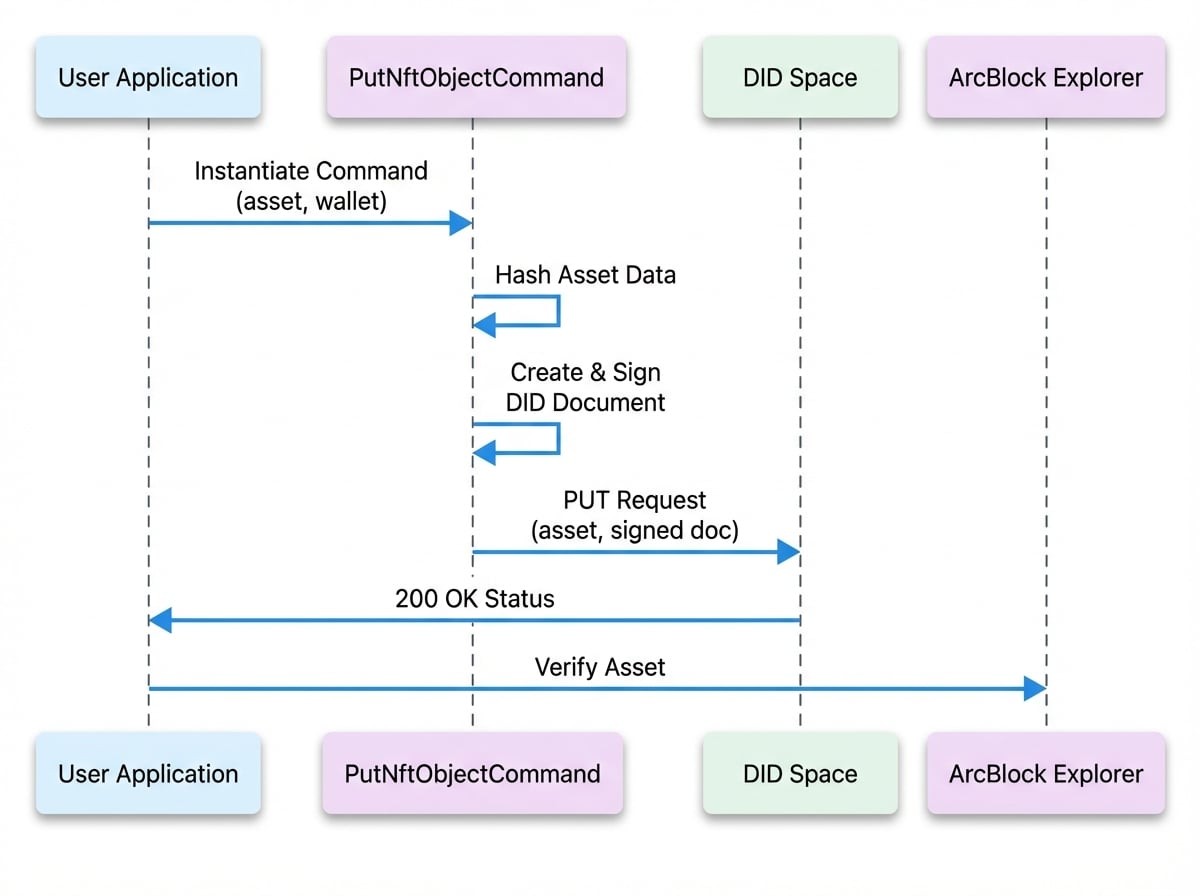
This command automates several complex steps: it calculates the hash of the asset, constructs a valid DID Document specifying the asset's location and integrity hash, and signs the document using a controller wallet to prove ownership. It then bundles the asset and the signed document into a single request to the DID Space.
Workflow Overview#
The following diagram illustrates the typical workflow when using PutNftObjectCommand:
Input#
The PutNftObjectCommand requires the following input parameters to be provided to its constructor.
Output#
The command returns a standard output object.
Example#
Here is a complete example of how to use PutNftObjectCommand to upload an NFT asset.
First, ensure you have a file to upload, for example, my-nft.png.
Example
import { SpaceClient, PutNftObjectCommand } from '@blocklet/did-space-js';
import getWallet from '@blocklet/sdk/lib/wallet';
import * as fs from 'fs';
import * as path from 'path';

async function uploadNftAsset() {
  const wallet = getWallet(); // Assumes a wallet is available in the environment

  const client = new SpaceClient({
    endpoint: 'https://www.didspaces.com/app/api/space/...',
    wallet: wallet,
  });

  // 1. Prepare the file stream for the NFT asset
  const filePath = path.join(__dirname, 'my-nft.png');
  // Ensure the file exists before creating a stream
  if (!fs.existsSync(filePath)) {
    console.error(`File not found: ${filePath}`);
    // As a placeholder, create a dummy file for the example to run
    fs.writeFileSync(filePath, 'This is a dummy NFT file.');
  }
  const fileStream = fs.createReadStream(filePath);

  // 2. Define the command input
  const commandInput = {
See all 25 lines
Best Practices#
DID Document Automation#
The primary advantage of PutNftObjectCommand is its automation of DID Document creation and signing. When you send the command, it performs the following actions internally:
- Hashing: It reads the
datastream and computes the SHA3-256 hash of the file content. This hash is embedded in the DID Document to guarantee the integrity of the asset. - Document Construction: It assembles a DID Document containing essential metadata, including service endpoints for accessing the display asset and viewing it on a block explorer.
- Signing: It signs the entire DID Document using the provided
controllerwallet's private key. This cryptographic signature is verifiable and proves that the controller authorized this specific version of the document.
Controller Wallet#
The controller wallet is fundamental to the security and ownership model. Ensure that the wallet provided has the authority to manage the specified asset did. This wallet's public key is included in the DID Document's verificationMethod, allowing anyone to verify the signature.