Connection UI (DidConnect)
The DidConnect component is a pre-built, comprehensive UI solution for handling various decentralized identity (DID) connection flows. It provides a user-friendly interface for actions like login, authentication, and profile requests, supporting multiple connection methods out-of-the-box.
It serves as the visual centerpiece of the @arcblock/did-connect-react library, abstracting away the complexity of session management and real-time status updates. The component displays a QR code for DID Wallet users and offers alternative login options such as social logins (OAuth) and passwordless authentication (Passkeys).
Before using DidConnect, ensure you have wrapped your application with the SessionProvider to manage the overall session state.
Basic Usage#
To use DidConnect, you need to import it and provide a few essential props. The component is typically controlled by a state variable that determines its visibility.
DID Connect Example
import React, { useState } from 'react';
import axios from 'axios';
import DidConnect from '@arcblock/did-connect-react/lib/Connect';

function App() {
  const [isConnectOpen, setConnectOpen] = useState(false);

  const handleClose = () => setConnectOpen(false);
  const handleSuccess = () => {
    // Handle successful login, e.g., redirect the user
    window.location.href = '/profile';
  };

  return (
    <div>
      <button onClick={() => setConnectOpen(true)}>Login with DID</button>
      {isConnectOpen && (
        <DidConnect
          action="login"
          checkFn={axios.get}
          onClose={handleClose}
          onSuccess={handleSuccess}
          messages={{
            title: 'Scan to Sign In',
            scan: 'Scan QR code with your DID Wallet',
See all 10 lines
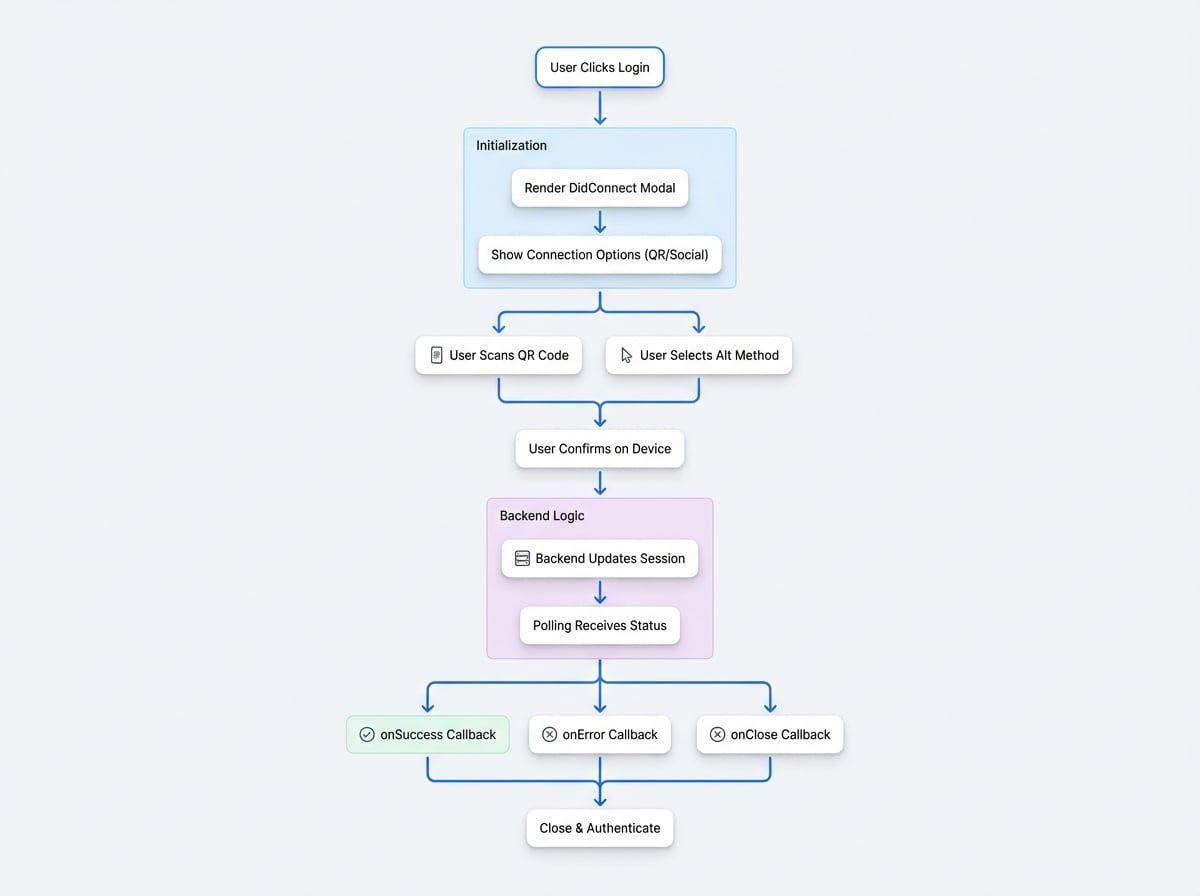
In this example, clicking the "Login with DID" button sets the isConnectOpen state to true, which renders the DidConnect component as a modal dialog. The checkFn prop is crucial, as it's the function the component uses to poll for the session status from your backend.
How It Works#
The DidConnect component orchestrates the entire user authentication flow, from displaying connection options to handling the final success or error state. The following diagram illustrates this flow:
Component Props#
The DidConnect component is highly configurable through its props. Below is a detailed list of the available options.
Core Configuration#
These props are essential for setting up the component's basic functionality.
Defines the purpose of the connection, such as login, claim, sign, etc. This string is passed to your backend to determine the required actions.
The function used to poll the backend for session status updates. It should be a function that makes an API request, like axios.get.
The base URL for the API endpoints. If your API is on a different domain, specify it here.
The URL prefix for the DID Connect API endpoints on your backend.
Behavior Control#
These props control how the connection process behaves.
An array of strings specifying which connection methods to display. Possible values include web, mobile, github, google, apple, passkey, etc.
Controls the behavior of Passkey authentication. none disables it, both allows creating new passkeys and using existing ones, only-existing restricts to existing passkeys, and only-new forces new passkey creation.
If false, the QR code and mobile wallet connection options will be hidden.
If true, the component will automatically try to use a previously established connection from the same device.
If true, a user must connect with the same DID they are already logged in with. If a DID string is provided, the user must connect with that specific DID.
If true, the successful connection information is saved locally for future autoConnect attempts.
If true, attempts to use a WebSocket for real-time status updates, falling back to polling if a connection cannot be established.
UI Customization#
Customize the appearance and text of the DidConnect component.
Determines how the component is displayed. dialog shows it as a centered modal, drawer as a bottom sheet (on mobile), and page embeds it directly into the document flow.
An object to customize the text displayed in the UI.
If true, the close button (X) in the top-right corner is hidden.
Allows you to inject a custom React component or element into the UI, typically appearing below the main title/description.
An array of custom React nodes to be added to the list of connection methods.
If you are using Federated Login, this prop prevents users from switching between different applications in the group during the login process.
The URL of the web-based DID Wallet to be used for the "Connect with Web Wallet" option. Defaults to the official ArcBlock web wallet.
Callbacks#
Functions that are called at different stages of the connection lifecycle.
Callback function that is executed when the user closes the DidConnect dialog (e.g., by clicking the close button or outside the modal).
Callback function that is executed upon a successful connection. The session data is passed as an argument.
Callback function that is executed when an error occurs during the process. The error object or message is passed as an argument.
A callback function that is invoked when the session needs to be reset, for example, after a timeout or when the user manually cancels and retries.
Next Steps#
With a solid understanding of the DidConnect component, you can now build robust authentication experiences. For more programmatic control over the connection UI, explore the useConnect hook, which allows you to open and close the DidConnect modal from anywhere in your application.