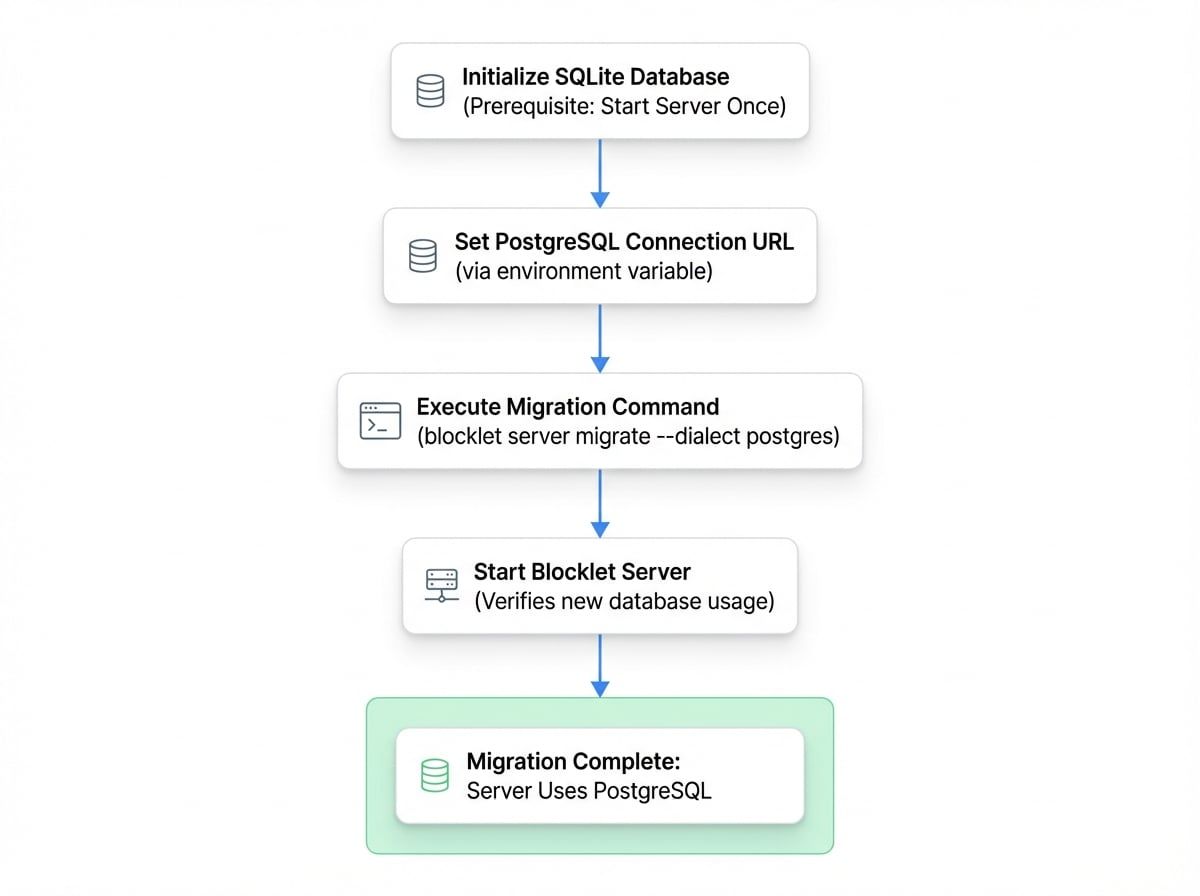
The blocklet server migrate command is a crucial utility for scaling your Blocklet Server instance. It facilitates the migration of your server's underlying database from the default SQLite—perfect for development and simple setups—to a more robust and scalable system like PostgreSQL for production environments.
Command Usage#
To initiate the migration, use the migrate command and specify the target database system.
blocklet server migrate --dialect <dialect>
Options#
The command supports migrating your database between SQLite and PostgreSQL. While the primary use case is upgrading from SQLite to PostgreSQL for production, it can also be used to migrate from PostgreSQL back to SQLite, which might be useful for creating a portable snapshot for development or debugging.
How It Works#
The migration process is designed to be straightforward. The command first reads the list of installed blocklets and other essential configuration from your existing SQLite database. Then, using the connection details you provide, it connects to the new PostgreSQL database, runs all necessary schema migrations to create the required tables, and populates them with your data.
Step-by-Step Guide: Migrating to PostgreSQL#
Follow these steps to move your Blocklet Server data from SQLite to PostgreSQL.
Prerequisites#
Before you start, ensure the following conditions are met:
- Server has been started at least once: This is necessary because the initial
blocklet server start command creates the SQLite database and tables that the migration tool needs to read from. - Target Database is Ready: Your PostgreSQL server must be installed, running, and accessible from the machine where you are running the CLI.
- PostgreSQL Connection URL: You must have the full connection string for your PostgreSQL database.
The CLI needs to know how to connect to your PostgreSQL database. This is done by setting the ABT_NODE_POSTGRES_URL environment variable.
export ABT_NODE_POSTGRES_URL="postgres://user:password@host:port/database"
Make sure to replace user, password, host, port, and database with your actual PostgreSQL credentials.
Step 2: Run the Migration Command#
With the environment variable set, execute the migration command. The process will show its progress, starting with messages like Getting blocklets....
blocklet server migrate --dialect postgres
Step 3: Start the Server#
Once the command finishes with a Migration postgres completed message, the process is done. The final step is to start your Blocklet Server. As long as the ABT_NODE_POSTGRES_URL environment variable is present, the server will automatically connect to and use your new PostgreSQL database.
Your server is now running on PostgreSQL, ready for production workloads.
Troubleshooting#
Error: SQLITE_ERROR: no such table#
If you encounter an error message similar to Failed to get blocklets: SQLITE_ERROR: no such table: blocklets or dose not exist, it almost always means the initial SQLite database was never created.
Solution: You must run the server at least once to initialize the database. Run blocklet server start, wait for it to fully start up, then stop it with blocklet server stop. After that, you can attempt the migration process again.