Initialize Project
The blocklet init command sets up a new blocklet in an existing directory. It's the ideal tool when you've already started a project and want to turn it into a blocklet. This command creates the essential blocklet.yml metadata file and a basic directory structure without imposing a specific template.
If you're looking to start a new project from scratch using a pre-built template, see the Create Project guide instead.
Usage#
To begin, navigate to your project's root directory and run:
blocklet initThis will launch an interactive wizard to guide you through the setup process. It will ask for key information about your blocklet.
Interactive Prompts#
The CLI will prompt you for the following details. If a package.json file exists in your directory, it will use its values as defaults.
- Blocklet Title: The human-readable name of your blocklet.
- Description: A concise summary of what your blocklet does.
- Group: The type of blocklet you're building (e.g.,
dapp,static). - Main Entry Point: The primary file or directory for your blocklet (e.g.,
index.jsfor a dapp,.for a static site).
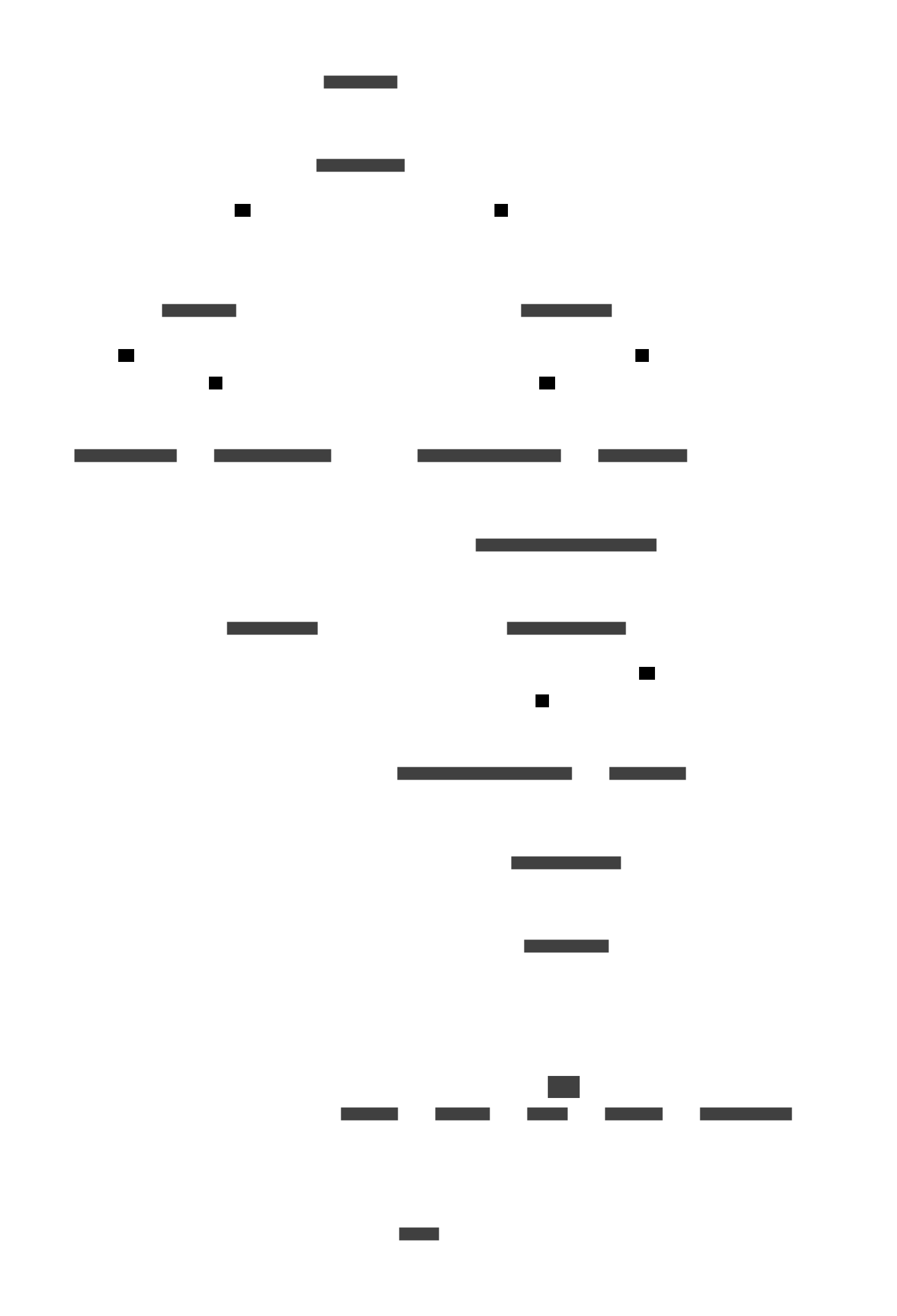
Initialization Process Flow#
The command follows these steps to initialize your project:
Generated Files#
After completing the prompts, blocklet init creates the following structure:
blocklet.yml: The core metadata and configuration file for your blocklet.blocklet.md: A markdown file for your blocklet's documentation or description.screenshots/: A directory to store screenshots for your blocklet's store page.logo.png: A default logo image.index.js: (Fordappgroup) A basic entry point for your application.index.html: (Forstaticgroup) A placeholder HTML file..gitignore: A standard git ignore file to exclude unnecessary files from source control.
Command Options#
Option | Alias | Description |
|---|---|---|
| Pre-assign a specific DID to the blocklet, skipping the generation step. | |
|
| Initialize the project non-interactively, accepting all default values without prompts. |
| Provide a custom moniker to use when generating a new blocklet DID. | |
| Specify a custom connect URL for the wallet to generate the DID. Defaults to the store or local node. | |
|
| A global option that automatically answers "yes" to confirmation prompts. Similar to |
Examples#
Non-Interactive Initialization#
For automated setups, like in a CI/CD pipeline, you can use the --force or --yes flag to skip all interactive prompts and use the default settings.
blocklet init --forceSpecifying a DID#
If you have already created a DID for your blocklet, you can pass it directly.
blocklet init --did z8iZp7b5S7Z5e9Y5j9n9j3X5p7c5b7v5d5e5This will configure the blocklet with the provided DID and skip the wallet connection and generation step.
With your project initialized, the next step is to run it in a local development environment. Head over to the Develop Mode guide to learn how to start your blocklet.