Execute Script
The blocklet exec command is a powerful utility for running a script within the live context of an installed blocklet. This is invaluable for tasks like database migrations, data seeding, or any one-off script that needs access to your blocklet's runtime environment variables.
It ensures that your script runs with the same configuration and secrets as your running application, making administrative and debugging tasks much simpler and more reliable.
How It Works#
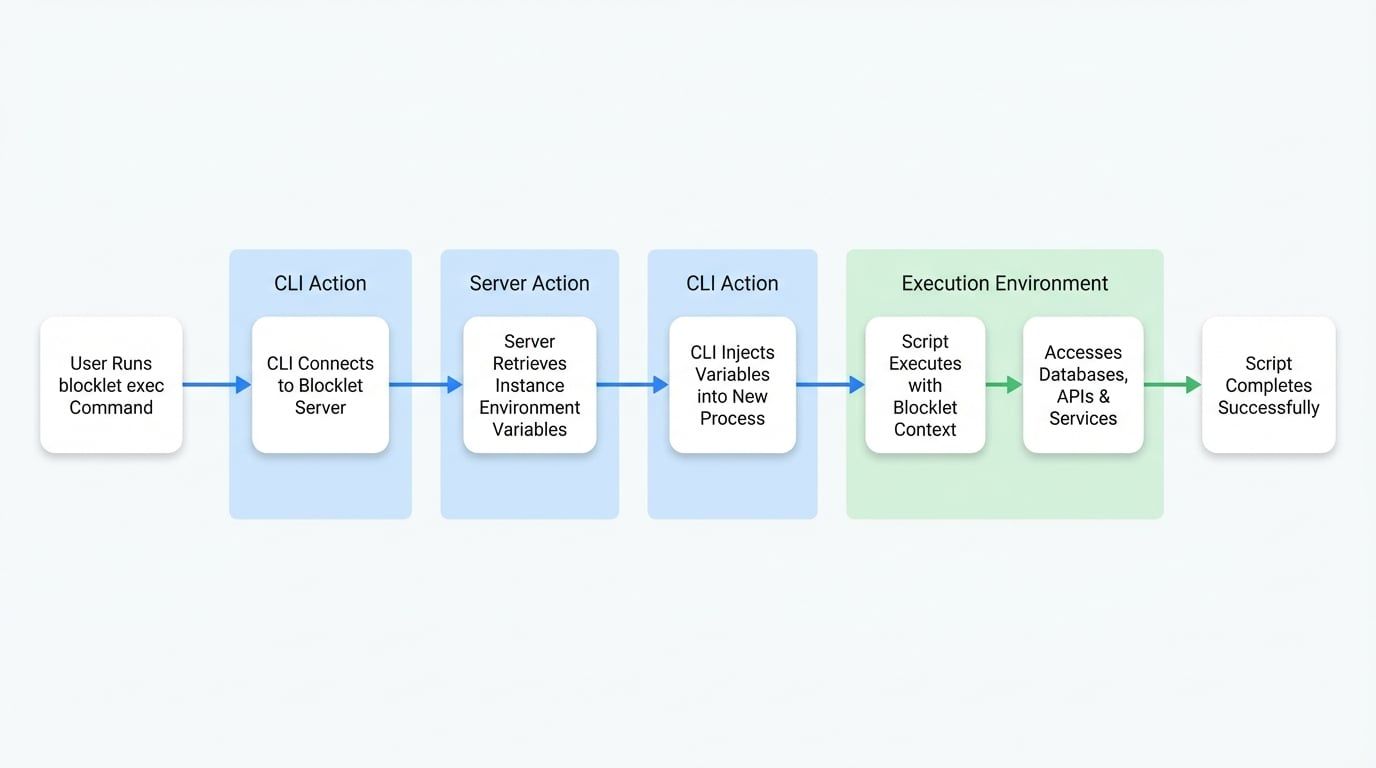
When you run blocklet exec, the CLI connects to your running Blocklet Server, retrieves the environment variables for the specified blocklet instance, and then executes your script in a new process with those variables injected. This allows your script to connect to the same databases, services, and APIs as your blocklet. The following diagram illustrates this process:
Usage#
To execute a script, you must provide the path to the script and the DID of the target blocklet instance.
Command Syntax
blocklet exec <path-to-script> [options]Prerequisites#
- Blocklet Server Must Be Running: The command needs to communicate with the server to fetch the environment. If it's not running, start it with
blocklet server start. - Blocklet Must Be Installed: The blocklet identified by
--app-idmust already be installed on the server.
Parameters & Options#
The relative path to the Node.js script you want to execute.
The DID of the blocklet instance where the script should run. If not provided, the CLI will look for the BLOCKLET_DEV_APP_DID environment variable.
The maximum execution time for the script, in seconds. Defaults to 30 minutes (1800s).
Example#
Let's say you have a script to check some key environment variables for your running blocklet.
First, create the script file:
scripts/check-env.js
// This script will run inside the blocklet's context
// and have access to all its environment variables.

console.log('--- Executing Script in Blocklet Context ---');

const appName = process.env.BLOCKLET_APP_NAME;
const appPort = process.env.BLOCKLET_PORT;

if (appName && appPort) {
  console.log(`Successfully accessed environment variables:`);
  console.log(`- Blocklet Name: ${appName}`);
  console.log(`- Blocklet Port: ${appPort}`);
} else {
  console.error('Could not access blocklet environment variables.');
  process.exit(1);
}

console.log('--- Script Finished ---');
process.exit(0);
Now, run the script using the blocklet exec command. Make sure to replace z2qa... with your actual blocklet instance DID.
Execute the script
blocklet exec scripts/check-env.js --app-id z2qaR7iY52Nv9m36m883s9yqjM3aW5tV6c7g8You should see output similar to this, confirming that the script accessed the blocklet's environment:
Expected Output
info Try to run script for blocklet(z2qaR7iY52Nv9m36m883s9yqjM3aW5tV6c7g8) (timeout: 1800000ms)
--- Executing Script in Blocklet Context ---
Successfully accessed environment variables:
- Blocklet Name: My Awesome App
- Blocklet Port: 3030
--- Script Finished ---
success Done!
Executing Scripts for Components#
If your current working directory contains a blocklet.yml file for a component that is part of a larger blocklet, blocklet exec will intelligently detect this. It will automatically run the script within the component's specific environment context, which includes variables from both the parent blocklet and the component itself.
Common Use Cases#
Database Migrations
Run scripts to update your database schema or apply migrations in a production-like environment.
Data Seeding
Populate your database with initial or test data using a script that has access to the database connection details.
Administrative Tasks
Perform one-off administrative tasks, such as resetting a user's password or cleaning up old records.
Debugging
Execute a debug script to inspect the state or environment of a running blocklet without stopping it.