Use Aside to Remember Why You Reached a Decision

A few days after looking something up, you may remember the answer but forget why it seemed right. In Aside, you can keep the sources beside a working decision, so the next session starts with the reasoning you already did.
Try a hypothetical question: you're adding alternative text to a plant photo on a webpage. This text conveys an image's content or function when someone cannot see it. Should it describe the leaves, or explain what clicking the photo does? The example below records a small piece of research. It has not been tested on an actual page.
Add the conditions to the saved source
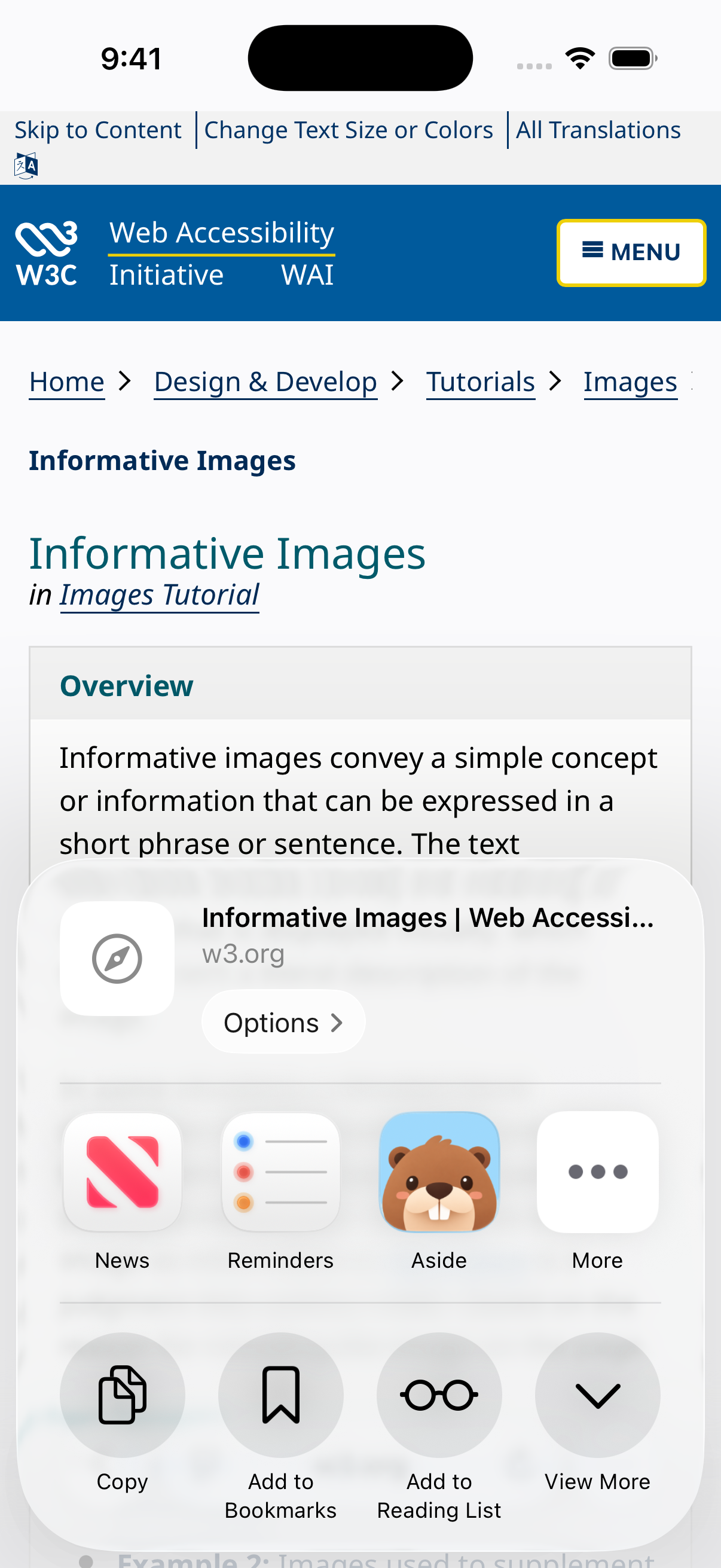
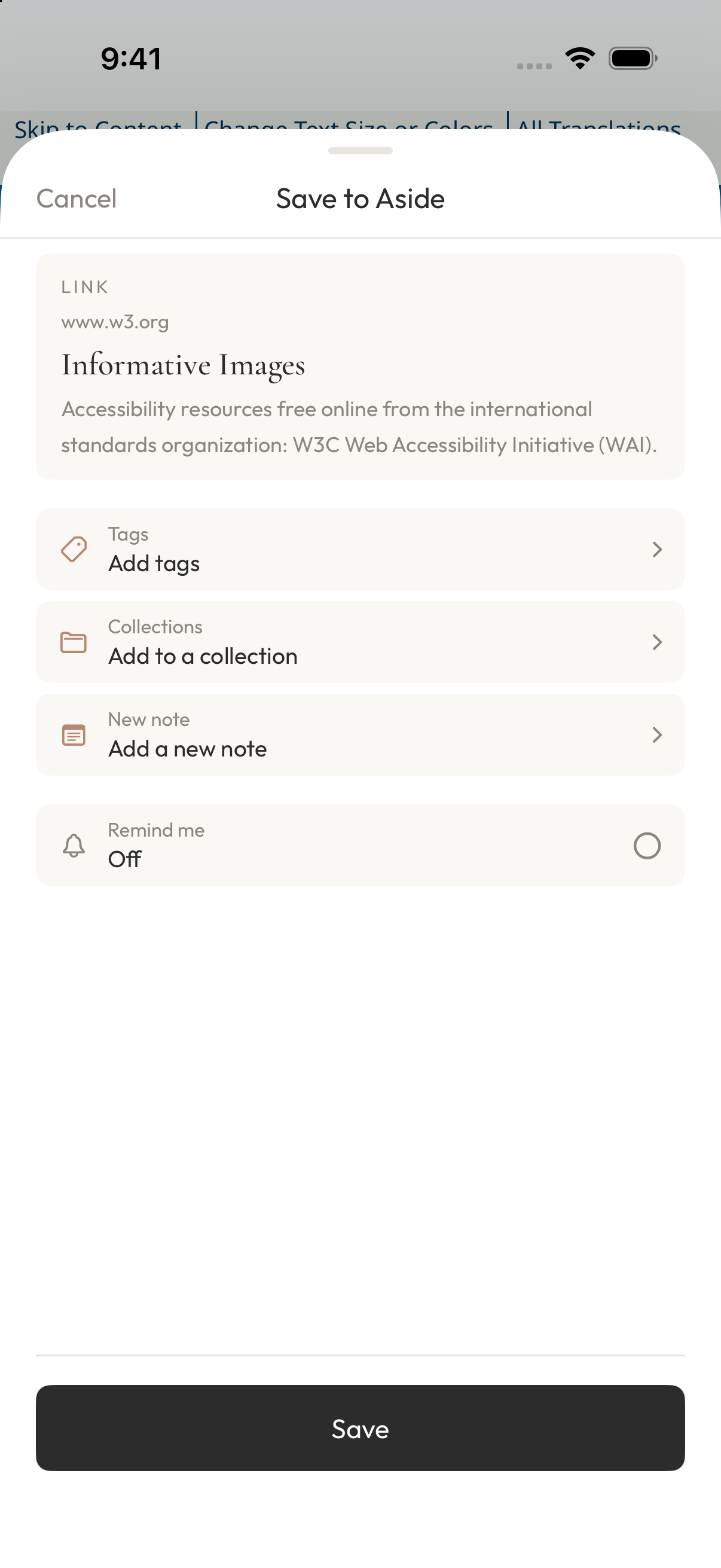
In Safari, open the W3C WAI guidance on informative images. Tap “More” in the lower right, then “Share,” and choose Aside in the system share menu. If the app row does not show Aside, look under “More.” Check the title, then tap Save at the bottom.
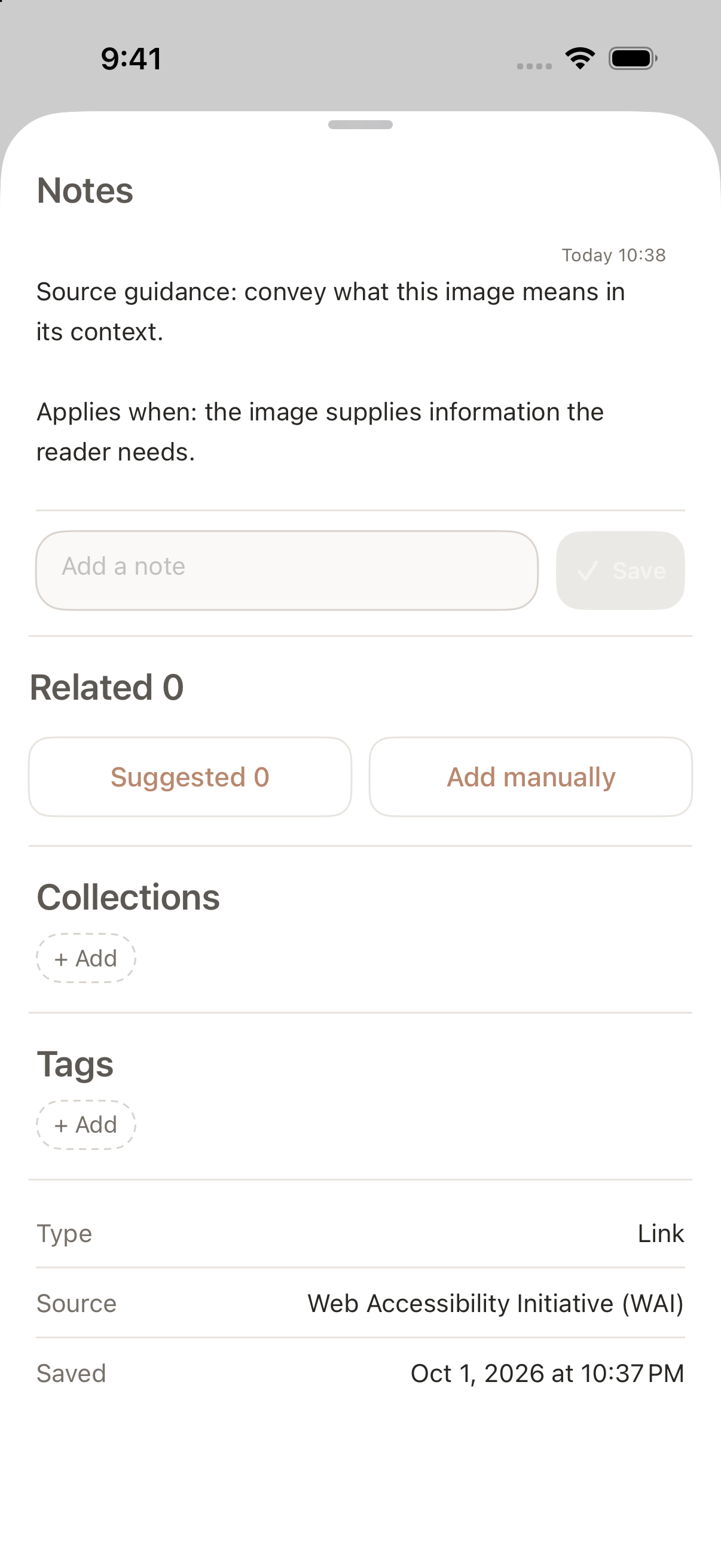
Open the saved item in Aside, tap the notes bar at the bottom of its detail view, and expand the information panel. In Add a note, write:
Source guidance: convey what this image means in its context.
Applies when: the image supplies information the reader needs.
Tap Save. Those two lines preserve the point you wanted to remember and its scope. When you return, you have a reason to look at the image's role before applying the advice to every photo.
Give your working decision its own note
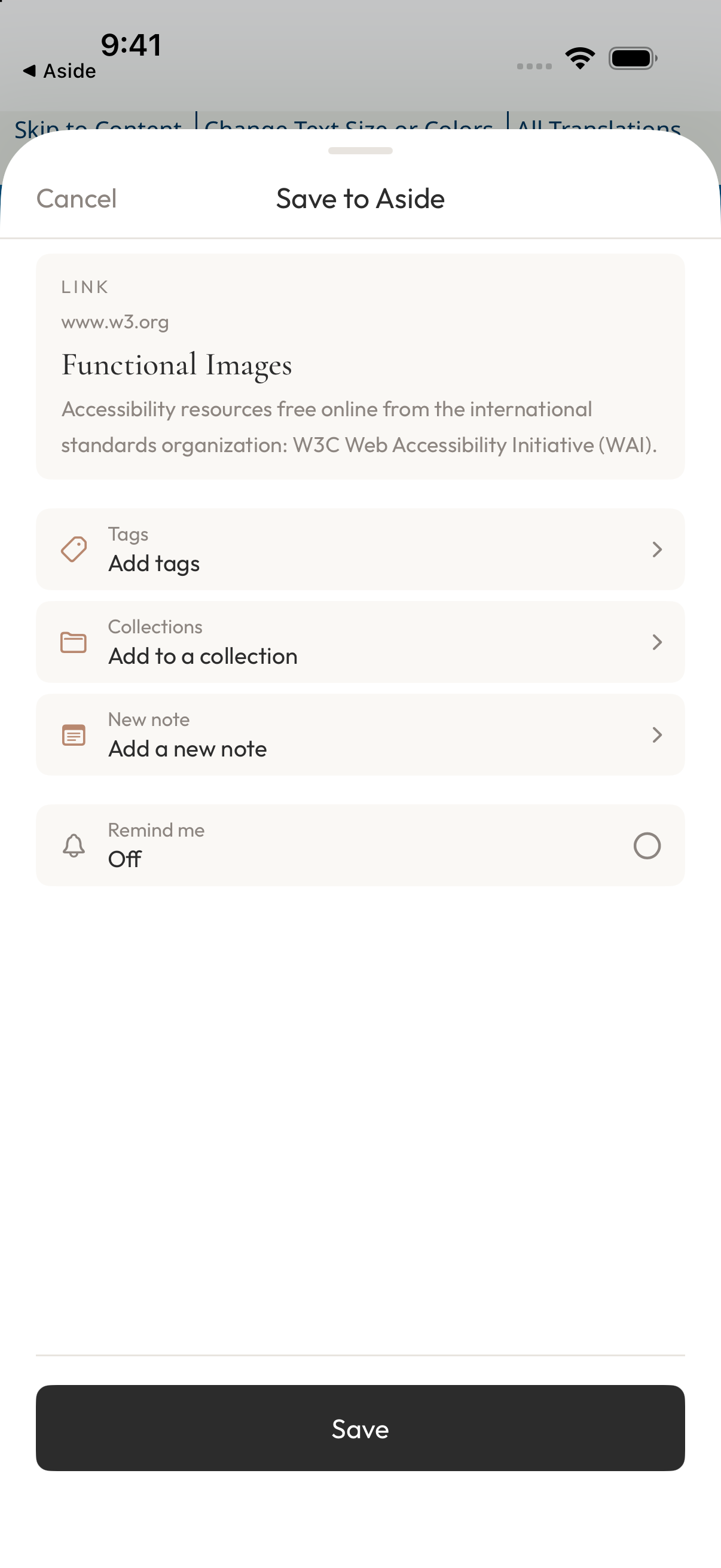
W3C's guidance on functional images adds another condition: when an image is the only content of a link, its text alternative should express the link's purpose. Use the same Safari sharing steps to save this page in Aside too.
Then return to Aside’s home screen and tap + to open Quick Capture.
Write your own next step: “Image alt text: working decision. Establish what the image does on this page before choosing a description or a link purpose.” Below it, add: “To check: whether the link already has text; what a screen reader actually announces.” Tap the checkmark at the top right to save.
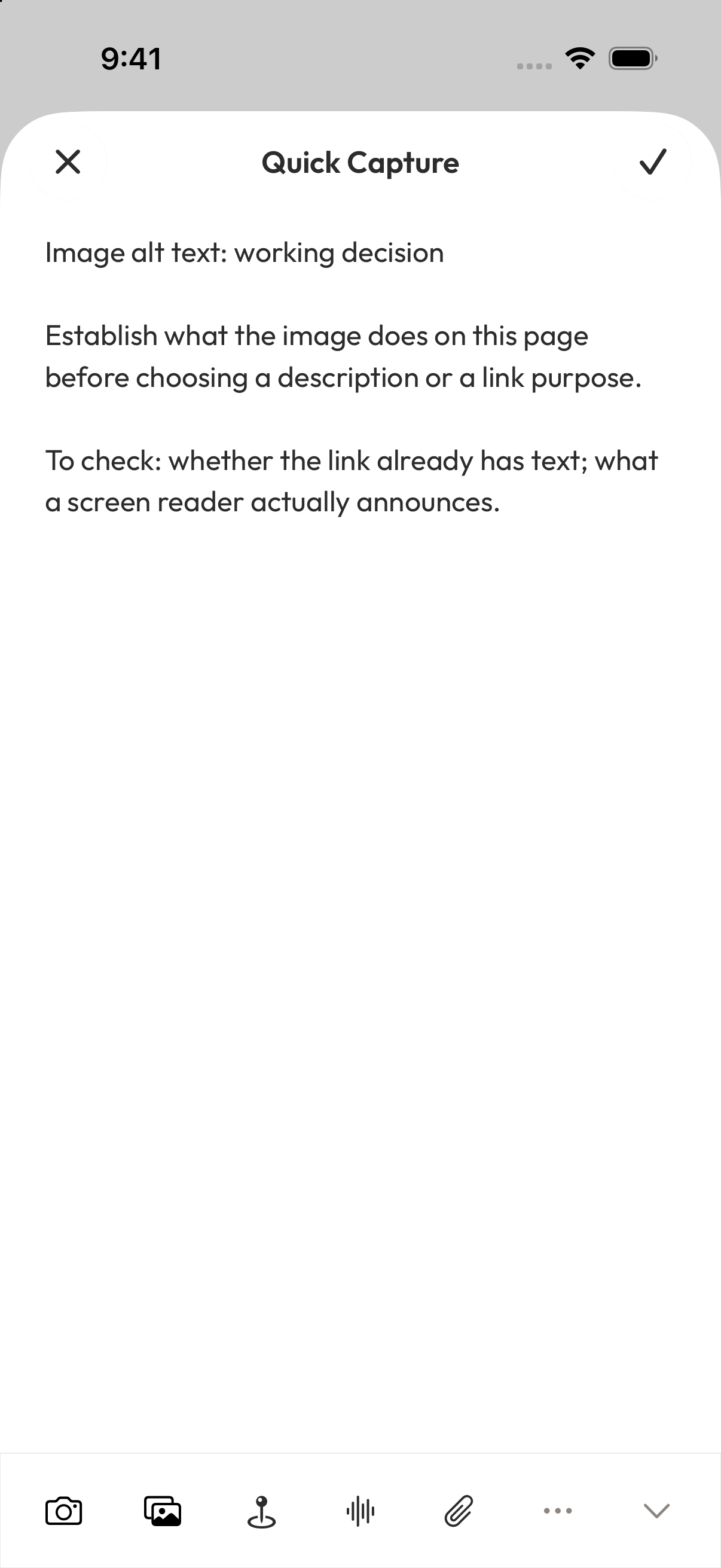
Keeping this decision in a separate entry makes it easier to distinguish the source's advice from your proposed use of it. “Working decision” and “To check” are simply words you put in the note.
Pick up where you left off
Create a collection for this question. Open Organize, tap the folder icon with a + at the top right, and choose Create a collection and start. Enter “Web Image Research,” then tap Create collection and start.
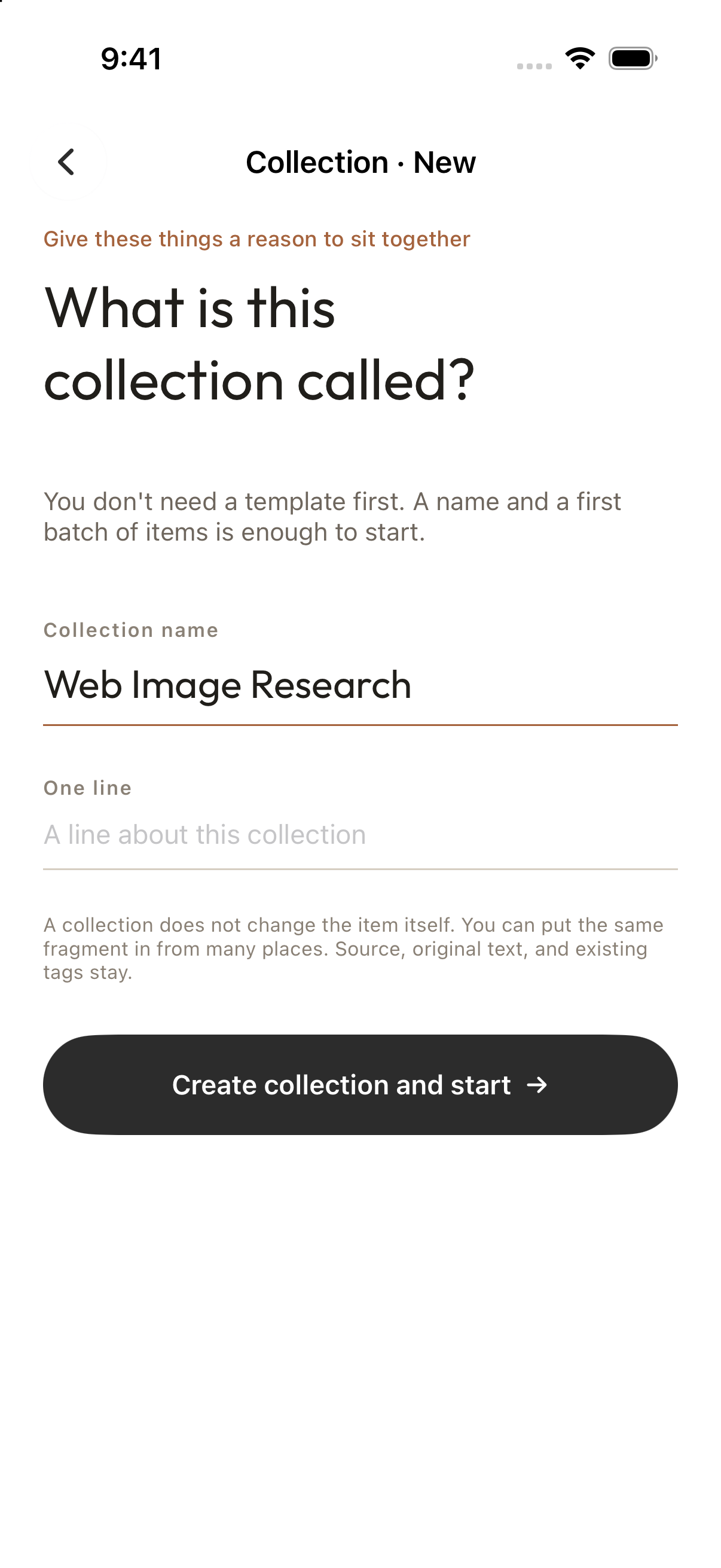
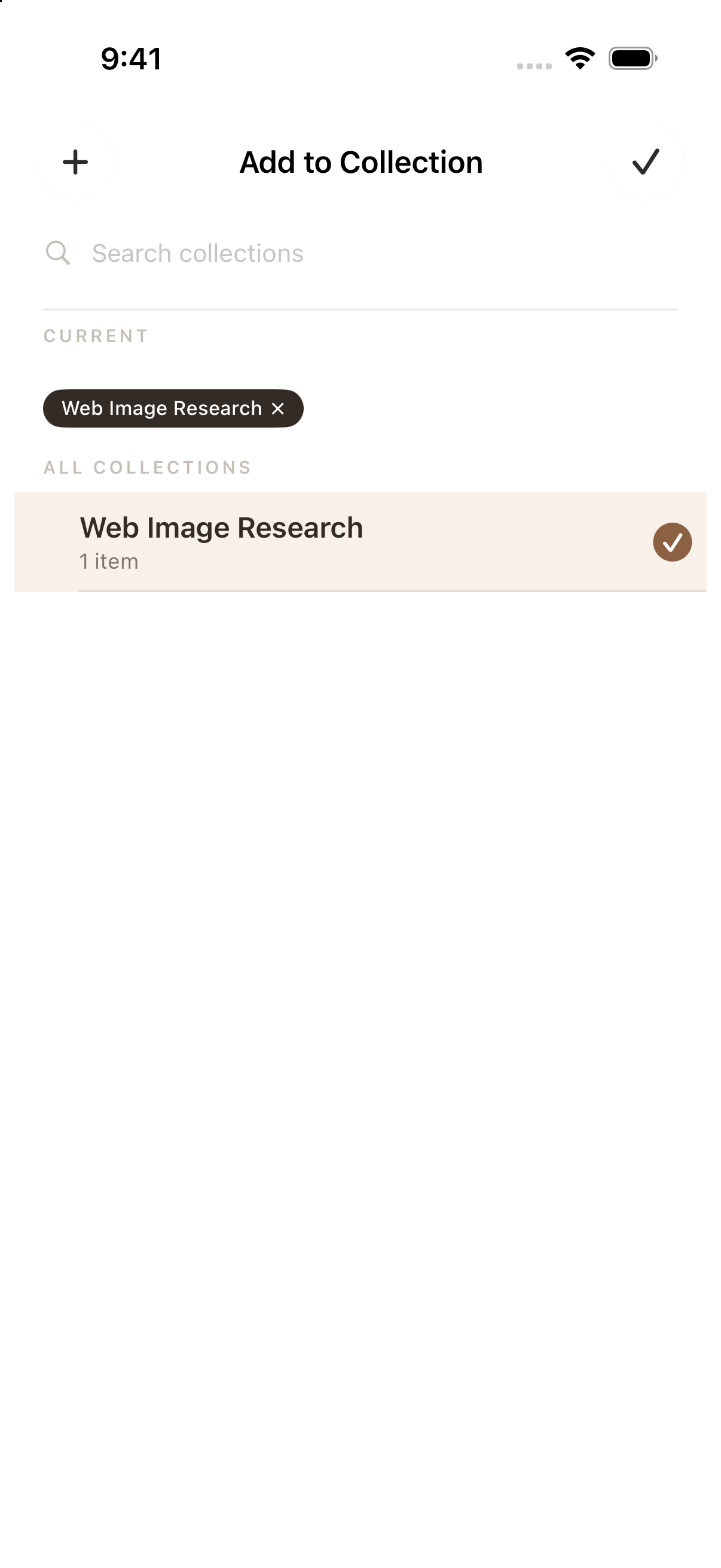
Tap the upper-left back button, then Home in the bottom bar. Use the … menu at the bottom right of each of the two source cards and your quick note, choose Add to Collection, and select Web Image Research. Tap the upper-right checkmark to return.
Open the collection from Organize to revisit both sources and your own working decision.
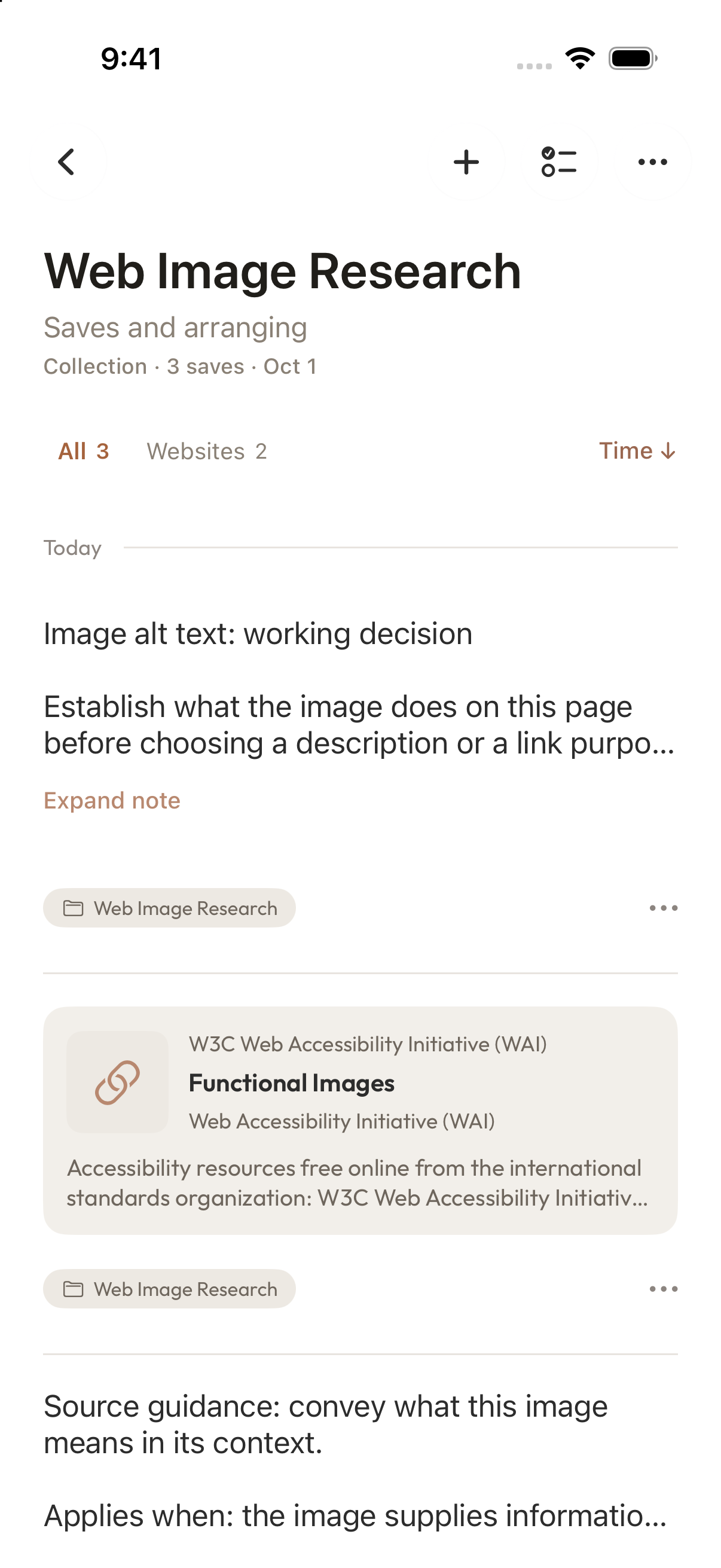
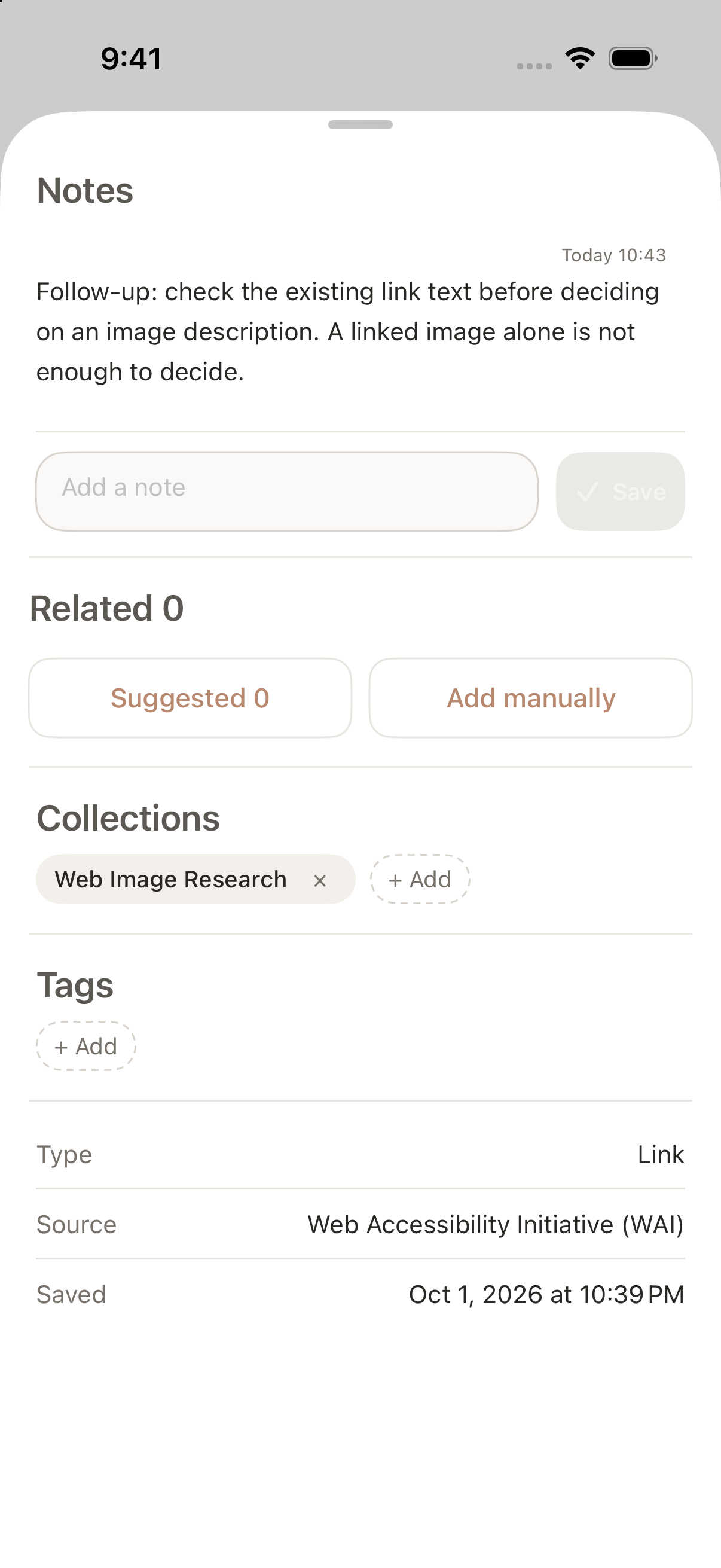
When you find something new, open the saved functional-image guidance from the collection. Tap its notes bar, enter another note in Add a note, and tap Save. On rereading the functional-image guidance, for example, you might notice that sufficient text already in the link can make an additional description redundant. Record: “Follow-up: check the existing link text before deciding on an image description. A linked image alone is not enough to decide.” This is a finding you enter yourself.
After checking the actual page, add the result. Until then, keep the questions open. The next time you open Aside, you'll have the source and a record of where your thinking stopped.
Start with a question you're already researching. Download Aside on the App Store, or visit the Aside product page to learn more.
Sources
- W3C Web Accessibility Initiative (WAI), Informative Images.
- W3C Web Accessibility Initiative (WAI), Functional Images.
このページに関わるもの
製品
-
Aside
active
気になるものを集めて、コレクションで振り返る。