Share Your Picks as an Aside Collection
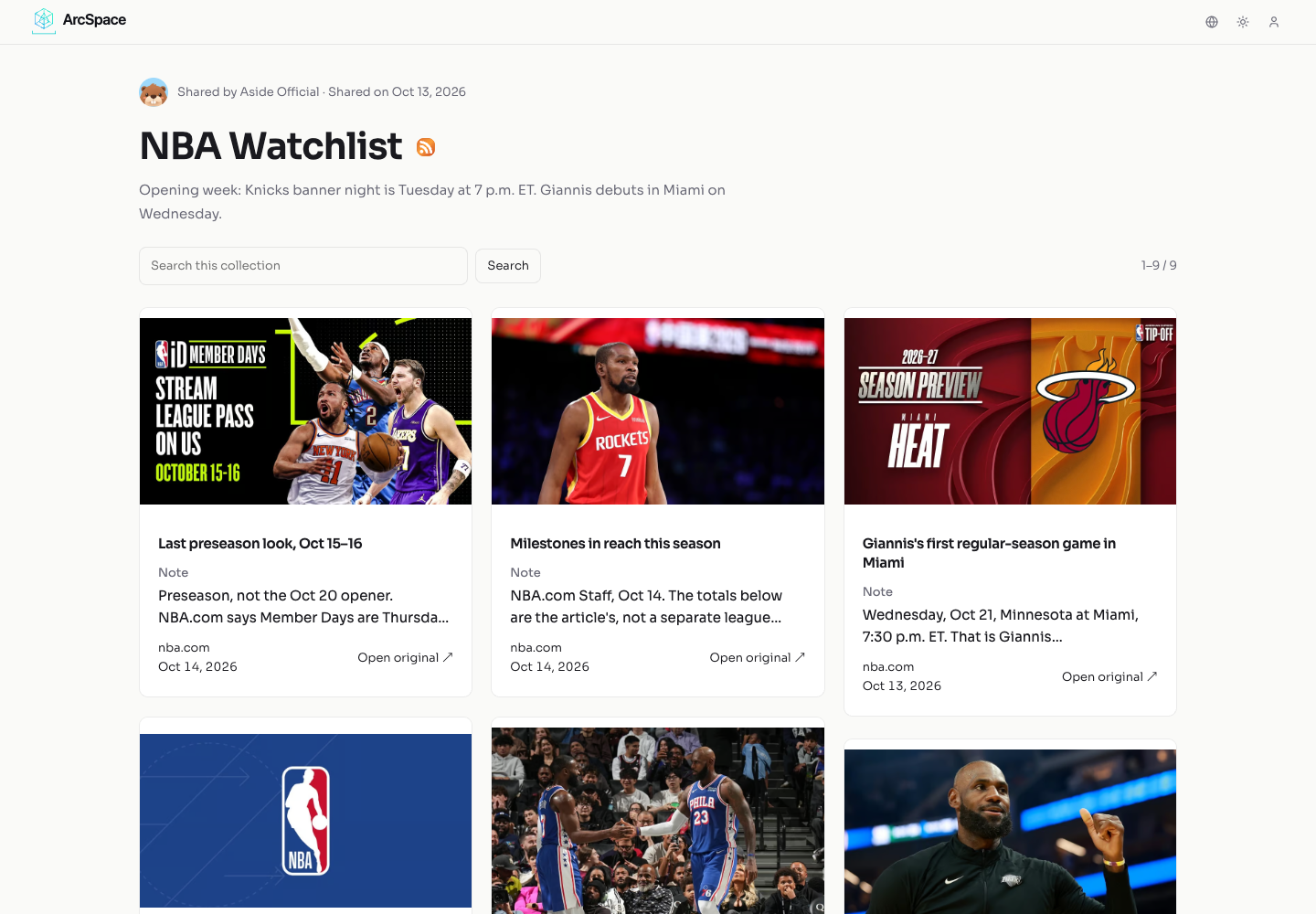
Open this NBA Watchlist and take a look. Alongside selected NBA.com sources, a text entry introduces the reading material, and notes on individual items explain the choices. You can browse it without an account or the Aside app.
That act of choosing is what makes a collection worth sending to someone. You have read through some material, kept a few pieces, and added what caught your attention. The person opening your link gets a place to start and a sense of why you sent it.
Aside 1.3.0 lets you publish a collection as a page you can share. Sign in, sync the collection you want to share to Arc Space, and publish it to get a link. The things you have been gathering can now become something useful to someone else.
Start with the person who will open it
Before choosing what goes into a shared collection, think about who it is for.
Suppose a friend is spending a weekend in a city you know well. It is their first visit. You may have saved plenty of travel guides, but only a few fit this trip: a neighborhood overview for a short stay, perhaps, and a useful reference for planning a route. Put those in a collection and add a note such as, “Start here to work out which area you'd like to stay in.” Your friend has a practical first step.
For someone who has visited several times, you would probably choose different material. Your knowledge of the place and your knowledge of that person both shape the recommendation.
The same applies to a reading list. Suppose a colleague is getting into a subject you have spent time researching. Handing over all your references may still leave them asking which one to read first. Instead, pick a small set from your saves and explain what each is good for: one introduces the concepts; another has examples relevant to their work. If a piece assumes more background, mention that in your note.
A specific reason also leaves room for the reader to decide. “A good place to start if this subject is new to you” says more about who a piece is for than “must-read.” They can decide whether it is useful now or worth keeping for later.
A sentence or two can do the job. Explain the question a source helps answer, or why you kept it, and someone can open the original with a purpose. The introductory text and item notes in NBA Watchlist show this approach in practice: the sources provide the material, and the editor explains the selection.
The useful extra work happens before you share: deciding what belongs in this collection for this person. Even a short list can be enough when it answers a specific need.
A link they can come back to
You will keep finding things after sending the first recommendation.
Imagine finding another useful route reference for your friend's trip. Add it to the same published collection and let it sync. It will appear on the existing page, without publishing again or sending a different link. When your friend returns to the page before leaving, the addition will be there.
A reading collection can grow in the same way. The recipient keeps one place to check when they need it, and you add material at your own pace. You can share something useful now and keep working on it afterward.
Publish your first collection
Sign in to Aside. Then select Arc Space under Account > Storage. Arc Space is your personal space for storing and syncing this content.
To make a collection, open Organize, tap the folder-plus button in the upper right, choose Create a collection and start, enter a name, and create it. Back on Home, open an item's “…” menu, choose Add to Collection, select your new collection, and tap the upper-right checkmark. Add your recommendation in the notes area at the bottom of each item's detail view: expand it, write your reason, and save; this writing-material walkthrough covers saving a webpage and adding a note in full.
If you want to use your existing Local Library, tap the merge icon in the upper right of Storage, review the counts of items, collections, and tags to be added, and confirm Add to Arc Space. This adds the local library’s contents to your space as a whole and keeps the local copies on your device; signing in does not move them automatically. New users can create a collection directly in Arc Space.
Once the collection is ready and has finished syncing, choose Publish collection from its actions menu to publish it.
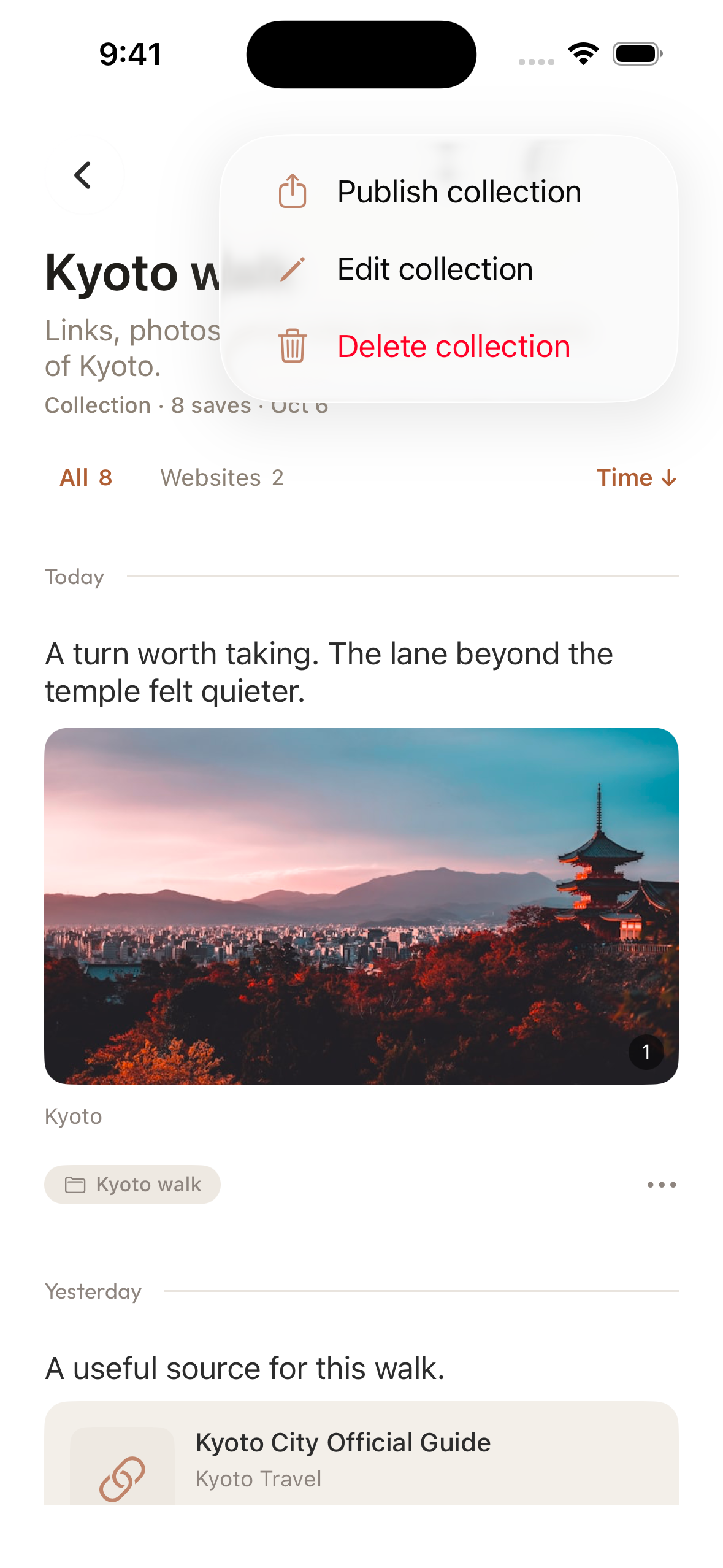
After publishing, use Preview on the management page to check the result. Once you have checked it, choose Copy Link or Share to pass it along. Recipients need only a browser; they do not need to sign in.
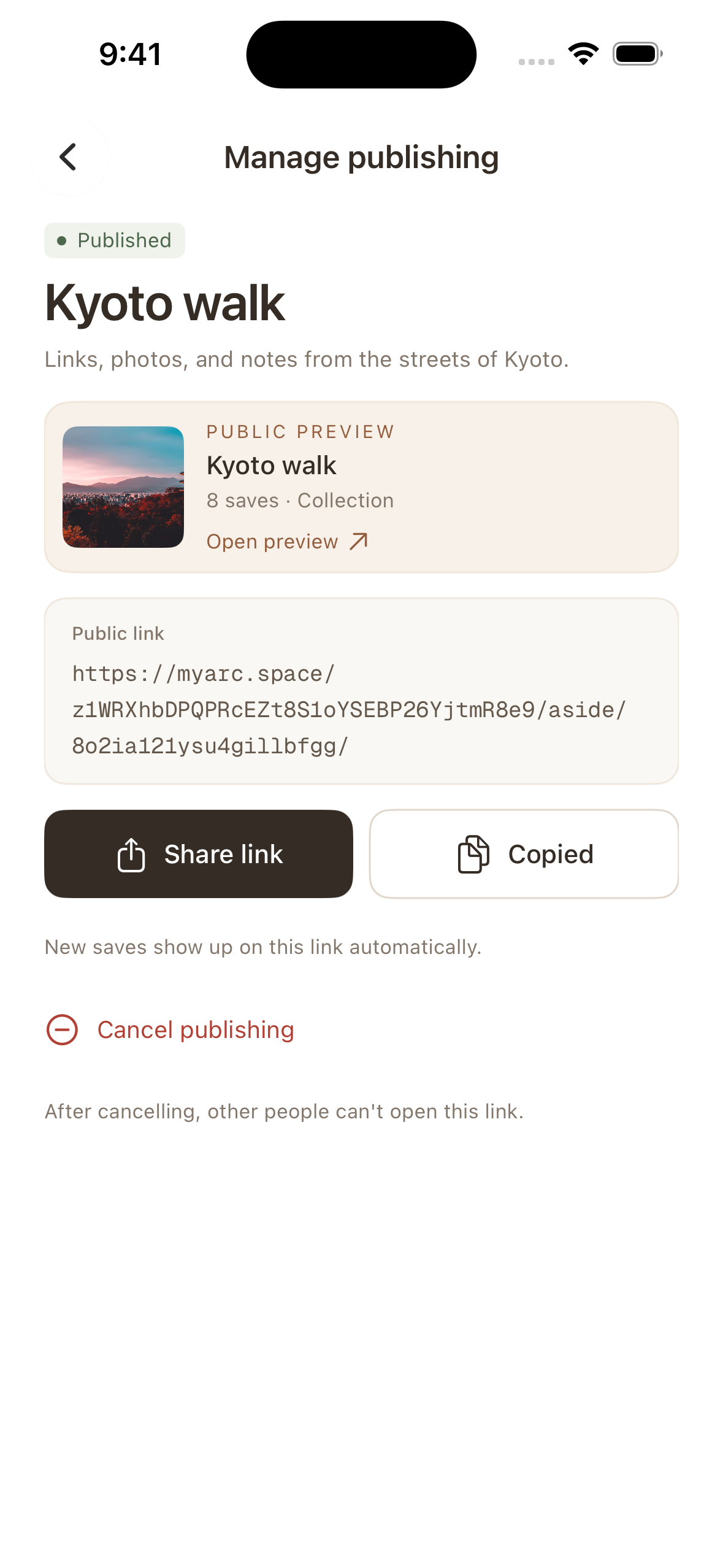
Take a look from the other side of the link
Published collections are unlisted: anyone with the link can open them and pass the link on. They work well for recommendations you are comfortable showing to others. Keep material that needs access restricted to specific people elsewhere.
Notes on published items appear alongside the shared content. Before publishing, check for anything you wrote just for yourself, then use the preview after publishing to verify the result. Use the same judgment when adding to an already published collection. If it contains attachments such as videos or PDFs, use the preview to check what a recipient can actually view; availability depends on the space's attachment support.
Signing in or saving something does not publish your other material. You can also keep collecting locally without signing in. If you want to close a published page, you can unpublish the collection. That closes the page, but cannot take back content someone has already saved.
Start with a subject you would happily recommend to a friend. Choose what you want them to read, add a few words about why, and send the link. When they open it, the care you put into choosing should come through.
Get Aside on the App Store, or visit the Aside product page to learn more.