Saved Eight Weekend Spots All Week? Leave One Instruction Before You Head Out
Saving a pour-over bar on Tuesday, a small photo exhibition on Wednesday, and a sourdough bakery on Friday is easy. The hard part arrives on Saturday at 2 PM when you are already on the sidewalk, and the last thing you want to do is reopen eight saved posts one by one to check addresses and opening hours.
In Aside 1.5.0 for iOS (now on the App Store), you do not have to dig through your saves before heading out. Open Instructions from the top right of Home, connect your iPhone library with your Personal Agent through Arc Space, and ask it to suggest an afternoon route based on the addresses and opening-hour notes in your saves.
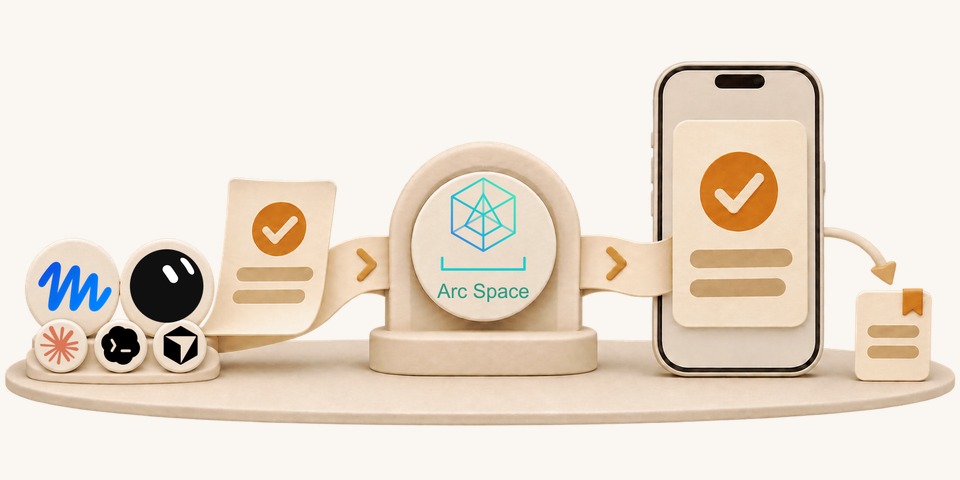
Inside the First-Time “Instructions” Empty State: How the 4 Steps Work
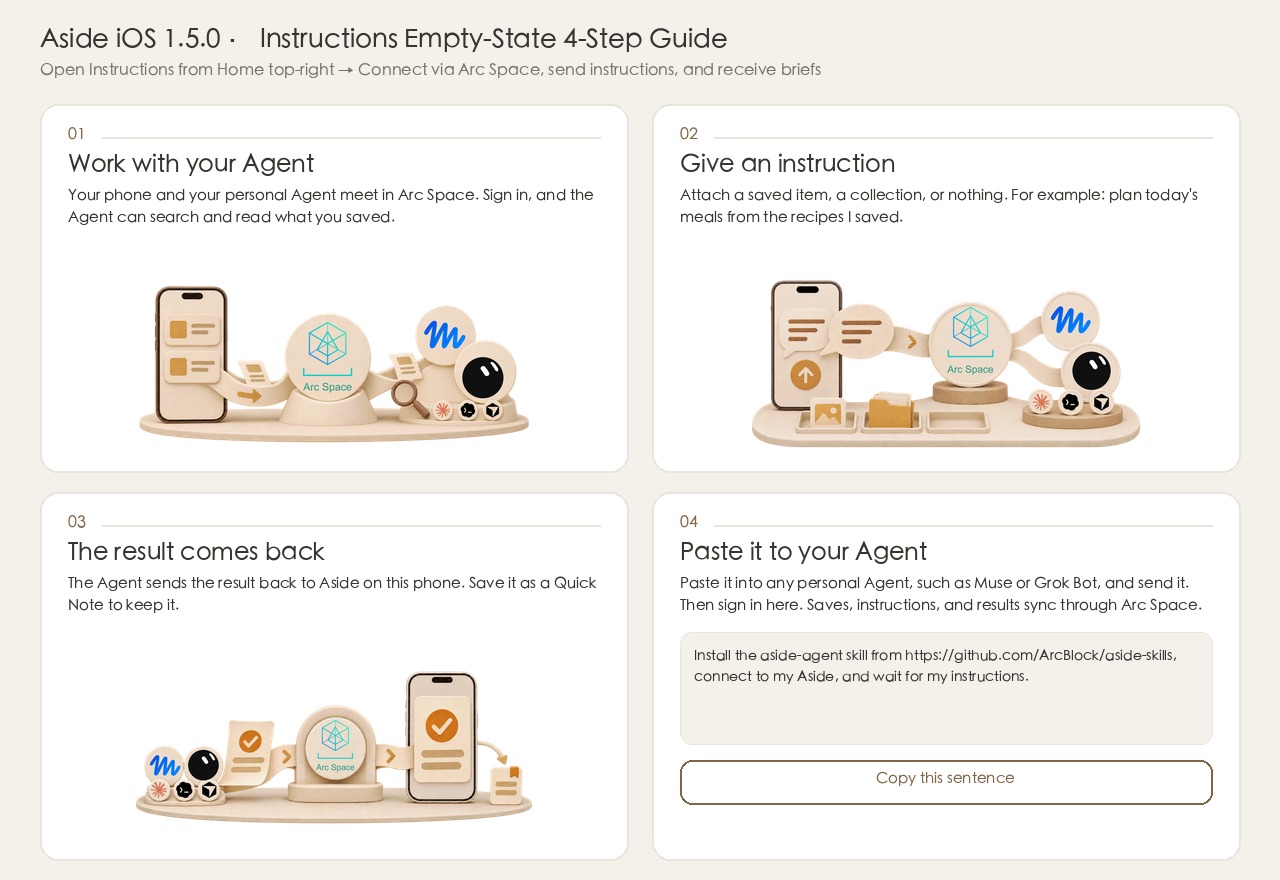
When you open Instructions from the top right of Home for the first time, the empty-state guide walks through how your phone and your Personal Agent collaborate in four clear steps:
01 · Work with your Agent: Connected via Arc Space
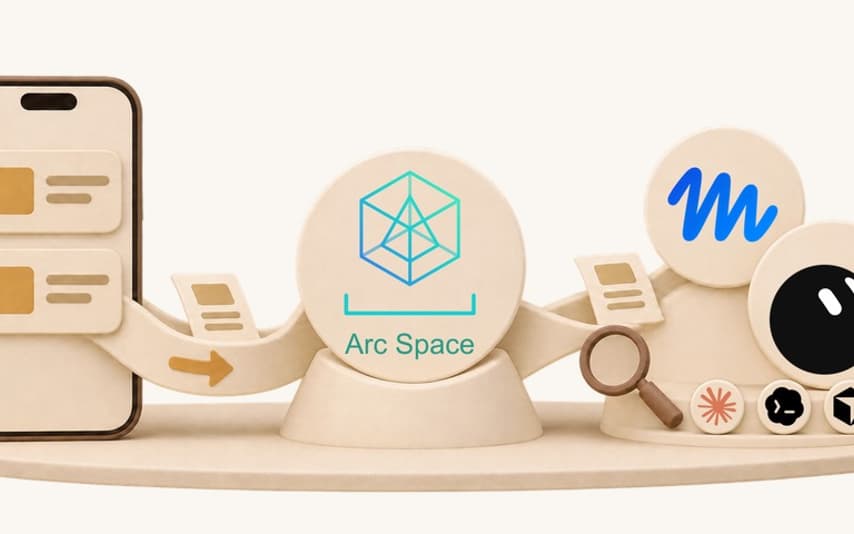
Arc Space syncs saves, instructions, and briefs under the same Aside account, so your phone and Personal Agent can work from the same materials. For your first connection, install the skill and authorize access in Step 04. Once connected, the Agent can search and read your saves and notes.
02 · Give an instruction: Attach a Saved Item, a Collection, or Nothing
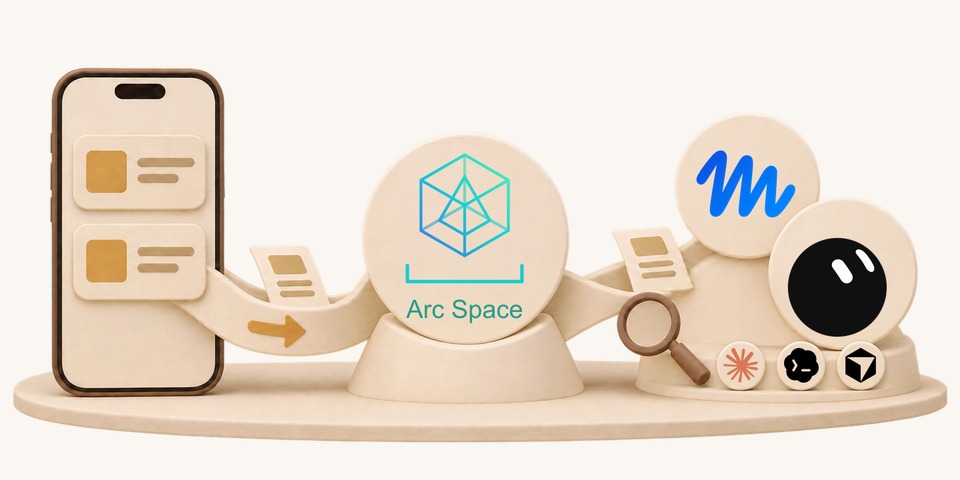
Open a saved item or collection, choose Instruction from its More menu, enter your request, and tap Send. The item or collection travels with the request. For a request without an attachment, start a New instruction from the Instructions page.
03 · The result comes back: Read the Brief and Save as a Quick Note
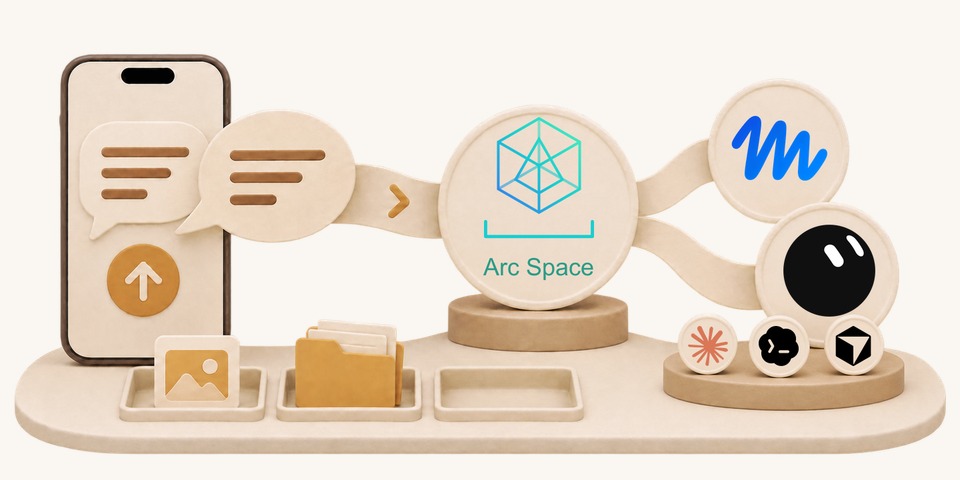
Once your Personal Agent finishes organizing, it sends the structured Brief back to Aside on your iPhone through Arc Space. A Brief can include links to the saves it used, and tapping Save as Quick Note keeps the result as a note you can edit later.
04 · Paste it to your Agent: One Sentence to Connect
To connect for the first time, tap “Copy this sentence” on Step 04 of the Instructions empty state then open the chat window of your separate Personal Agent, such as Grok Bot, and paste and send this prompt:
Install the aside-agent skill from https://github.com/ArcBlock/aside-skills, connect to my Aside, and wait for my instructions.
Follow the Agent’s prompt to open the Aside authorization page and approve access with the same Aside account used on your iPhone. Wait for the Agent to confirm authorization and scheduled checks before sending an instruction. Requests are handled on that schedule, and results sync back afterward. With Grok, keep that session open for the checks to run every 10 minutes. The task expires after about seven days; send the connection prompt again when it expires.
What to Ask Before a Weekend Walk
Once connected, you can use your saves to plan an afternoon. Here is an example of what to collect and what to ask:
- Save spots all week with quick notes: Drop cafes, galleries, and bakeries into your “Weekend Spots” collection whenever they catch your eye, and jot down a short note such as “Opens Saturday at 2 PM” or “5-minute walk from the gallery.”
- Leave one instruction before heading out: On Saturday afternoon, open your “Weekend Spots” collection, choose Instruction from More, enter your conditions, and tap Send:
Heading out Saturday at 2 PM for pour-over coffee and a small exhibition. Pick 3 walkable spots from my saves and include the opening-hour notes I wrote. If information is missing, tell me what you need first.
- Read the returned Brief and its sources: Open Instructions at the top right of Home to read the returned Brief.
Check the sources attached under Saved items used at the bottom of the Brief. Open a cited save to revisit the hours or booking details in the original post, and check the venue’s latest arrangements before you leave. Want to keep the route handy while walking? Save the Brief as a Quick Note in one tap.