Getting Started
This guide provides a direct, step-by-step procedure for installing AIGNE DocSmith and generating your first set of documents. The process is designed to be completed in a few minutes, enabling you to produce documents from your project files with minimal setup.
The following diagram illustrates the key steps from installation to creation:
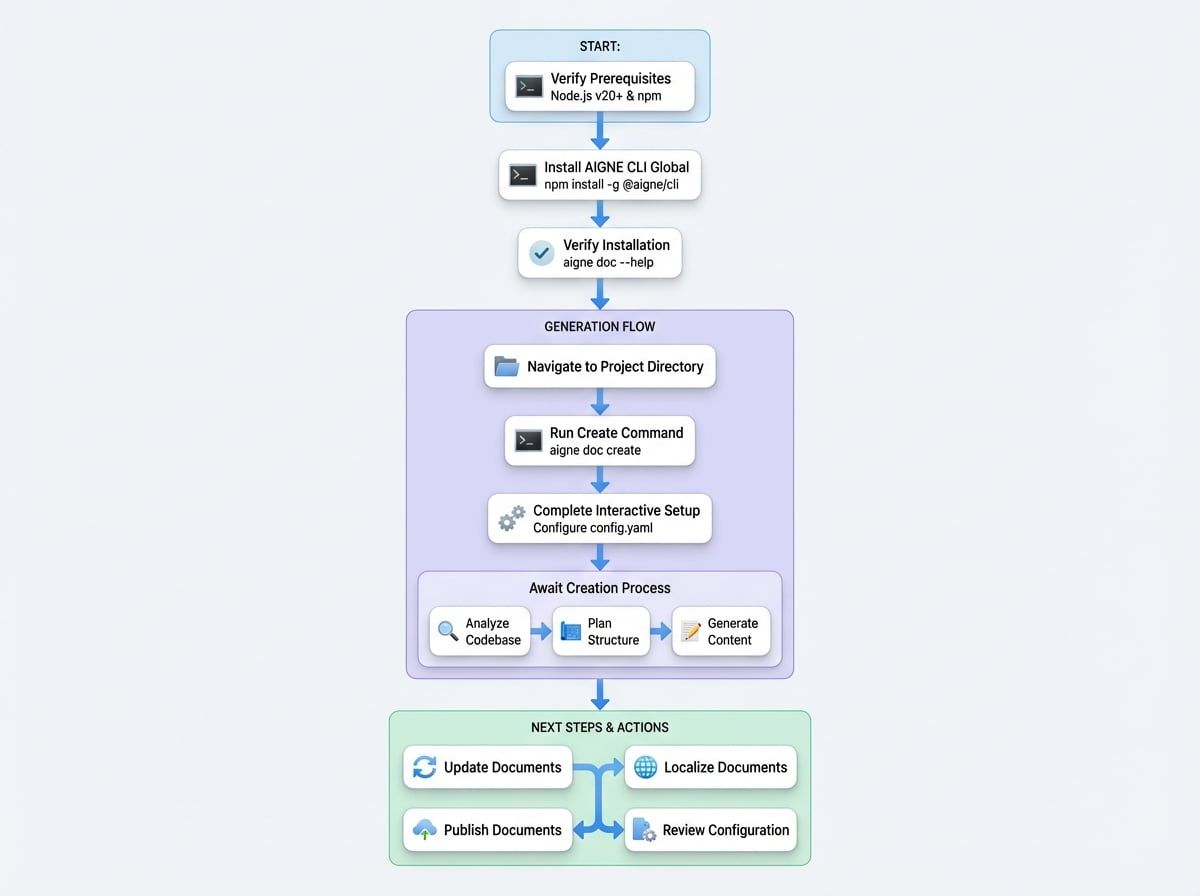
Prerequisites#
Before proceeding with the installation, ensure your system meets the following requirement:
- Node.js: Version 20 or newer is required. AIGNE DocSmith is installed using the Node Package Manager (npm), which is included with the Node.js installation. To install Node.js, visit the official Node.js website and follow the instructions for your operating system. You can verify the installation by opening your terminal and running
node -vandnpm -v.
No API keys are required to begin. By default, DocSmith uses the AIGNE Hub service for AI-powered creation, which provides access to various large language models without direct configuration.
Installation#
The tool is distributed as part of the AIGNE command-line interface (CLI). The installation involves two main steps.
Step 1: Install the AIGNE CLI#
To install the AIGNE CLI globally on your system, execute the following command in your terminal. This makes the aigne command accessible from any directory.
Install AIGNE CLI
npm install -g @aigne/cliStep 2: Verify the Installation#
After the installation is complete, you can confirm its success by running the help command for the documentation tool.
Verify Installation
aigne doc --helpA successful installation will result in a displayed list of available DocSmith commands and their options.
Generating Your First Documents#
Follow these steps to analyze your project and create a complete set of documents.
Step 1: Navigate to Your Project Directory#
Open your terminal and use the cd command to change the current directory to the root of the project you intend to document.
Change Directory
cd /path/to/your/projectStep 2: Run the Create Command#
Execute the create command. This single command initiates the entire document creation process, from project analysis to content creation.
Run Create Command
aigne doc createStep 3: Complete the Interactive Setup#
When you run the create command for the first time in a project, DocSmith launches a one-time interactive setup process. You will be guided through a series of questions to configure preferences for your documents, such as their purpose, target audience, and primary language.

These settings are saved to a config.yaml file located in the .aigne/doc-smith directory, which you can modify manually at any time.
Step 4: Await Creation#
After the setup is complete, DocSmith will automatically perform the following actions:
- Analyze Codebase: Scans your source files to understand the project's structure and logic.
- Plan Structure: Creates a logical outline for the documents, defining sections and topics.
- Generate Content: Writes the documents based on the analysis and your specified configuration.
Upon completion, a confirmation message will be displayed. The created files will be available in the output directory specified during setup, which defaults to .aigne/doc-smith/docs.

What's Next?#
You have now successfully created your first set of documents. The following are common next steps for managing and enhancing your documents: