Every find yourself in these situations?
- Shopping lists cluttering your work tabs while you're trying to focus on a project
- Discovering essential content but only needing a few key paragraphs, not the entire page
- Wanting deeper AI insights but being locked into a single model's perspective
- Needing to chat with AI hands-free on your commute, but forced to type
ArcSphere 1.6 solves these friction points with four powerful updates that make mobile browsing more organized, intelligent, and effortless.
🌐 Multiple Spheres: Organize Work, Life and Everything in Between#
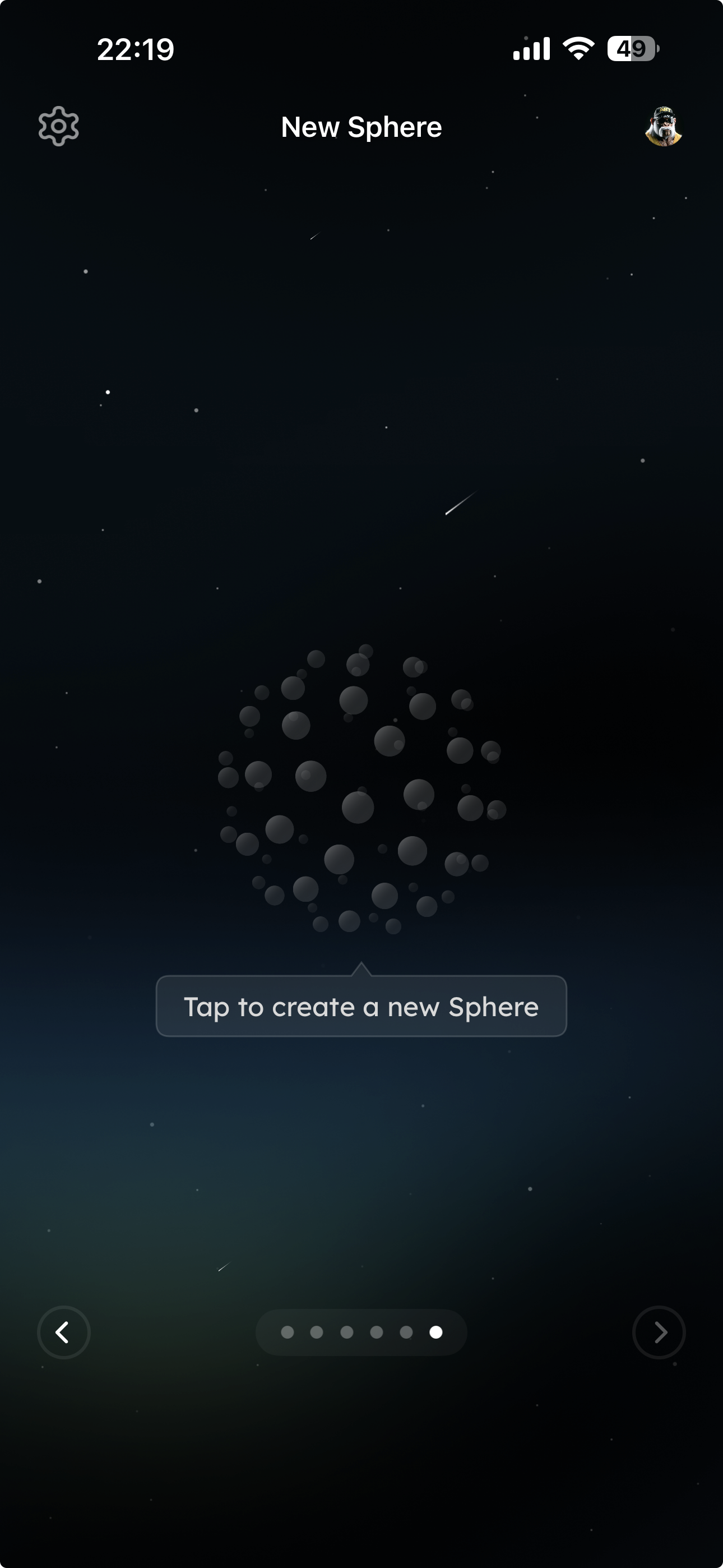
Remember ArcSphere's innovative 8×8 spherical tab layout? Now you can create multiple independent Spheres—each a dedicated workspace for different parts of your life.
Why Multiple Spheres Matter?#
Think of Spheres as rooms in your digital house:
- Work Sphere: Project docs, competitive research, team collaboration pages
- Learning Sphere: Technical articles, online courses, study materials
- Shopping Sphere: Product comparisons across sites—separate from everything else
- Life Sphere: Restaurant finds, travel plans, fitness tracking
Each Sphere maintains its own tabs and AI chat history. When discussing product strategy with AI in your Work Sphere, switching to Shopping Sphere automatically shifts context—AI won't confuse your quarterly goals with your grocery list.
How to Use?#
- In the Sphere view, tap to create a new Sphere
- Name it ("Weekend Reading," "Q1 Projects," etc.)
- Start browsing in your new dedicated space
Switching between Spheres is seamless—swipe to navigate, and each space preserves exactly where you left off.📝 Save Selected Content as Notes: Ideal for "Fragmented" Reading
📝 Save Selected Content as Notes: Capture What Matters#
Traditional bookmarks save entire pages. But often you only need a few crucial paragraphs from a lengthy article.
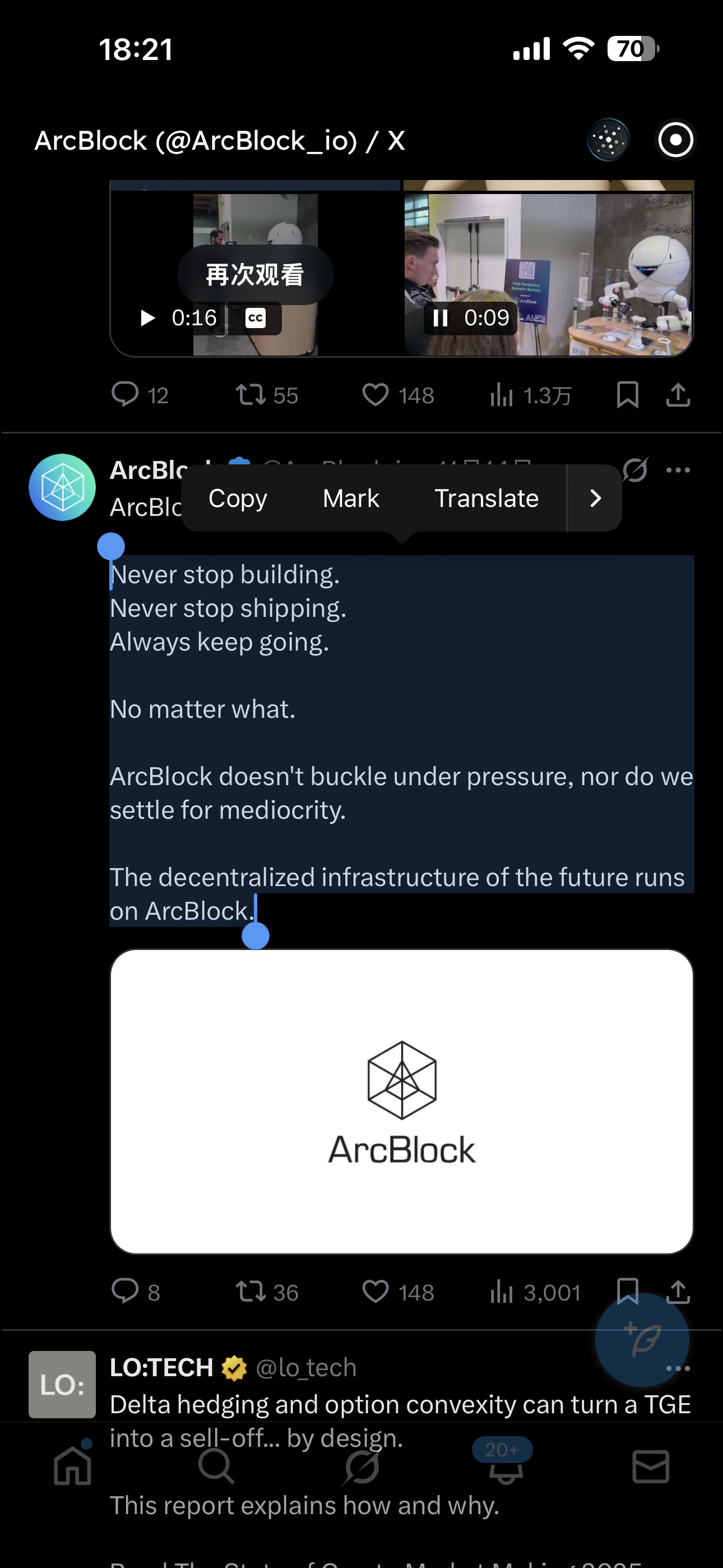
Now, select any web content and save it as a Note in one tap.
Real-World Use Cases#
Scenario 1: Learning New Skills
You're reading a React Hooks tutorial and find an excellent code example—select and save as a Note. Continue to another article, discover a useful best practice—save again. Finally, add all these Notes to AI Chat and have AI summarize key points, generate study materials, or create a practice quiz.
Scenario 2: Product Research
Comparing three laptops across review sites? Every time you spot key specs (processor, battery, display), select and save as a Note. Then ask AI to generate a comparison table from your Notes—everything organized instantly.
How to Use?#
- Long-press to select the text you need on any webpage
- Tap "Mark" in the popup menu
- Content saves automatically for reference in AI Chat anytime
This transforms scattered reading into systematic knowledge building—shifting from passive browsing to active information curation.
🤖 AI Model Switching: The Right AI for Every Task#
Different tasks require different AI capabilities:
- Quick answers? Use a lighter,faster model
- Deep analysis? Use a more powerful reasoning
- Creative writing? Some models excel at literary expression
ArcSphere 1.6, you can freely switch between different LLM models in AI Chat, letting every task find its perfect AI partner.

How to Use?#
- Open the AI Chat interface
- Tap the model selector at the bottom of the input box
- Choose a model based on your needs (like GPT-4, Gemini, etc.)
- Start the conversation
After switching models, your conversation history is preserved, but AI will continue engaging with you from the new model's "perspective." You can even try asking different models the same question and compare their answers to find the optimal solution.
🎙️ AI Chat Voice Input: Hands-Free Everywhere#
On the subway, while walking, or when you simply don't want to type—voice input is your solution.
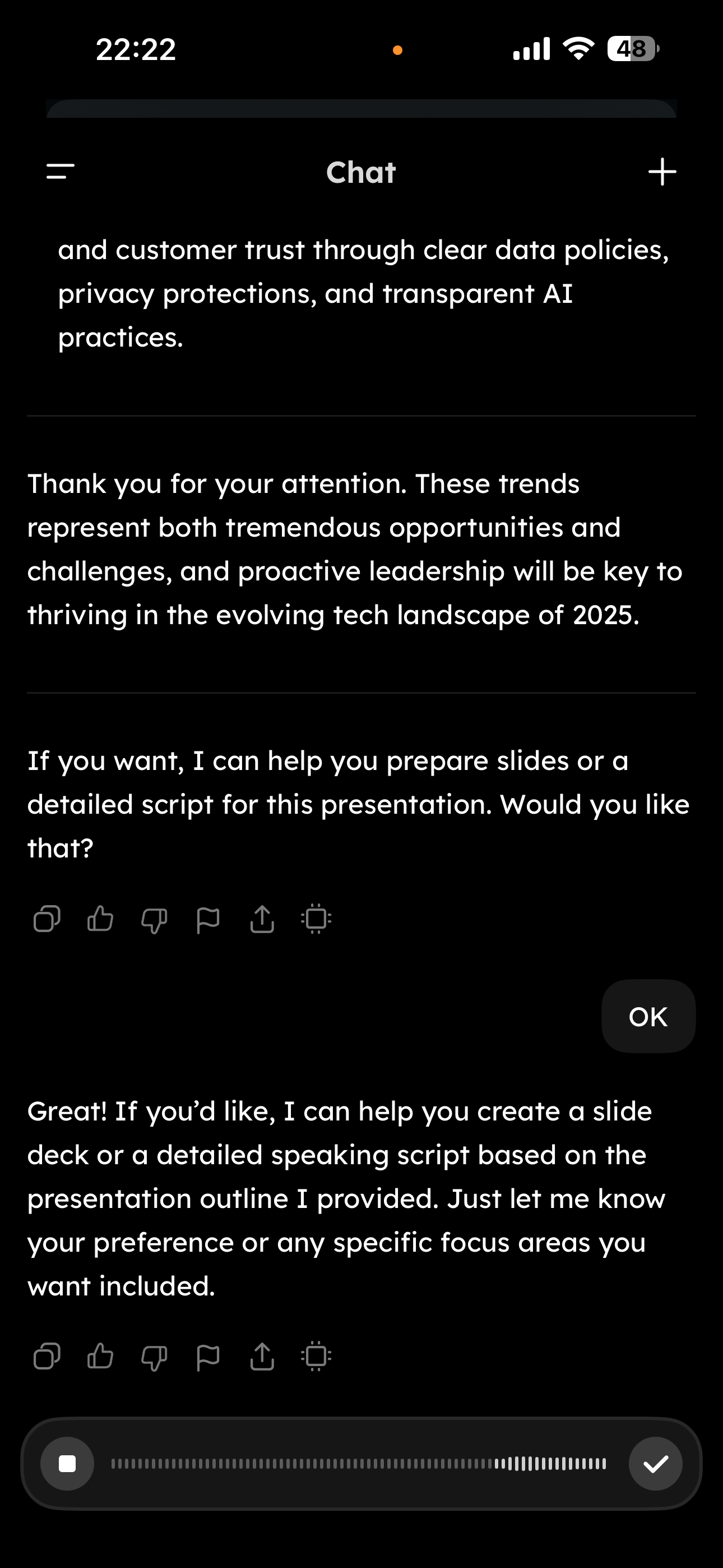
ArcSphere 1.6 adds voice input (dictation mode) to AI Chat, letting you:
- Speak naturally and have it transcribed instantly to text
- Get accurate recognition even in noisy environments
- Mix languages seamlessly without switching modes
Practical Use Cases#
Capturing Ideas During Morning Runs
Great idea strikes mid-jog but stopping to type would break your flow? Open ArcSphere and tell AI: "Record this idea: location-based book club app where nearby readers can discuss the same book together..." AI captures your thoughts and can even suggest refinements.
Information Synthesis During Commutes
On the bus with several news tabs open? Tap voice input and say: "Summarize the core content of these pages in three bullet points." AI delivers a concise overview immediately.
How to Use?#
- In the AI Chat input box, tap the microphone icon
- Start speaking (real-time transcription appears)
- Tap send when done
🚀 Update Now and Start Your New Journey of Exploration#
ArcSphere 1.6 is now available on the App Store and Google Play:
- iOS users: App Store, search for "ArcSphere" and update
- Android users: Google Play, search for "ArcSphere" and update
If you haven't used ArcSphere yet, now is the perfect time:
💬 We Want to Hear from You#
ArcSphere is more than a browser, t's our laboratory for exploring mobile AI interaction together with you. Every piece of feedback, every use case you share, helps us build something better.
Feel free to contact us through:
- Email at support@arcblock.io
- Share your experience on social media (remember to @ArcBlock_io)
ArcSphere—not just a browser, but your AI Navigator through the information universe.